
Import Certifications
Certifications can be imported in bulk into KAStrack from a CSV file.
To import certifications, open the Certifications Page in the People Module from the Main Menu to display the Certifications Table. Click the three dot (…) icon to the right of the header to open a context menu and select “Import Certifications”.
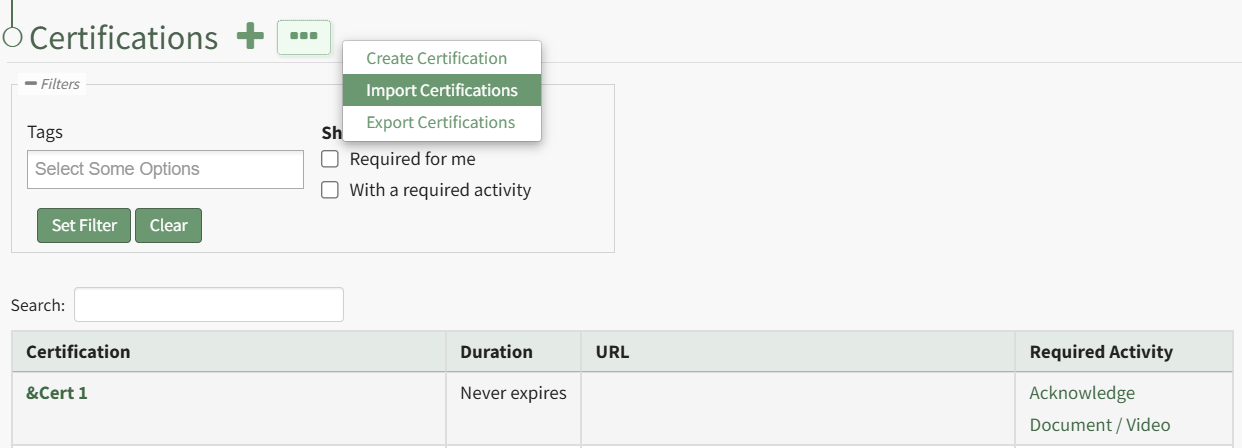
This opens the Import Certifications Page. A template is provided to simplify importing.
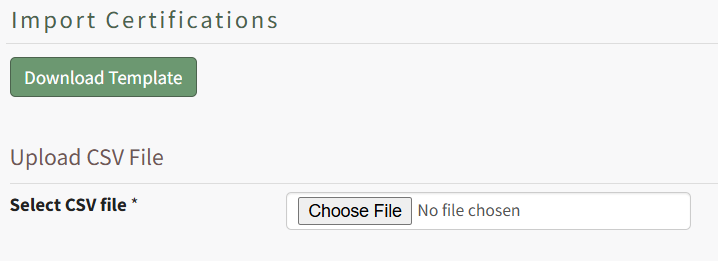
Click the “Download Template” button to download the Certifications Template CSV to your device.
If you'd like to modify existing Certifications in bulk using Certification Import, in contrast or in addition to using Certification Import to create new Certifications, you can first export all Certifications from KAStrack to a CSV file and work off of that file. Read more here.
When ready, open the downloaded file (or create a new CSV file, if desired) in your favorite text editor / spreadsheet software (e.g. Excel, Sheets, etc.).
When preparing a CSV file for import, the following fields must be included in the first row of the file, each in their own cell, acting as header columns. Information for the Certification(s) will be listed on subsequent rows beneath each column header. All column headers must be included even if they don't apply to all Certifications being imported.
Some of these fields require meeting certain criteria when filling them out for KAStrack to import the Certification properly. The fields and supplemental information are outlined below:
Column Header | Information |
Certification ID | To create a new Certification, leave this blank. On import and creation, KAStrack will assign the Certification a unique ID. To find out an existing Certification's ID, you can export all Certifications, or find it in the URL when viewing the Certification's page after clicking its name from the Certification's table. Listing an ID in the import, paired with the matching Certification's name, allows you to update information about that Certification through the import process. The ID will be a whole integer. |
Name | This is a required field. Cannot have the same name as another Certification in KAStrack. Cannot contain the characters ;<>\/ |
Information | Any text or none at all, used to describe the Certification. |
External URL | Optionally include a URL to a webpage that can be used to help guide the person submitting the Certification or provide them with important information. |
Cost of Training | Optionally include a decimal value if this Certification has an associated cost. |
Time to Complete | Optionally include a decimal value if this Certification takes a certain amount of time to complete that you'd like to keep track of. |
Time to Complete Period | Coupled with the field above to give a unit of time for the Time to Complete. Must be Hours, Days, Weeks, Months, Years, or None. |
Certification Expires | Must be (case-insensitive) Yes, Y, On, True, or 1 for affirmative, or (blank), No, N, Off, False, or 0 for negative. |
Duration | Must be a positive integer. |
Duration Period | Coupled with the field above to give a unit of time for the Duration. Must be Days, Weeks, Months, Years, or None. |
Extend Duration | Must be Month, Year, or None. |
Due | Must be a positive integer. |
Due Period | Coupled with the field above to give a unit of time for when the Certification will become Due. Must be Days, Weeks, Months, Years, or None. |
Overdue | Must be a positive integer. |
Overdue Period | Coupled with the field above to give a unit of time for when the Certification will become Overdue. Must be Days, Weeks, Months, or None. |
Refresher Training | Must be (case-insensitive) Yes, Y, On, True, or 1 for affirmative, or (blank), No, N, Off, False, or 0 for negative. |
Refresher Cost of Training | Optionally include a decimal value if this Certification's Refresher Training has an associated cost. |
Refresher Time to Complete | Optionally include a decimal value if this Certification's Refresher Training takes a certain amount of time to complete that you'd like to keep track of. |
Refresher Time to Complete Period | Coupled with the field above to give a unit of time for the Refresher Time to Complete. Must be Hours, Days, Weeks, Months, Years, or None. |
Refresher Duration | Must be a positive integer. |
Refresher Duration Period | Coupled with the field above to give a unit of time for the Refresher Duration. Must be Days, Weeks, Months, Years, or None. |
Refresher Extend Duration | Must be Month, Year, or None. |
Refresher Due | Must be a positive integer. |
Refresher Due Period | Coupled with the field above to give a unit of time for when the Certification's Refresher Training will become Due. Must be Days, Weeks, Months, Years, or None. |
Refresher Overdue | Must be a positive integer. |
Refresher Overdue Period | Coupled with the field above to give a unit of time for when the Certification's Refresher Training will become Overdue. Must be Days, Weeks, Months, or None. |
Hide From Shared Reports | Must be (case-insensitive) Yes, Y, On, True, or 1 for affirmative, or (blank), No, N, Off, False, or 0 for negative. |
Hide From QR Reports | Must be (case-insensitive) Yes, Y, On, True, or 1 for affirmative, or (blank), No, N, Off, False, or 0 for negative. |
Hide From People Module Levels | List the exact name of an existing Access Level(s) that this Certification should be hidden from. If listing multiple Access Levels, separate them with a semicolon. |
Hide Attachments From Shared Reports | Must be (case-insensitive) Yes, Y, On, True, or 1 for affirmative, or (blank), No, N, Off, False, or 0 for negative. |
Hide Attachments From QR Reports | Must be (case-insensitive) Yes, Y, On, True, or 1 for affirmative, or (blank), No, N, Off, False, or 0 for negative. |
Hide Attachments From People Module Levels | List the exact name of an existing Access Level(s) that Attachments for this Certification should be hidden from. If listing multiple Access Levels, separate them with a semicolon. |
Require Attachment | Must be (case-insensitive) Yes, Y, On, True, or 1 for affirmative, or (blank), No, N, Off, False, or 0 for negative. |
Auto Approve User Submissions | Must be (case-insensitive) Yes, Y, On, True, or 1 for affirmative, or (blank), No, N, Off, False, or 0 for negative. |
Auto Approve On Activity Completion | Must be (case-insensitive) Yes, Y, On, True, or 1 for affirmative, or (blank), No, N, Off, False, or 0 for negative. |
Allowed Batch Submission Roles | List the exact name of an existing Certification Role(s) that should have the ability to batch submit this Certification. If listing multiple Certification Roles, separate them with a semicolon. |
Generate Attachment On Approval | Must be (case-insensitive) Yes, Y, On, True, or 1 for affirmative, or (blank), No, N, Off, False, or 0 for negative. |
Generate Attachment On Activity Completion | Must be (case-insensitive) Yes, Y, On, True, or 1 for affirmative, or (blank), No, N, Off, False, or 0 for negative. |
Hide Expiration Date In Generated Attachments | Must be (case-insensitive) Yes, Y, On, True, or 1 for affirmative, or (blank), No, N, Off, False, or 0 for negative. |
Attach Certificates To Notifications | Must be (case-insensitive) Yes, Y, On, True, or 1 for affirmative, or (blank), No, N, Off, False, or 0 for negative. |
Parent Certification (?) | List the exact name of an existing Certification that is the Parent Certification of this Certification. |
Child Certification(s) (?) | List the exact name of an existing Certification(s) that is/are a Child Certification(s) of this Certification. If listing multiple Certifications, separate them with a semicolon. |
Once your file is ready for import, return to KAStrack's Import Certifications page. Click the “Choose File” button to select the CSV file from your device. The page will then update to show all of the expected fields, and a dropdown box to their right.
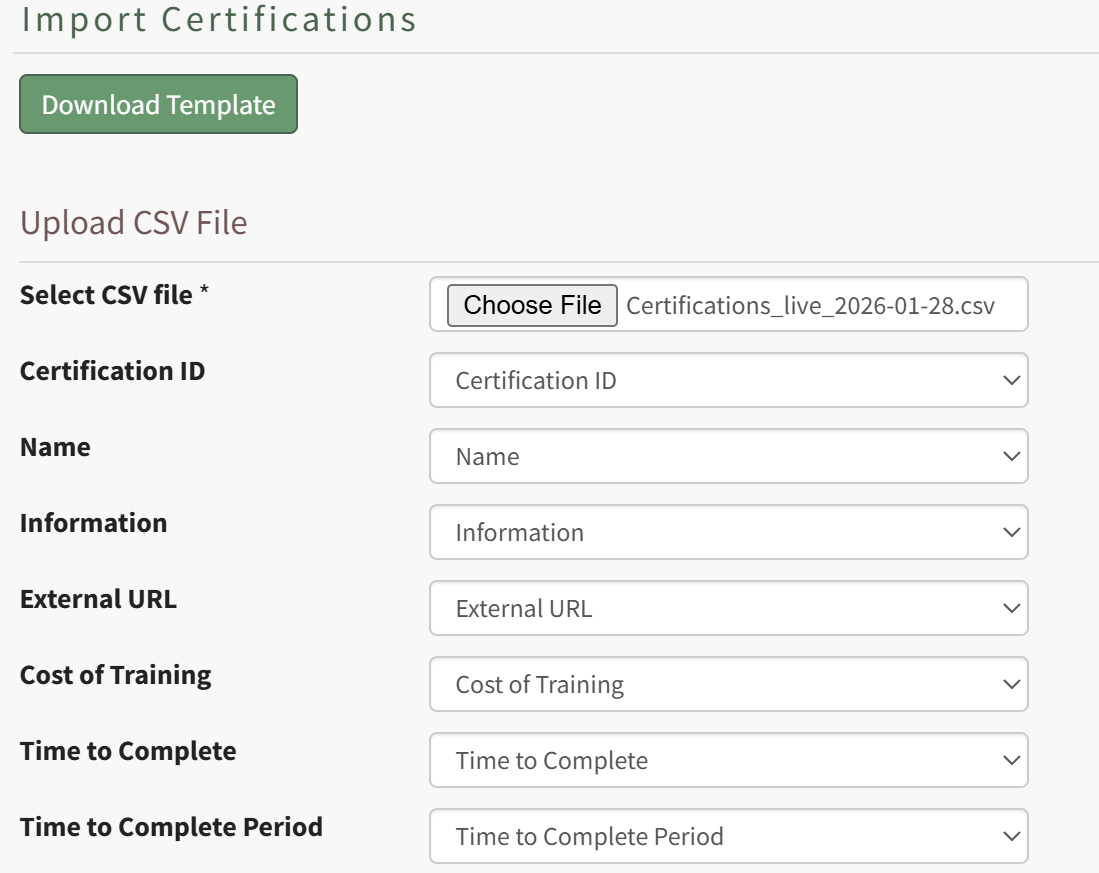
The dropdown box is used to map column headers from the CSV to the fields necessary for Certification Import. If the column header name matches the system field's name, KAStrack will automatically set that field's dropdown box to the matching name. If you have used different column header names in your CSV, you can manually select from the dropdown which column headers from your file go with which system field.
Click the “Import certifications” button to upload the file and import the changes into KAStrack. The screen will then display a success or fail message, and, if failed, alert to any changes that should be made to the imported file. If the import fails, no certifications will be imported/created or updated.
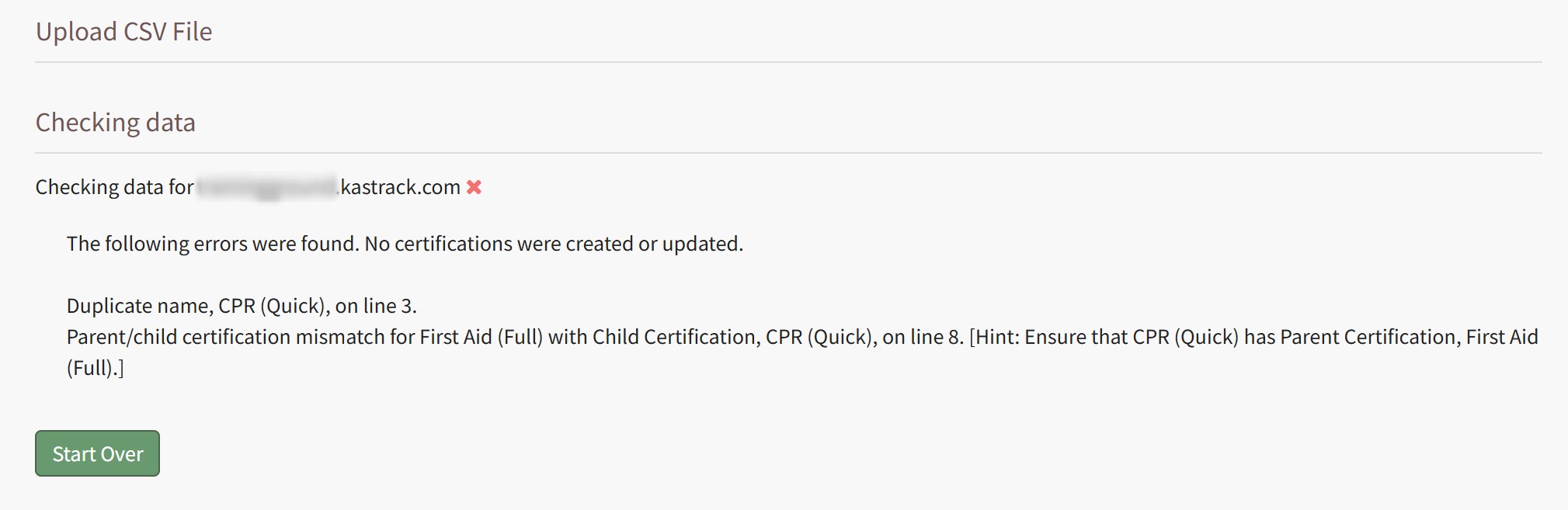
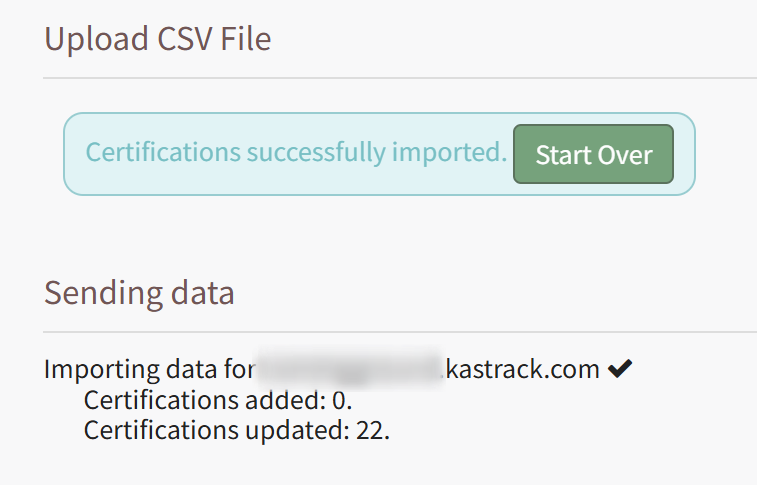
If successful, KAStrack will inform how many new Certifications were created, and how many existing ones have been updated.
No comments to display
No comments to display