
Create a New Action
To create a new action from the Actions Home Page, hover your cursor over the page icon opening the home page context menu.
A new action can also be created from the context menu on the Groups Page via the three-dot icon, as well as the Bulk Edit Tab on the Actions Settings Page.
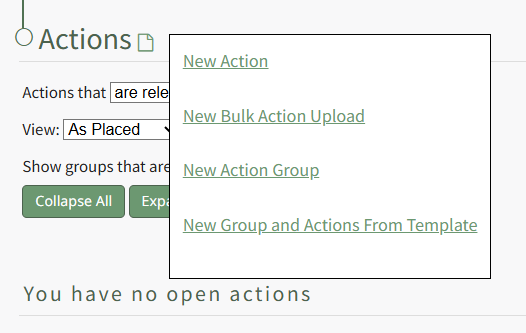
Select “New Action” opening the New Action Modal.
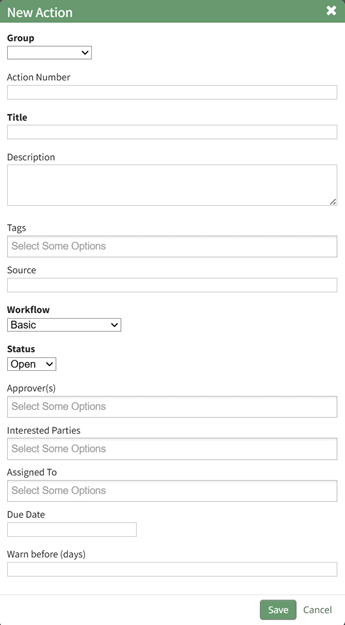
The fields in the New Action Modal are explained in the table below.
New Action Modal Field Explanations | |
Field | Explanation |
Group | Input the Title of the Action Group this action should be associated with. If the Action Group the action is to be associated with has already been created, it will be available on the Group dropdown menu. If the action group has not been created, see notes on how to add one below. |
Action Number | Action Numbers are used to differentiate each task in a chronological order. Actions within the same Action Group cannot have the same Action Number. You can leave the field blank. You can also input text if you wish to use the alphabet as a way to categorize actions. |
Title | Input the title of the action. |
Description | Input the description for the action. |
Tags | Open, Permissive, and Restrictive Tags can be applied to individual actions. |
Source | The Source field is intended to serve as an input for the source of the action. Source is a free text field, allowing you to input any desired response. Customer, Internal Request, a user’s name, role or department are all examples of potential Source field categories. |
Due Date | Input the date the action must be completed by. Relevant due dates cannot be imported. That feature is specific to Action Group Templates. |
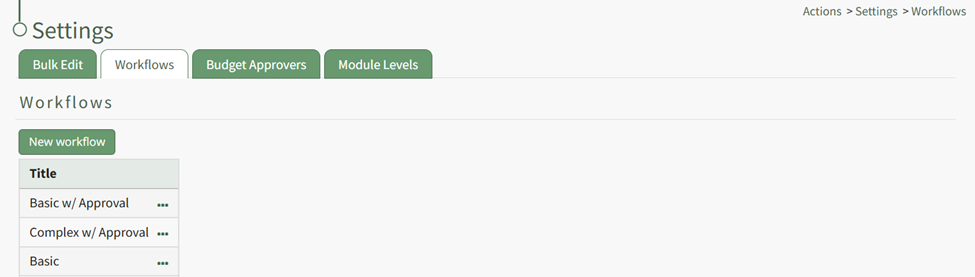
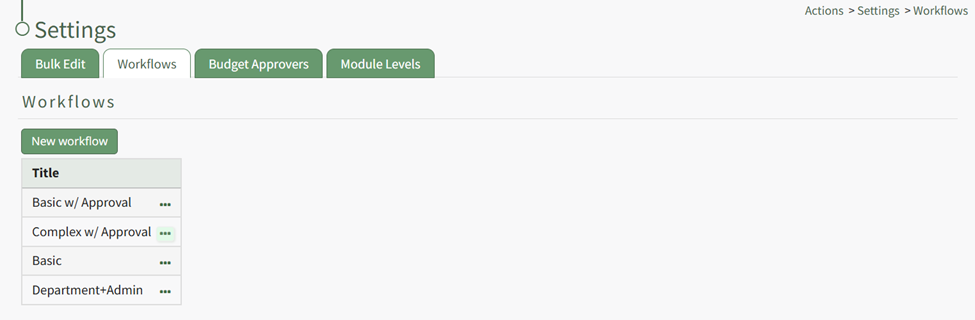
Workflow | Select a default workflow (basic, basic with approval, complex) or a customized workflow specific to your organization. How To: Create New WorkflowTo create a new workflow, select Settings under the Action Module on the Main Menu. Open the Workflows tab.
Click the “New Workflow” button opening the New Workflow Title Modal.
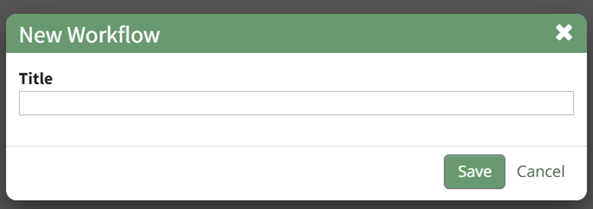
Input the title of the new workflow and select the “Save” button.
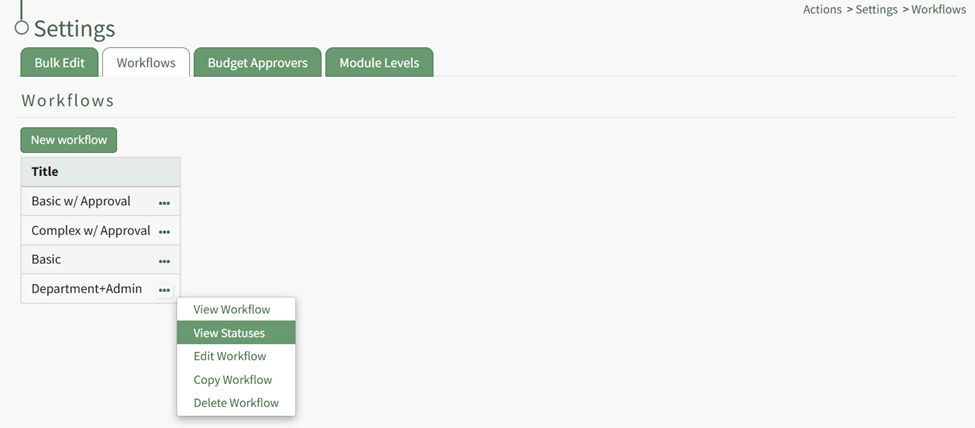
The new workflow is now visible in the Workflow Title Table. Click the three dot icon to the right of the new workflow opening the Workflow Context Menu.
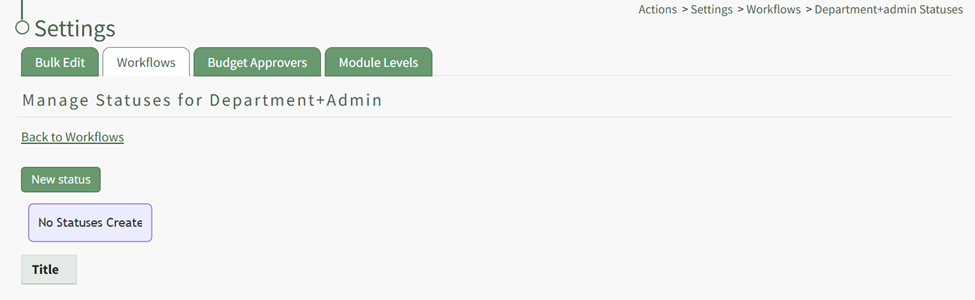
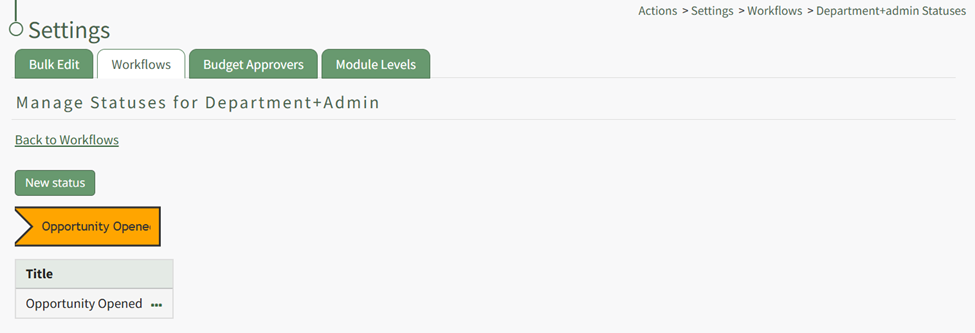
Select “View Statuses” opening the Manage Statuses Page for your workflow.
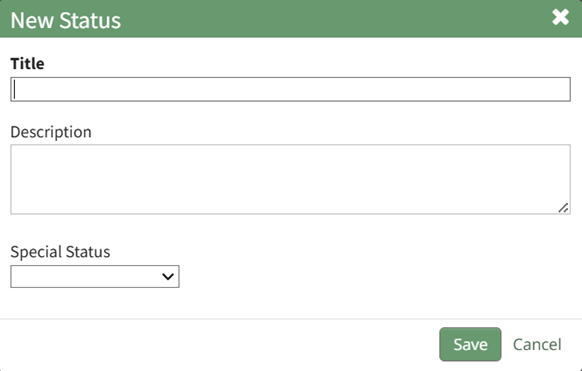
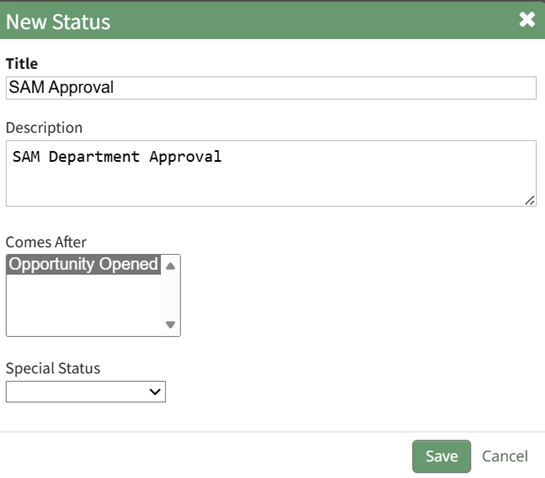
Click the “New Status” button opening the New Status Modal.
Input a title and description for the new workflow status. The Special Status dropdown menu displays: Close, Close and Repeat, and Opened. Select which if it applies and select the “Save” button. The status now shows on the Manage Status Page.
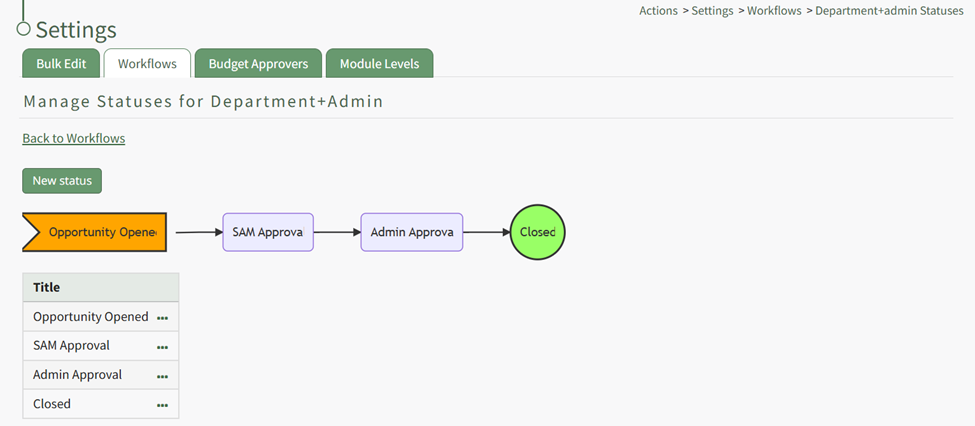
Repeat the process to create the next stage of your workflow.
The New Status Modal will now require you to repeat the process, now requiring you to select which step this status is to follow. Repeat the process until your customized workflow has been completed.
|
Status | The status of the action is based on the workflow selected. Basic with Approval: Open, Pending Approval, Completed Actions can be imported with any status and not just the first status of the workflow. |
Action Approvers | Input the users (by username or First and Last Name) that can approve an action. Only individual users can be added to this field. Multiple users can be designated as an action approver. When importing, use a semicolon to separate individuals assigned to an action. |
Interested Parties | Input the users (by username or First and Last Name) or Certification Roles that are identified as Interested Parties. Multiple users or roles can be designated as an Identified Party. When importing, use a semicolon to separate users/roles. |
Assigned To | Input the users (by username or First and Last Name) that you want to assign the action to. Actions cannot be assigned to roles or access levels. An Action can be assigned to multiple people. When importing, use a semicolon to separate individuals assigned to an action. |
Due Date | Input the date the action must be completed by. Action Group Templates allow additional control over due dates in the Relative Due Dates section when creating or editing a template. |
Warn Before (Days) | Input a numerical value for the number of days ahead of the due date you want users to get a system email alert reminder of the outstanding action (converting from blue to yellow status). |
Action Response | The information input into the Action Response field will add a comment to the action task when imported, prefaced with “The following response was imported.” |
If the action group the action is to be associated with has not been created, select “New Group…” from the Group dropdown menu
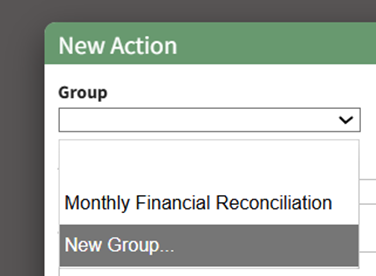
This expands the New Action Modal, allowing you to input the New Group Name.
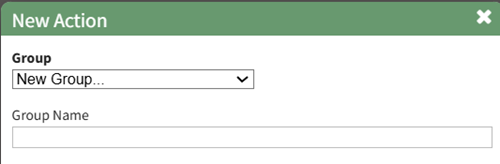
After inputting all relevant information for the new action, select save. A green confirmation modal will appear, confirming the new action.
The action will only appear on the Actions Home Page if it applies to the currently applied filter.
The newly created action group can be edited to customize the action group preferences, or additional actions can be added.
How To: Edit An Action Group
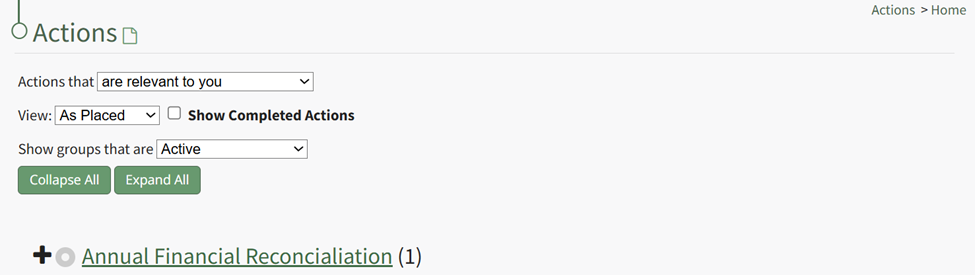
To edit a specific action group, you can click the edit icon next to the group's title on the Actions Home Page, or select the Groups Page on the Main Menu, opening the Manage Action Groups Page. Then click the three-dot icon to the right of the action group to open the Action Group Context Menu.
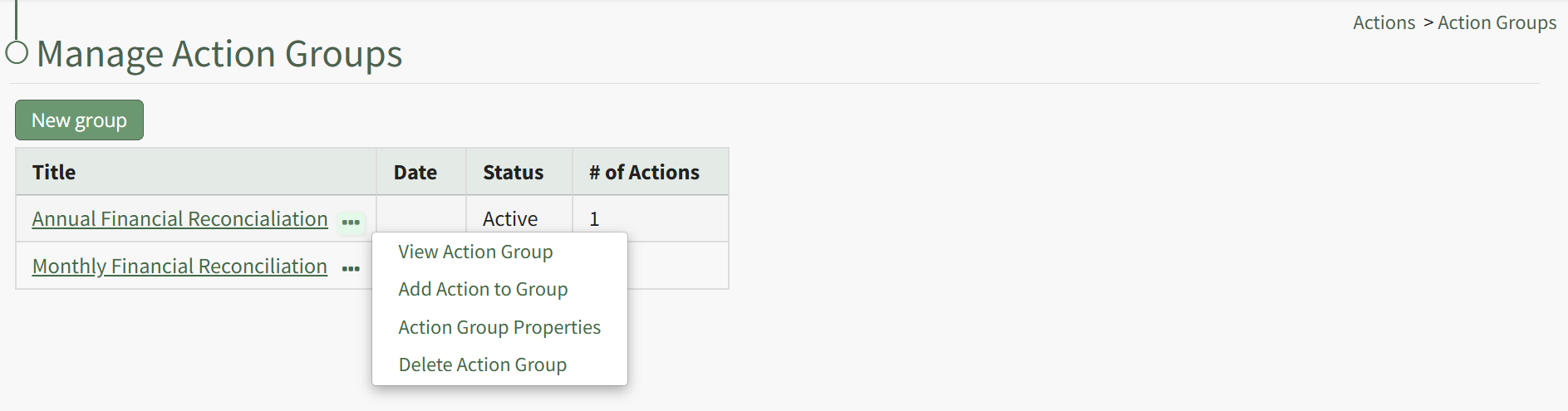
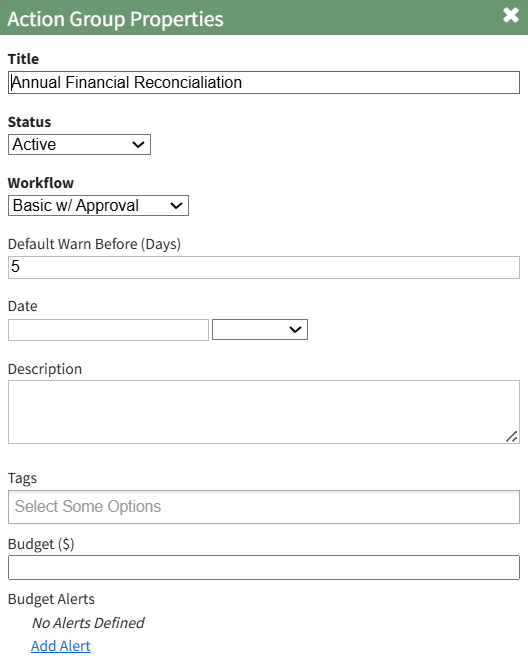
Select “Action Group Properties” from the context menu opening the Action Group Properties Modal.
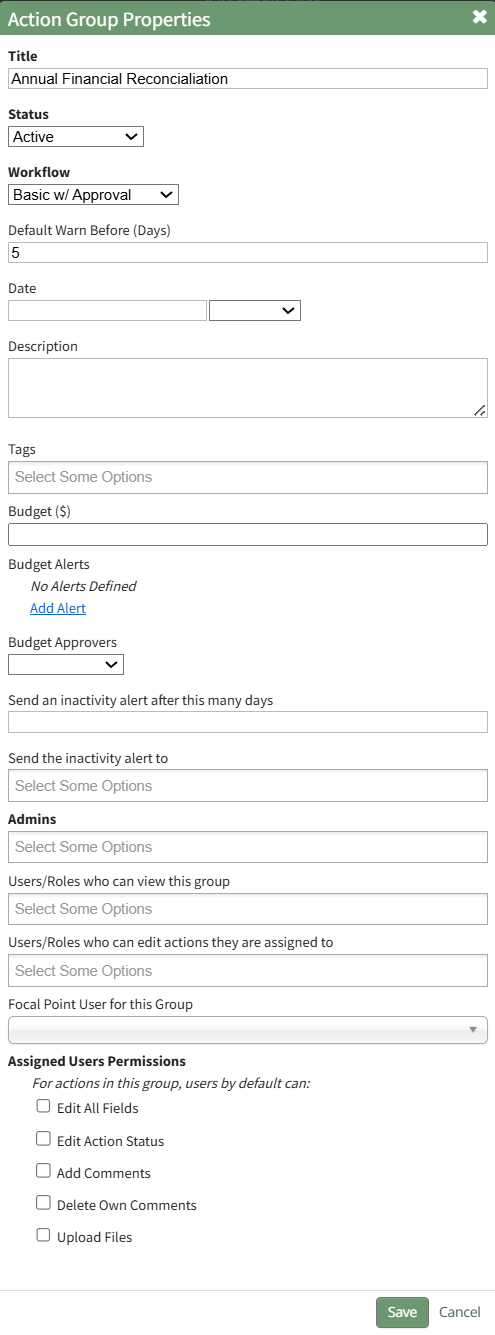
Make the desired changes to the action group. Use the Actions Group Field Input Explanations Table for information about individual field inputs.
Action Group Field Input Explanations | |
Field | Explanation |
Title | Input the title for the new action group. |
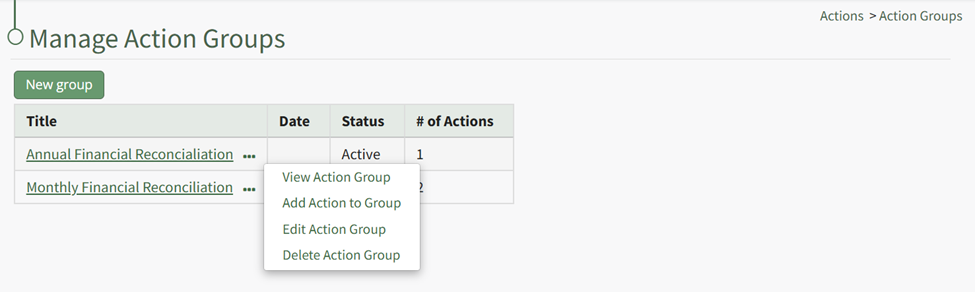
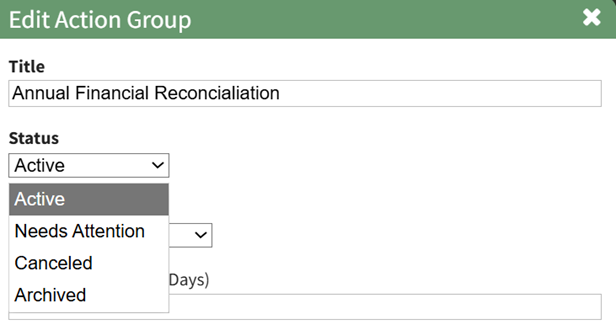
Status | An action group can be assigned a status of Active, Needs Attention, Canceled, or Archived. Select the appropriate status from the Status dropdown menu on the modal. The status of an action group is manually applied and edited. How To: Edit an Action Group StatusAction groups are manually assigned a group status than can be manually edited as needed for the action group. Default Group Status include Active, Needs Attention, Cancelled, and Archived. To change the action group status, select the Groups Page on the Main Menu, opening the Manage Action Groups Page. Clicking the three-dot icon to the right of the action group opens the Action Group Context Menu.
Select “Edit Action Group” from the context menu opening the Edit Action Group Modal.
Select the appropriate action group status from the dropdown menu provided, and select “Save”.
|
Workflow | The workflow dropdown menu will offer the system default workflows (Basic, Basic with Approval, Complex with Approval), as well as any workflows that have been created by your organization. |
Default Warn Before | Input a numerical value for the number of days a default warning will be sent. This input determines when action within the action group will turn from blue (the action is outstanding) to yellow (the action is nearing its due date). |
Date | The Action Group Date is flexible in concept and can be used as bet fit by your organization. |
Description | Input a description for the action group. |
Tags | Include any open, permissive, or restrictive tags as desired. |
Budget ($) | Leave this blank if you do not want to generate a new budget in the Finance Module for the Action Group. Input a dollar amount to create the budget. |
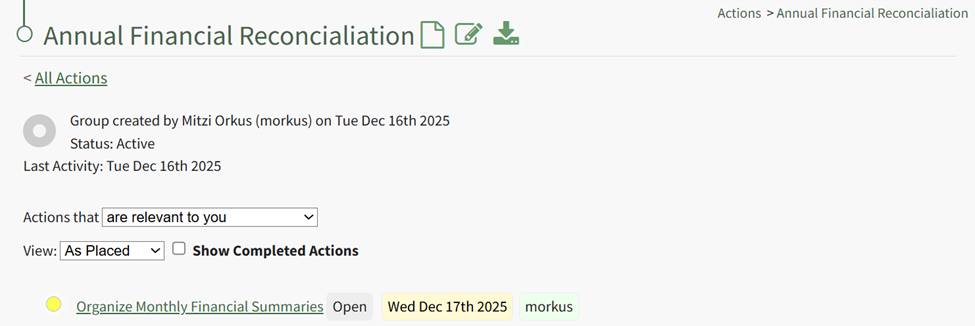
Budget Alerts | Click "Add Alert" in the Budget Alerts Section to create a budget alert to be associated with the action group budget. This will expand the modal displaying budget alert preferences. How To: Add a Budget Alert for an Action GroupTo add a budget alert for an action group, edit the group from the Groups Page, or go to the Actions Home Page and click the title of the action group you wish to create a budget alert for.
This opens the specific action group page. The second icon to the right of the action group header is the edit action group icon.
Select the Action Group Properties Icon, opening the Action Group Properties Modal.
Select the clickable “Add Alert” link, expanding the modal to include new fields.
The alert can be triggered by the amount remaining in the budget falling below a specified amount, or if the percentage remaining falls before a specified percentage. Budget alerts can be sent to users or roles. Input the preferred alert specifics and select add. The newly saved budget alert will show as saved in the modal.
Multiple budget alerts can be customized within the action group. |
Budget Approvers | Select the desired budget approver group from the dropdown menu. Budget approval groups at the Action Group level must be created on the Settings Page: Budget Approvers Tab. |
Send an Inactivity alert after # of days | An Action Group inactivity alert will be sent to the designated users / roles after a specified number of days of inactivity. Input a numerical value telling the system to send a notice after the specified days of inactivity. Within an action group, a workflow status change, creating or completing an action, a file upload, or action comment will reset the inactivity alert. Permission for comments to reset the inactivity alert is a customizable preference. |
Send the inactivity alert to | Input the users and roles you wish to receive the inactivity alert. |
Admins | Input the users who are to be identified as Admins for the Action Groups. |
Users / Roles who can view this group | Select the Users / Roles who can view this action group. The users / roles selected will have view only permissions for every action within the action group. |
Users / Roles who can edit their own actions | Select the Users / Roles who can edit their own actions. The users / roles selected will have the ability to edit any actions they created or are assigned to in the action group. |
Focal Point User For this Group | Identify the focal point user of the group. A group focal point will be able to see actions on the Action Group Summary page. Viewing an actions detail page will be dependent on their permissions. Organization can utilize this field to identify a key contact for an action group. If this action group is being utilized for certification or training processes, using the relevant individual’s name as the focal point provides a database reference that enables reports and organizational capabilities. Only one user can be designated as the focal point. |
Assigned User Permissions Section The permissions established in this section will be applied to all users in the group by default. | |
Edit All Fields | Selecting the "Edit All Fields" checkbox will remove all other checkboxes from the modal and will give all users in the action group the ability to edit action status, add comments, delete own comments, and upload files. |
Edit Action Status | Selecting the "Edit Action Status" checkbox will give all assigned users in the action group the ability to edit the action status. |
Add Comments | Selecting the "Add Comments" checkbox will give all users in the action group the ability to add comments to an action. |
Delete Own Comments | Selecting the "Delete Own Comments" checkbox will give all users in the action group the ability to delete their own comments made regarding an action. |
Upload Files | Selecting the "Upload Files" checkbox will give all users in the action group the ability to upload files to an action. |


Select the Save button when done making field changes, and the action group is now edited.
How To: Import Bulk Actions
To import new actions in bulk using a CSV file, go to the Actions Module Home Page and hover your cursor over the page icon opening the home page context menu.
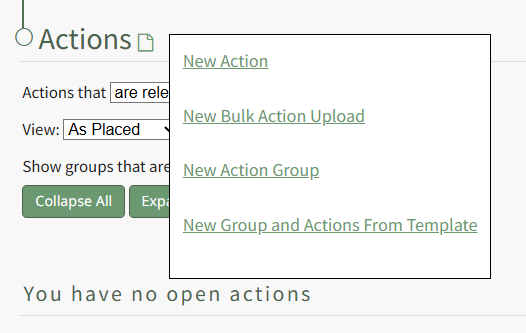
Click “New Bulk Action Upload” opening the Import Actions Page.
Clicking the “Download Template” clickable link will automatically download a CSV file to your personal device, with the fields to be filled in for each action, designated by the column headers. The table below explains each of the field inputs.
Import Actions Template Field Explanations | |
Field | Explanation |
Group | If importing actions from the Actions Home Page, input the Title of the Action Group this action should be associated with. If importing actions from within a group (by clicking on the group name), this cell can be left blank because the actions will automatically be added to the group you're uploading to. |
Group Date | The action group date is flexible and can be utilized by your organization as best fit. When action groups are duplicated or created from a template, the action group date can be used as the distinguishing feature. |
Action Number | Action Numbers are used to differentiate each task in a chronological order. Actions within the same Action Group cannot have the same Action Number. You can leave the field blank. You can also input text if you wish to use the alphabet as way to categorize actions. |
Title | Input the title of the action. |
Description | Input the description for the action. |
Source | The Source field is intended to serve as an input for the source of the action. Source is a free text field, allowing you to input any desired response. Customer, Internal Request, a user’s name, role or department are all examples of potential Source field categories. |
Due Date | Input the date the action must be completed by. Action Group Templates allow additional control regarding due dates in the Relative Due Dates section when creating or editing a template. |
Workflow | Select a default workflow (basic, basic with approval, complex) or a customized workflow specific to your organization. How To: Create New WorkflowTo create a new workflow, select Settings under the Action Module on the Main Menu. Open the Workflows tab.
Click the “New Workflow” button opening the New Workflow Title Modal.
Input the title of the new workflow and select the “Save” button.
The new workflow is now visible in the Workflow Title Table. Click the three dot icon to the right of the new workflow opening the Workflow Context Menu.
Select “View Statuses” opening the Manage Statuses Page for your workflow.
Click the “New Status” button opening the New Status Modal.
Input a title and description for the new workflow status. The Special Status dropdown menu displays: Close, Close and Repeat, and Opened. Select which if it applies and select the “Save” button. The status now shows on the Manage Status Page.
Repeat the process to create the next stage of your workflow.
The New Status Modal will now require you to repeat the process, now requiring you to select which step this status is to follow. Repeat the process until your customized workflow has been completed.
|
Status | The status of the action is based on the workflow selected. Basic with Approval: Open, Pending Approval, Completed Actions can be imported with any status and not just the first status of the workflow. |
Date Complete | This field should be blank unless the task is already complete. If the action is already completed, include the completion date here. |
Warn (Days) | Input a numerical value for the number of days ahead of the due date you want users to get a system email alert reminder of the outstanding action (converting from blue to yellow status). |
Assigned To | Input the users (by username or First and Last Name) that you want to assign the action to. Actions cannot be assigned to roles or access levels. An Action can be assigned to multiple people. Use a semicolon to separate individuals assigned to an action. |
Action Approvers | Input the users (by username or First and Last Name) that can approve an action. Action Approvers cannot be assigned to roles or access levels. Multiple users can be designated as an action approver. Use a semicolon to separate individuals assigned to an action. |
Interested Parties | Input the users (by username or First and Last Name) or Certification Roles that are identified as Interested Parties. Multiple users or roles can be designated as an Identified Party. Use a semicolon to separate users/roles. |
Action Response | The information input into the Action Response field will add a comment to the action task when imported, prefaced with “The following response was imported.” |
Before importing your bulk actions, save the file as a UTF 8.

Select the “Choose Files” button and select the saved UTF 8 CSV file to be imported.
Click the “Next Step >” button and confirm that your column headers match the new action form fields and complete the import.
No comments to display
No comments to display