
Create a New Asset Type
To create a new asset type, open the Asset Types Tab on the Settings Page of the Assets Module.
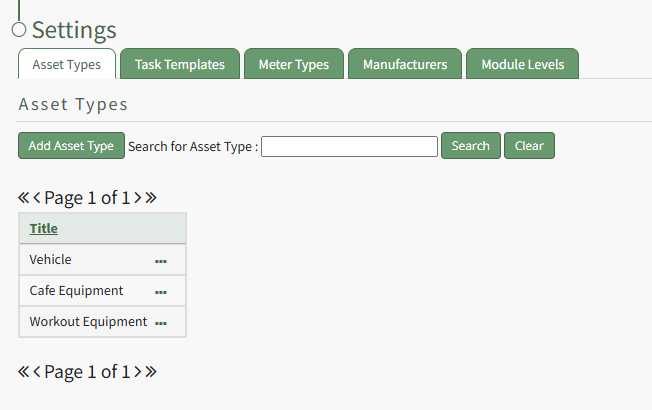
Selecting the “Add Asset Type” button opens the New Asset Type modal.
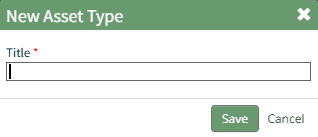
Input the title of the New Asset Type and click “Save”.
The newly created Asset Type will now show in the table on the Asset Type tab on the Settings page and is ready for you to add fields to.
How To: Add Fields to an Asset Type
In order to include unique, customized additional information regarding an Asset, you must first create an asset type and then add fields to it. This allows your organization to specify whatever information they choose to regarding their assets.
How To: Create a New Asset Type
To create a new asset type, open the Asset Types Tab on the Settings Page of the Assets Module.
Selecting the “Add Asset Type” button opens the New Asset Type modal.
Input the title of the New Asset Type and click “Save”.
The newly created Asset Type will now show in the table on the Asset Type tab on the Settings page and is ready for you to add fields to.
How To: Add Fields to an Asset Type
In order to include unique, customized additional information regarding an Asset, you must first create an asset type and then add fields to it. This allows your organization to specify whatever information they choose to regarding their assets.
How To: Create a New Asset Type
{{@470}}
To add additional fields to an asset type, go to the Asset Types Tab on the Settings Page of the Assets Module. Click the three-dot icon to the right of the Asset Type title to open the Asset Type Context Menu.
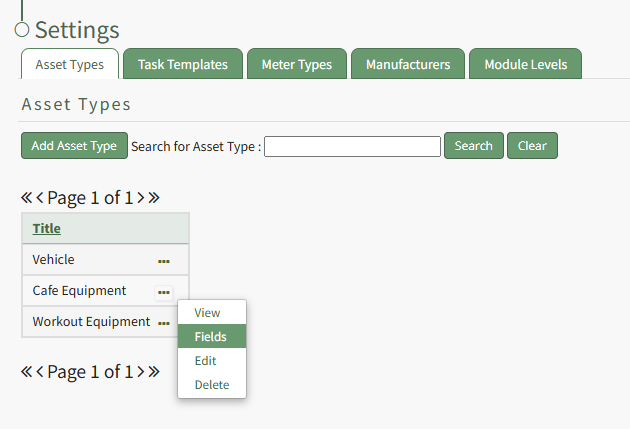
Select "Fields" from the context menu opening the Asset Type Fields Page.
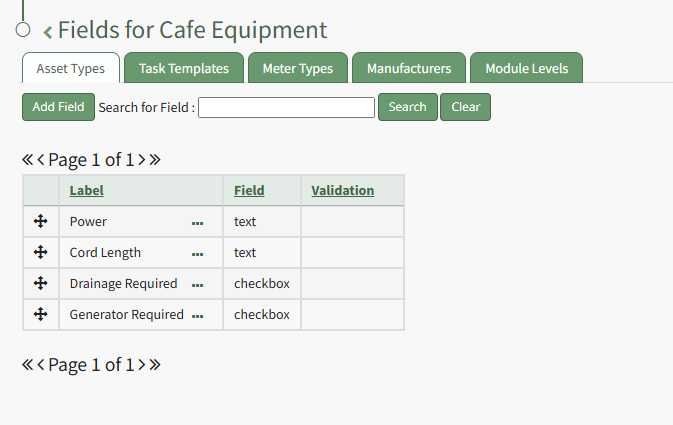
Click the "Add Field" button opening the New Field Modal.
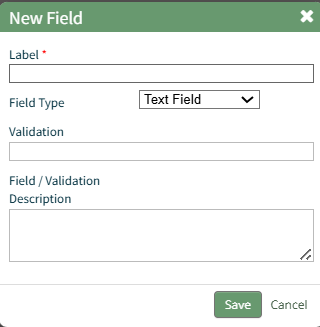
Input a label for the field and select the field type from a dropdown menu. Options include: text field, number, password field, text box, date field, and checkbox.
Validation uses standard JavaScript RegExp constructor for validating Field input values entered by end-users. Entering a RegExp validation string will check against the input value.
Include a description of the field of validation (optional).
Select “Save” and a popup confirms that the asset has been saved. The new field now shows on the Asset Type Field Page.
To add additional fields to an asset type, go to the Asset Types Tab on the Settings Page of the Assets Module. Click the three-dot icon to the right of the Asset Type title to open the Asset Type Context Menu.
Select "Fields" from the context menu opening the Asset Type Fields Page.
Click the "Add Field" button opening the New Field Modal.
Input a label for the field and select the field type from a dropdown menu. Options include: text field, number, password field, text box, date field, and checkbox.
Validation uses standard JavaScript RegExp constructor for validating Field input values entered by end-users. Entering a RegExp validation string will check against the input value.
Include a description of the field of validation (optional).
Select “Save” and a popup confirms that the asset has been saved. The new field now shows on the Asset Type Field Page.
No comments to display
No comments to display