
Assign a Certification Role to Multiple Users at Once
To assign a certification role to multiple users at once, select the Roles Page in the People Module from the Main Menu to open the Certification Roles Page.
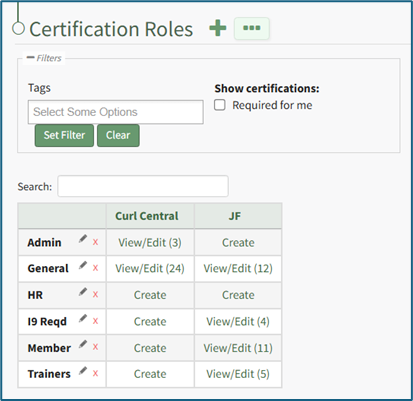
Click the “View/Edit (#)” clickable link that pertains to the role you want to assign users to opening the Assigned Users Tab of the specified certification role's Details Page.
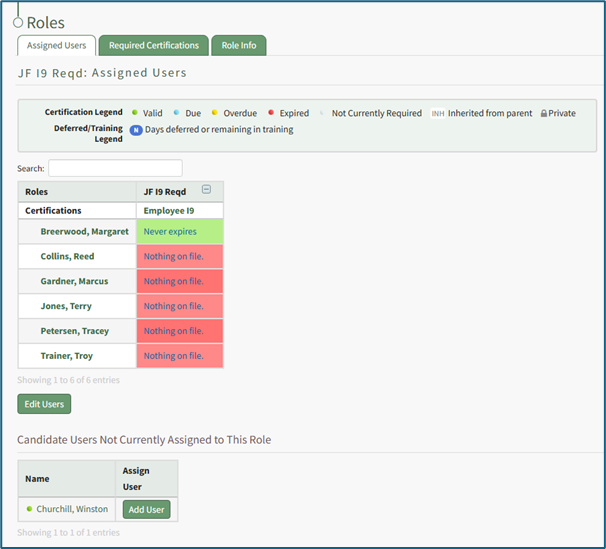
The Assigned Users Table shows the user’s names in the first column. The following columns show the certifications assigned to the role selected. Click the “Edit Users” button to open the Edit User Table on the Assigned Users Tab.
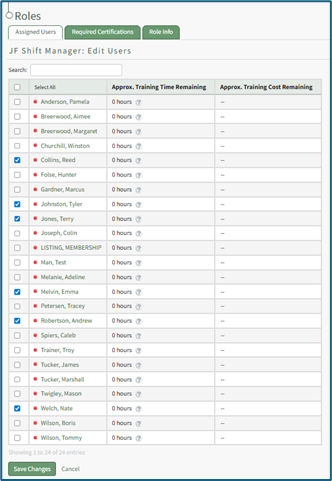
Use the checkboxes in the first column to identify the users the certification role now applies to.
Use the checkbox in the header row to select/deselect all available users.
Click the “Save Changes” button and return to the Assigned Users tab.
No comments to display
No comments to display