
Delete a Speed Dial
To delete a speed dial, go to the Dashboard Module and select the dashboard you wish to make speed dial edits on.
The most efficient way to delete a speed dial is from its current placement. Refer to the table below to identify how to access the “Edit” option from each of the various speed dial placements.
| How to Select Edit Based on Speed Dial Placement | |||
| Placement | Top | Floating | Widget |
| Image | 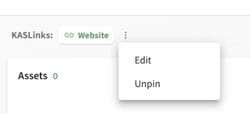 |
 |
 |
| Notes | Selecting the vertical three dot icon opens the context menu with the “Edit” option. | Click the floating speed dial icon to open it, showing the “Edit” option. | Selecting the vertical three dot icon opens the context menu with the “Edit” option. |
Click the “Edit” button for the speed dial you wish to alter, opening the Edit Speed Dial Modal.
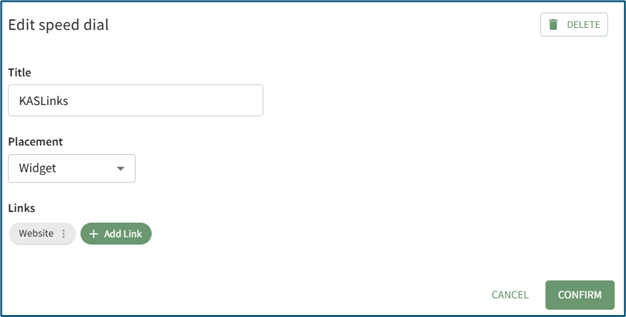
Select the “Delete” button in the top right hand corner of the modal.

This opens the Delete Speed Dial Confirmation Modal that states, “This will affect all dashboards where the speed dial is present. Are you sure you want to permanently delete this speed dial?”
Select the “Confirm” button.
You can also select the “+ Add Widget” button from the top right-hand corner of any dashboard and click the speed dial icon.

This opens the Add speed dial modal.

Select the “Manage Speed Dials” button opening the Manage Speed Dial Modal.

Click the “Delete” button for the speed dial you wish to delete, opening the Delete Speed Dial Confirmation Modal that states, “This will affect all dashboards where the speed dial is present. Are you sure you want to permanently delete this speed dial?”
Select the “Confirm” button.
No comments to display
No comments to display