
Finance Module How Tos
How To: Access a Budget Item Attachment
To access an attachment associated with a specific budget item, go to the Active Tab of the Budgets Page in the Finance Module.
Attachments can also be accessed for Closed or Archived Budgets on the appropriate tabs.

Clicking on the attachment file number in the attachments column opens the associated attachments file name as a clickable links that, if selected, will open the attached file for viewing.
You can also access your attachments by clicking on the budget name or the eyeball icon in the actions column of the Active Budgets Table which opens the Budget Items Per Budget Table.
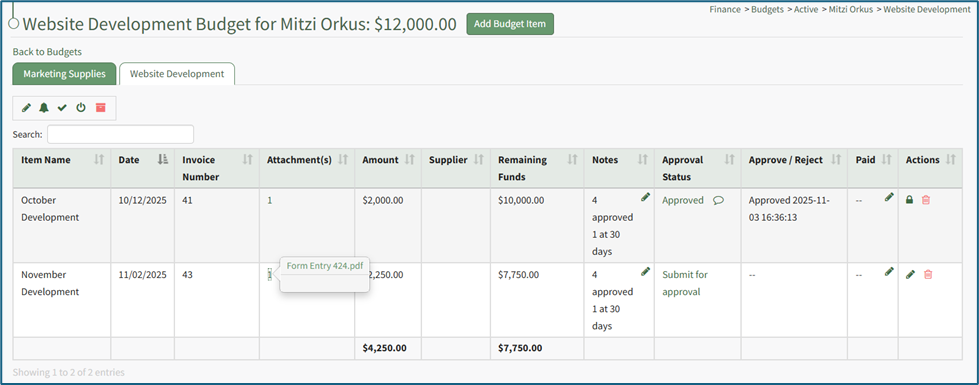
Click on the attachment’s entry for the desired budget item opening a modal with the attachment name. Click the attachment name and the attachment will automatically be downloaded to your personal device.
How To: Add a Budget Alert
Budget alerts can only be added to active budgets. To add a budget alert, locate the budget you wish to add an alert to on the Active Tab of the Budgets Page. Click the bell icon in the Actions column of the budget table.

This opens the Edit Alerts Modal.

Select the “Add an Alert” button and the modal expands.

An alert can be based on when the amount remaining in the budget falls below a specified amount or when the amount remaining in the budget falls below a specified percent.
Input the percentage or amount for the alert threshold as well as the individual account or certification role to receive the alert. Multiple accounts and / or roles can be selected to receive the alert.
Select the “Save” button and return to the Active Tab of the Budgets Page.
Additional alerts can be added if desired. Existing alerts will show on the Edit Alert Modal.

How To: Add a Budget Item
To add a budget item to a specific budget, go to the Active Tab of the Budgets Page in the Finance Module. Open the specific budget either by clicking the name of the budget or the eyeball icon in the action column of the desired budget.
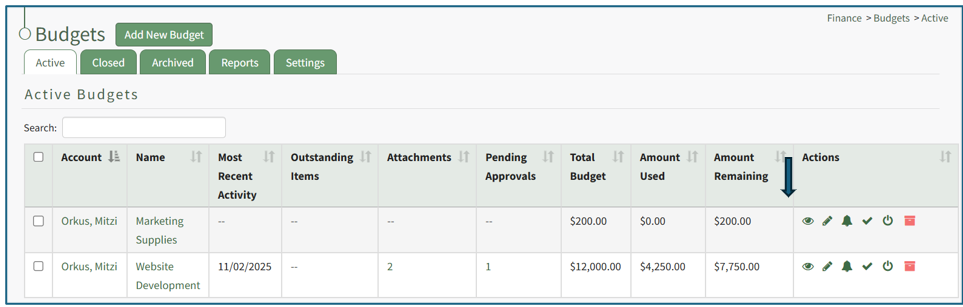
The icon opens the specific budget, showing the Budget Item Per Budget Table.
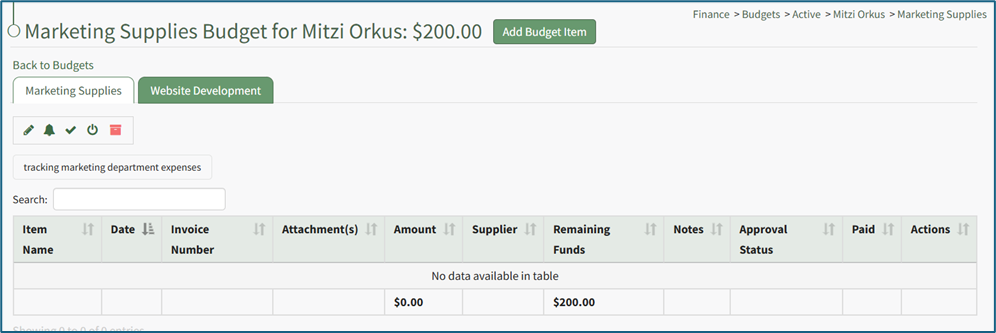
Select the “Add Budget Item” button to the right of the budget header opening the Add Budget Item Modal.
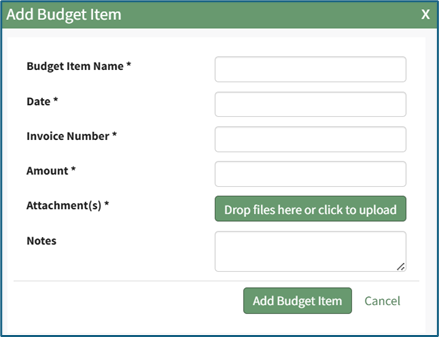
Include the Budget Item Name and the Date. Include the invoice number, amount, and associated attachments. Multiple attachments can be included, but at least one is required. All fields, with the exception of notes, are required by the modal.
Select “Add Budget Item” from the bottom of the modal, and the budget item will now appear in the budget specific Budget Item Per Budget Table and can be submitted for approval (if approval is enabled).
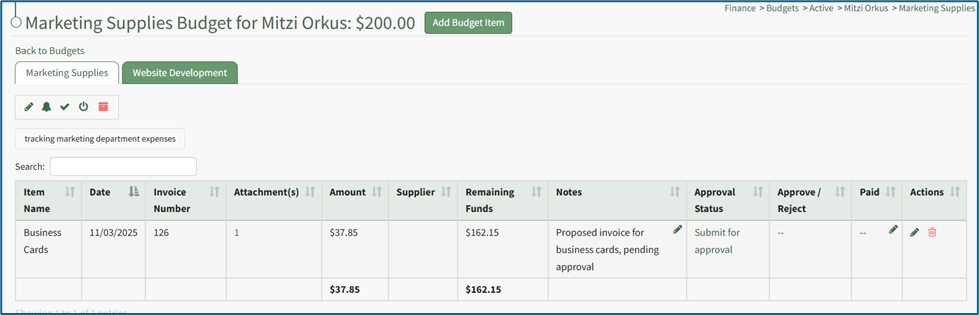
How To: Submit a Budget Item for Approval
Budget items can only be submitted for active budgets. To submit a budget item for approval, go to the Active Tab of the Budgets Page in the Finance Module. Open the specific budget with the budget item that needs to be submitted for approval either by clicking the name of the budget or the eyeball icon in the action column of the desired budget.

This opens the budget, showing the Budget Item per Budget Table.

To submit the budget item for approval, select the clickable link “Submit for Approval” in the Approval Status column.

The approval status now shows how many of the required approvals have been granted. The comment icon shows the date and time the budget item was submitted for approval.
How To: Add a New Budget
To create a new budget within the Finance Module, go to any tab on the Budgets Page and select the “Add New Budget” button.

This opens the Add New Budget Modal.

Input the budget name and a description.
Identify the individual to be listed as the account. Account refers to the individual whose account is linked to the budget as an owner.
You can only select one individual.
Include the budget amount.
If an individual is not associated with a budget as the account holder or an approver, they cannot be given visibility.
Click the “Create Budget” button and the newly created budget will show in the Active Budgets Table on the Active Tab of the Budgets Page.
How To: Approve / Reject a Budget Item
How To: Archive a Budget
Both an active budget and a closed budget can be archived. To archive a budget, locate the budget to be archived on the Active or Closed Tab of the Budgets Page. Click the file box icon in the Actions column of the budget table.

This will open a confirmation modal stating, “Are you sure you want to archive this budget?”

The budget will no longer show on the Active (or Closed) Tab of the Budgets Page, which will display a message stating the budget is now closed.

The archived budget will now show on the Archived Tab of the Budgets Page.

How To: Close a Budget
Only active budgets can be closed. To close an active budget, go to the Active Tab of the Budgets Page in the Finance Module. Click the power icon in the Actions column of the Active Table.

This will open a confirmation modal stating, “Are you sure you want to close this budget? Alerts will no longer be sent.” Select the “OK” button.

The budget will no longer show on the Active Tab of the Budgets Page, which will display a message stating the budget is now closed.

The closed budget will now show on the Closed Tab of the Budgets Page.

How To: Create a New Module Level (Finance Module)
To access an attachment associated with a specific budget item, go to the Active Tab of the Budgets Page in the Finance Module.
Attachments can also be accessed for Closed or Archived Budgets on the appropriate tabs.
Clicking on the attachment file number in the attachments column opens the associated attachments file name as a clickable links that, if selected, will open the attached file for viewing.
You can also access your attachments by clicking on the budget name or the eyeball icon in the actions column of the Active Budgets Table which opens the Budget Items Per Budget Table.
Click on the attachment’s entry for the desired budget item opening a modal with the attachment name. Click the attachment name and the attachment will automatically be downloaded to your personal device.
How To: Edit a Budget Alert
Budget alerts only exist for active budgets. To edit an existing budget alert, locate the budget whose alert you wish to edit on the Active Tab of the Budgets Page. Click the bell icon in the Actions column of the budget table.
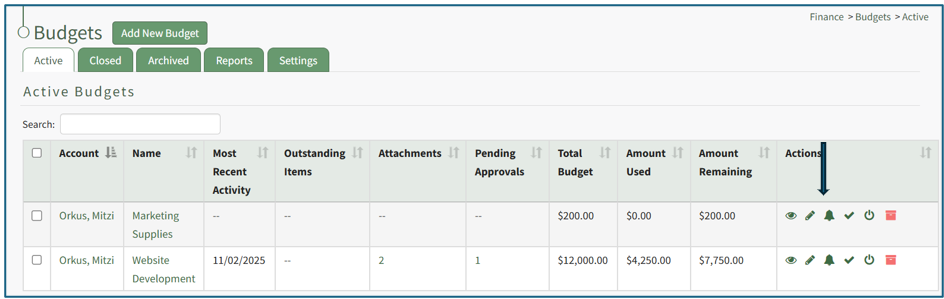
This opens the Edit Alerts Modal which will show any existing alerts.
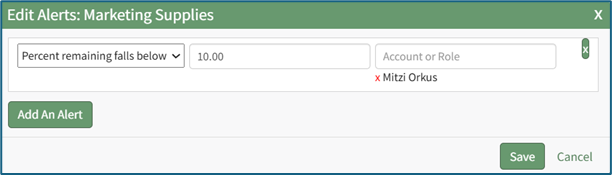
Make the desired changes to the alert. An alert can be based on when the amount remaining in the budget falls below a specified amount or when the amount remaining in the budget falls below a specified percent.
Select the “Save” button and return to the Active Tab of the Budgets Page.
How To: Edit a Budget ITEM
Only active budgets can be edited. To edit a budget, go to the Active Tab of the Budgets Page in the Finance Module. Click the pencil icon in the Actions column of the Active Table.

This opens the Edit (BUDGET NAME) Modal.

Make any desired changes to the Budget Name, Description, Account, Amount, or Tags associated with the budget.
When done making changes, click the “Save” button and return to the Active Tab of the Budgets Page.
How To: Edit a Budget Item After Submission for Approval
Go to the Active/Closed/Archived Budget Table and click the title of the budget you wish to edit, opening the Budget Item Per Budget Table.
If the budget item has already been submitted for approval, it must be unlocked first before edits can be made.
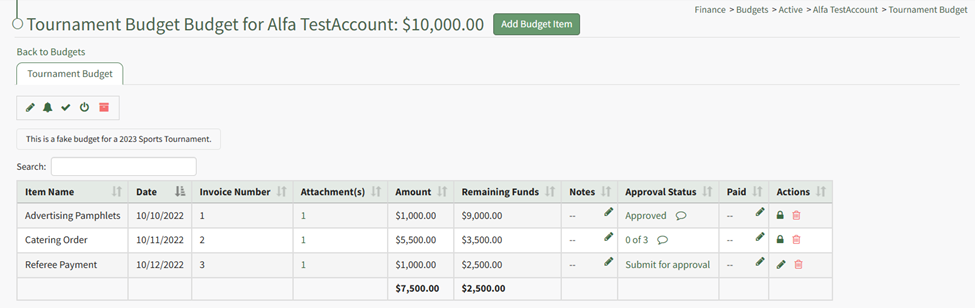
Unlock the approved budget item.
How To: Unlock a Submitted Budget Item for Editing
In order to edit an approved budget item, any existing approvals and rejections regarding the budget item will be cancelled. The budget item must then be unlocked before editing is possible.
To unlock a submitted budget item for editing, select the appropriate budget from the Active/Closed/Archived Budget tab. Click the budget title to be taken to the Budget Item Per Budget Table.
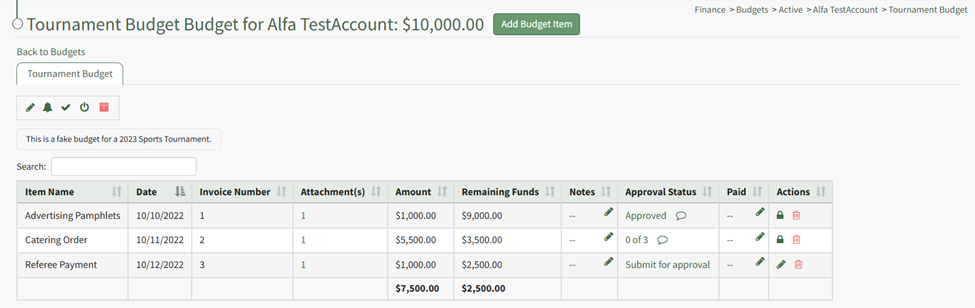
Click the lock icon in the actions column of the budget item you wish to edit.
The lock icon opens a Confirmation Modal which states, “Locked for editing. Would you like to cancel approvals and rejection and unlock editing?
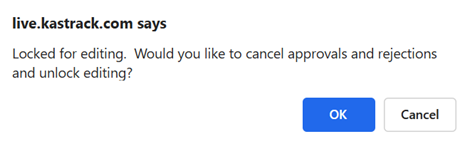
Select OK.
The lock icon is now replaced with the pencil icon in the actions column and the budget item is unlocked.

The pencil icon opens the Edit Budget Item Modal if clicked.
How To: Edit a Budget Item
Only active budgets can be edited. To edit a budget, go to the Active Tab of the Budgets Page in the Finance Module. Click the pencil icon in the Actions column of the Active Table.
This opens the Edit (BUDGET NAME) Modal.
Make any desired changes to the Budget Name, Description, Account, Amount, or Tags associated with the budget.
When done making changes, click the “Save” button and return to the Active Tab of the Budgets Page.
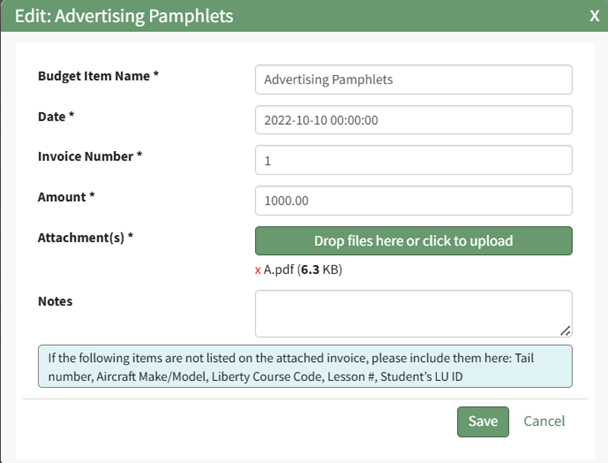
The lock icon is now replaced with the pencil icon in the actions column, and the budget item is unlocked.

The pencil icon opens the Edit Budget Item Modal if clicked.
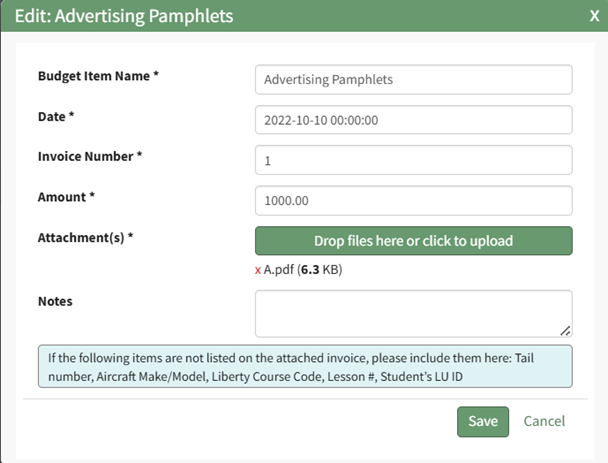
Make the necessary changes and select Save for your edits to be recorded.
You must resubmit your budget items for approval.
How To: Resubmit a Budget Item for Approval after Edits Are Made
A Budget Item must be unlocked for edits to be made.
How To: Unlock a Submitted Budget Item for Editing
In order to edit an approved budget item, any existing approvals and rejections regarding the budget item will be cancelled. The budget item must then be unlocked before editing is possible.
To unlock a submitted budget item for editing, select the appropriate budget from the Active/Closed/Archived Budget tab. Click the budget title to be taken to the Budget Item Per Budget Table.
Click the lock icon in the actions column of the budget item you wish to edit.
The lock icon opens a Confirmation Modal which states, “Locked for editing. Would you like to cancel approvals and rejection and unlock editing?
Select OK.
The lock icon is now replaced with the pencil icon in the actions column and the budget item is unlocked.
The pencil icon opens the Edit Budget Item Modal if clicked.
How To: Edit a Budget Item
{{@308}}
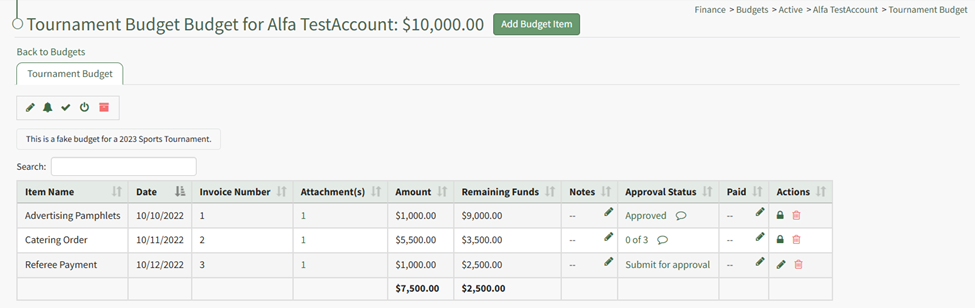
Unlocking the budget item allows the pencil icon to be selected for edits to the budget.
How To: Edit a Budget Item After Submission for Approval
Go to the Active/Closed/Archived Budget Table and click the title of the budget you wish to edit, opening the Budget Item Per Budget Table.
If the budget item has already been submitted for approval, it must be unlocked first before edits can be made.
Unlock the approved budget item.
How To: Unlock a Submitted Budget Item for Editing
{{@314}}
The lock icon is now replaced with the pencil icon in the actions column, and the budget item is unlocked.
The pencil icon opens the Edit Budget Item Modal if clicked.
Make the necessary changes and select Save for your edits to be recorded.
You must resubmit your budget items for approval.
How To: Resubmit a Budget Item for Approval after Edits Are Made
{{@315}}

Once edits have been made, the budget item should be resubmitted for approval. Click the “Submit for approval” link in the Approval Status column.
The Approval Status changes, now showing how many approvals have been received and the total needed. The budget item is locked again.

How To: Resubmit a Budget Item for Approval after Edits Are Made
A Budget Item must be unlocked for edits to be made.
How To: Unlock a Submitted Budget Item for Editing
In order to edit an approved budget item, any existing approvals and rejections regarding the budget item will be cancelled. The budget item must then be unlocked before editing is possible.
To unlock a submitted budget item for editing, select the appropriate budget from the Active/Closed/Archived Budget tab. Click the budget title to be taken to the Budget Item Per Budget Table.
Click the lock icon in the actions column of the budget item you wish to edit.
The lock icon opens a Confirmation Modal which states, “Locked for editing. Would you like to cancel approvals and rejection and unlock editing?
Select OK.
The lock icon is now replaced with the pencil icon in the actions column and the budget item is unlocked.
The pencil icon opens the Edit Budget Item Modal if clicked.
How To: Edit a Budget Item
Only active budgets can be edited. To edit a budget, go to the Active Tab of the Budgets Page in the Finance Module. Click the pencil icon in the Actions column of the Active Table.
This opens the Edit (BUDGET NAME) Modal.
Make any desired changes to the Budget Name, Description, Account, Amount, or Tags associated with the budget.
When done making changes, click the “Save” button and return to the Active Tab of the Budgets Page.
Unlocking the budget item allows the pencil icon to be selected for edits to the budget.
How To: Edit a Budget Item After Submission for Approval
Go to the Active/Closed/Archived Budget Table and click the title of the budget you wish to edit, opening the Budget Item Per Budget Table.
If the budget item has already been submitted for approval, it must be unlocked first before edits can be made.
Unlock the approved budget item.
How To: Unlock a Submitted Budget Item for Editing
In order to edit an approved budget item, any existing approvals and rejections regarding the budget item will be cancelled. The budget item must then be unlocked before editing is possible.
To unlock a submitted budget item for editing, select the appropriate budget from the Active/Closed/Archived Budget tab. Click the budget title to be taken to the Budget Item Per Budget Table.
Click the lock icon in the actions column of the budget item you wish to edit.
The lock icon opens a Confirmation Modal which states, “Locked for editing. Would you like to cancel approvals and rejection and unlock editing?
Select OK.
The lock icon is now replaced with the pencil icon in the actions column and the budget item is unlocked.
The pencil icon opens the Edit Budget Item Modal if clicked.
How To: Edit a Budget Item
{{@308}}
The lock icon is now replaced with the pencil icon in the actions column, and the budget item is unlocked.
The pencil icon opens the Edit Budget Item Modal if clicked.
Make the necessary changes and select Save for your edits to be recorded.
You must resubmit your budget items for approval.
How To: Resubmit a Budget Item for Approval after Edits Are Made
A Budget Item must be unlocked for edits to be made.
How To: Unlock a Submitted Budget Item for Editing
{{@314}}
Unlocking the budget item allows the pencil icon to be selected for edits to the budget.
How To: Edit a Budget Item After Submission for Approval
{{@316}}
Once edits have been made, the budget item should be resubmitted for approval. Click the “Submit for approval” link in the Approval Status column.
The Approval Status changes, now showing how many approvals have been received and the total needed. The budget item is locked again.
Once edits have been made, the budget item should be resubmitted for approval. Click the “Submit for approval” link in the Approval Status column.
The Approval Status changes, now showing how many approvals have been received and the total needed. The budget item is locked again.
How To: Set / Edit a Budget's Approvers and Approval Notifications
You can only edit approvers and approval notifications for an active budget.
To set or edit a budget’s approvers and / or approval notifications, go to the Active Tab of the Budgets Page in the Finance Module. Select the check icon in the Actions column of the Active Accounts Table.
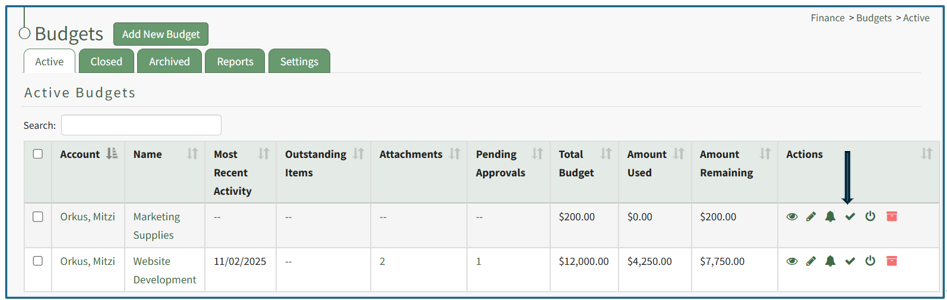
This opens the Edit Approvers Modal.

There are five options of who the system should notify when a budget has received all required approvals or when it has been rejected: the user who submitted the budget item, the users who have approved the budget item, all users in all approval groups, the account holder, and the account holder’s supervisor(s). Multiple, all, or no checkboxes can be selected.
To add an approver, click the “+ Add An Approver” button and the modal expands.
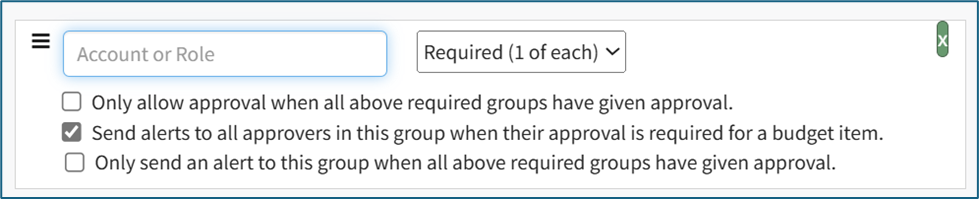
Add an individual account or a certification role and identify if their approval is required or optional. Multiple approvers can be added in this expansion, or you can click “+Add an Approver” again if the permissions/requirements need to be different for the different approvers.
There are two checkboxes associated with adding an approver. The first is in regard to when approval will be given. The “Only allow approval when all above required groups have been given approval” checkbox will not mark a budget item as approved until all required groups have been approved.
The second checkbox impacts when alerts regarding a budget will be sent. The “Send alerts to all approvers in this group when their approval is required for a budget item” opens an additional checkbox when selected. Select the “Only send an alert to this group when all above required groups have been given approval” to send an alert when a required signatures have been received.
After making the appropriate selections, the modal will state how many budget items will be affected by the changes being made.

You have the choice to “Mark as Approved any budget items that will become fully approved when this form is saved” or to “Clear existing approvals for any budget items that will become fully approved when this form is saved.” You cannot select both.
Once all changes to approvers and approval notifications for the budget have been made, select the “Save” button and you will return to the Active Tab of the Budgets Page.
How To: Submit a Budget Item for Approval
Budget items can only be submitted for active budgets. To submit a budget item for approval, go to the Active Tab of the Budgets Page in the Finance Module. Open the specific budget with the budget item that needs to be submitted for approval either by clicking the name of the budget or the eyeball icon in the action column of the desired budget.
This opens the budget, showing the Budget Item per Budget Table.
To submit the budget item for approval, select the clickable link “Submit for Approval” in the Approval Status column.
The approval status now shows how many of the required approvals have been granted. The comment icon shows the date and time the budget item was submitted for approval.
How To: Unlock a Submitted Budget Item for Editing
In order to edit an approved budget item, any existing approvals and rejections regarding the budget item will be cancelled. The budget item must then be unlocked before editing is possible.
To unlock a submitted budget item for editing, select the appropriate budget from the Active/Closed/Archived Budget tab. Click the budget title to be taken to the Budget Item Per Budget Table.
Click the lock icon in the actions column of the budget item you wish to edit.
The lock icon opens a Confirmation Modal which states, “Locked for editing. Would you like to cancel approvals and rejection and unlock editing?
Select OK.
The lock icon is now replaced with the pencil icon in the actions column and the budget item is unlocked.
The pencil icon opens the Edit Budget Item Modal if clicked.
How To: Edit a Budget Item
Only active budgets can be edited. To edit a budget, go to the Active Tab of the Budgets Page in the Finance Module. Click the pencil icon in the Actions column of the Active Table.
This opens the Edit (BUDGET NAME) Modal.
Make any desired changes to the Budget Name, Description, Account, Amount, or Tags associated with the budget.
When done making changes, click the “Save” button and return to the Active Tab of the Budgets Page.
No comments to display
No comments to display