
Make a Form Live
To change a Form Status from Preview Mode to Live, , go to the Home Page of the Forms Module and select the three-dot icon to the right of the form title you wish to make Live. This opens the Forms Table Context Menu.
Confirm that you have deleted any testing entries before you convert the form to Live status.
How To: Delete All Testing Entries
To delete all entries made while a form is in Preview Mode, go to the Home Page of the Forms Module and select the three dot icon to the right of the form title you wish to delete entries in.
A form must be in preview mode to bulk delete existing entries.
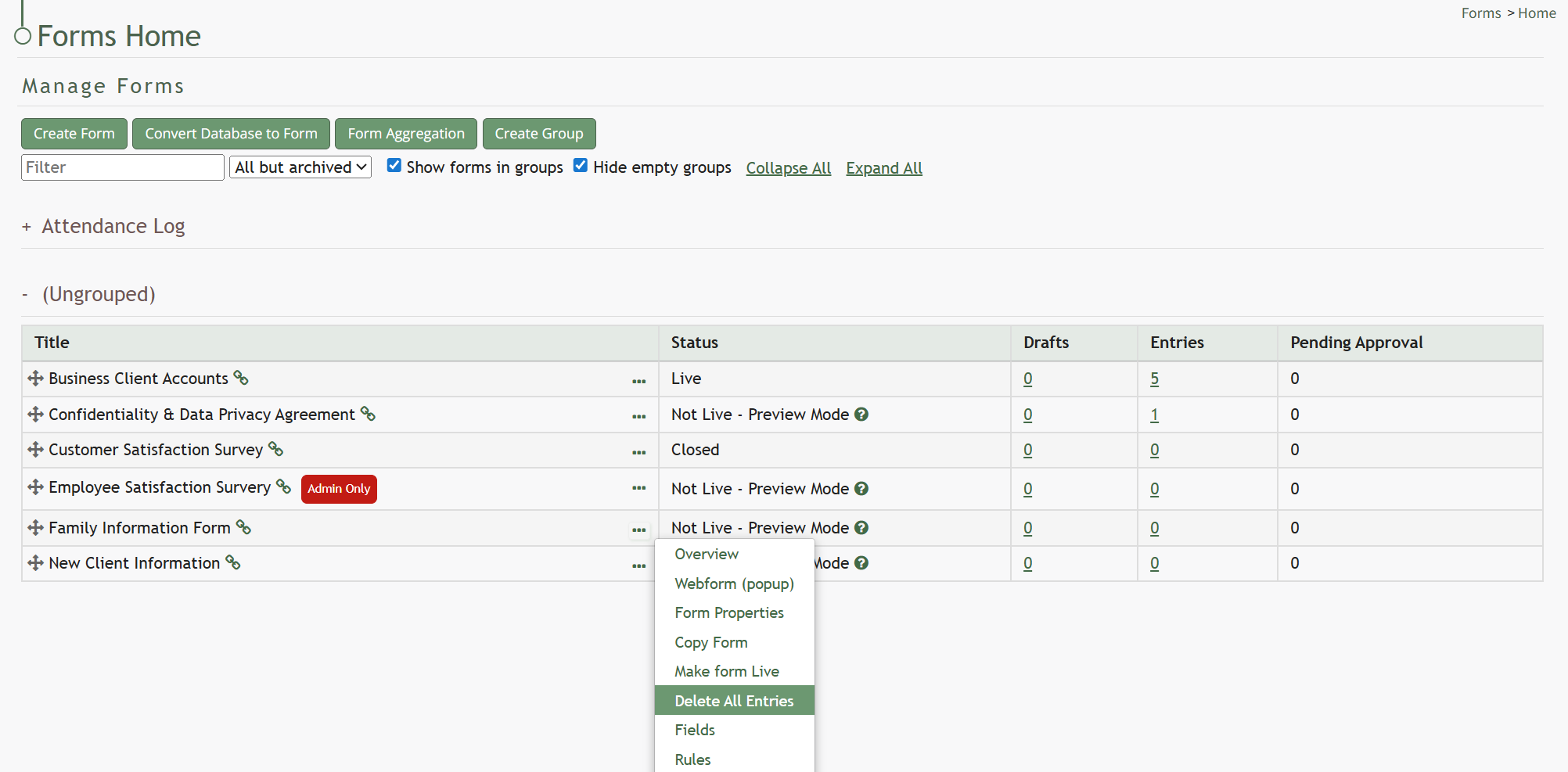
Select “Delete All Entries” from the context menu opening the Deletion Confirmation Modal.
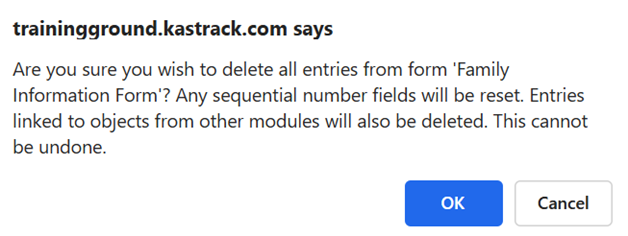
The modal states, “Are you sure you wish to delete all entries from form (FORM NAME)? Any sequential number fields will be reset. Entries linked to object from other modules will also be deleted. This cannot be undone.”
Click the “OK” button and the Delete All Entries Modal stating “All entries have been deleted” appears.
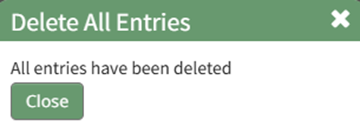
Click the “Close” button and return to the Forms Module Home Page.

The Forms Table will now show that there are 0 entries associated with the Form.
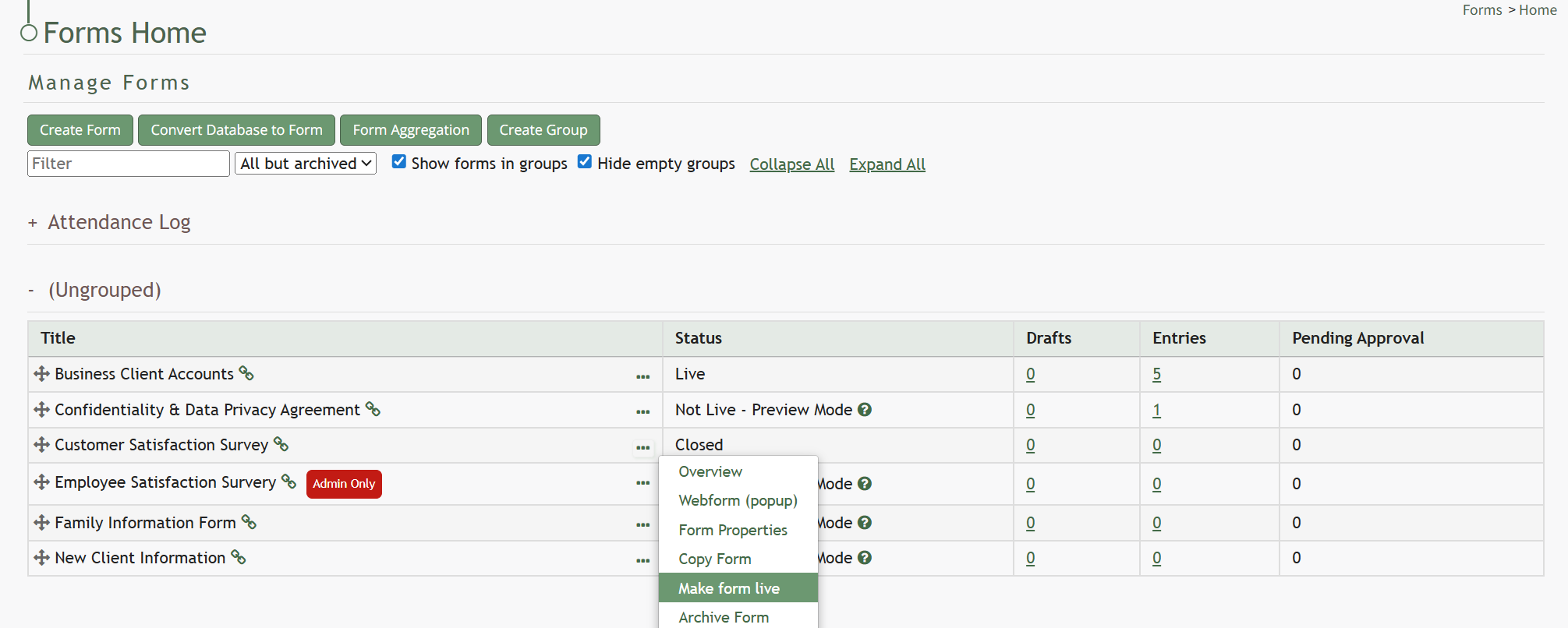
Select “Make Form Live”. This opens the Update Status Modal which states, “This form is now live.”
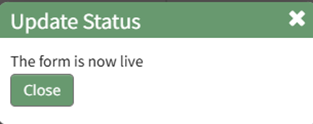
Click the “Close” button to return to the Forms Table on the Home Page. The Form Status will now show as Live.
No comments to display
No comments to display