
Bulk Edit Selected Actions
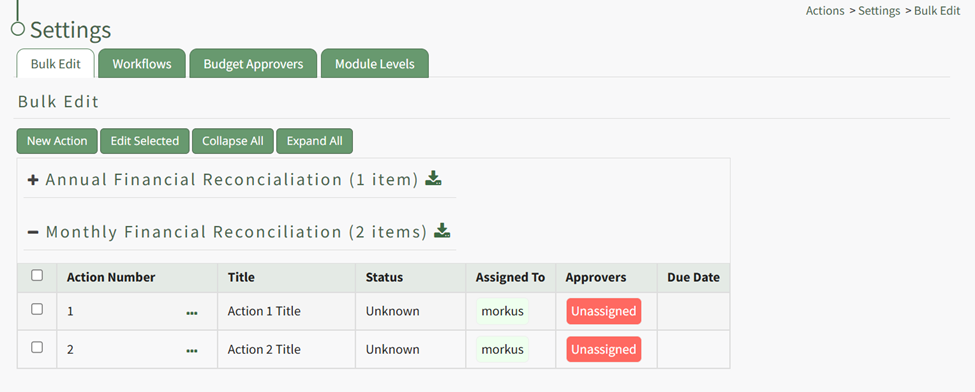
To bulk edit selected actions, select Settings under the Action Module on the Main Menu. Open the Workflows Tab.
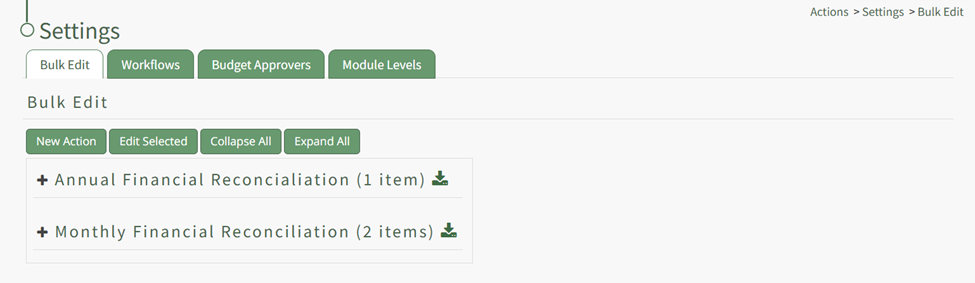
Clicking on the plus sign on the left of the action group name will expand to list all actions within the action group in tabular form. When expanded, clicking the minus sign will close the action group.
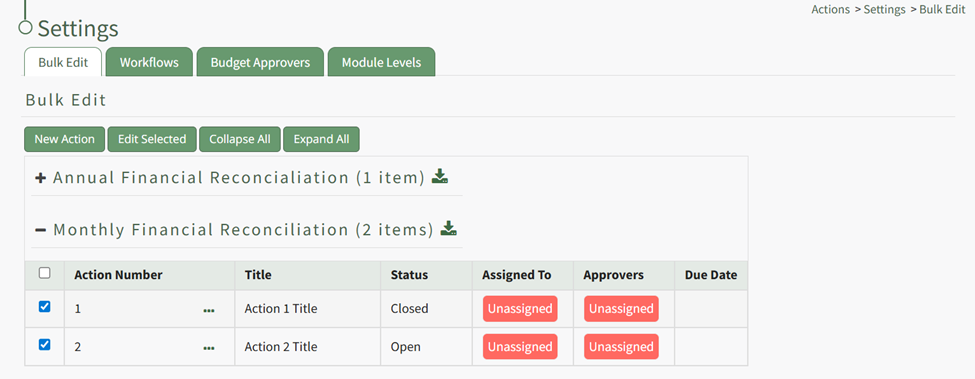
The “Collapse All” and “Expand All” buttons are useful for opening or closing all action groups simultaneously.
Click all the actions in any action action group that you would like to bulk edit simultaneously.
Note: Clicking the open box in the header row will select/de-select all checkboxes in the table.
Click the “Edit Selected” button opening the Action Bulk Edit Modal.
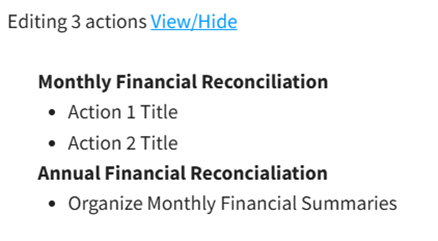
The top of the modal states the number of actions that will be impacted by the bulk edit. Selecting the “View/Hide” clickable link expands the modal to show the actions being impacted, organized by action group.
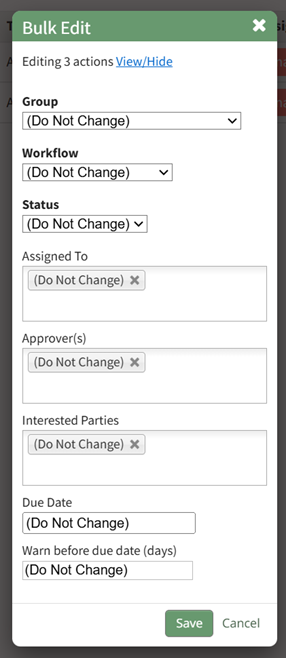
Make any edit to the Action Group regarding Workflow, Status, who the actions are assigned to, who the action approvers are, who the interested parties are, due date, or warn before due date days.
Select “Save” when done and the changes will be displayed.
No comments to display
No comments to display