
Upload a File to An Asset
To upload a file to an asset, open the Manage Assets Page in the Assets Module on the Main Menu. Use filters as needed and identify the asset/component you want to upload a file to. Click the three-dot icon to the right of the asset title opening the Asset Management Context Menu.
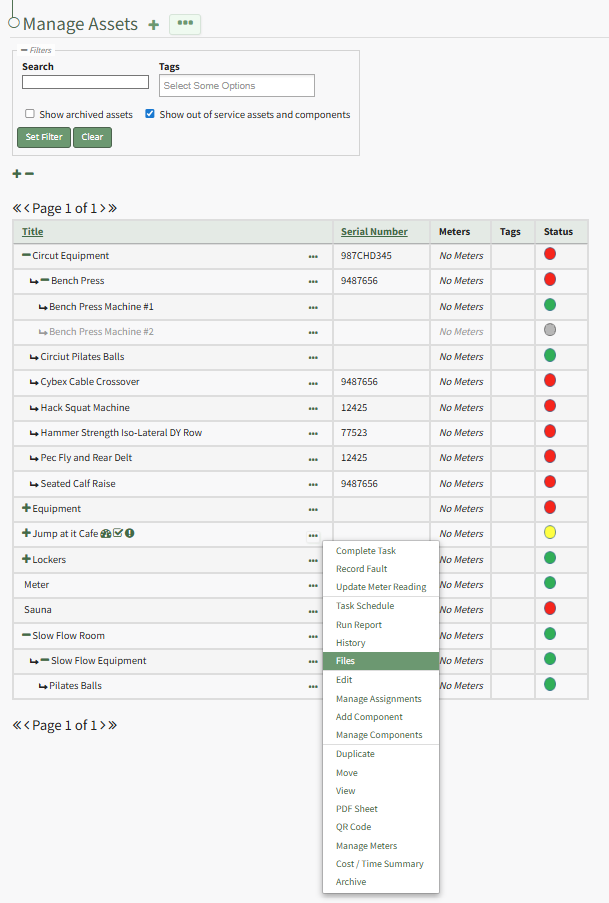
Select "Files" from the context menu opening the Asset Files Modal.
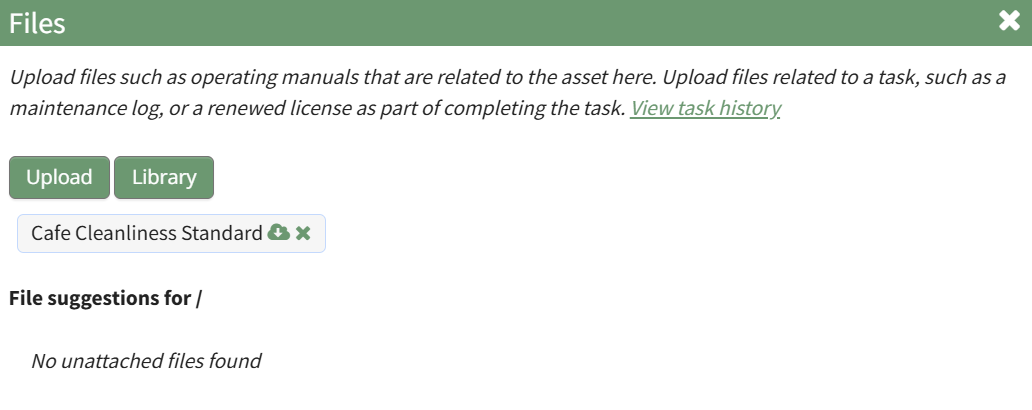
Upload files such as operating manuals that are related to the asset here. Upload files related to a task, such as a maintenance log, or a renewed license as part of completing the task.
Click the "Upload" button opening the Upload File Modal.
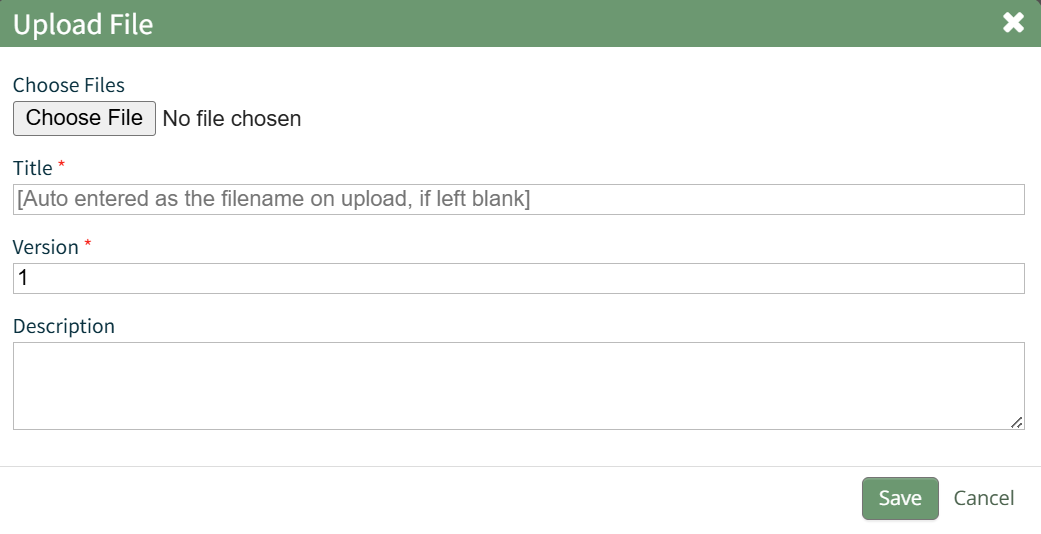
Click the "Choose File" button and select a file from your personal device. Once uploaded, the file name will show at the top of the modal. The original file name will be used as the file title unless edited here. Indicate the file version and input a description if desired. Select the "Save" button.
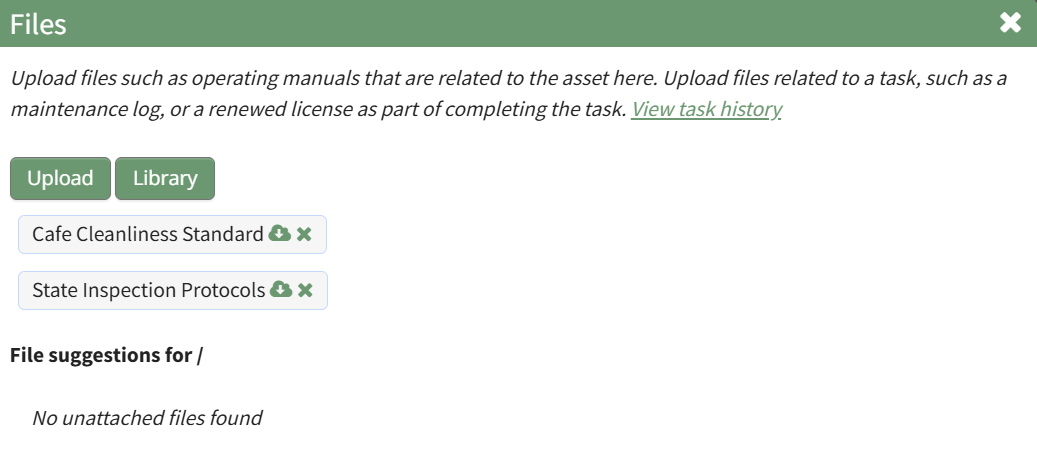
The new file now shows in the asset's Files Modal.
No comments to display
No comments to display