
Create a Custom Date/Time Format for an Attendance Log
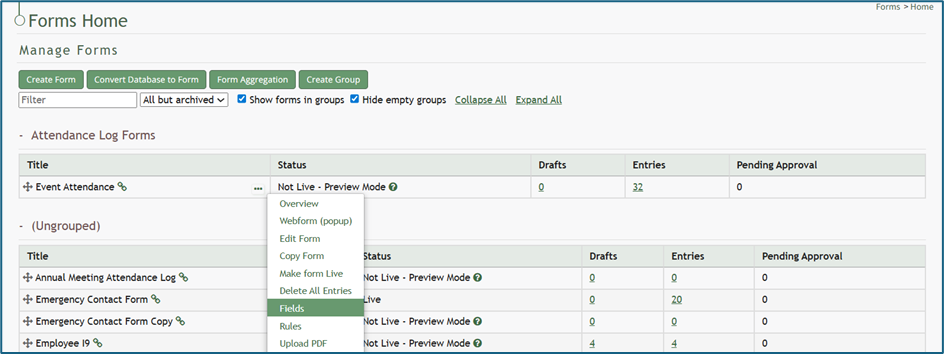
To create a custom date/ time format for your attendance log, go to the Home Page of the Forms Module and click the three-dot icon to the right of the form the attendance log is based on. This opens the context menu. Select “Fields”.
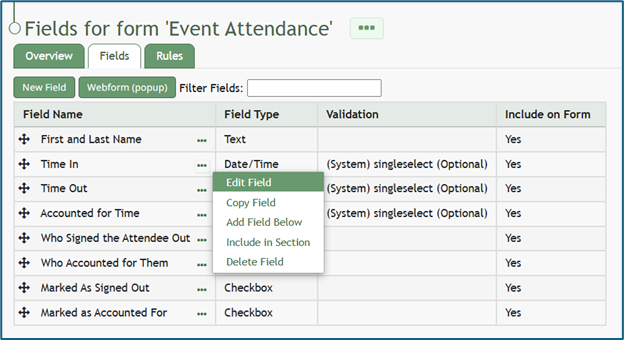
This opens the Fields Tab of the Form. Select the three-dot icon next to the Field Name for the date/time field type and select “Edit Field”.
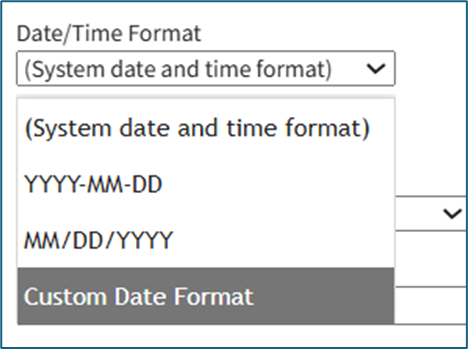
This opens the Edit Form Field Modal, which includes a Date/Time Format field. Select “Custom Date Format” from the drop-down menu.
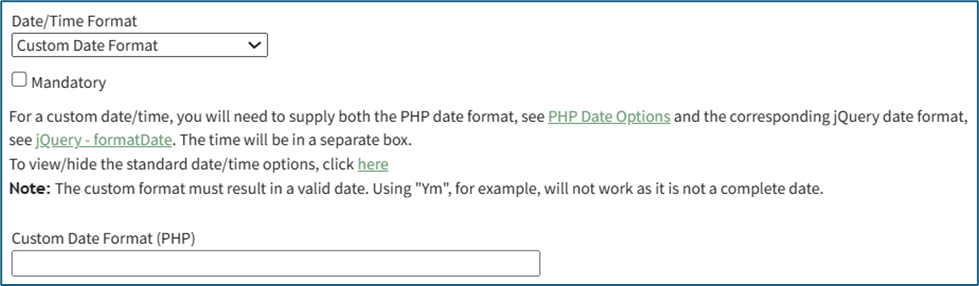
This expands the Edit Form Field Modal. Input the PHP date format and the jQuery date format desired.
Time is not included in the Custom Date Format field.
To create a custom date format, the software needs to know how to both read and display the date. PHP (the server side) processes the date after it’s submitted. jQuery (the browser side) displays/formats the date in the date picker the user sees. Both systems have their own “language” for writing date formats, so you are required to provide a version both sides understand.
PHP uses letters to represent parts of the date, explained in the table below.
PHP Language Explanation | ||
What It Represents | PHP Letter | Example |
Day (with leading 0) | d | 02 |
Month (with leading 0) | m | 02 |
Year (4 digits) | y | 2025 |
jQuery uses similar but slightly different letters, explained in the table below.
jQuery Language Explanation | ||
What It Represents | jQuery Letter | Example |
Day (with leading 0) | dd | 02 |
Month (with leading 0) | mm | 02 |
Year (4 digits) | yy | 2025 |
Select “Save” at the bottom of the Edit Form Field Modal, and the customized date and time format will now be utilized.
No comments to display
No comments to display