
Create a New Notification Template
Note: A default new user Notification Template already exists in the system. This template can be edited for your preferences.
How To: Edit New User Notification Templates
To edit new user notification templates, go to the Notification Templates Tab on the Settings Page of the Communications Module.
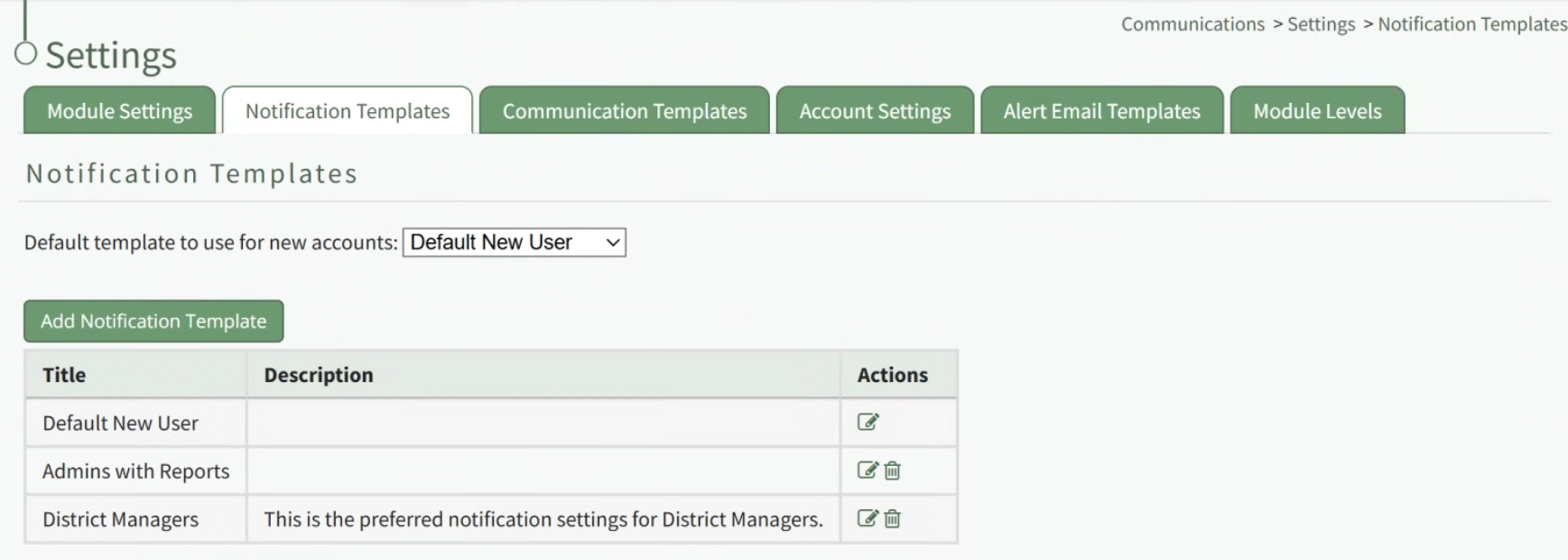
Existing templates will be shown in the Notification Template Table.
Select the edit icon in the action column of the template you wish to edit opening the Edit Notification Template Page.
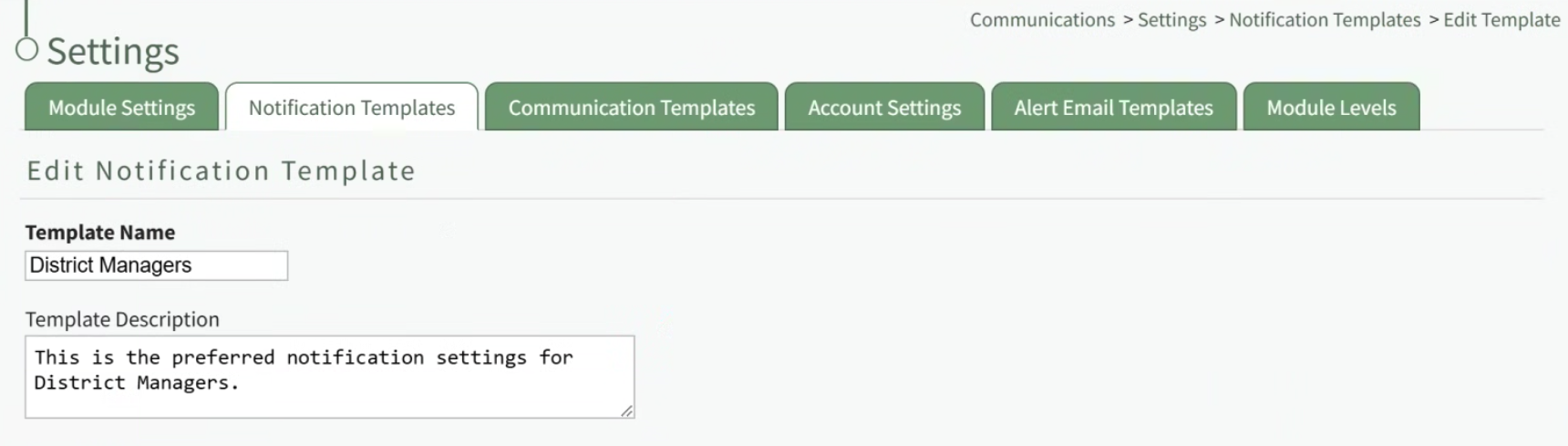
A notification template is comprised of two parts: Reports and Alerts.
Indicate the desired status for email report notifications: Not Active or Active.
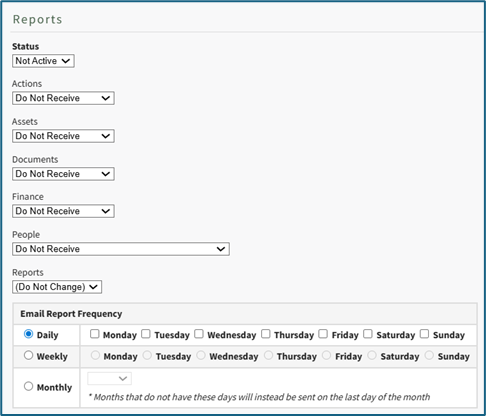
Alter the desired reports selected for each module or leave as “Do Not Receive”.
Email Report Frequency has three options: daily (or on specified days of the week), weekly (on the day of your choosing), or monthly (which requires the user to specify which numerical day of the month from a dropdown menu you wish to receive the report summary).
After setting template preferences for reports, scroll down to set template preferences for email alerts.
Alter email preferences as set by module through a dropdown menu with three options that designate when an email alert should be sent: “Real Time”, “Digest”, and “Do Not Receive”.
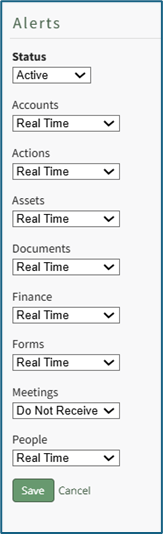
After making edits to your preferences for both Email Report and Email Alert Settings, select “Save”, returning you to the Notification Templates Tab on the Settings Page of the Communications Module.
The newly created notification template will now be shown on the Notification Template Table.
To create a new notification template, go to the Notification Templates Tab on the Settings Page of the Communications Module.
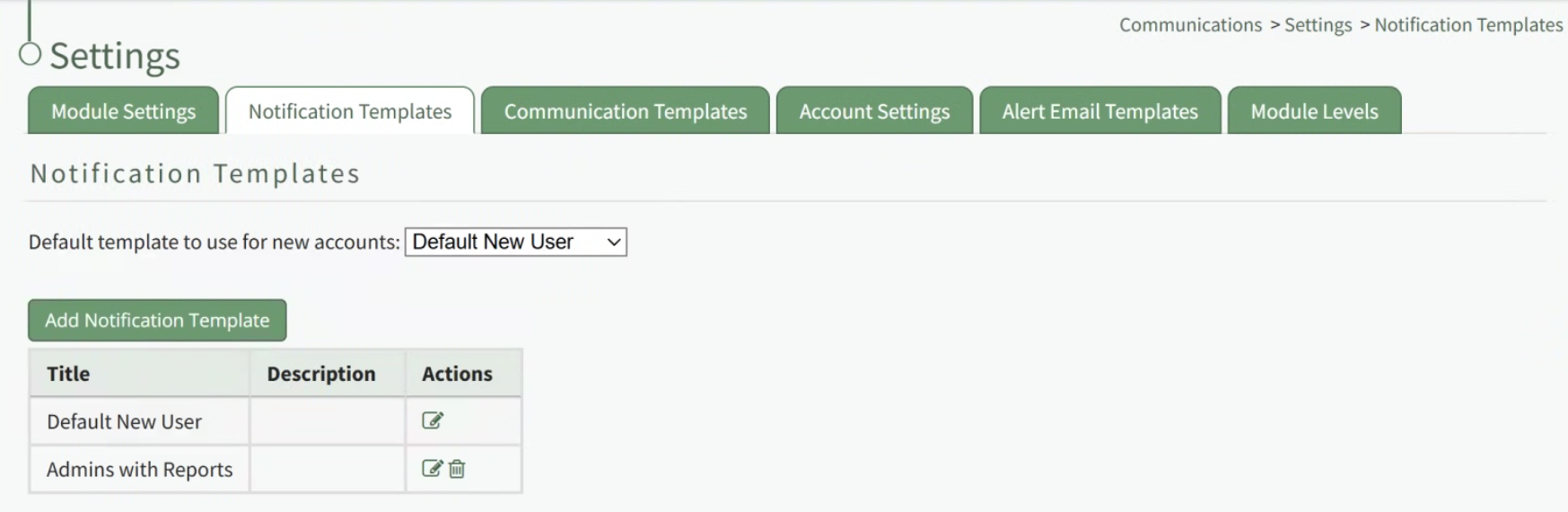
Select the “New Notification Template” button, opening the Edit Notification Template Page.
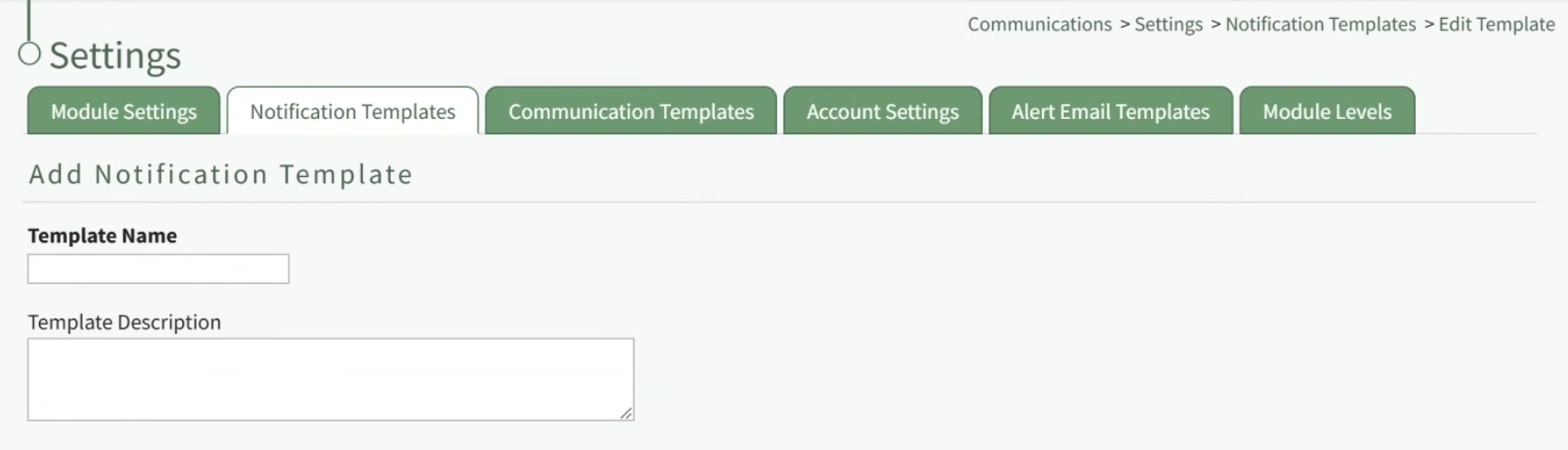
Input a name for the new Notification Template as well as a description.
A notification template is comprised of two parts: Reports and Alerts.
Indicate the desired status for email report notifications: Not Active or Active.
KAStrack generates and sends reports for the following modules: Actions, Assets, Documents, Finances, and People, and Reports.
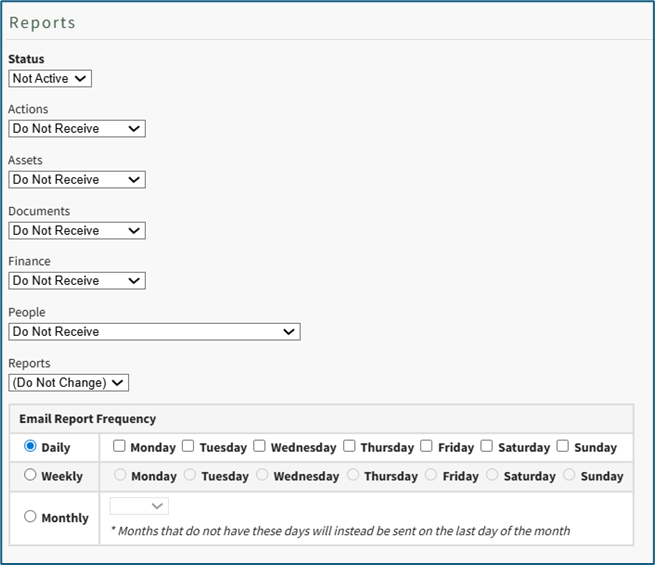
Alter the desired reports selected for each module or leave as “Do Not Receive”.
Daily email report notifications can be sent everyday of the week, or on specific days. Select the appropriate checkboxes to indicate your preference.
Selecting a weekly email report notification requires you to indicate which day of the week you prefer the report summary email to be sent.
Selecting a monthly frequency requires the user to specify which numerical day of the month from a dropdown menu you wish to receive the report summary. The days that are not included in every month (29, 30, 31) have an asterisk next to them. If the current month does not have that particular date, the system will send the report on the final day of the month.
After setting template preferences for reports, scroll down to set template preferences for email alerts.
KAStrack sends email alerts for the following modules: Accounts, Actions, Assets, Dispatch, Documents, Finance, Forms, Meetings, and People. Each module has a dropdown menu with three options that designate when an email alert is sent: “Real Time”, “Digest”, and “Do Not Receive”.

Real Time is the default setting that sends email alerts in real time.
Digest is KAStrack’s delayed timing feature. Selecting “Digest” will summarize all alerts with this designation to be sent daily between midnight and 4 a.m. Central Time (United States). As noted in KAStrack, alert digests are not applicable to all alerts.
Whether or not an alert is digestible can be customized on the Alert Email Templates Tab of the Communications Module.
Do Not Receive designates that the user does not wish to receive email alerts about that specific module.
Communications sent from users are always sent in real time
After selecting your preferences for both Email Report and Email Alert Settings, select “Save”, returning you to the Notification Templates Tab on the Settings Page of the Communications Module.
The newly created notification template will now be shown on the Notification Template Table.
No comments to display
No comments to display