
Add a Budget Item
To add a budget item to a specific budget, go to the Active Tab of the Budgets Page in the Finance Module. Open the specific budget either by clicking the name of the budget or the eyeball icon in the action column of the desired budget.
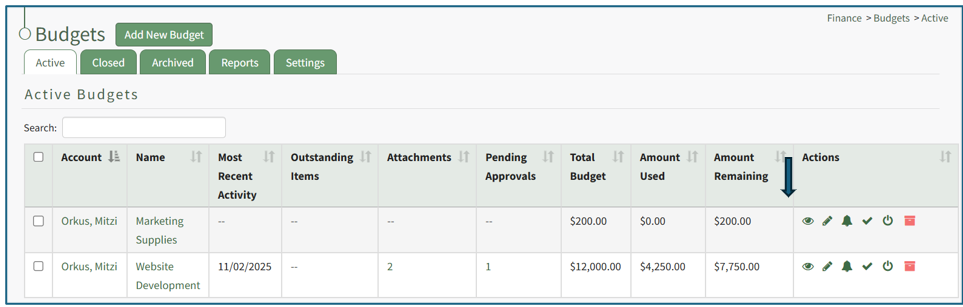
The icon opens the specific budget, showing the Budget Item Per Budget Table.
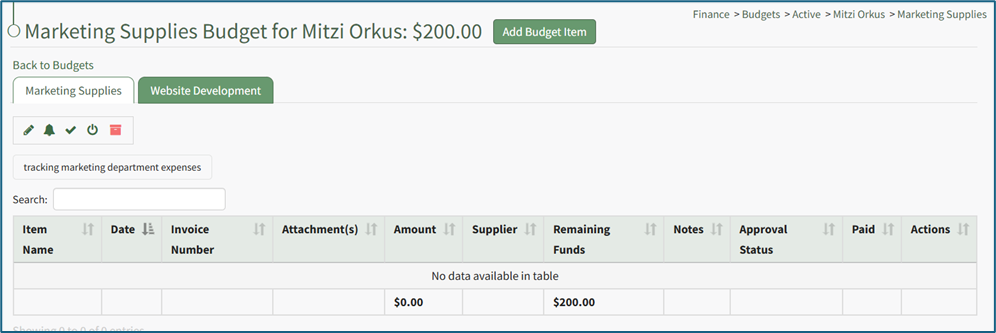
Select the “Add Budget Item” button to the right of the budget header opening the Add Budget Item Modal.
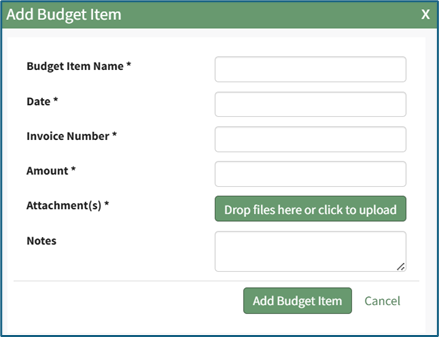
Include the Budget Item Name and the Date. Include the invoice number, amount, and associated attachments. Multiple attachments can be included, but at least one is required. All fields, with the exception of notes, are required by the modal.
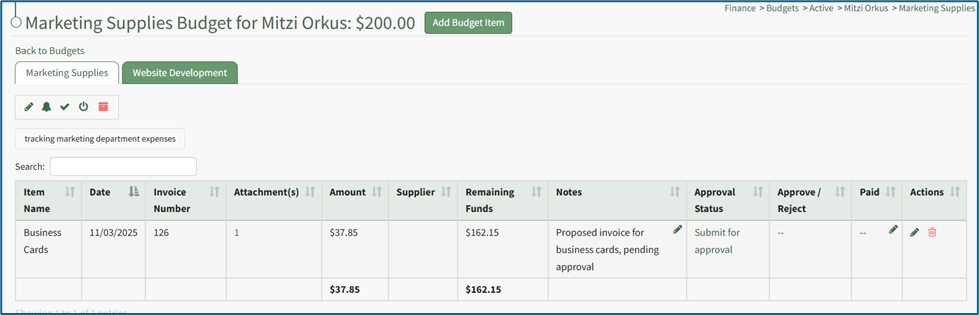
Select “Add Budget Item” from the bottom of the modal, and the budget item will now appear in the budget specific Budget Item Per Budget Table and can be submitted for approval (if approval is enabled).
How To: Submit a Budget Item for Approval
Budget items can only be submitted for active budgets. To submit a budget item for approval, go to the Active Tab of the Budgets Page in the Finance Module. Open the specific budget with the budget item that needs to be submitted for approval either by clicking the name of the budget or the eyeball icon in the action column of the desired budget.

This opens the budget, showing the Budget Item per Budget Table.

To submit the budget item for approval, select the clickable link “Submit for Approval” in the Approval Status column.

The approval status now shows how many of the required approvals have been granted. The comment icon shows the date and time the budget item was submitted for approval.
No comments to display
No comments to display