
View and Manage Documents
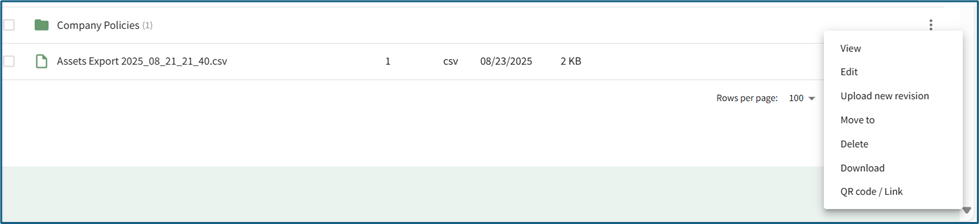
To view a document in the Documents Module, click on the document title or press the vertical triple dot icon on the far right of the Document List on the Overview Page and select “View” from the dropdown menu.
A modal will open, allowing a user to preview the document.
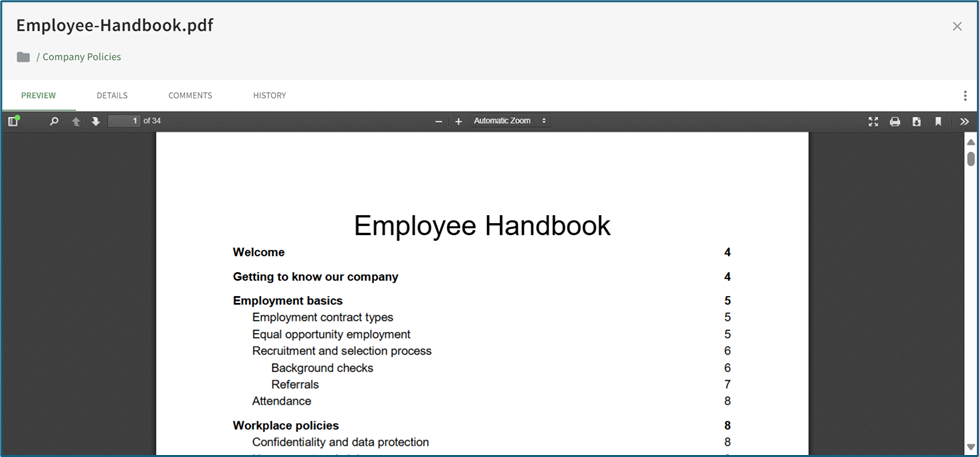
There are four tabs on the View Modal: Preview, Details, Comments, and History.
Preview Tab
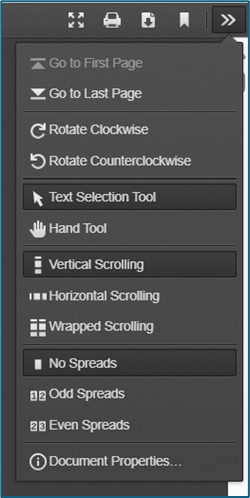
The Preview tab allows the user to edit their view of the file. A user can search, scroll, zoom, magnify, reduce, search, print, download, and copy a file. Selecting the double arrow on the toolbar opens a dropdown menu with additional features.
While other supported filetypes can be seen in this tab, only PDF files have the functionality described here.
Any unsupported file types will show the message “No preview available” with a button to “Download Document”. A url file will have an additional button to “Open URL in a New Tab”.
The original file cannot be edited in preview.
Details Tab
The Details Tab allows the user to view all information relevant to the document including the filename, document owners, revision, revision date, file size, who published the file, a file description, and any associated tags. This tab will also show the status of approvals and acknowledgements for the file, if those advanced options are enabled.
Comments Tab
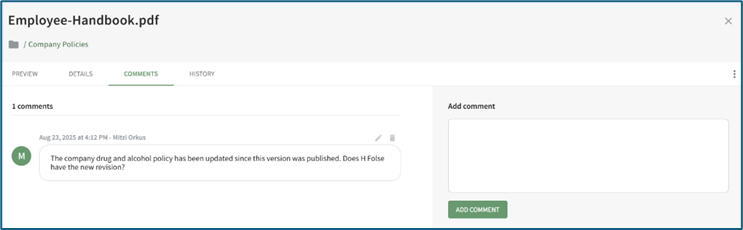
The Comments tab allows the user to view any comments that have been made regarding the document, as well as to make their own.
Document owners will receive a new comment notification anytime a new comment is made.
History Tab
The History Tab allows for the viewing of the revision number, date, the user who submitted the revision, and any historical details associated with the revised file. Older revisions can be viewed and downloaded by clicking the magnifying glass icon.
No comments to display
No comments to display