
Upload a Video / Document in the Courses Module
To upload a video/document to be used in a course, you must be on a page within the course. An explanation of how to access a course page is provided in the How To below.
How To: Access A Specific Page in a Course
To access a specific page in a course, open the Courses Module Home Page and click the three-dot icon to the right of the course title to open the Course Context Menu.
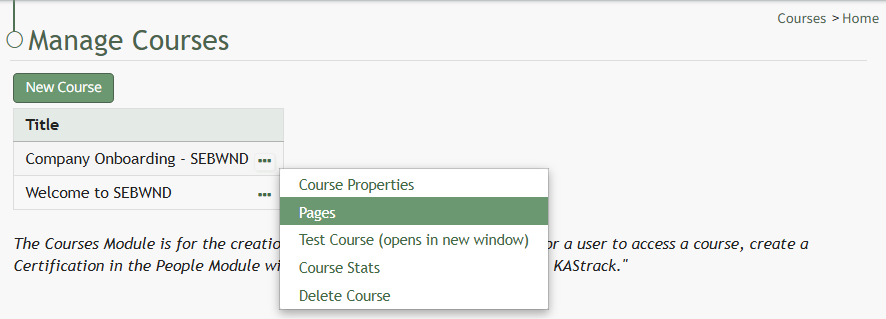
Select Pages from the Context Menu.
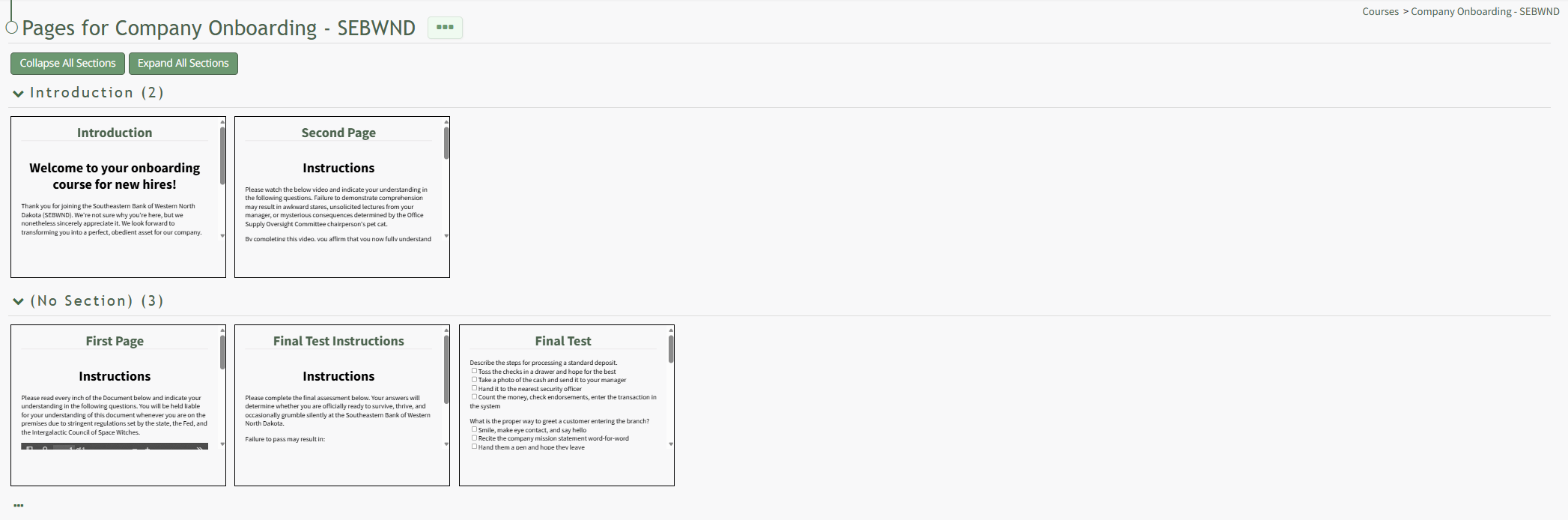
This opens a course's Details Page. Click the page you want to edit to access the page in the course.
Once you are on the specific page in the course, click the three-dot icon to the right of the page title opening the Page Context Menu.
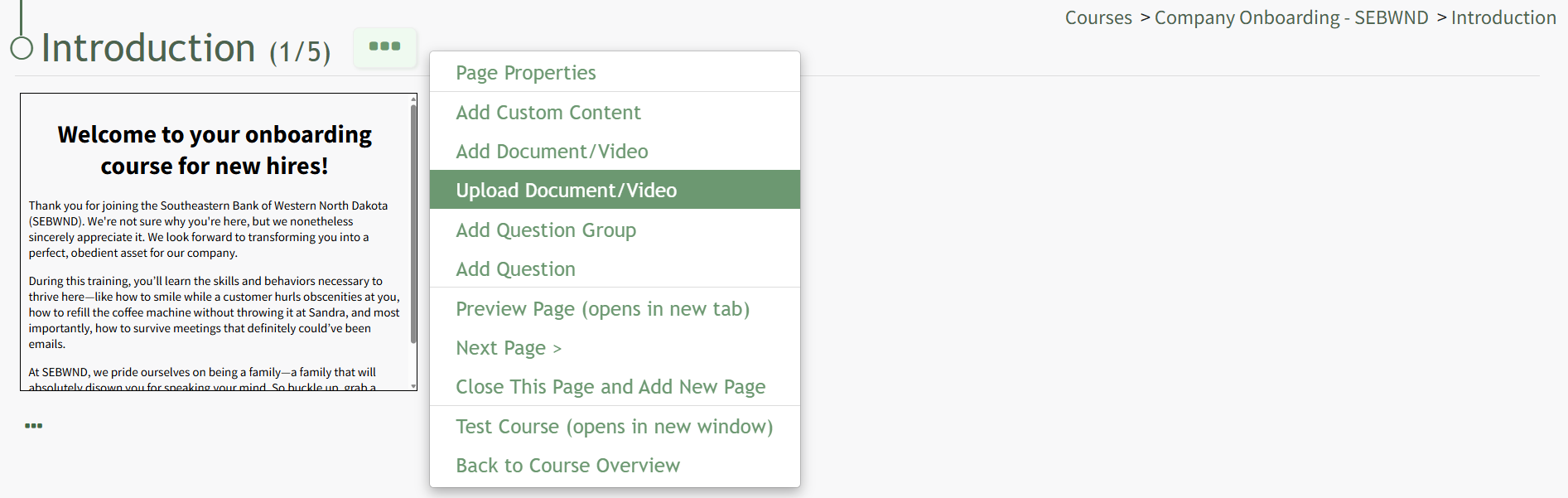
Select the option to "Upload Document/Video," opening the Upload File Modal.
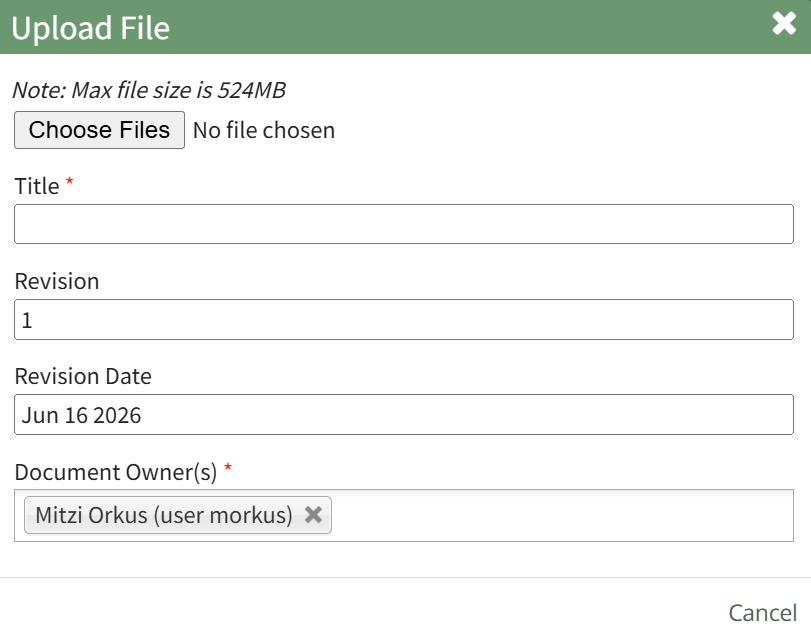 Click the "Choose Files" button.
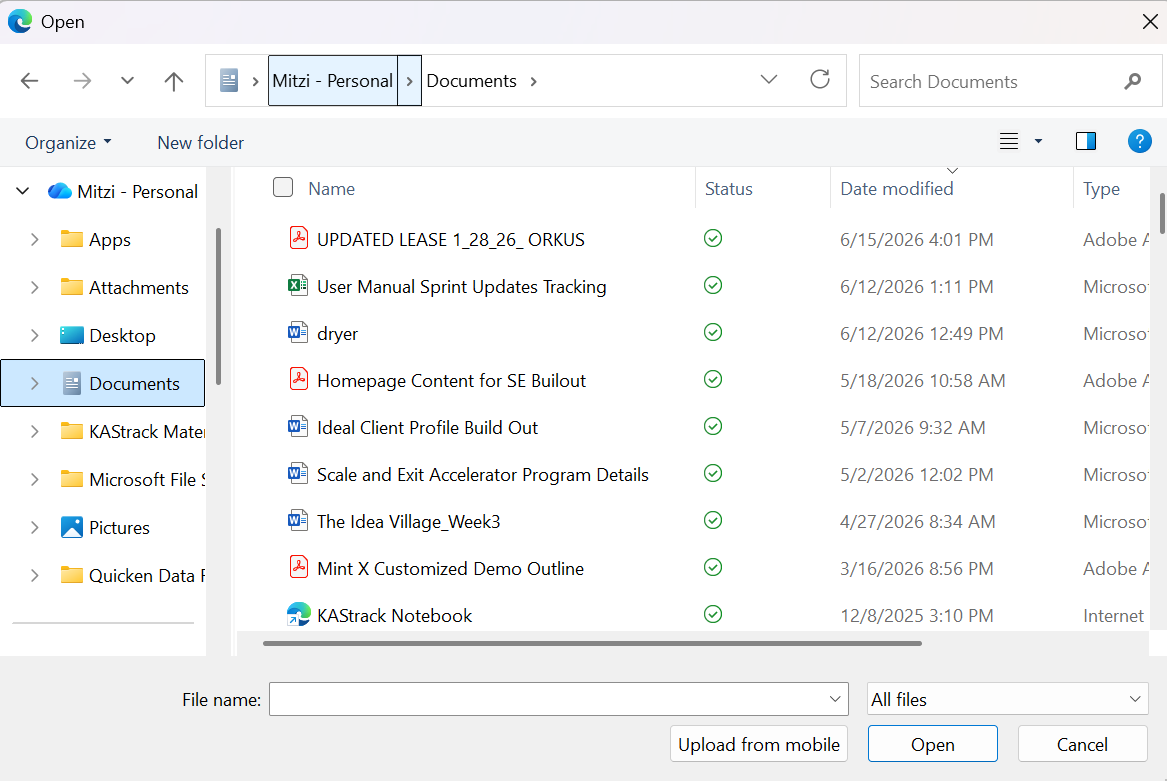
Select the File you want to upload from your personal device. Once it is uploaded, the file selected will show in the Upload File Modal.
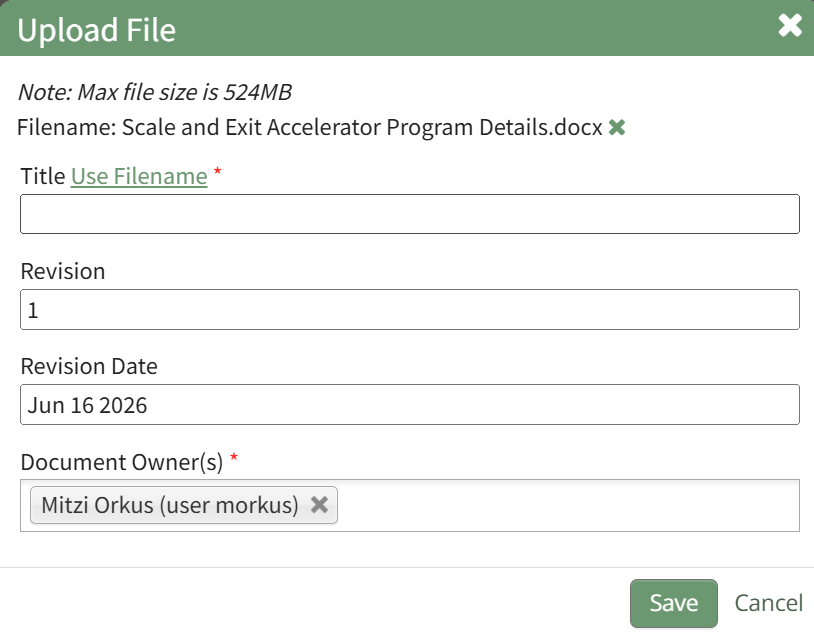
Enter a new title for the file or click the "Use Filename" clickable link for the original filename to be saved.
Indicate the revision number and revision date as well as the Document Owner(s).
Select "Save".
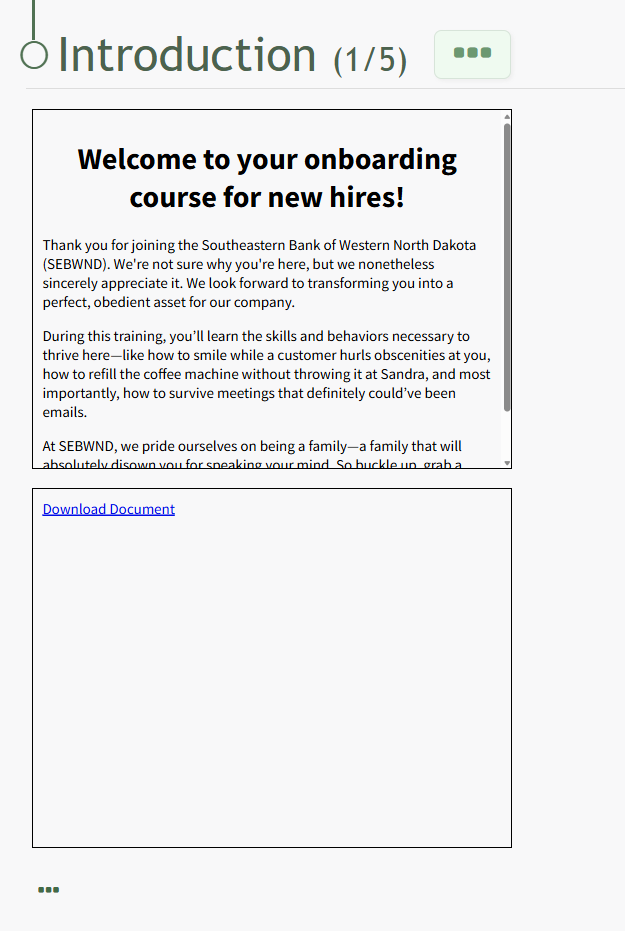
The uploaded file now shows on the page.
No comments to display
No comments to display