# Upload a Video / Document In a Course
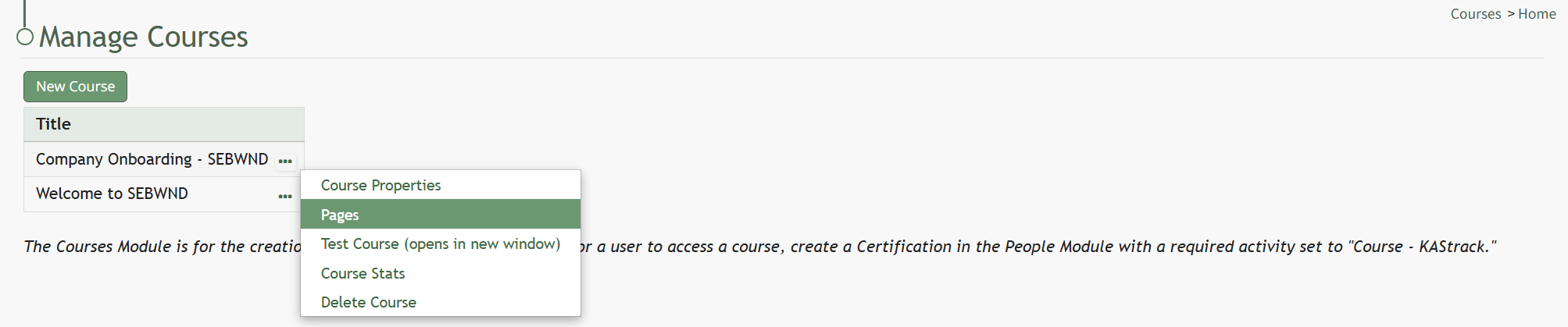
To upload a video/document in a course, open the Courses Module Home Page from the Main Menu. Click the three-dot icon to the right of the course title opening the Course Context Menu and select “Pages”.
[](https://kaswiki.kastrack.com/uploads/images/gallery/2026-06/kyeimage.png)
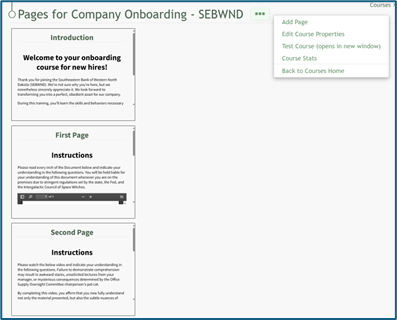
This opens the Course Overview Page Pages for Course Name Page. Selecting the three dot (…) icon to the right of the page header open a context menu.
[](https://kaswiki.kastrack.com/uploads/images/gallery/2025-12/FMUimage.png)
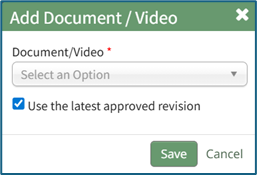
“Add Document/Video” opens the Add Document/Video modal that allows the user to select a previously uploaded document or video from a dropdown list. Any documents or videos in the Documents Module that the user has access to will show in the dropdown list.
[](https://kaswiki.kastrack.com/uploads/images/gallery/2025-12/Ihtimage.png)
The checkbox allows the user to designate whether they wish to use the latest approved revision of the item selected. Click “Save” and the selection will appear as a slide on the course homepage.
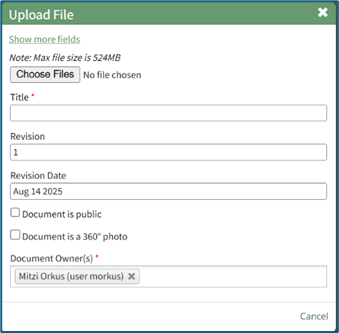
“Upload Document/Video” will open an Upload File modal.
[](https://kaswiki.kastrack.com/uploads/images/gallery/2025-12/wCyimage.png)
Title the file (required).
The user has the option to indicate which revision is being uploaded and a revision date (defaults to the date of upload).
Leave “Document is public” unchecked.
Document owners can be designated via a drop-down list of users. In the Courses Module, identifying someone as a document owner allows users to see who is connected to a document. Document ownership does not have any other functional purposes for Courses.