
Designate that an Employee is in Training (From the User Page)
Setting a user as “In Training” denotes to others that the user is still onboarding into the role that is assigned to them. While certifications in that role are required of the user, they are not technically considered as “due” while the user is In Training. This allows an organization to give a new employee a grace period to complete their certifications upon admittance to a new certification role.
To set a user as In Training, first select the Users Page in the People Module.
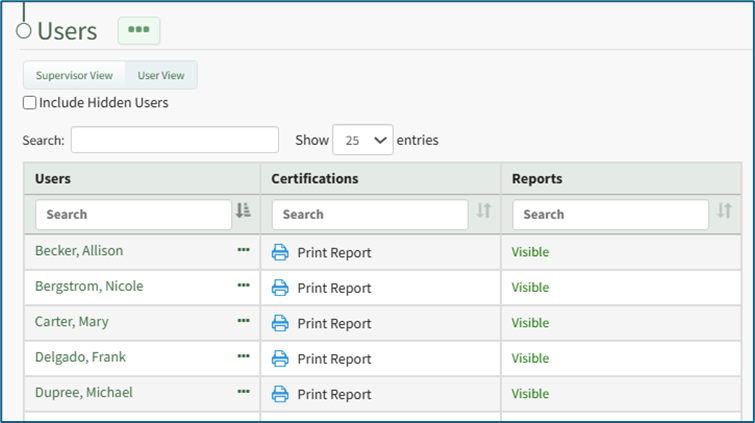
Click on the name of the desired user to be put in training status which opens the User: (Name) Certifications Page.
Select the “Manage Roles/Certifications” tab and click the three dot (…) icon to the right of the Required Role.
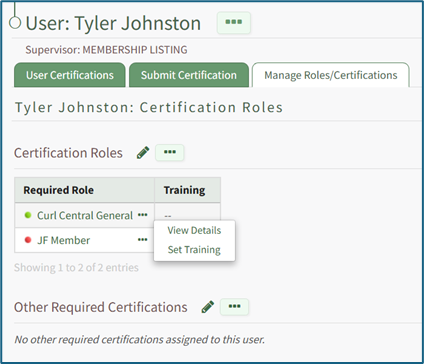
Select “Set Training” from the dropdown menu to open the Set Training Modal.
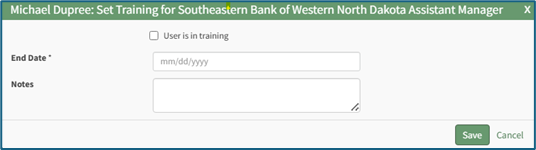
Select the “User in in training” checkbox to indicate that a user is in training.
You are required to input a training end date in MM/DD/YYYY format. Optionally add comments about the training period in the Notes textbox.
If an employee is set as being in training for a role, a blue oval with the full training end date will appear in the Notes column of all certifications required by that role. The number of days remaining in training is shown in a blue oval in the expiration date cell.
If a certification is both deferred for the employee and the employee is In Training for the role that requires that certification, the blue oval will reference the latest end date between the Deferred Until date and the Training End dates.
If a certification is required by multiple roles for which the user is set to In Training, the blue oval will reference the earliest Training End date available.
If a certification is required by multiple roles, but the user isn't In Training for all of the roles that require the certification, the certification will still show as required.
No comments to display
No comments to display