
Create New Workflow
To create a new workflow, select Settings under the Action Module on the Main Menu. Open the Workflows tab.
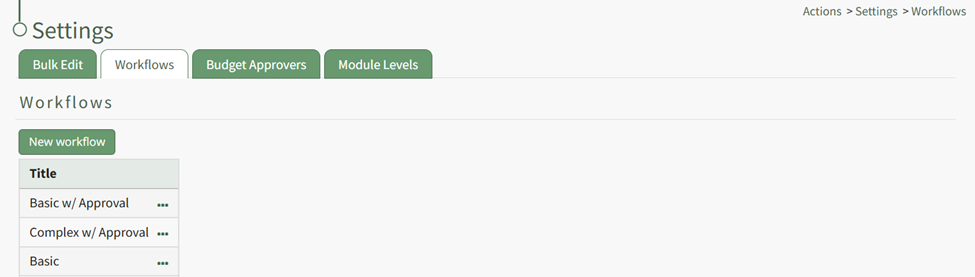
Click the “New Workflow” button opening the New Workflow Title Modal.
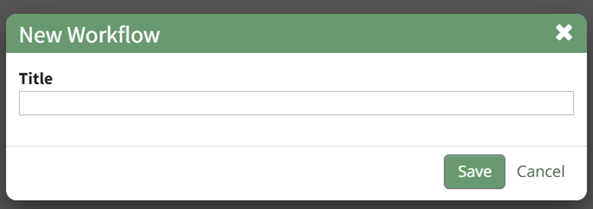
Input the title of the new workflow and select the “Save” button.
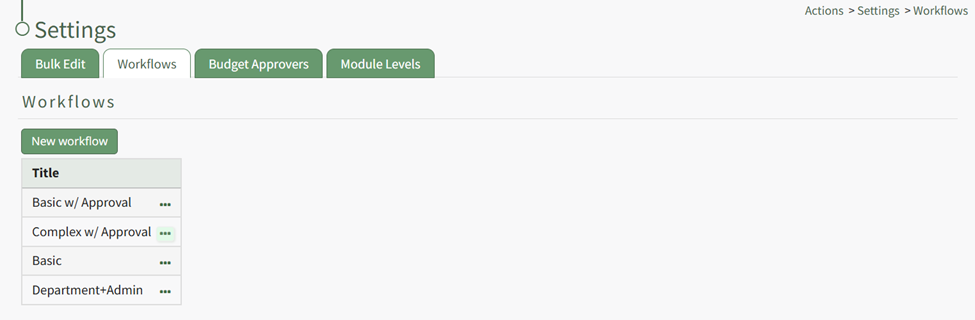
The new workflow is now visible in the Workflow Title Table. Click the three dot icon to the right of the new workflow opening the Workflow Context Menu.
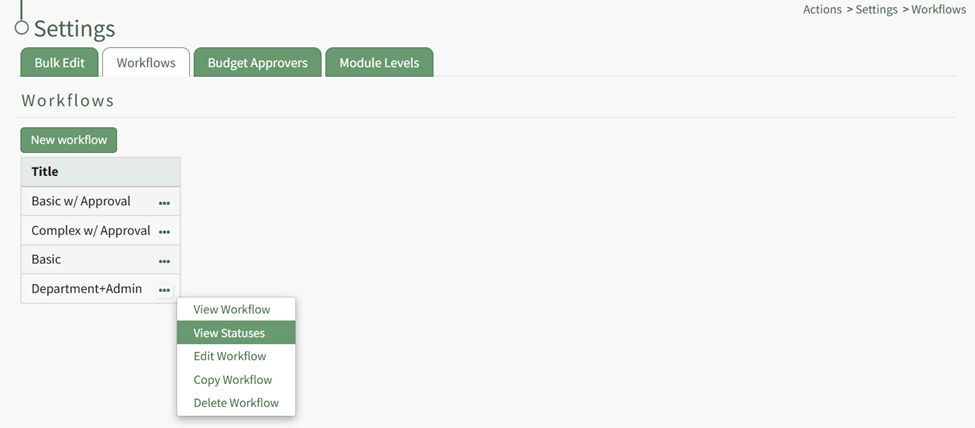
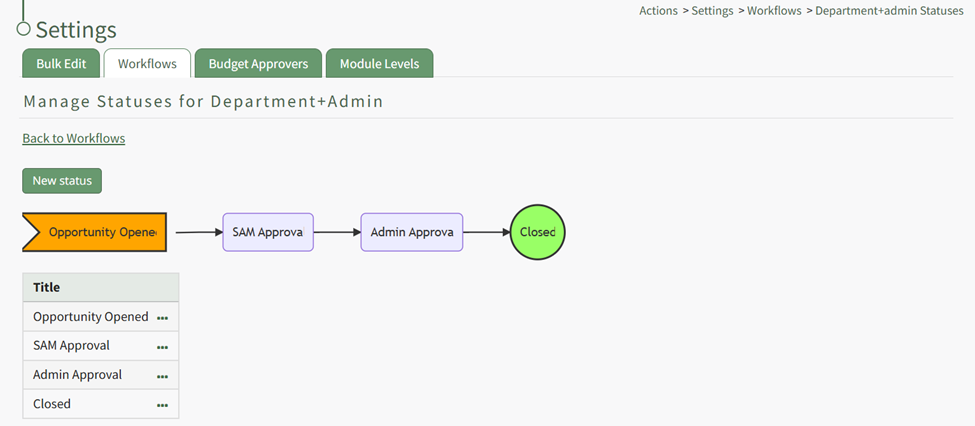
Select “View Statuses” opening the Manage Statuses Page for your workflow.
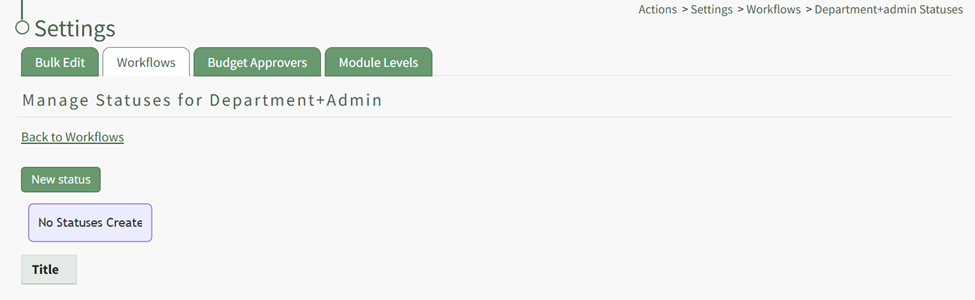
Click the “New Status” button opening the New Status Modal.
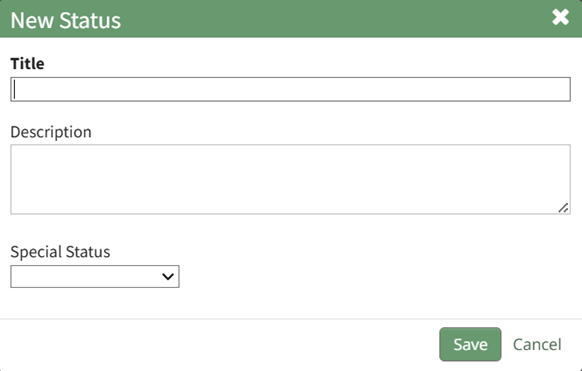
Input a title and description for the new workflow status.
The Special Status dropdown menu displays: Close, Close and Repeat, and Opened. Select which if it applies and select the “Save” button. The status now shows on the Manage Status Page.
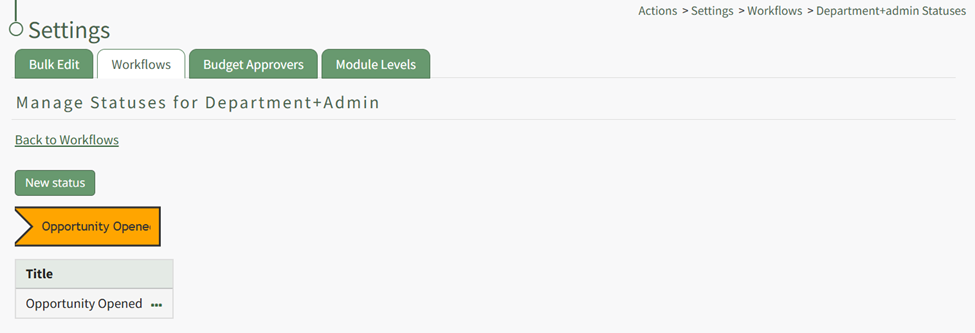
Repeat the process to create the next stage of your workflow.
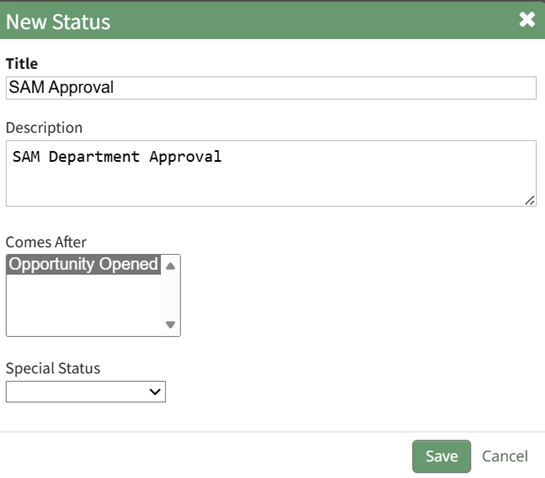
The New Status Modal will now require you to repeat the process, now requiring you to select which step this status is to follow. Repeat the process until your customized workflow has been completed.
No comments to display
No comments to display