
Add People to a Dispatch
To add people to a dispatch, open the specific dispatch you wish to add people to. Go to the Dispatch Module Home Page and alter the filter view as needed. Click the Dispatch Number or Title to open the specific dispatch details page.

People can be added to a dispatch by selecting the plus sign icon to the right of the People column header or by selecting the identification icon. Selecting the identification icon will allow you to add people through their certification role.

To Add People to a Dispatch through People
Select the plus sign to the right of the People Section header. This opens the Add People Modal.
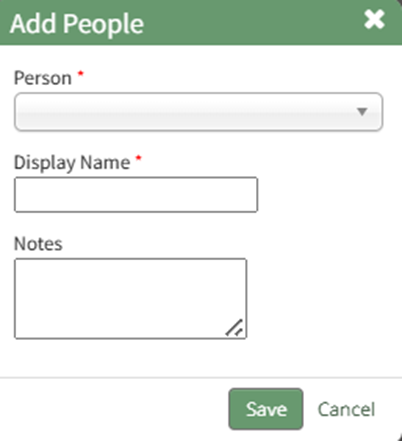
Select the KAStrack user to be added to the dispatch from the dropdown menu. There is an External User option if the individual is a not a KAStrack user. The system will automatically input the First , Last and username as the Display Name. This can be edited.
Add any notes regarding the user being added to the dispatch as desired.
Select “Save” and the user is added to the dispatch page.
To Add People to a Dispatch through their Certification Role
To add people to a dispatch through a certification role, select the identification card Icon to the right of the plus sign in the People Column. This opens the Add People by Certification Role Modal.
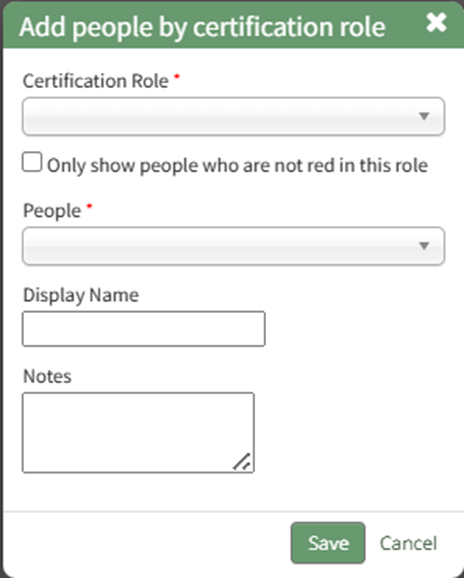
First, select the desired Certification Role from the dropdown menu.
Selecting the checkbox will only show people who are not red in this role. The People associated with the selected certification role will now be displayed in the the People dropdown menu.
The Display Name will auto populate with the First, Last, and username of the individual. Edit as desired to indicate the display name and add relevant notes.
Select “Save” and return to the dispatch page.
No comments to display
No comments to display