# Create New Module Levels (Assets Module)

To create a new module level with customizable permissions in the Assets Module, go to the Module Level Tab on the Settings Page of the Assets Module.

[![image.png](https://kaswiki.kastrack.com/uploads/images/gallery/2026-01/scaled-1680-/6ERimage.png)](https://kaswiki.kastrack.com/uploads/images/gallery/2026-01/6ERimage.png)

Select the “Add Module Level” button opening the New Module Level Modal.

[![image.png](https://kaswiki.kastrack.com/uploads/images/gallery/2026-01/scaled-1680-/il0image.png)](https://kaswiki.kastrack.com/uploads/images/gallery/2026-01/il0image.png)

<span style="white-space: pre-wrap;">Selecting “New Module Level” on the Manage Module Levels page opens the New Module Level modal. Input the name of the customized model level. </span>

<p class="callout info">Any users with the selected certification roles will automatically get the permissions for this Assets module level.</p>

You have the option to assign the people associated with specific roles to the new module level and add any notes.

Select “Save.” Module levels will be listed alphabetically.

[![image.png](https://kaswiki.kastrack.com/uploads/images/gallery/2026-01/scaled-1680-/vN2image.png)](https://kaswiki.kastrack.com/uploads/images/gallery/2026-01/vN2image.png)
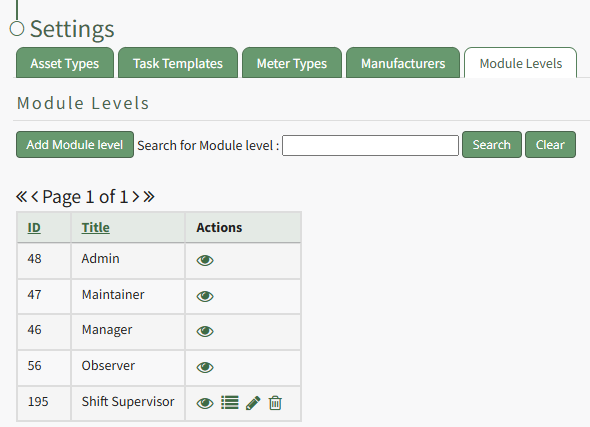
Users must select which permissions are allowed for a customized module level. Select the bullet list icon in the Actions Column of the new Module Level opening the Module Level Permissions Modal.

[![image.png](https://kaswiki.kastrack.com/uploads/images/gallery/2026-01/scaled-1680-/pnKimage.png)](https://kaswiki.kastrack.com/uploads/images/gallery/2026-01/pnKimage.png)
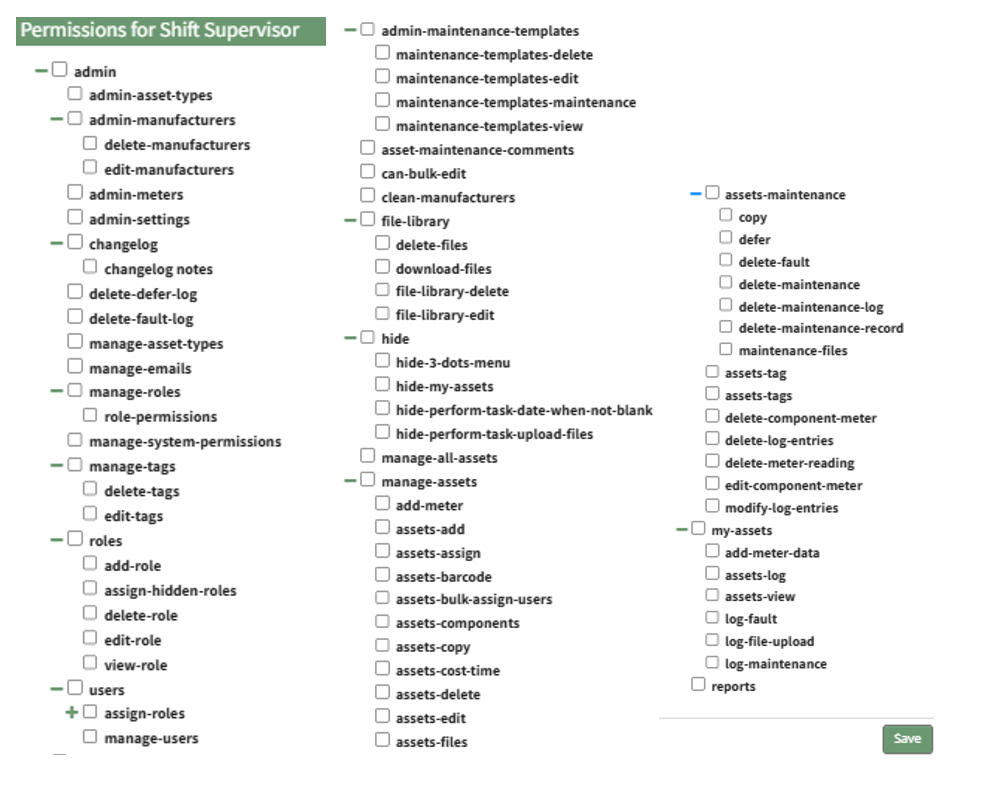
Click the checkboxes to assign permissions to the new Module Level.

Select “Save” and the permissions have been assigned to the Module Level.

<p class="callout info">Access levels for all modules can also be managed in the Site Settings Module under Access Levels.</p>