# Apply a Task Template to the Task Schedule

<span style="white-space: pre-wrap;">To apply a task template to the task schedule for bulk task creation, open the Task Schedule Page of the asset you want to apply a task template to. </span>

<details id="bkmrk-how-to%3A-apply-a-task"><summary>How To: Apply a Task Template to the Task Schedule</summary>

<span style="color: rgb(0, 0, 0);">{{@497}}</span>

</details>[![image.png](https://kaswiki.kastrack.com/uploads/images/gallery/2026-01/scaled-1680-/07oimage.png)](https://kaswiki.kastrack.com/uploads/images/gallery/2026-01/07oimage.png)

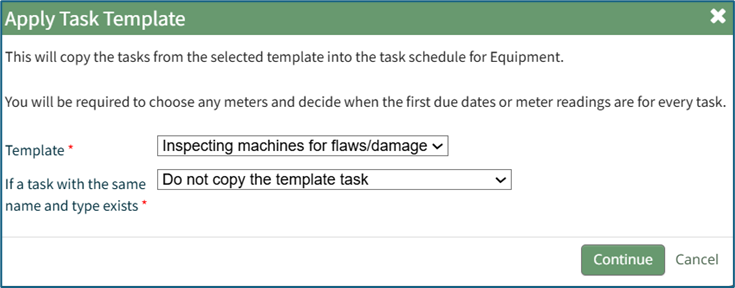
<span style="white-space: pre-wrap;">Selecting the “Apply Task Template” button opens the Apply Task Template Modal that allows the user to copy tasks from a template into the task schedule for an asset or its components. This feature allows a user to utilize bulk task schedule creation if they have to track several assets that share identical task schedules. </span>

<p class="callout info">A user will still be required to establish meters, due dates, and meter readings for each individual task in the task template.</p>

[![image.png](https://kaswiki.kastrack.com/uploads/images/gallery/2026-01/scaled-1680-/Nu0image.png)](https://kaswiki.kastrack.com/uploads/images/gallery/2026-01/Nu0image.png)

<span style="white-space: pre-wrap;">Select the template from the dropdown list that you with to utilize. </span>

<p class="callout info"><span style="white-space: pre-wrap;">New Task Templates can be created on the Task Template Tab on the Settings Page of the Assets Module. </span></p>

<details id="bkmrk-how-to%3A-create-a-new"><summary>How To: Create a New Task Schedule Template</summary>

{{@471}}

</details>A dropdown menu provides allows the user to select what the system should do if a task with the same name and type exists. Options include: Do Not Copy the Template Task (in order to maintain the pre-existing task), Copy the Template Tasks, or Replace the existing task with the template task.

Select the “Continue” button, opening the Configure Template Page.

[![image.png](https://kaswiki.kastrack.com/uploads/images/gallery/2026-01/scaled-1680-/qWPimage.png)](https://kaswiki.kastrack.com/uploads/images/gallery/2026-01/qWPimage.png)

Input the first due date for all relevant rules under General Confirguration. Select the "Go" button to the right. The system will automatically input the dates for the Task Configuration.

[![image.png](https://kaswiki.kastrack.com/uploads/images/gallery/2026-01/scaled-1680-/Q5ximage.png)](https://kaswiki.kastrack.com/uploads/images/gallery/2026-01/Q5ximage.png)

Once the task template has been configured, select “Save” and all of the new tasks will be updated and set active.

Select “Abort” and a Confirmation Modal opens, stating, “Are you sure you wish to abort this template configuration?”

[![image.png](https://kaswiki.kastrack.com/uploads/images/gallery/2026-01/scaled-1680-/cTYimage.png)](https://kaswiki.kastrack.com/uploads/images/gallery/2026-01/cTYimage.png)

Select “Confirm” to return to the asset's Task Schedule Page without any changes made.