# Add a Module Summary Widget to the Dashboard
To add a module summary widget to the dashboard, go to the Dashboard Module and select the specific Dashboard you wish to add widgets to.
[](https://kaswiki.kastrack.com/uploads/images/gallery/2025-11/defimage.png)
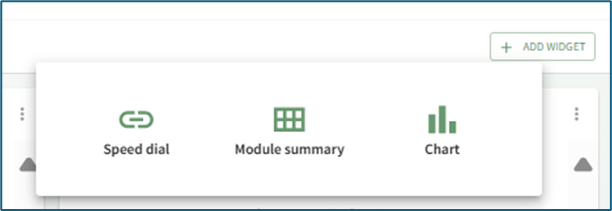
Select the “+ Add Widget” button from the right-hand sign of the screen.
[](https://kaswiki.kastrack.com/uploads/images/gallery/2025-11/lkrimage.png)
This opens a modal with three options: Speed dial, Module summary, and Chart.
Select the “Module Summary” icon opening the Add Module Summary Modal.
[](https://kaswiki.kastrack.com/uploads/images/gallery/2025-11/E73image.png)
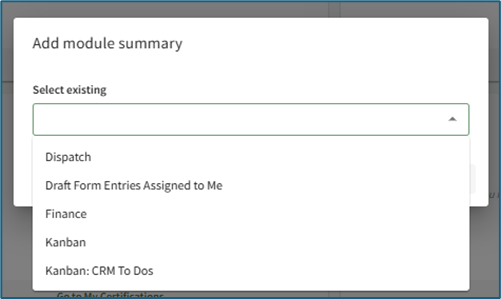
Any possible module summaries that are not yet included on the current dashboard will show in a dropdown menu on the modal.
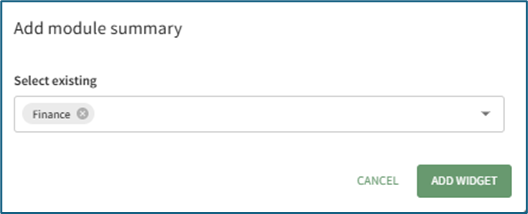
Select the desired widget to be added to the dashboard. Multiple module summaries can be selected at once if desired.
[](https://kaswiki.kastrack.com/uploads/images/gallery/2025-11/gpjimage.png)
Click the “Add Widget” button and the selected module summary will now show at the bottom of the Dashboard.
Module summary widgets can only be added to one dashboard at a time. For the widget to show on multiple dashboards, it must be added to each dashboard individually.