
Accounts Settings
There is no Setting Page for the Accounts Module, however there are system default module levels that can be accessed through the Access Levels Tab of the Site Settings Page from the Main Menu.
There are four system default module level associated with the Accounts Module. An explanation of the permissions associated with each default module level are shown in the Account Module Level Permissions Table below. Accounts Module permissions are organized differently than other modules. Permissions take into account if you do or do not supervise other users.
System default module levels cannot be customized.
Accounts Module Level Permissions | |
Module Level | Permissions |
Admin | Can change their own password Regarding Supervised Users: Can supervise users regardless of their Accounts Module module level; Can edit/delete comments on accounts Regarding Administration: Can set up relationships between users regardless of their Accounts Module module level; Can edit company info; Can edit company settings; Can edit security settings; Can reset/change passwords for existing accounts; Can create, archive, un-archive, deactivate, reactivate, and permanently delete user accounts; Can assign user access levels; Can edit companies; Can create or delete companies |
Supervisor | Can change own password Regarding Supervised Users: Can supervise users regardless of their Accounts Module module level; Can edit/delete comments on the accounts of Supervised Users Regarding Administration: Can reset/change password for ANY existing accounts |
Employee | Can change own password |
Observer | Can change own password Regarding Non-Supervised Users: Can access all user accounts that are assigned an access level |
New Module Levels can be created in order to customize module level permissions.
How To: Create a New Module Level (Accounts Module)
There is no Settings Page for the Accounts Module. You must use the Site Settings Module to access and manage Module Levels for the Accounts Module.
To create a new Module Level for the Accounts Module, go to the Access Levels Tab in the Site Setting Module through the Main Menu.

Click Accounts under the Access Levels header.

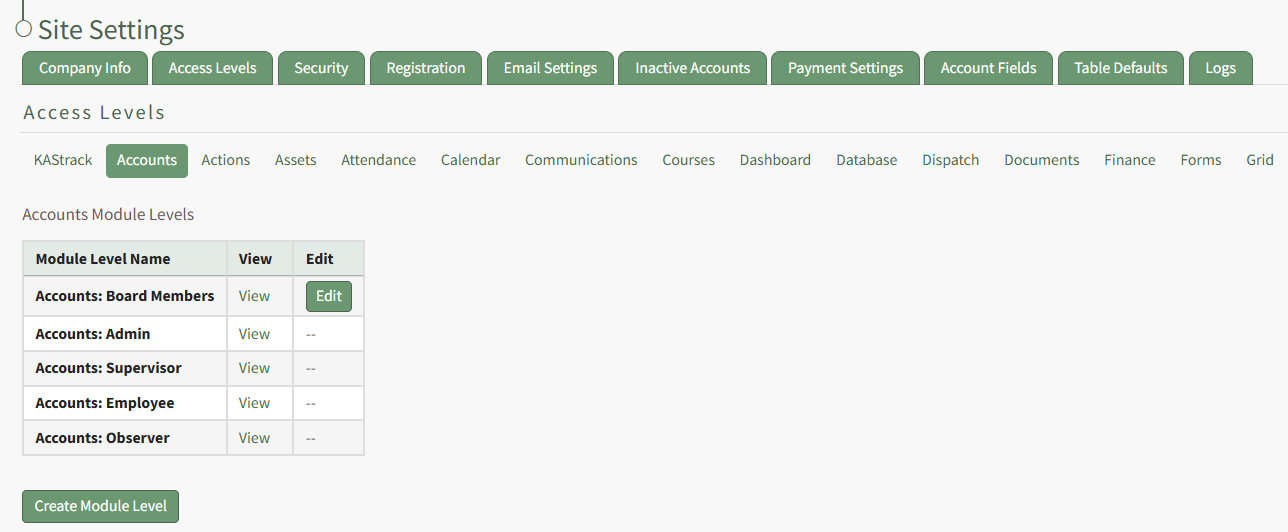
This opens the Accounts Module Level Table.
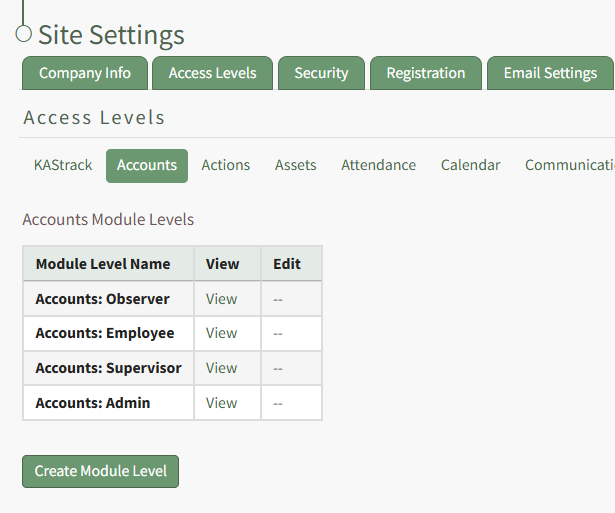
Click the Create Module Level button opening the Create New Accounts Module Level Page within the Site Settings Module.
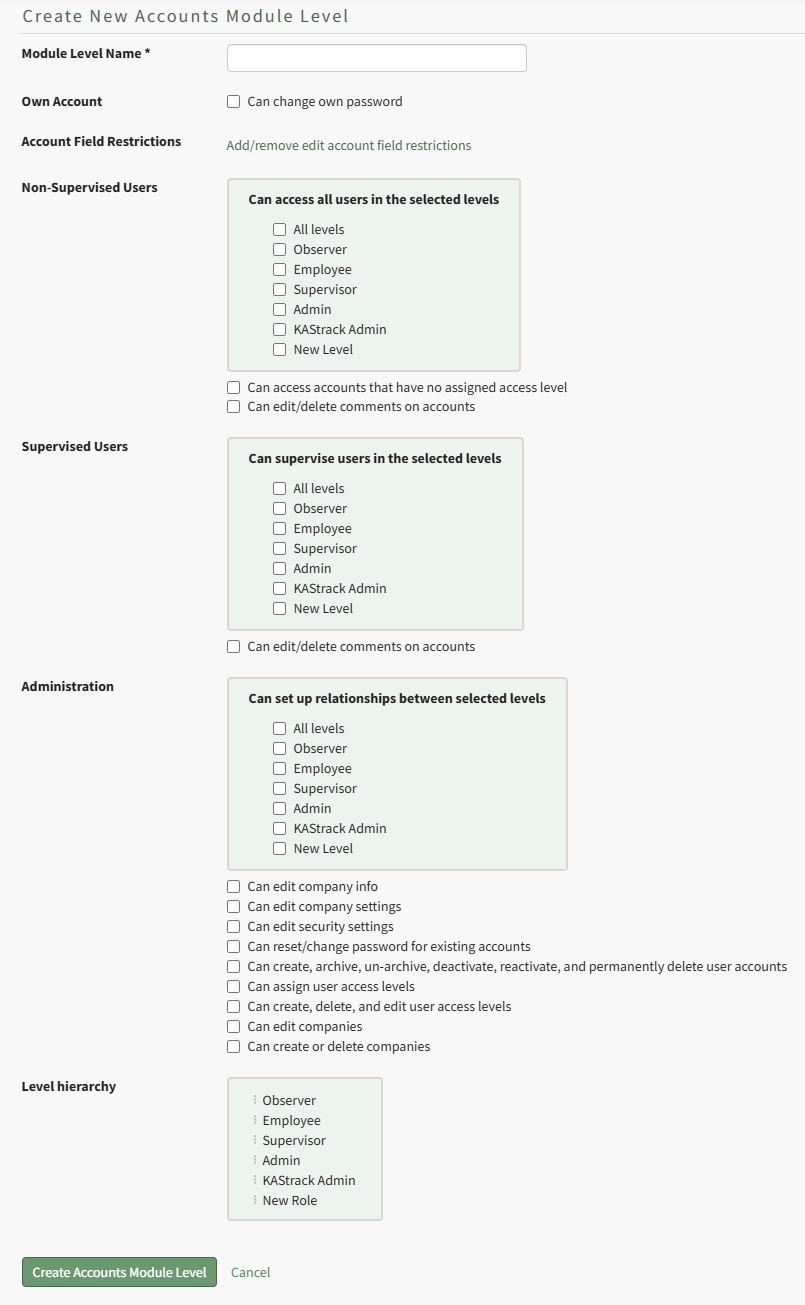
Input the title of the new module level.
Account field restrictions can only be edited after the module level has been created.
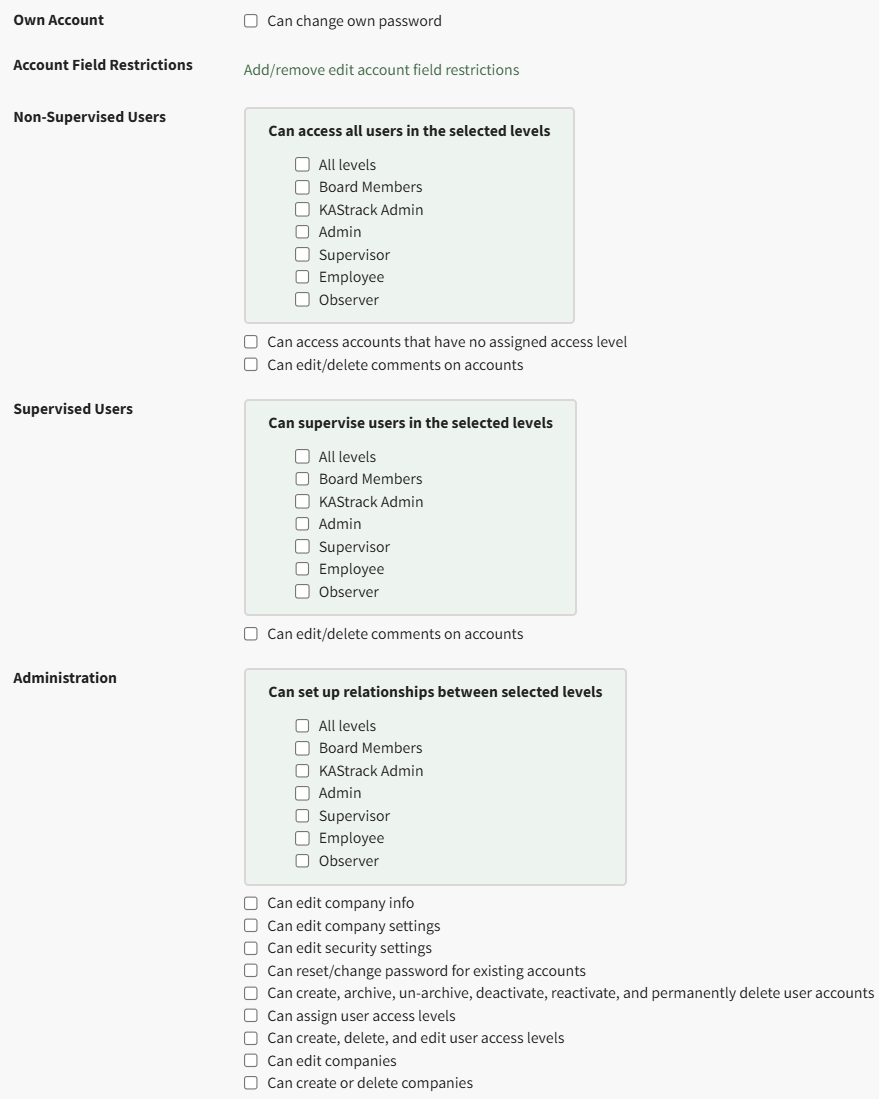
Select the permissions you want to be assigned to the new module by selecting the appropriate checkboxes. A list of all possible permissions have been included in the table below.
Comprehensive List of Accounts Module Level Permissions | |
Permissions | |
Own Account | Can change password |
Non-Supervised Users | Can access all users in the selected levels: All levels, Observer, Employee, Supervisor, Admin, KAStrack Admin, New Level; Can access accounts that have no assigned access level; can edit/delete comments on accounts |
Supervised Users | Can supervise users in the selected levels: All Levels, Observer, Employee, Supervisor, Admin, KAStrack Admin, New Level; Can edit/delete comments on accounts |
Administration | Can set up relationships between selected levels: All Levels, Observer, Employee, Supervisor, Admin, KAStrack Admin, New Level; Can edit company info; Can edit company settings; Can edit security settings; Can reset/change password for existing accounts; Can create, archive, un-archive, deactivate, reactive, and permanently delete user accounts; Can assign user access levels; Can create, delete, and edit user access levels; Can edit companies; Can create or delete companies |
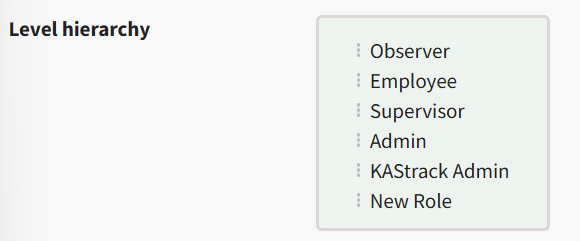
You can drag and drop the module levels, impacted the hierarchy of how they are displayed in the Module Level Table on the Access Levels Tab. Click the Create Module Level Button on the bottom of the page and it will now be visible on the Accounts Module Levels Table.
Now that the customized module level has been created, you can edit the account field restrictions.
How To: Edit Account Field Restrictions for Customized Module Levels
To edit account field restrictions for a customized module level, go to the Access Levels Tab in the Site Setting Module through the Main Menu.
Click Accounts under the Access Levels header.
This opens the Accounts Module Level Table.
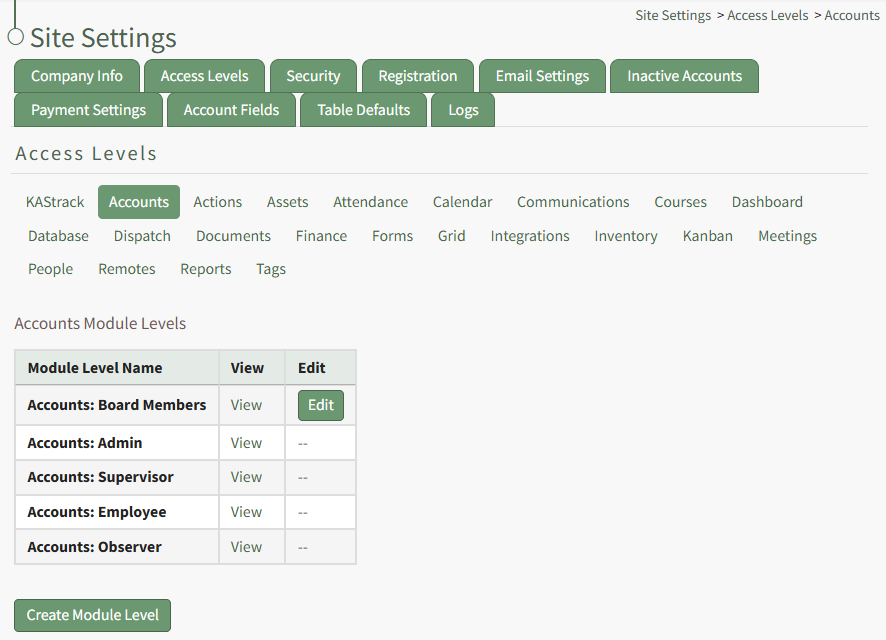
Click the Edit Button to the right of the module level whose account field restrictions you wish to edit opening the Edit Accounts Module Level Page in Site Settings.
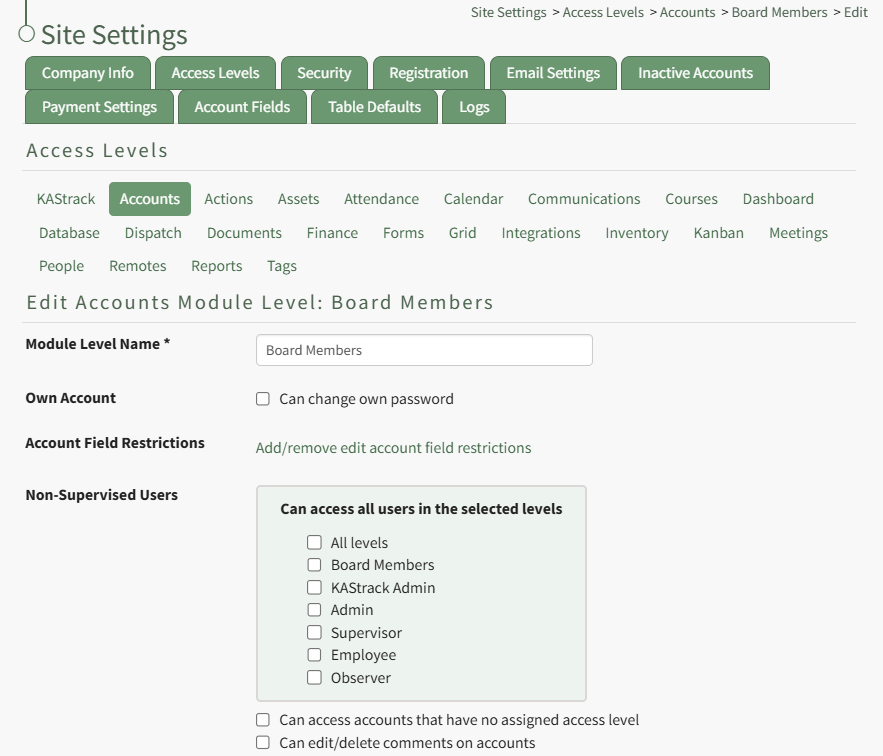
Click the link to "Add/remove edit account field restrictions" opening the Edit Field Restrictions Modal.
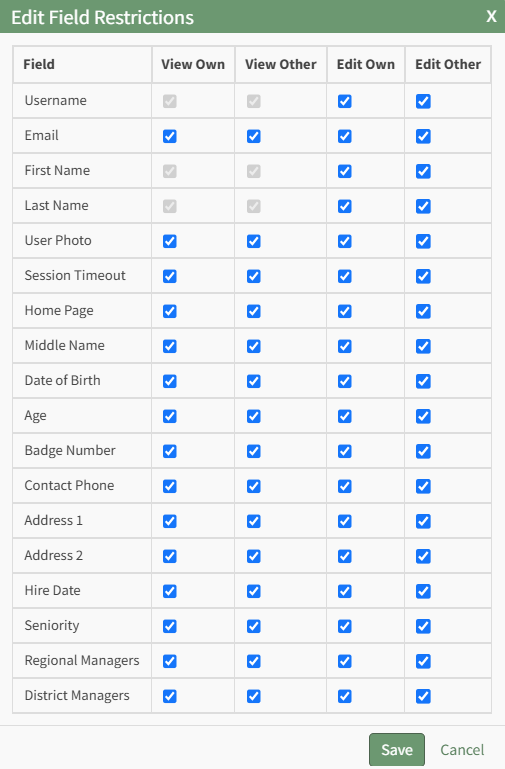
Make the desired field restriction changes and select the "Save" button.
To edit the permissions for a customized Module Level in the Accounts Module, click the edit button in the Accounts Module Level Table, which is visible on the Access Levels Tab in the Site Settings Module.
A complete list of all permissions associated with Accounts Module have been provided below.
No comments to display
No comments to display