
Public Files and Folders, and the Logged Out Documents Experience
When a file or folder in the Documents Module is marked as Public, its icon on the Documents Home Page will turn blue, indicating that the Document / Folder is publicly accessible for individuals that are not logged in or do not use KAStrack to View / Download the file(s) via a URL Link or QR Code.
When using a URL Link to access a public document, the document can be viewed in your web browser and/or downloaded to your personal device.
How To: Designate a File is Public
To designate a document/file as Public in the Documents Module, open the Documents Home Page from the Main Menu and navigate the repository to the file you want to designate as public.
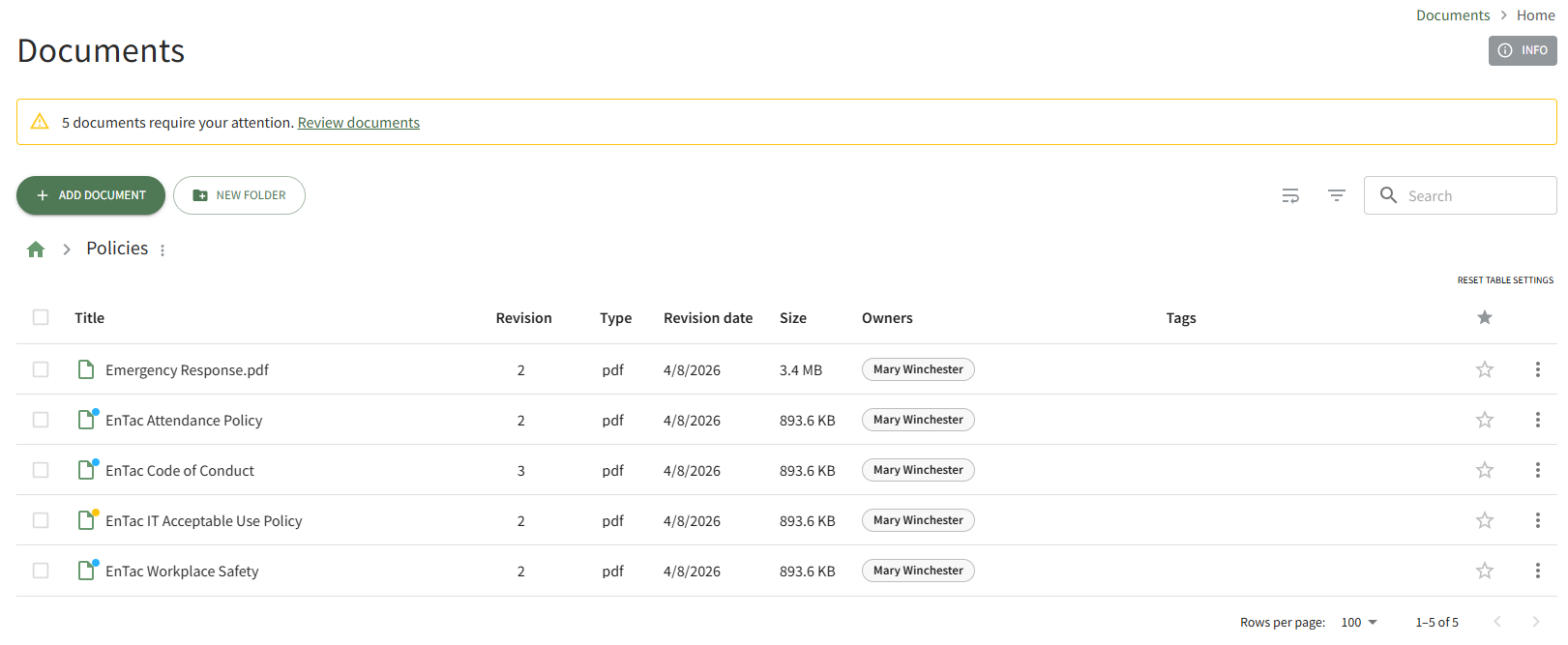
Click the vertical three-dot icon to the right of the file you wish to make public, opening the file's context menu.
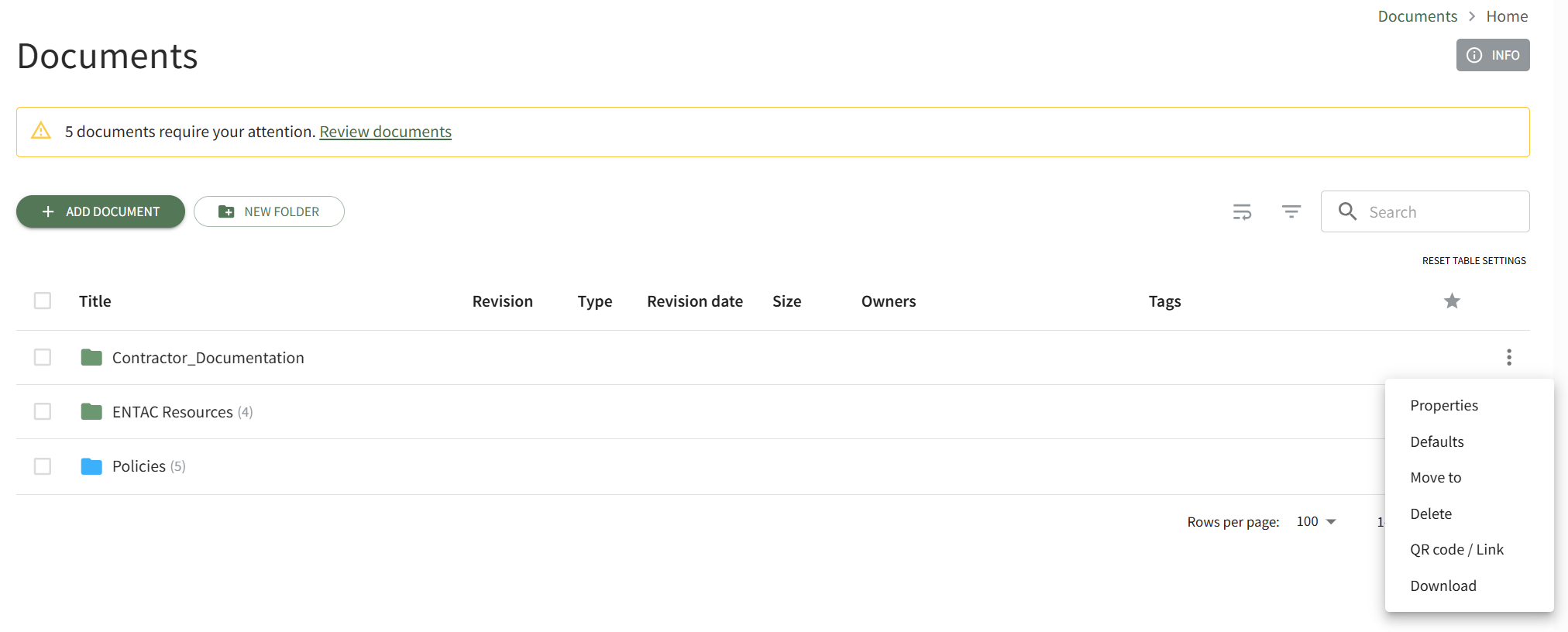
Select Properties opening the Basic Details Tab of the Document Properties modal. Open the Advanced Options Tab.
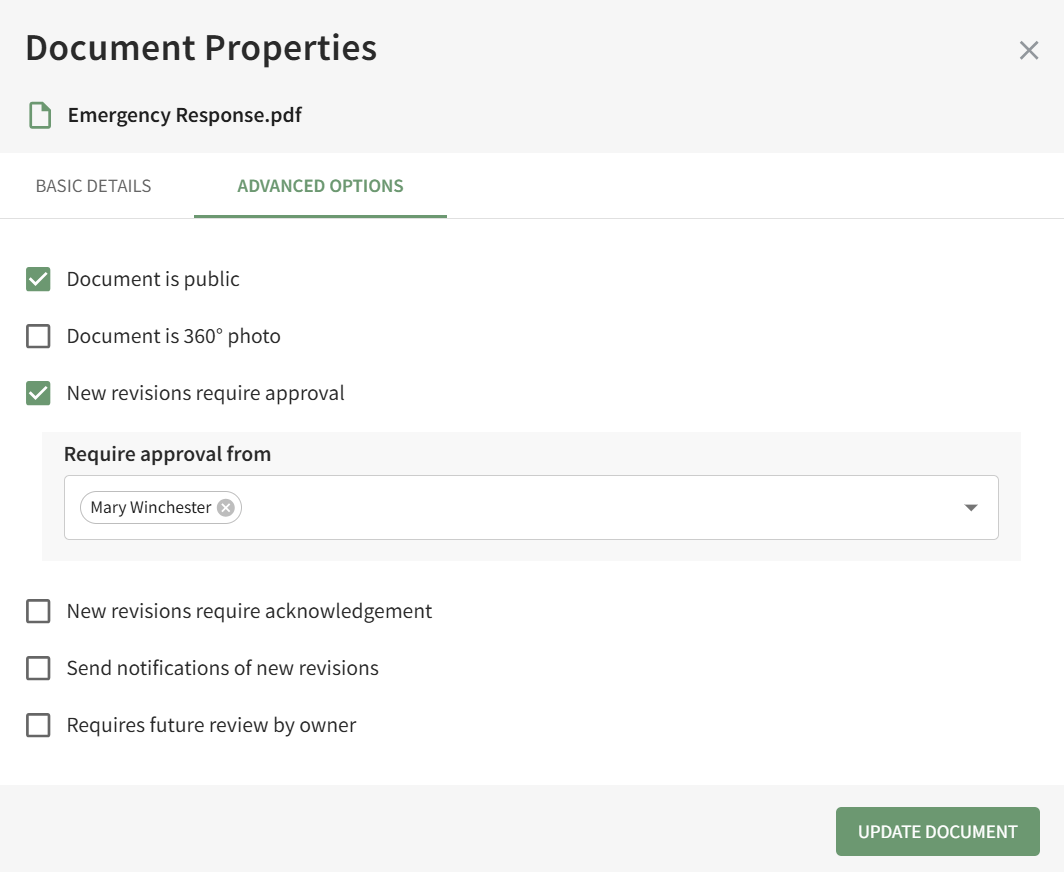
Select the checkbox to designate the "Document is Public" and click the Update Document button. A pop-up confirms that the document is now public.

The file's icon is now blue, indicating that the document is public.
How To: Access A File's QR Code / URL Link
To access a QR Code/Link for a file in the Documents Module, open the Document Module Home Page from the Main Menu and navigate your folders to access the desired file.
Access will only be given to users who have permission to view the file unless the document has been indicated as public.
Click the vertical three-dot icon to the far right of the file, opening the file's context menu. Select the QR Code/Link option.
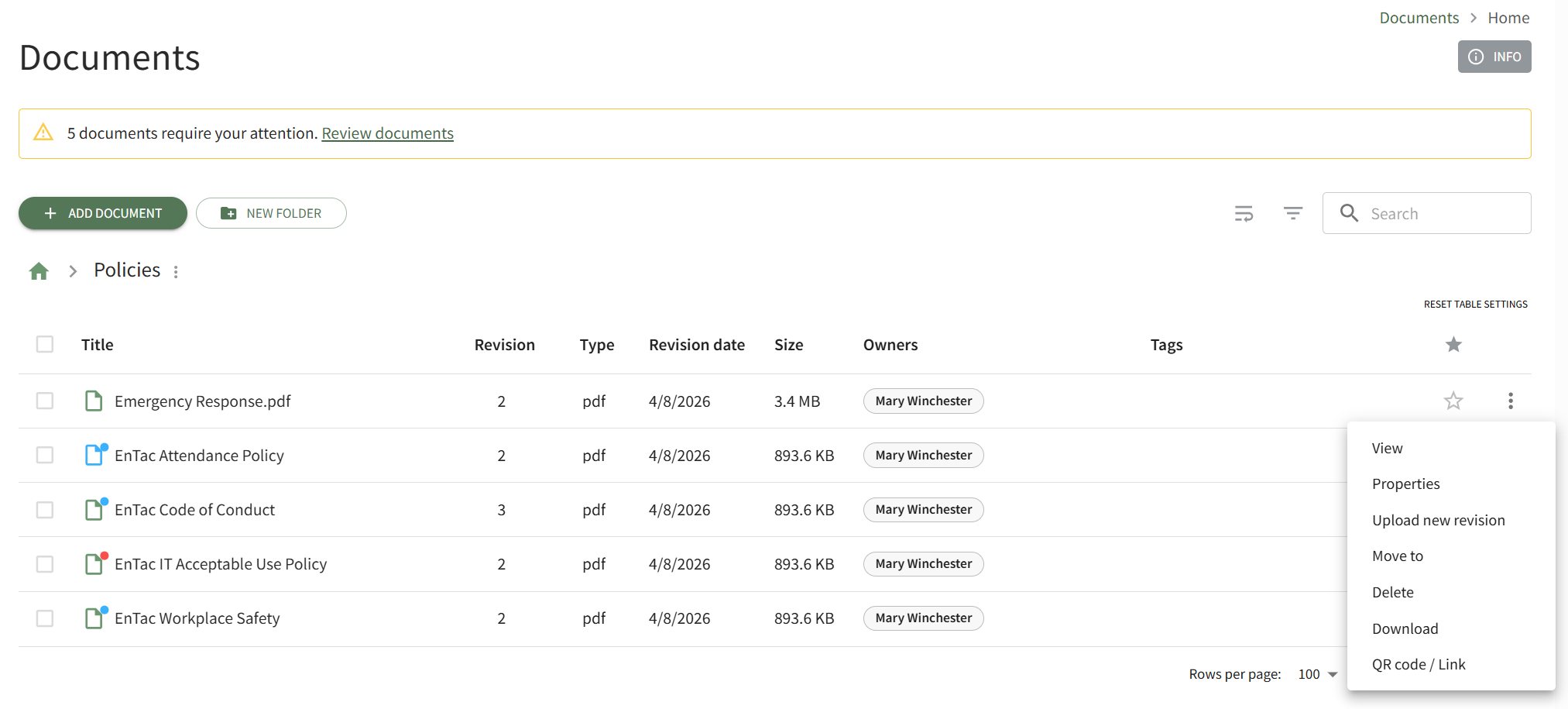
This opens the Direct Access Modal.
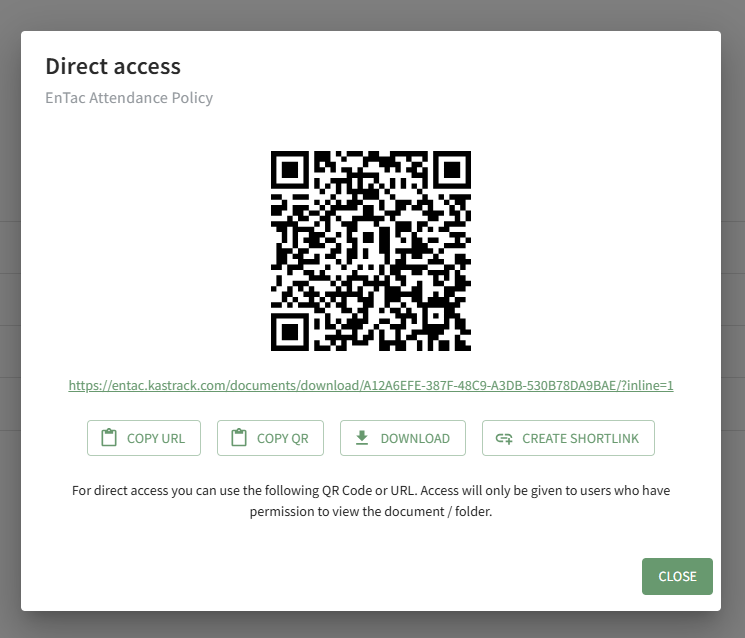
From this modal, you can copy the URL Link and/or copy the QR code.
Clicking the Download button will automatically download the file to the user's personal device.
Clicking the Create Shortlink button will generate a shortened URL link for file and display it on the modal.
When using a URL Link to access a public folder, the individual will see a simplified view of the Documents Home Page, showing only the publicly available documents within the folder, as well as any other public folders (and their public contents) within this folder.
How To: Designate a Folder is Public
To make an existing folder a public folder in the Documents Module, open the Documents Home Page from the Main Menu and navigate the repository to the folder you want to designate as public.
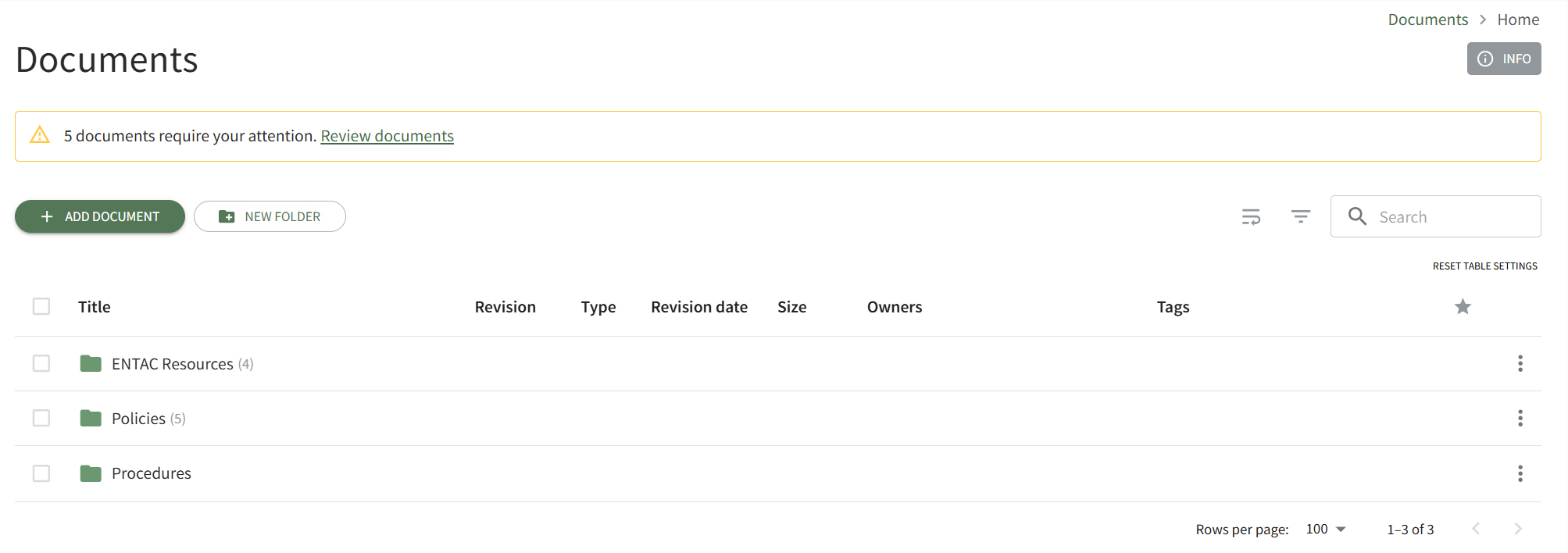
Click the vertical three-dot icon to the right of the folder you wish to make public, opening the folder's context menu. Select Properties opening the Folder Properties modal.
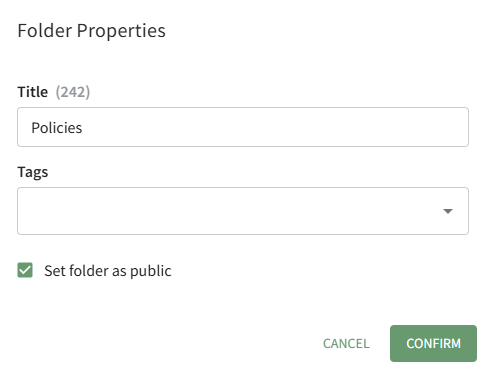
Click the "Set Folder as Public" checkbox and select the Confirm button.
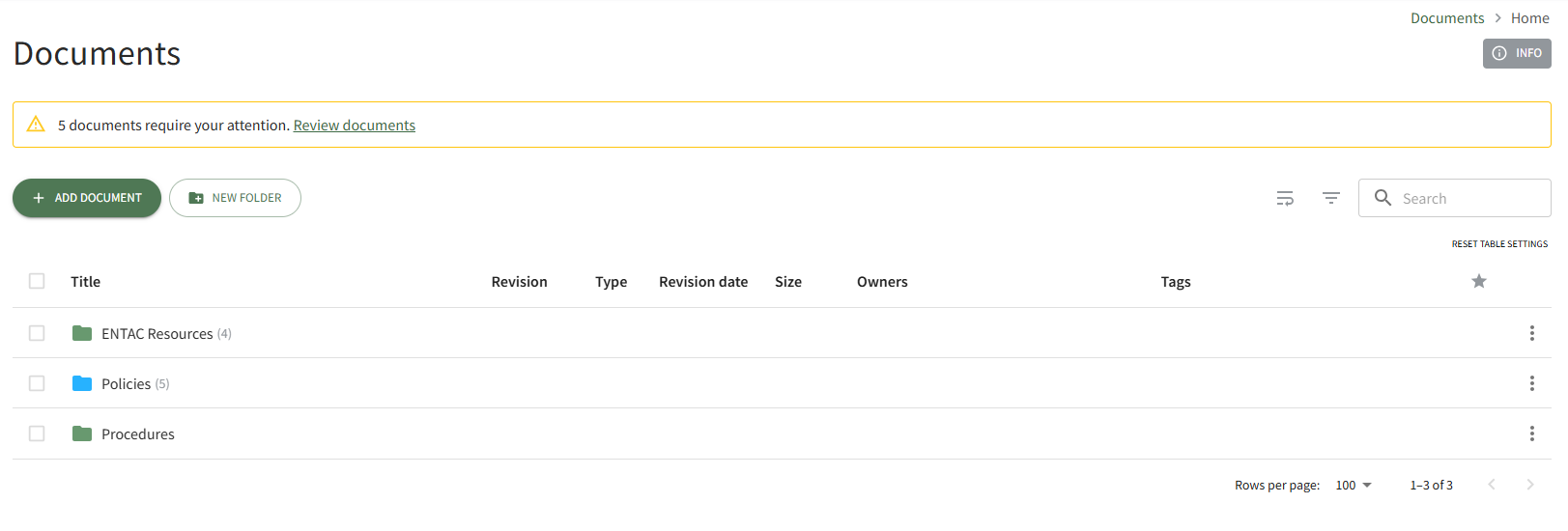
The folder icon is now blue, indicating that the folder is accessible to individuals that are not logged in to the system as KAStrack users.
How To: Access A Folder's QR Code / Link
To access a QR Code/Link for a folder in the Documents Module, open the Document Module Home Page from the Main Menu and navigate your repository to access the desired folder.
Access will only be given to users who have permission to view the folder unless the folder has been indicated as public.
Click the vertical three-dot icon to the far right of the folder, opening the folder's context menu. Select the QR Code/Link option.
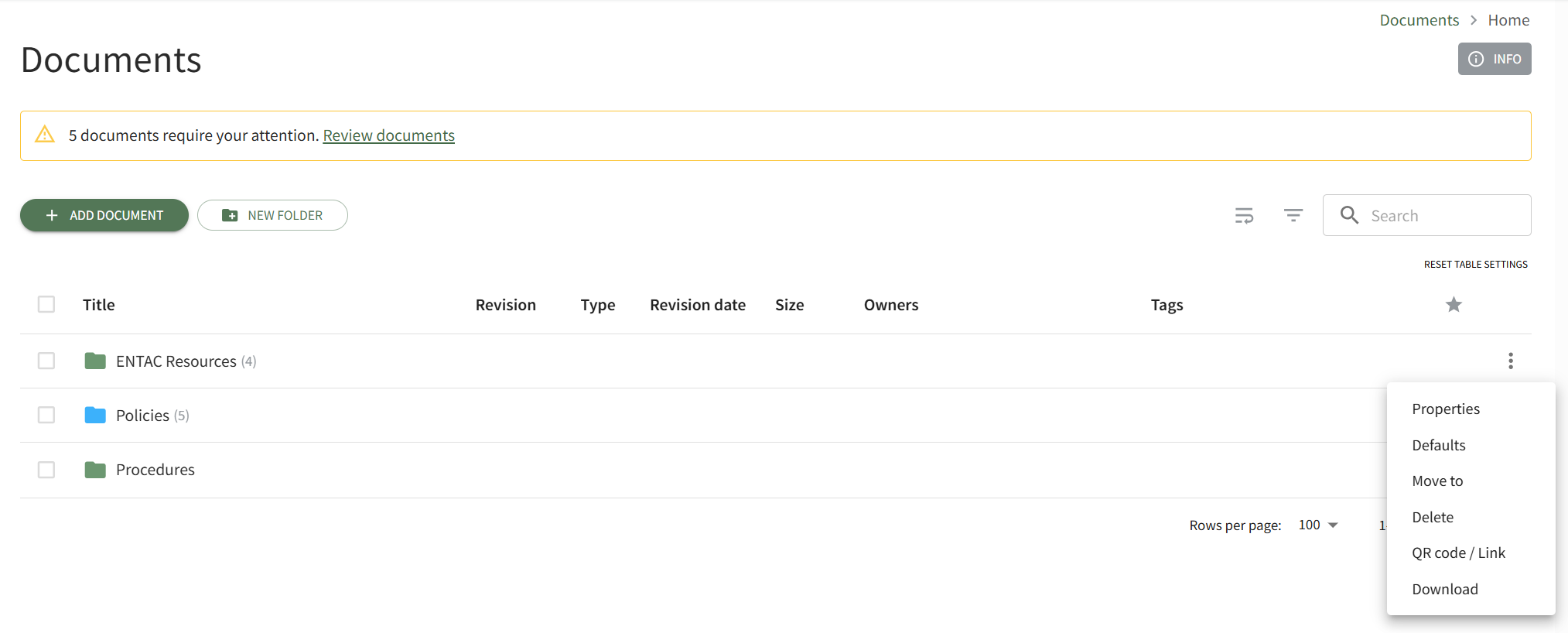
This opens the folder's Direct Access Modal.
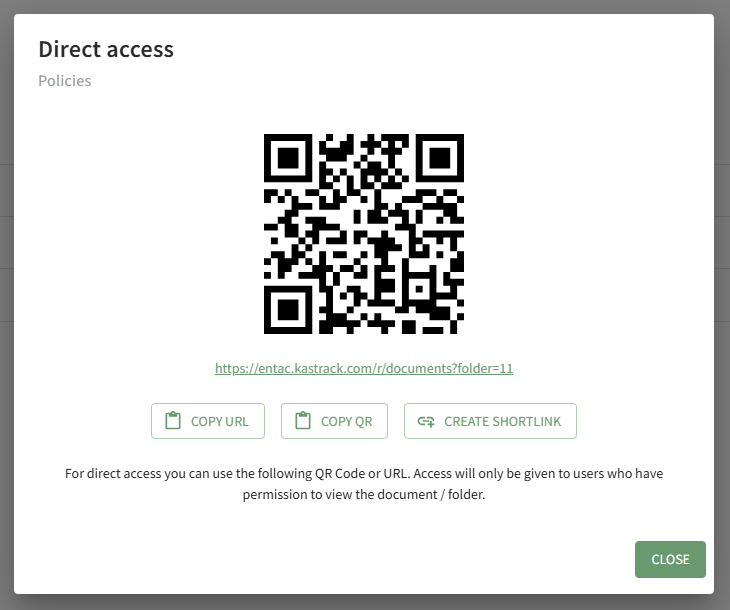
From this modal, you can copy the URL Link and/or copy the QR code.
Clicking the Create Shortlink button will generate a shortened URL link for file and display it on the modal.
The URL Link for a public folder only allows access to that Folder's contents and any public folder within its public contents - you cannot go up the folder hierarchy while logged out, the starting folder is the highest level of access you get.
Making a folder public does not automatically make its contents public - documents that you wish to have publicly accessible will each need to be marked public.
Public documents/folders containing a permissive/restrictive tag will not be accessible publicly, leading to a Not Authorized screen with an option to log in and view the document/folder (assuming the account you're logging into has access to the tag in question).
No comments to display
No comments to display