
A File's Details Page
Each file added to the Documents Module will have its own Details Page. The header of the file's Details Page displays the file title and the file's location in the documents module.

A file's Details Page is comprised of five tabs: Preview, Actions, Details, Comments, and History. Each tab is explained in detail in the section below. The vertical three-dot icon opens the Details Page Context menu with options for quick actions.
Preview Tab
A file's Details Page opens to the Preview Tab by default.
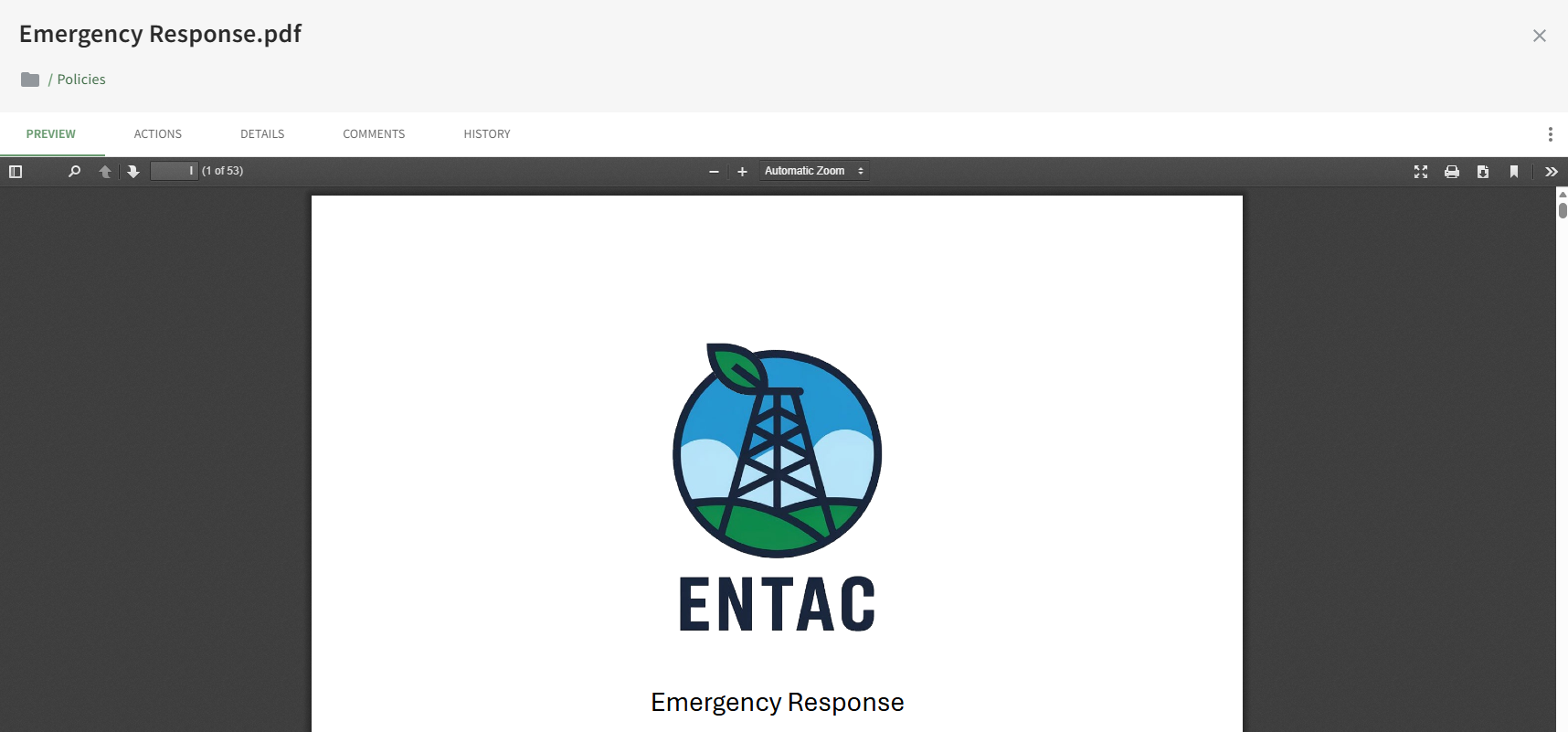
If the file type is supported by the document viewer, users will able to view, download or print the file directly from the preview tab.
Actions Tab
There are four types of actions involving a document that can be displayed on the Actions Tab: Approvals, Publish, Acknowledgement, and Continued Suitability. A detailed explanation of each action can be found in the User Manual on the Documents Module Review Page: Actions Tab.
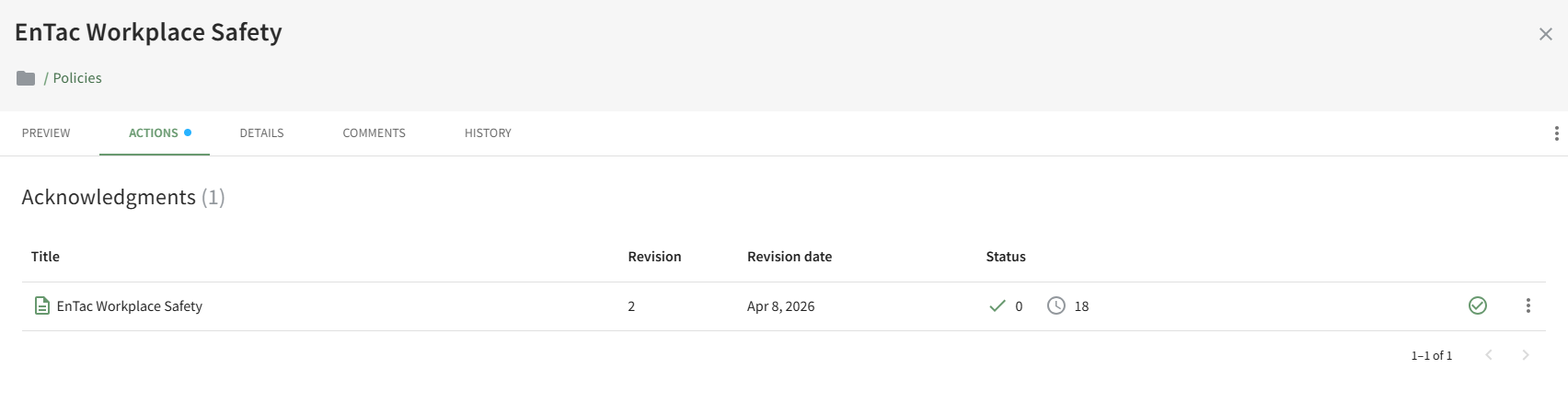
All outstanding actions associated with a document will show on the Actions Tab (to users with appropriate permissions).
Details Tab
The Details Tab displays the file's information (size, description, tags, revision and publishing details) and displays the Document Owners, Approvers, or Acknowledgers.
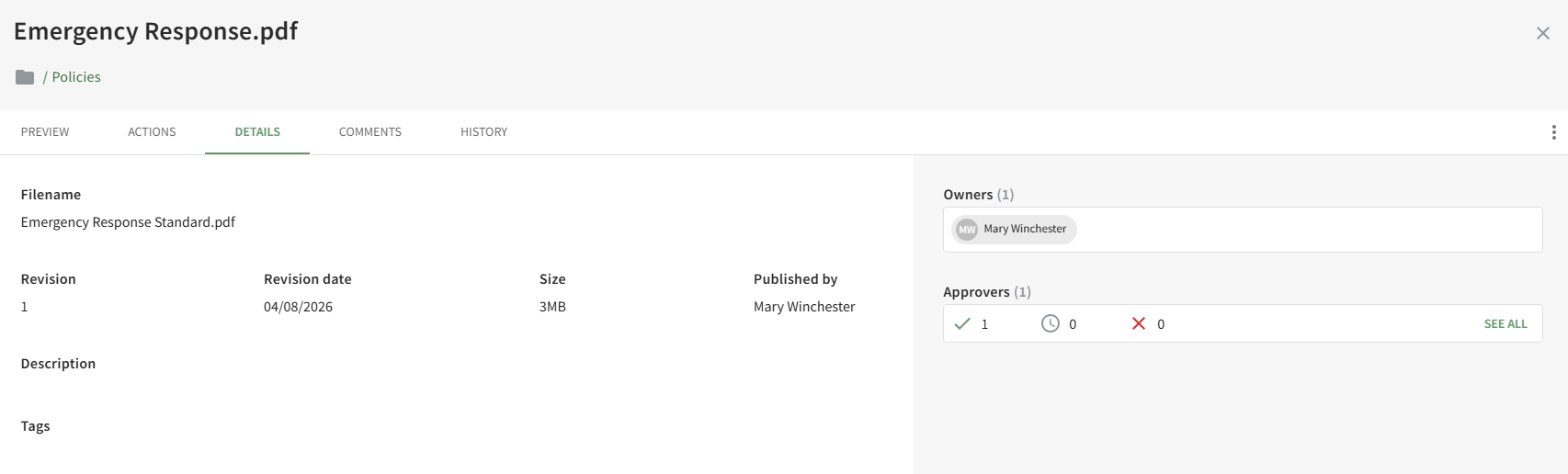
Users with permissions can send email alert reminders for acknowledgement from the Details Tab.
Comments Tab
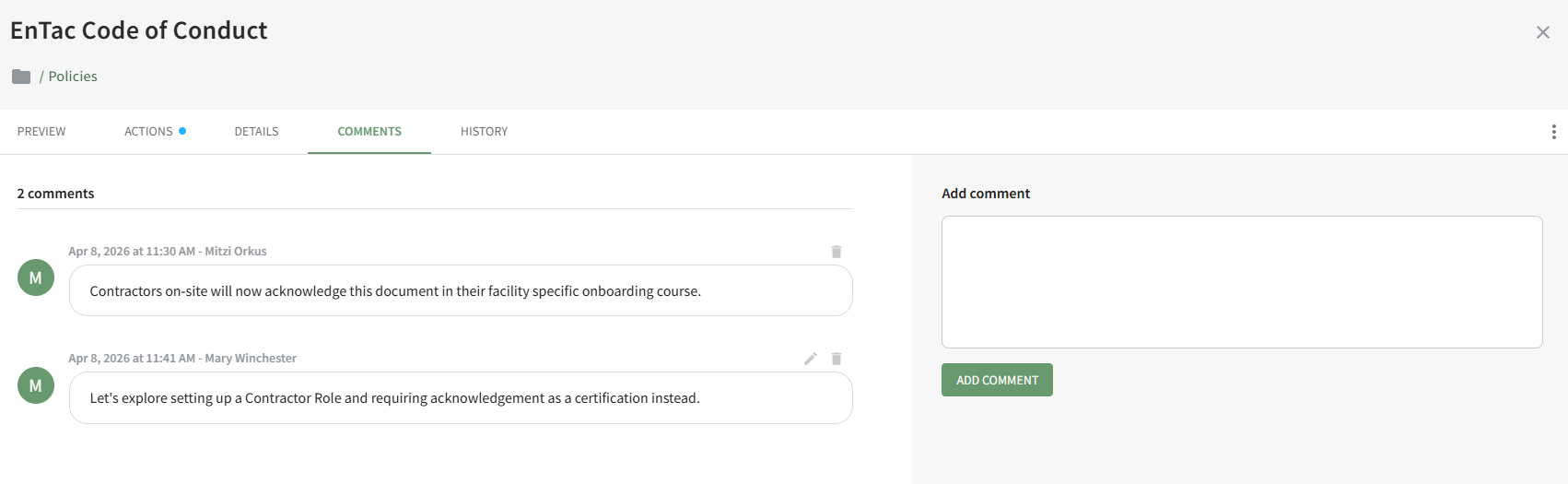
The Comments Tab on the Details Page allows users with access to the document to add, edit and delete comments relevant to the document revision.
History Tab
The History Tab on the Details Page displays any historical actions pertaining to the current and previous versions of a document.
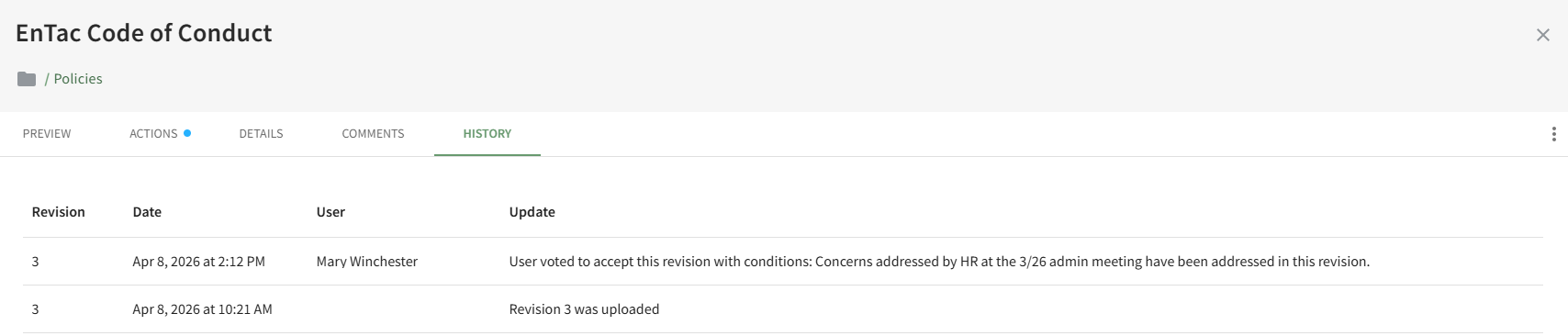
The file revision number, date and time of action, user, and summary update of the action are included.
No comments to display
No comments to display