
Understanding Muster Mode
Muster is a term used by facilities when they need to take attendance during an emergency. It is the process of accounting for all personnel after an evacuation or incident.
Each attendance log within KAStrack will have the ability to go into muster mode, for either a drill or an actual emergency. Muster Mode enables an organization to easily verify that everyone has safely exited the facility and is present at the designated safe area, emergency responders have an accurate list of who may still be inside, and that the company complies with safety and emergency management protocols.
Within KAStrack, QR Codes and URL Links associated with Muster Mode will only be active when Muster Mode has been activated in the attendance log.
There are two pages in the Attendance Log Module related with Muster Mode: the Muster Page and the Muster History Page.
How To: Activate Muster Mode for a Drill
To activate muster mode for a Drill, open the attendance log you wish to activate muster mode for by going to the Home Page of the Attendance Module and clicking on the attendance log’s name, or clicking the three-dot icon to the right of the attendance log’s name, opening the context menu. Select “Attendance Log”.
If you select “Muster” from the context menu, you will not be able to run a muster mode drill. This option directs you to a muster mode emergency.
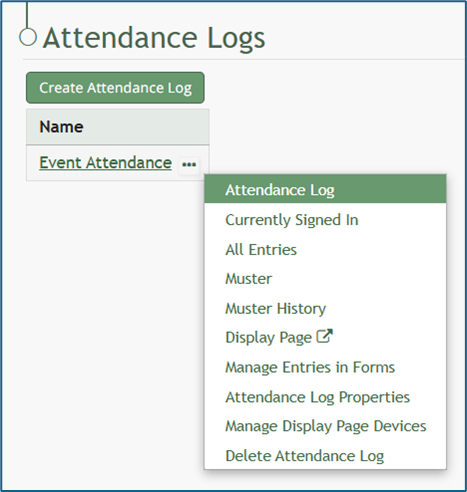
This opens the attendance log’s Information Page.
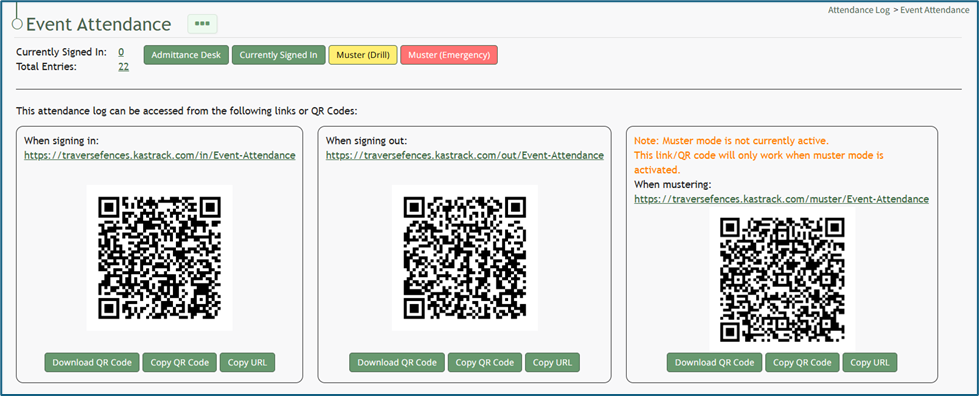
Select the yellow “Muster (Drill)” button at the top of the page. This opens the Muster Page, but muster mode is not yet activated.
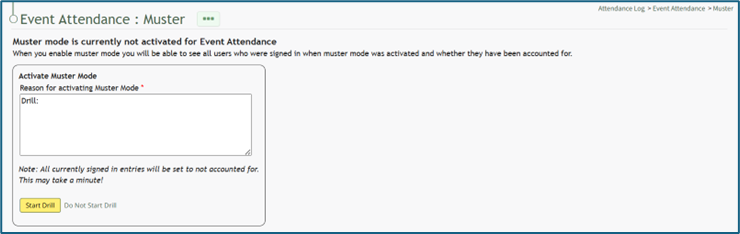
Input the appropriate notes for activating muster mode. The textbox for notes already indicates that this is a drill. Once including additional reasoning, select the yellow “Start Drill” button. The page being displayed changes, and the summary information at the top of the Muster Page indicates that Muster Mode has been initiated.
How To: Deactivate Muster Mode
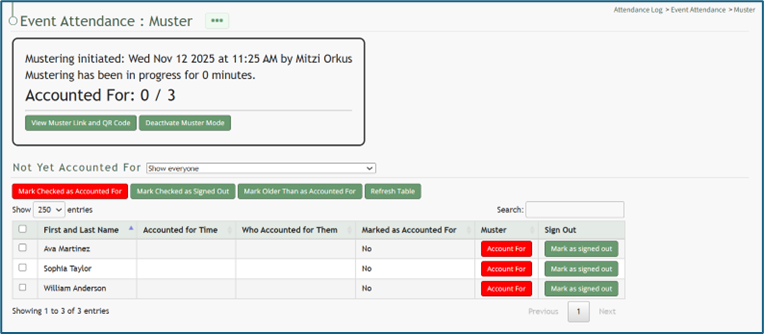
Muster mode can only be deactivated from the Muster Page when muster mode has been activated.
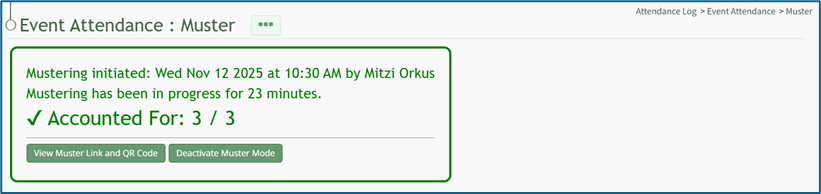
Select the “Deactivate Muster Mode” button, opening the Deactivate Muster Modal. Input any desired Deactivation Notes in the textbox provided.
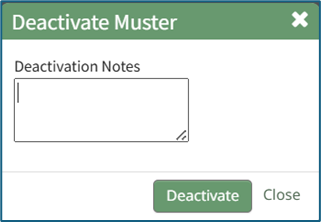
Select “Deactivate” and you will be redirected to the attendance log’s Information Page.
How To: Activate Muster Mode for an Emergency
You can initiate muster mode for an emergency situation from both the Attendance Module Home Page as well as a specific attendance log’s Information Page.
To activate from the Attendance Module Home Page:
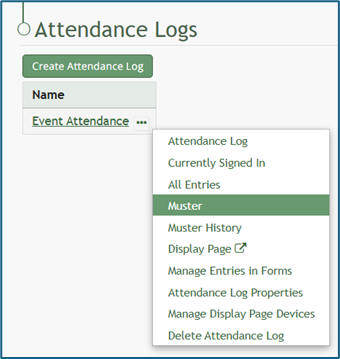
Open the Home Page of the Attendance Module and click the three-dot icon to the right of the attendance log you wish to activate muster mode in, opening the context menu. Select “Muster”, opening the Muster Page.
To activate from an attendance log’s Information Page:
Select the attendance log you wish to initiate muster mode in from the Main Menu (if configured to be shown there) or click the name on the Home Page.
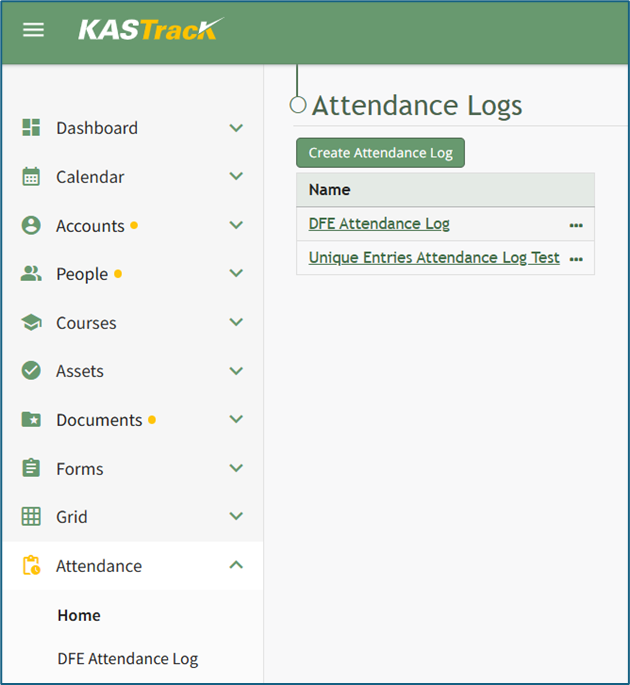
This opens the attendance log’s Information Page.
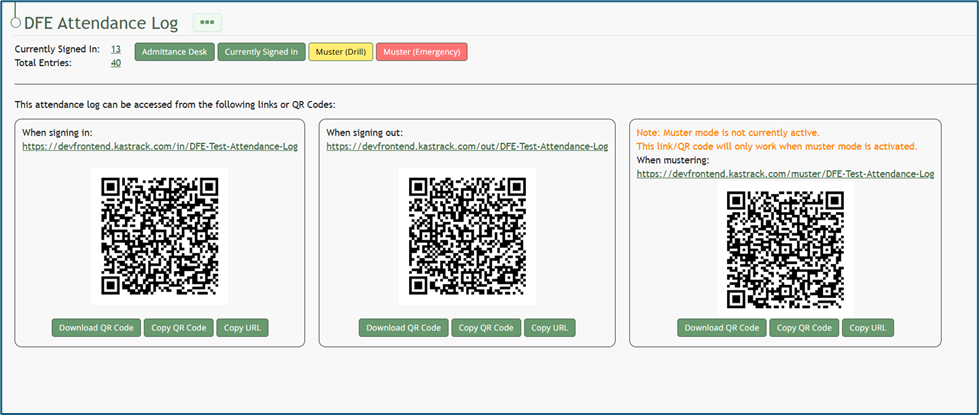
Select the red “Muster (Emergency)” button.
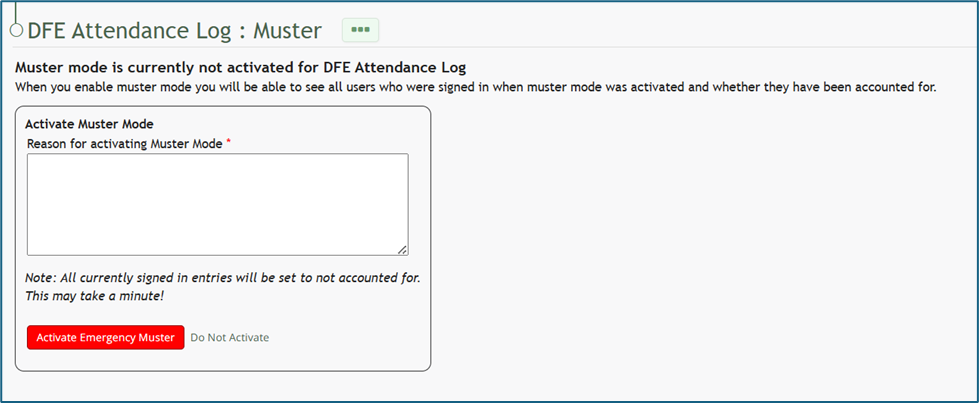
Input any relevant information into the “Reason for Activating Muster Mode” textbox and click the red “Activate Emergency Muster” button.
If this is not an emergency, select the clickable “Do Not Activate” link and you will be returned to the Information Page where you can select to enter Muster Mode in a Drill.
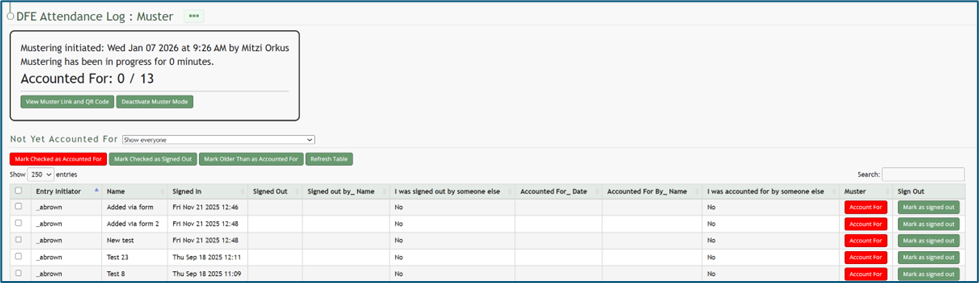
Once Emergency Muster has been activated, the page will change. The muster summary at the top of the page communicates that muster mode has been initiated.
How To: Deactivate Muster Mode
Muster mode can only be deactivated from the Muster Page when muster mode has been activated.
Select the “Deactivate Muster Mode” button, opening the Deactivate Muster Modal. Input any desired Deactivation Notes in the textbox provided.
Select “Deactivate” and you will be redirected to the attendance log’s Information Page.
No comments to display
No comments to display