
Home Page
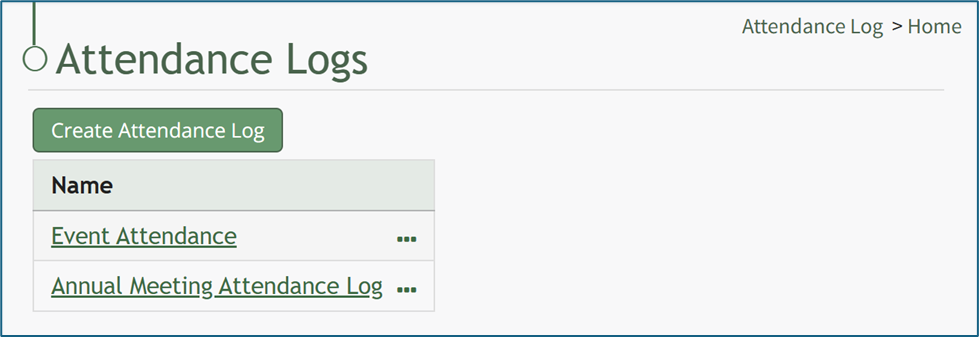
The Home Page of the Attendance Log Module displays the Attendance Log Table, listing all Attendance Logs. The Home Page also has a Create Attendance Log button that enables the creation of a new attendance log. Each attendance log has multiple pages withing the individual log, that are explained under Individual Attendance Log Specific Pages.
Individual Attendance Log Specific Pages
Each individual attendance log is comprised of several different pages. A complete list and the functional purpose of each page is explained in the table below.
Attendance Log Pages Specific to an Individual Log | |
Page Name | Purpose |
The Information Page, identified as the Attendance Log on the context menu, highlights key information, display QR codes and URL Links for access, and buttons for easy module navigation. | |
The Currently Signed In Page displays a table that shows the individuals currently signed in to the attendance log in tabular format. | |
The All Entries Page shows all historical entries of individuals that have signed in through the attendance log. | |
The Admittance Desk Page can be enabled if an individual is assigned the responsibility of signing in / out individuals at an attendance desk (opposed to a self-sign in process that would use the Display Page). | |
The Muster Page is the page used when muster mode as been initiated to mark individuals as accounted for during the muster. | |
The Muster History Page displays a table that serves as a log showing all historical muster information in the Attendance Log. Both drills and emergency muster information shows on this page. | |
Display Page | The Display Page is the screen visible as individuals sign in and sign out. QR codes can display on the page, as well as customizable fields that you can select for attendees to see. |
The Display Devices Page is only utilized when your organization is using Raspberry Pi to show the attendance log Display Page on a screen that is not a computer. | |
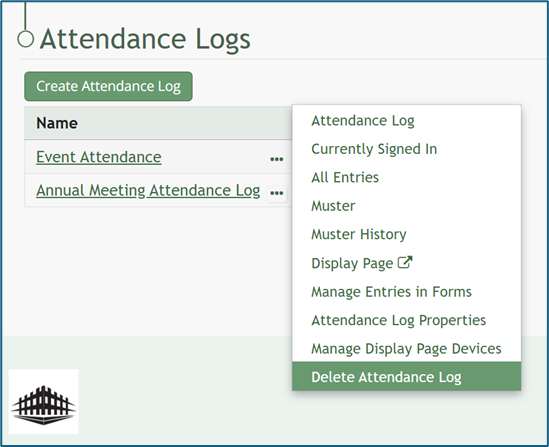
To the right of each title is a three-dot icon which will open the Attendance Log Table context menu. An explanation of each context menu option has been included in the Attendance Log Context Menu Option Explanation Table.
Attendance Log Context Menu Explanation Table | |
Option | Explanation |
Attendance Log | Selecting “Attendance Log” from the context menu opens the attendance log’s Summary Page. |
Currently Signed In | Selecting “Currently Signed In” from the context menu opens the attendance log’s Currently Signed In Page. |
All Entries | Selecting “All Entries” from the context menu opens the attendance log’s All Entries Page. |
Muster | Selecting “Muster” from the context menu opens the attendance log’s Muster Page, where an emergency muster can be activated. |
Muster History | Selecting “Muster History” from the context menu opens the attendance log’s Muster History Page, where a record of all historical muster data can be accessed. |
Display Page | Selecting “Display Page” from the context menu opens the Attendance Log Display Page in a separate tab which can show QR codes for sign in / sign out and any fields customized to be displayed as individuals use the attendance log. |
Manage Entries in Forms | Selecting “Manage Entries in Forms” from the context menu opens the Manage Entries Page in the Forms Module, where entries can be viewed, added, imported, and exported. Entries can all be bulk edited from this page. |
Attendance Log Properties | Selecting “Attendance Log Properties” from the context menu opens the Edit Attendance Log Modal. From this modal, the attendance log name, tags, URL Link, field mappings, fields related to sign in, and display page options can be edited. |
Manage Display Page Devices | Selecting “Manage Display Page Devices” from the context menu opens the Display Devices Page. To setup Display Devices for an attendance log, please contact KAStrack’s technical support team. |
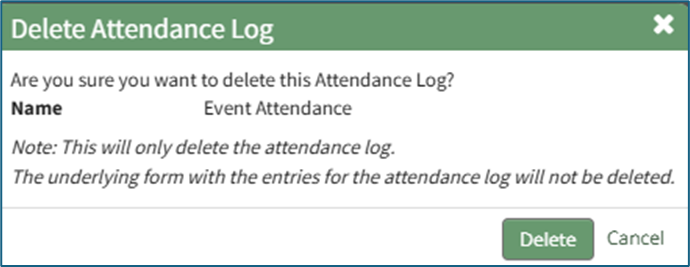
Delete Attendance Log | Selecting “Delete Attendance Log” from the context menu opens a Deletion Confirmation Modal which requires confirmation before deleting the selected attendance log. Delete an Attendance LogTo delete an attendance log, go to the Home Page of the Attendance Module. Click the three-dot icon to the right of the attendance log you wish to delete opening the context menu. Select “Delete Attendance Log”.
This opens the Delete Attendance Log Confirmation Modal which lists the name of the Attendance Log to be deleted and states, “Are you sure you want to delete this Attendance Log?”
Select the “Delete” button. A confirmation message will appear stating, “This Attendance Log has been deleted.” The deleted attendance log will no longer be visible on the Home Page.
|

Clicking on a specific attendance log title will open that attendance log’s Information Page.
No comments to display
No comments to display