
Understanding Workflows
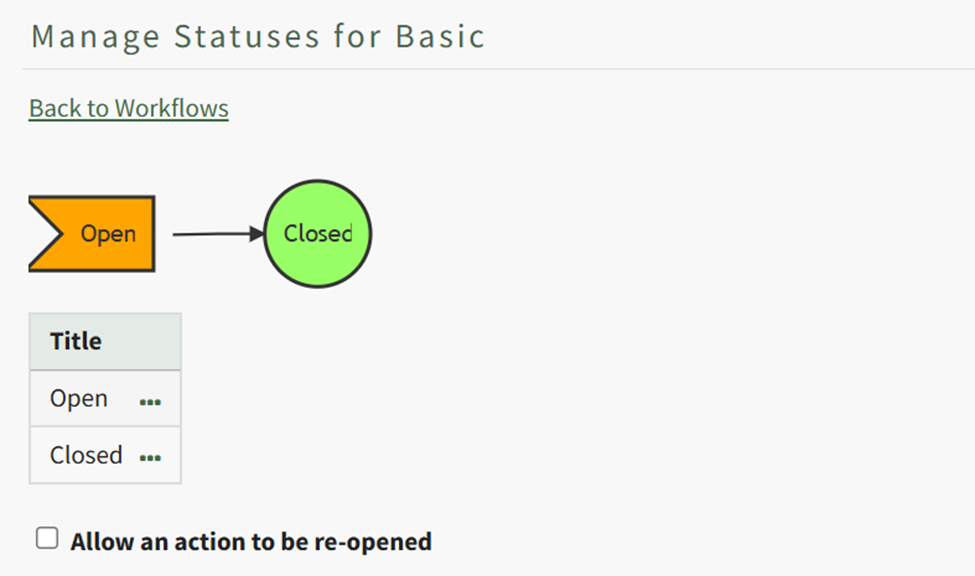
Each action in KAStrack is assigned a workflow, a process an action follows from when it is first opened to marked as complete. Each action has its own workflow – to create a new action you are required to select one.
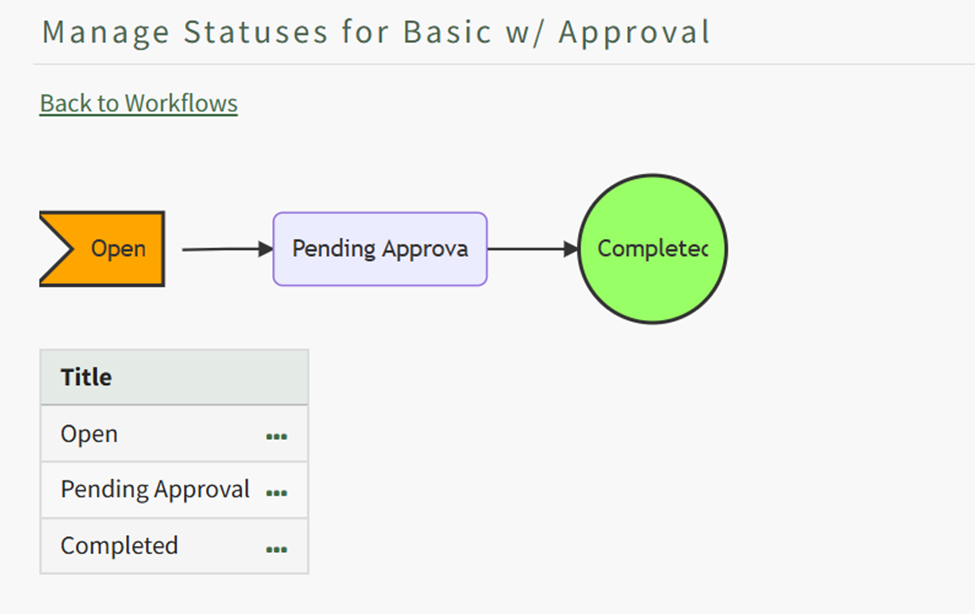
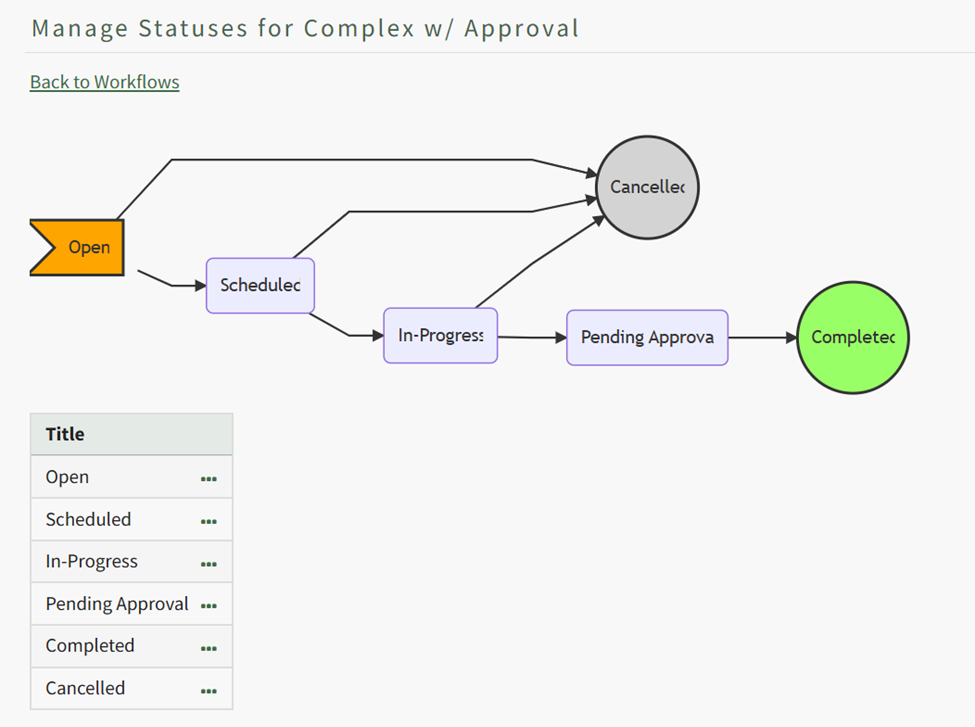
There are three default workflows in KAStrack, explained in the Workflow Explanation Table below.
Workflow Explanation Table | ||
Workflow | Explanation | Image |
Basic | The Basic Workflow is the bare minimum workflow, where an action status is marked as open and changes to closed when completed. |
|
Basic with Approval | The Basic with Approval Workflow adds an intermediary step to the workflow. An approver is assigned (at the action level) to ensure that the action was satisfactorily completed before it given completed status. |
|
Complex with Approval | The Complex with Approval Workflow has several status phases (open, scheduled, in-progress) allowing for an action to be cancelled before being submitted for approval and completion. |
|
A user with Admin access level permissions can create new workflows customized to your organization.
How To: Create a New Workflow
To create a new workflow, select Settings under the Action Module on the Main Menu. Open the Workflows tab.
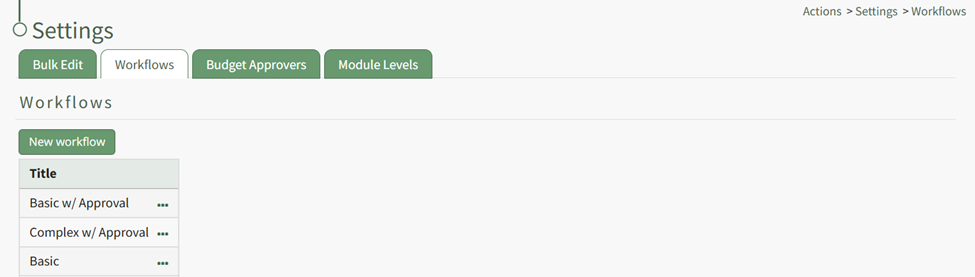
Click the “New Workflow” button opening the New Workflow Title Modal.
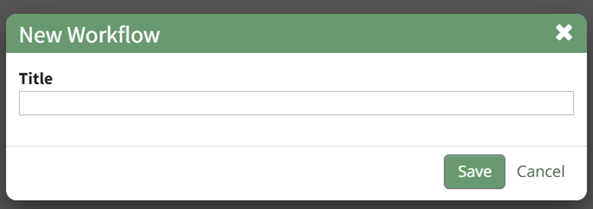
Input the title of the new workflow and select the “Save” button.
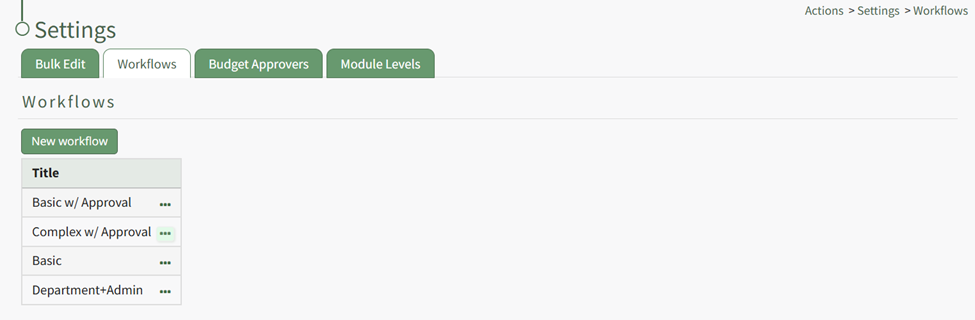
The new workflow is now visible in the Workflow Title Table. Click the three dot icon to the right of the new workflow opening the Workflow Context Menu.
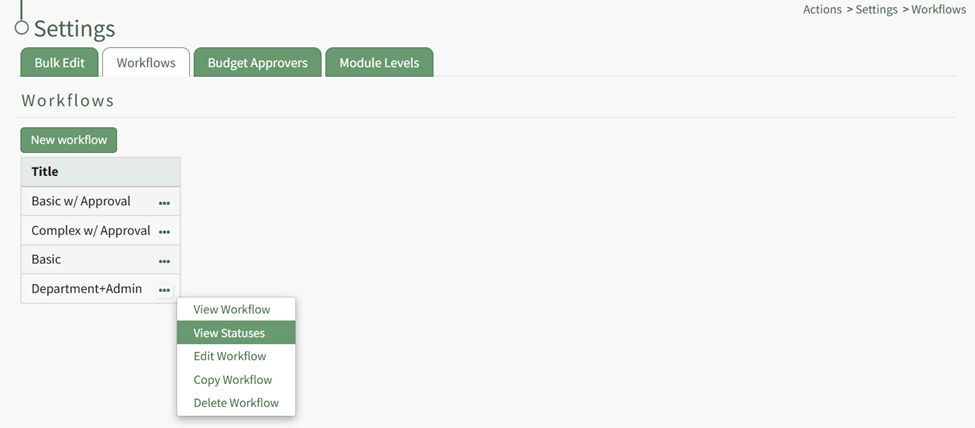
Select “View Statuses” opening the Manage Statuses Page for your workflow.
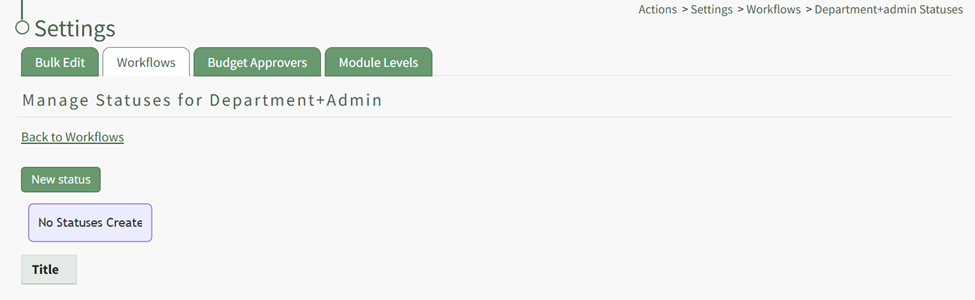
Click the “New Status” button opening the New Status Modal.
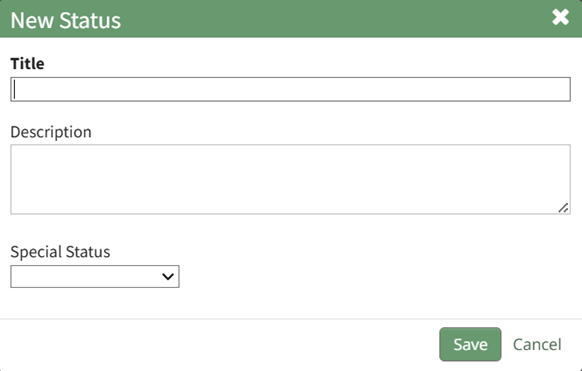
Input a title and description for the new workflow status.
The Special Status dropdown menu displays: Close, Close and Repeat, and Opened. Select which if it applies and select the “Save” button. The status now shows on the Manage Status Page.
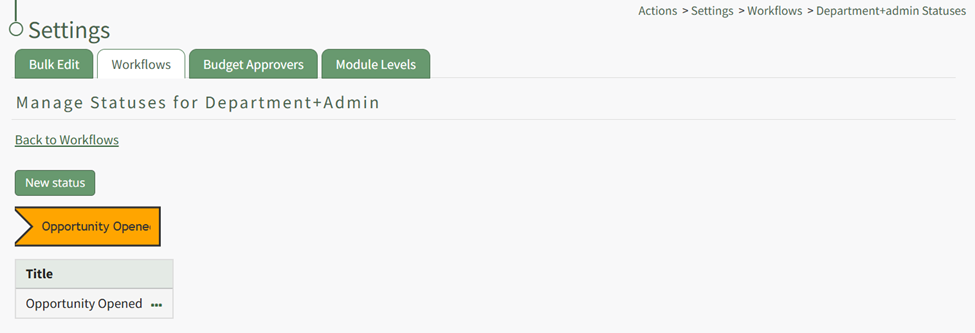
Repeat the process to create the next stage of your workflow.
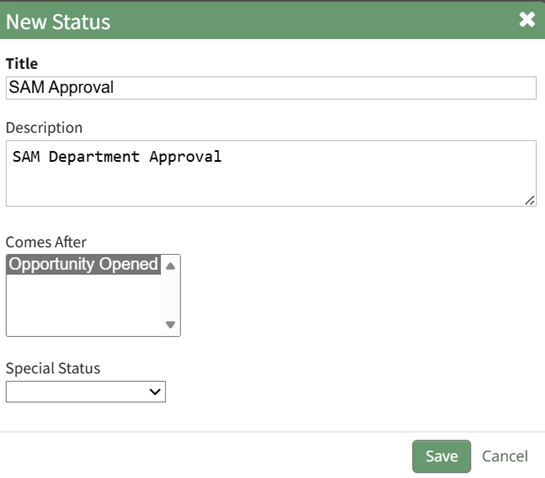
The New Status Modal will now require you to repeat the process, now requiring you to select which step this status is to follow. Repeat the process until your customized workflow has been completed.
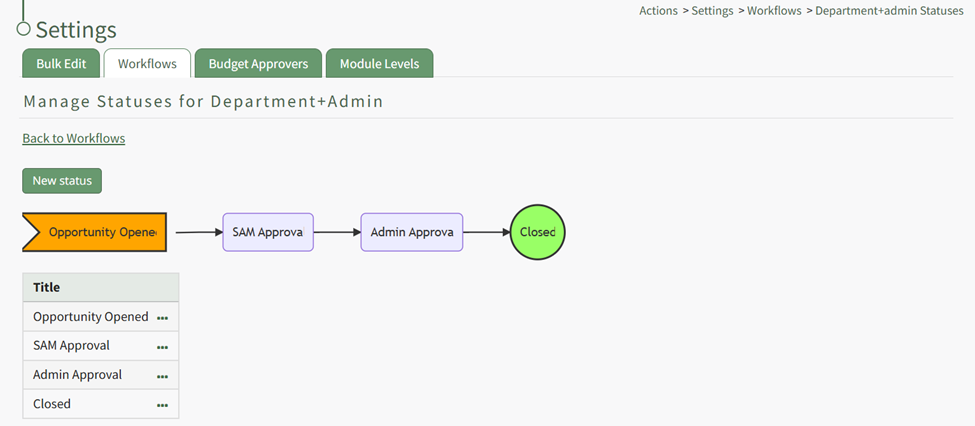
Actions can be approved by an individual. Multiple individuals can be assigned as approvers or interested parties. Any assigned approver will be able to change the action status and only one individual’s approval is needed for the status to change.
No comments to display
No comments to display