
Inventory Database Explanation
The creation of an inventory requires integration with underlying databases that have been created for the purpose of inventory creation. Inventories are functionally dependent on a locations database and a stock database. A unique items database is also an option, but not a requirement for an inventory to function properly.
Databases Integrating with the Inventory Module | ||
Database | Field Requirements | Notes |
Locations Database | None | A database must be selected as a locations inventory. Multiple databases can be utilized if desired. There are no fields that must be specifically included for functionality. |
Stock Database | Location | All inventories are required to integrate with a stock database. An explanation of each required field has been provided below. ** Part Type is only a required field if you have both a stock and a unique database. |
Inventory Item (Title) | ||
Quantity | ||
Part Type** | ||
Unique Item Database | Inventory Item (Title) | Integrating with a unique item database is optional. An explanation of each required field has been provided below. |
Unique Item Identifier | ||
Inventory items entered into the stock database and the unique items database are combined and visible in the Inventory Item Table within the specific Inventory they have been integrated with.

Locations Database
An organization has the freedom to curate how the location database works for best fit by creating one or more databases that define the location of an inventory item. There are no required fields for this database. Possible field names for your locations database include but are not limited to, site, building, position, shelf, bin, etc. Images can be used to visually express inventory items on location.
At least one database must be selected as a location database when creating an inventory.
The Locations Database should be created on the Home Page of the Database Module.
How To: Create a Database
To create a new database, go to the Home Page of the Database Module.
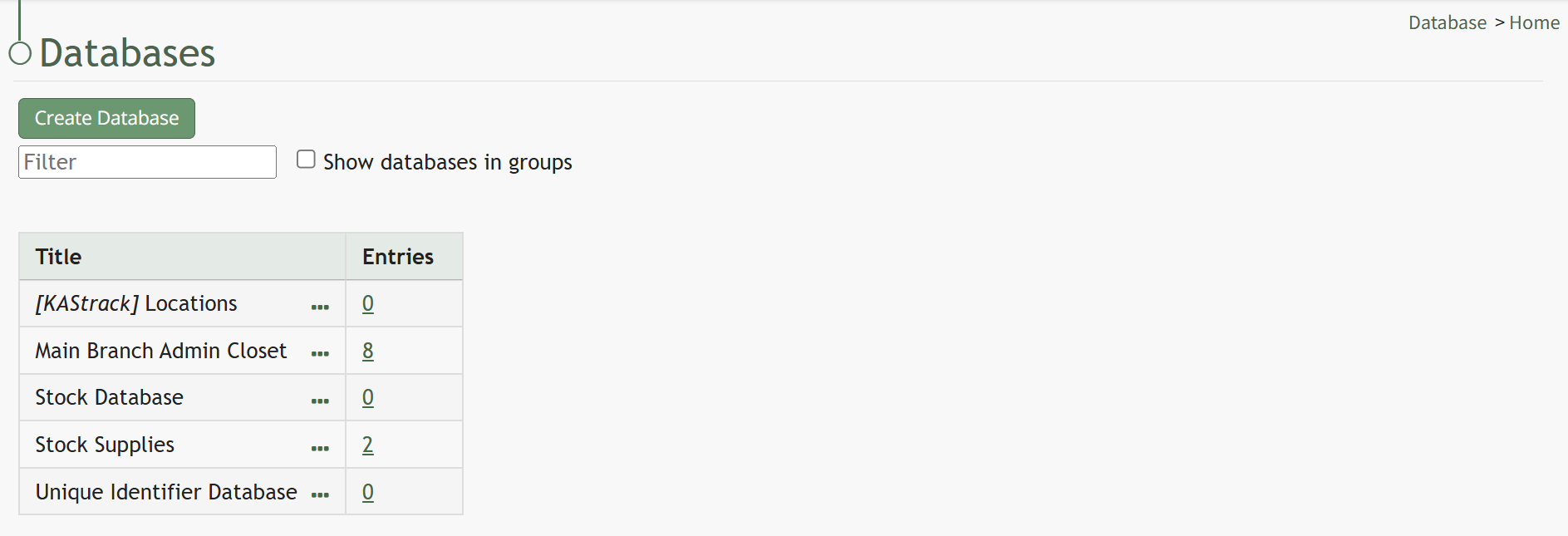
Click the “Create Database” button, opening the New Database Modal.
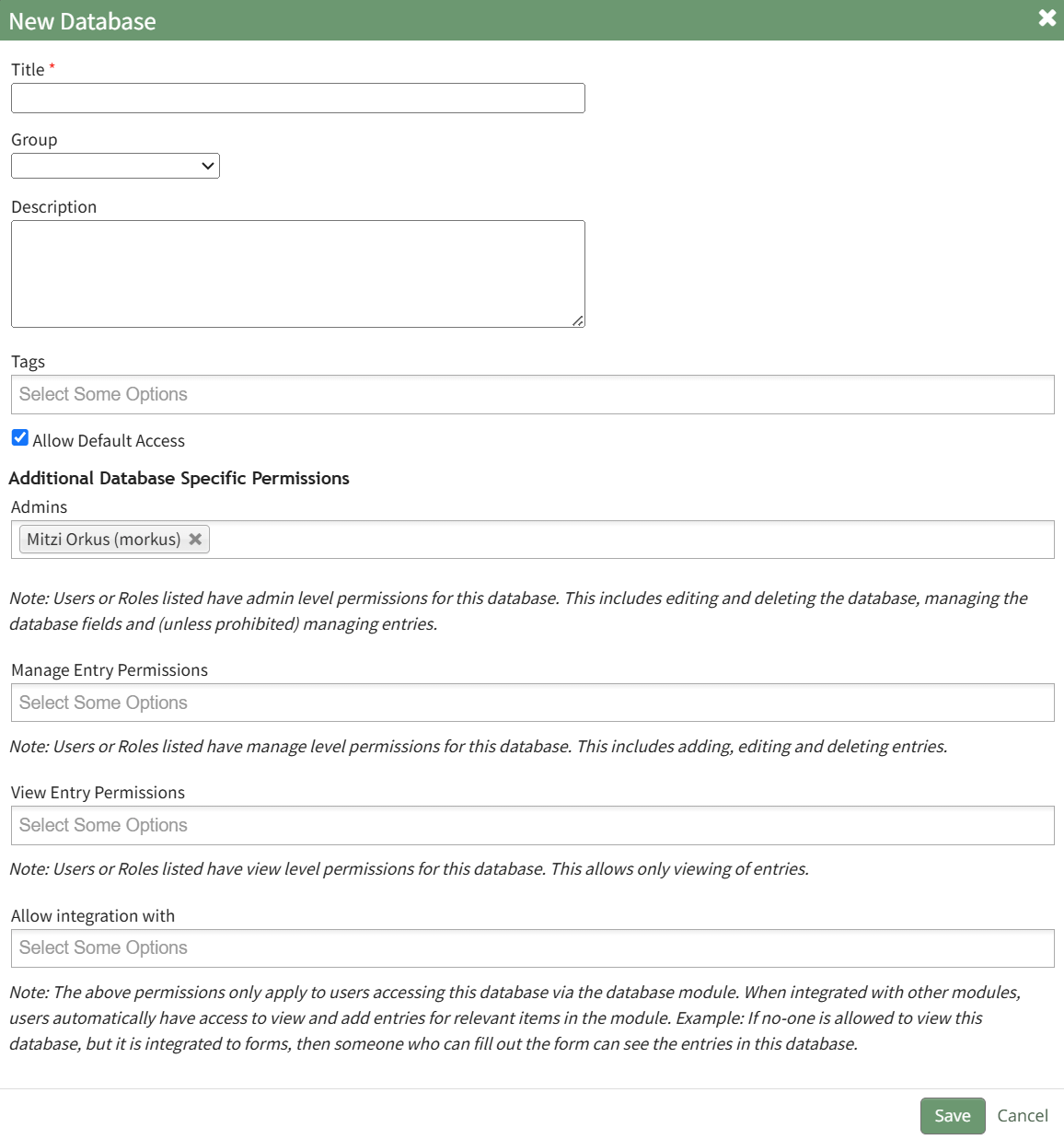
Input a Title for the new database. Select any groups the database should be associated with. Provide a description of the database and its purpose in the textbox provide. Select any tags desired.
Select the “Allow Default Access” checkbox to indicate that the database should follow the defaults established by module and access levels. If this checkbox is not selected, you will be required to establish user specific access based on individual or certification roles.
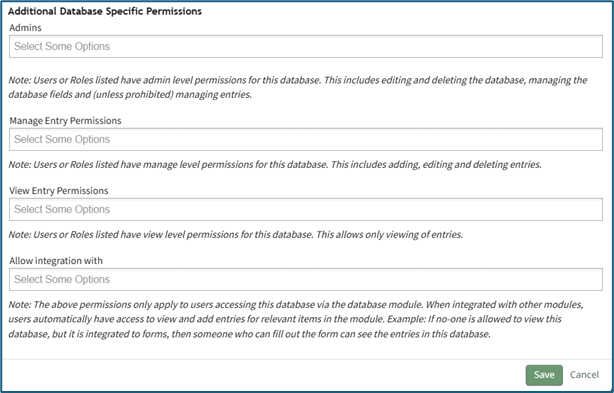
The following database specific permissions are selected via drop down menu lists that include all individuals and certification roles that can be assigned permission.
The Admins field allows users or role to have admin module level permissions for this particular database. A list of all admin module level permissions are shown in the table below.
Database Admin Module Level Permissions |
Manage roles (add/view/edit/delete, assign hidden roles, role permissions) Database (view/edit/delete/list/add, upload csv) Database Fields (edit/delete/view/list) Database Entry (view/edit/delete/list/add) Can delete entries from other modules |
Manage Entry Permissions gives the indicated users permission to view, add, edit, and delete database entries.
View Entry Permissions gives the indicated users permission to view database entries.
Allow Integration With denotes which other modules can link with and integrate with this database or forms for reference.
The Database Module can be integrated with the following modules:
- Forms
- Database
- Inventory
- Grid
Click “Cancel” and return to the Database Module Home Page without any changes being made. Select “Save” to create the new database and you will be directed to the Fields Table for your newly copied database.
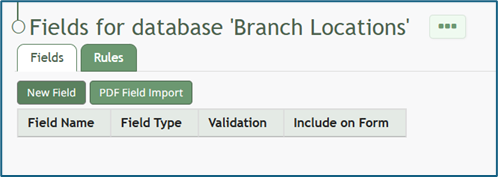
Once a database has been created, you can enter database fields into it.
How To: Import Fields from a CSV File Into a Database
To import database entries from a CSV, database fields must already have been created.
How To: Add a Database Field
To create a database field, go to the Home Page of the Database Module.
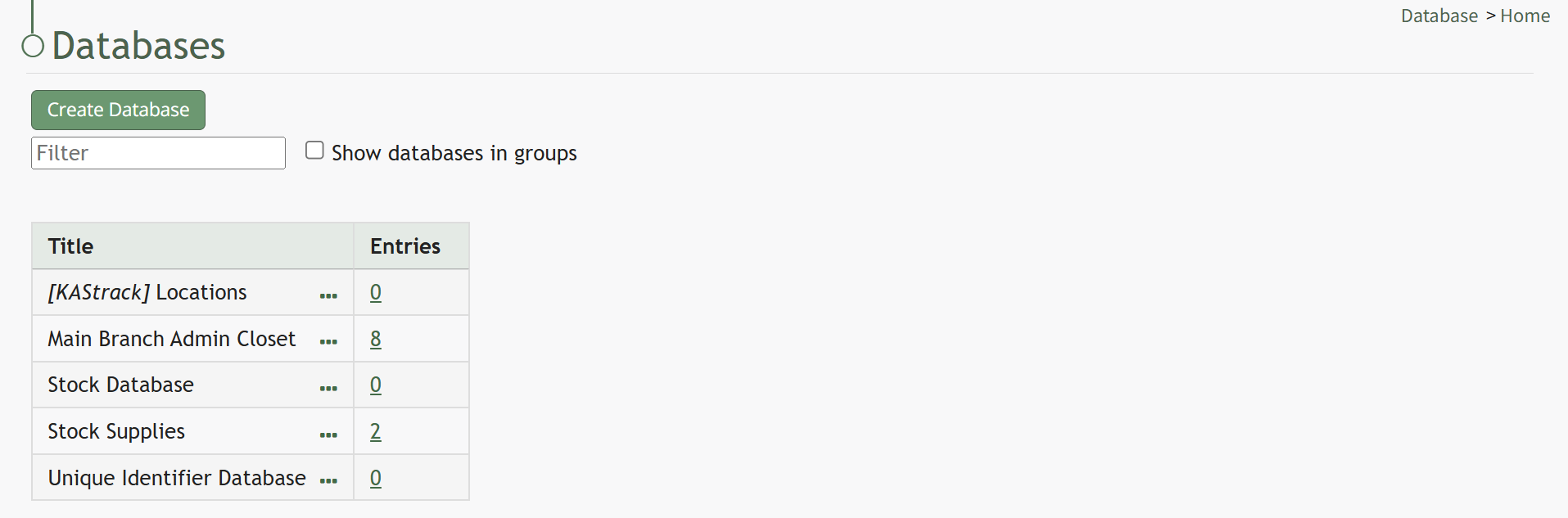
Click the three dot (…) icon to open the context menu of the database you wish to enter fields for.
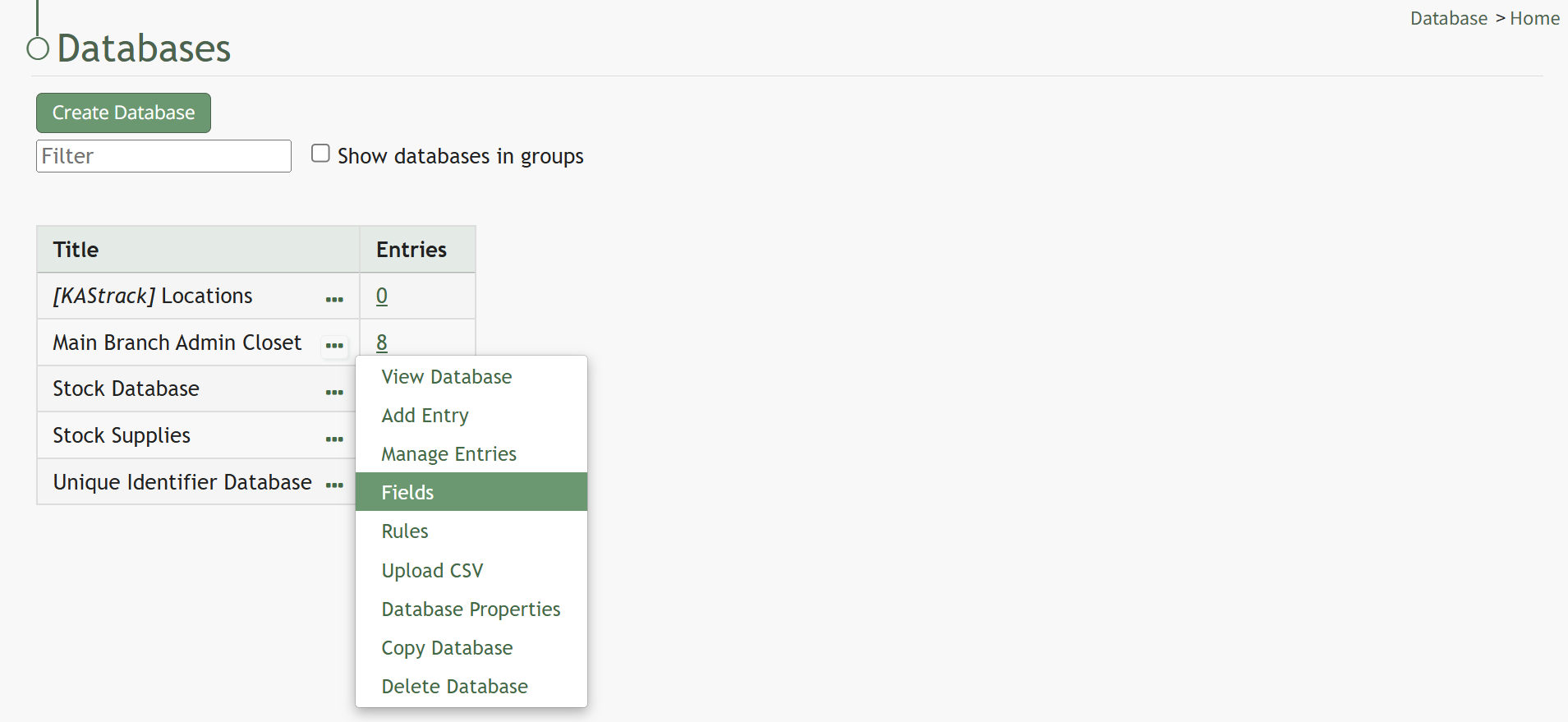
Select “Fields” opening the Fields for database (DatabaseName) Page.
There are two ways to add a field to the Field Table. Click the “New Field” button above the Field Table or click the three dot (…) icon to the right of the page header opening the context menu and select “Add Entry”.

This opens the New Database Field Modal.
The creation of a new field will always require you to enter a field name. Include an input for the displayed label and select the field type from a dropdown menu. The inputs on the New Database Field Modal will vary based on the Field Type.
Possible field types in the database module include Form Fields, Formatting Fields, Utility Fields, or a Reference to Another Database.
A database field can only have one field type. If you need to utilize another (e.g., for formatting purposes), you can set the displayed label to be same, but the field label must be unique.
For an explanation of field types and the formatting choices associated with each one, reference the Understanding Fields Section of the Database Module in the User Manual.
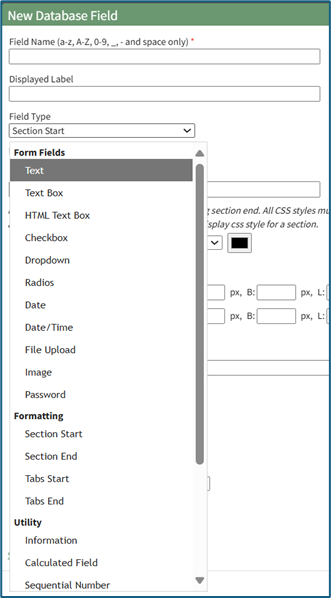
Once you are finished inputting the information for the new field, select “Save” and the new database field will show in the Field Table.
Fields can also be imported in bulk into a Database from a CSV.
How To: Import Fields from a PDF Field Import
{{@340}}
How To: Import Fields from a CSV File Into a Database
If a field has already been added to a database, you are no longer able to bulk import database field names from a CSV file. You are now required to enter each field name individually.
How To: Add a Database Field
{{@321}}
To import database field names from a CSV file, go to the Home Page of the Database Module. Click the three dot (…) icon to open the context menu of the database you wish to enter fields for.
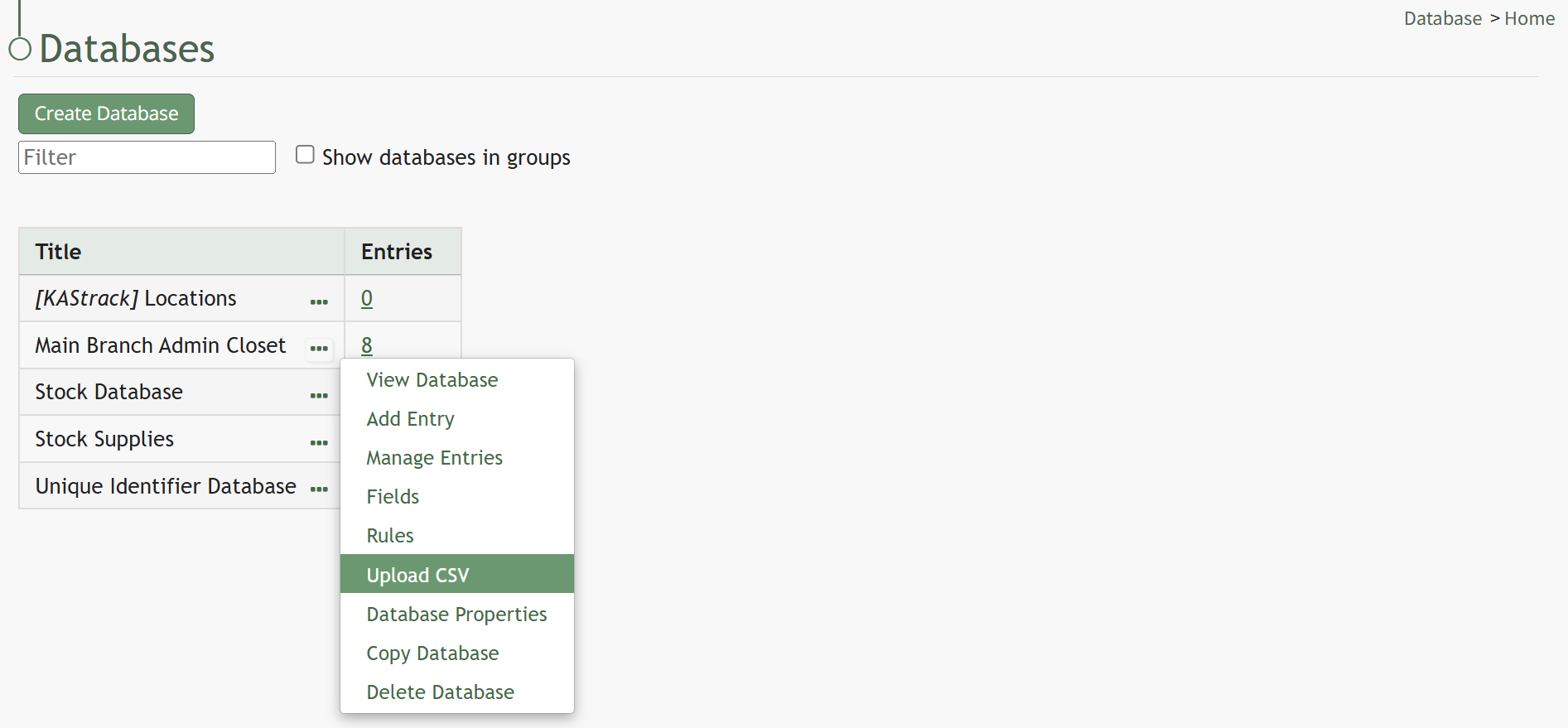
Select “Upload CSV” opening the Upload CSV for (DatabaseName) Modal.
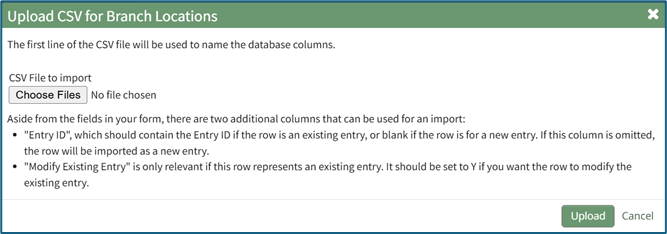
When creating your CSV file, the first row of the CSV file is used. Each individual cell in that row will be a database field used as columns for data entry. When importing bulk field names, the notes in the Upload CSV Modal on “Entry ID” and “Modify Entry ID” are not relevant.

After creating your Database Fields CSV File, save it as a CSV UTF-8 for importing.
Click the “Choose File” button and open the relevant file from your personal device.

Confirm that the correct CSV file now shows in the Upload CSV Modal.
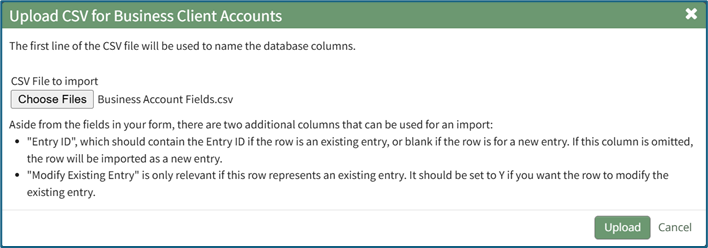
Select the “Upload” button.
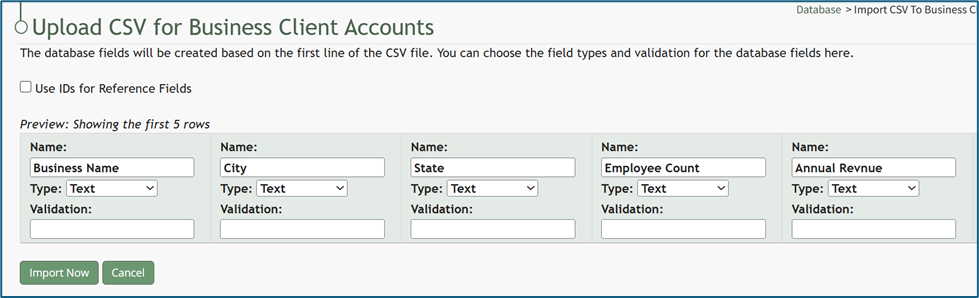
Configure each database field as desired. Field types shown on the dropdown menu include form fields: Text, Text Box, Checkbox, Dropdown, Radios, Data, and Data/Time.
Select “Import Now” and a summary of the import with show on the CSV Upload Page.
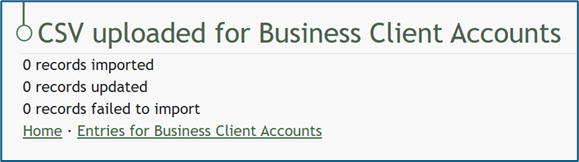
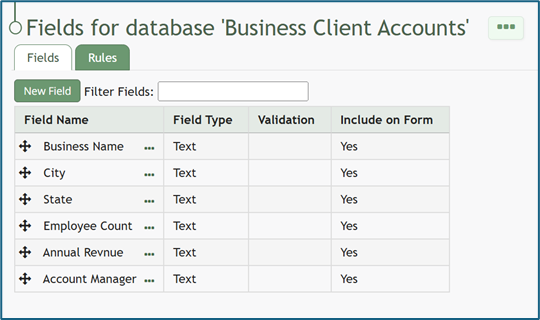
All imported field will now show on the Fields for database (DatabaseName) Page in the Fields Table.
How To: Import Fields from a PDF Field Import
This method of importing Fields from a PDF requires access to Adobe Acrobat Pro.
If a field has already been added to a database, you are no longer able to bulk import database field names from a PDF Field Import. You are now required to enter each field name individually.
How To: Add a Database Field
{{@321}}
To import field names in bulk from a CSV file, go to the Home Page of the Database Module. Click the three dot (…) icon to open the context menu of the database you wish to enter fields for.
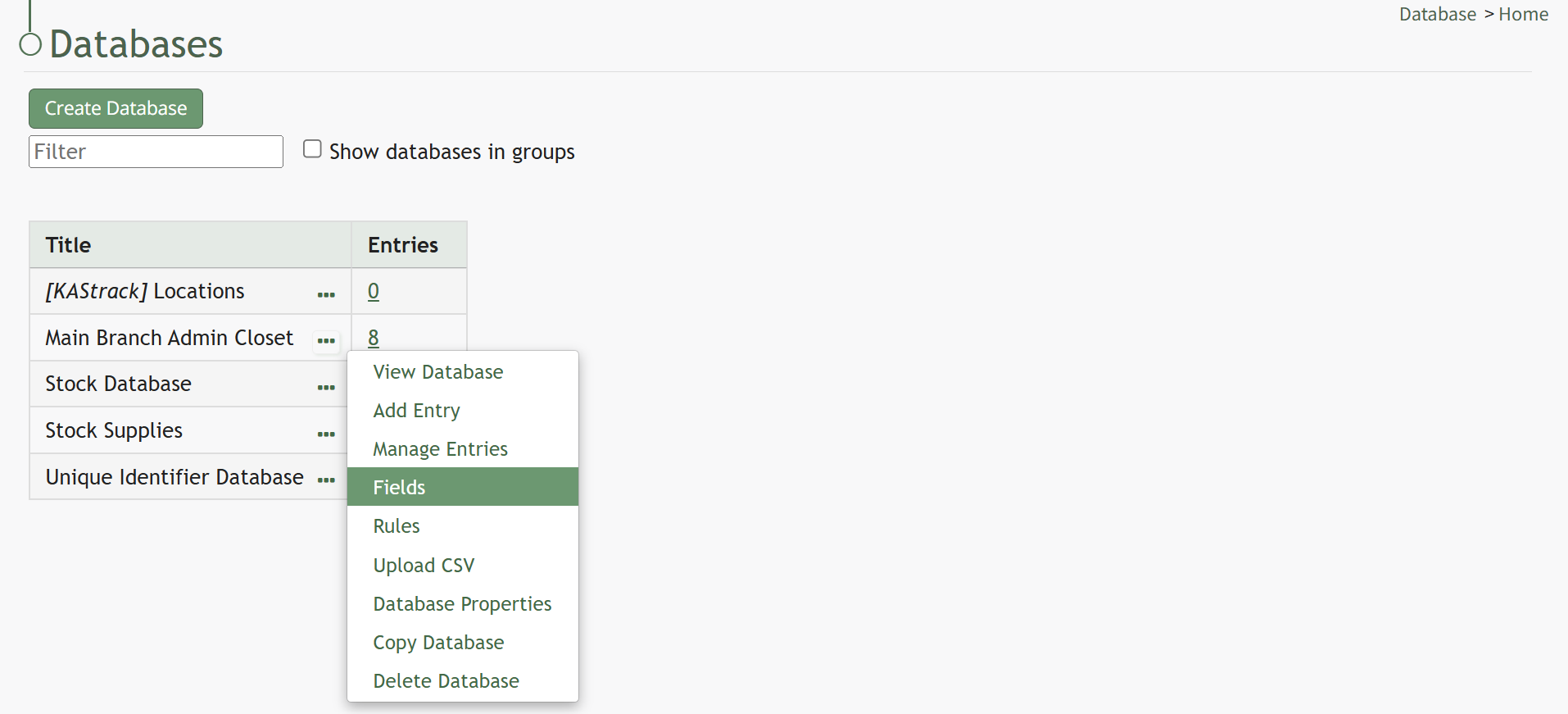
Select “Fields” opening the Fields for database (DatabaseName) Page.
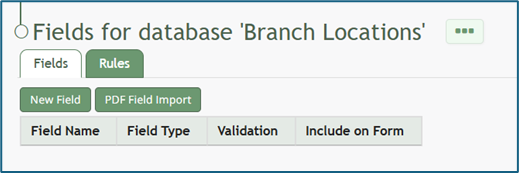
Click the “PDF Field Import” button opening the PDF Field Import Modal.
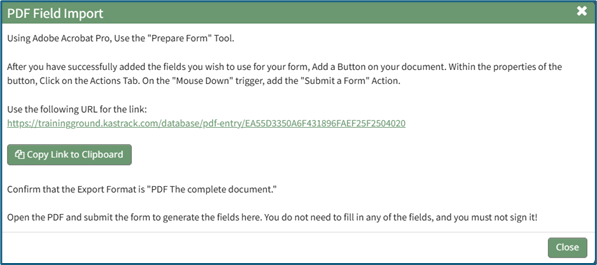
To import fields using a PDF, use the “Prepare Form” tool in Adobe Acrobat Pro. Add the fields you wish to use for your form. Add a button on your document.
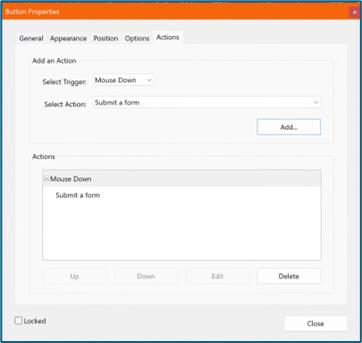
Use the URL link provided on the PDF Field Import Modal in KAStrack.
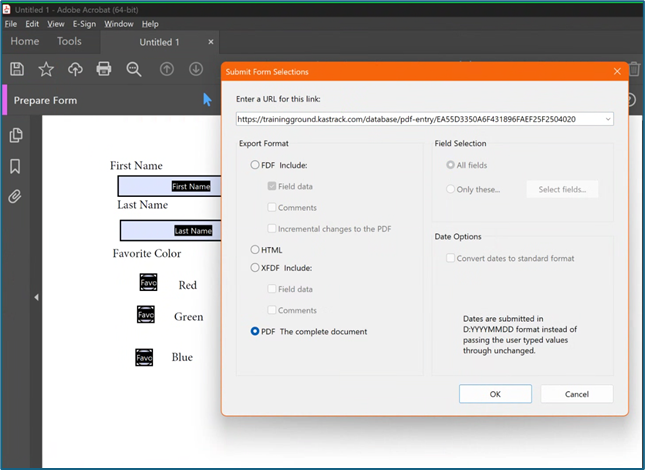
Confirm that the Export Format is “PDF The complete document”.
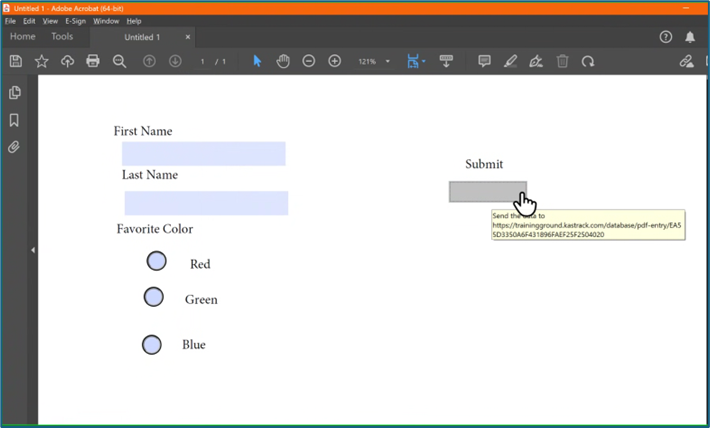
Open the PDF and submit the form to generate the fields here.
You do not need to fill in any of the fields, and you must not sign it.
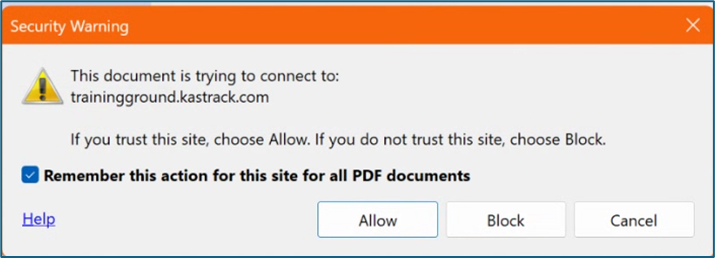
Select “Allow” and the PDF will confirm that the fields were added to the database.
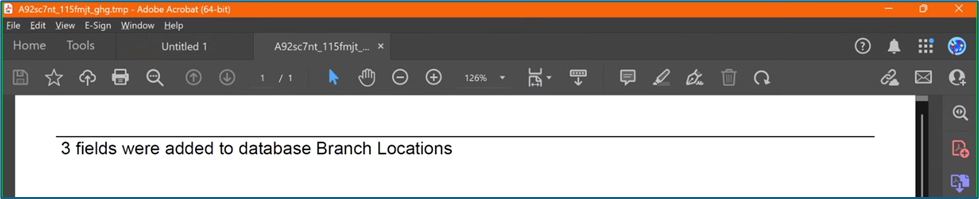
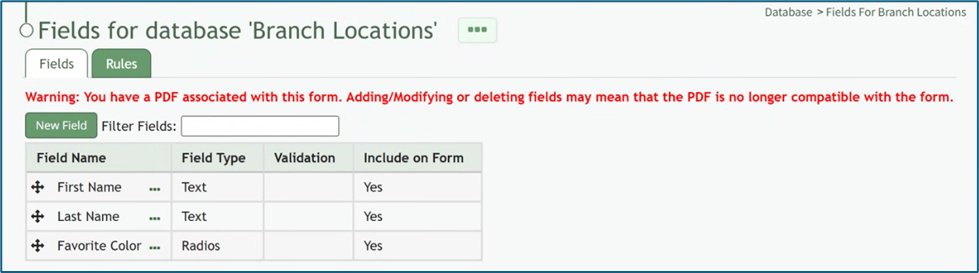
Go to the Fields Table in the database Monday, and a warning now states that a PDF is associated with the form and that adding/editing or deleting fields may result in the PDF no longer being compatible.
To import database entries from a CSV, go to the Home Page of the Database Module and click the three dot menu to the right of the database you wish to import entries into.
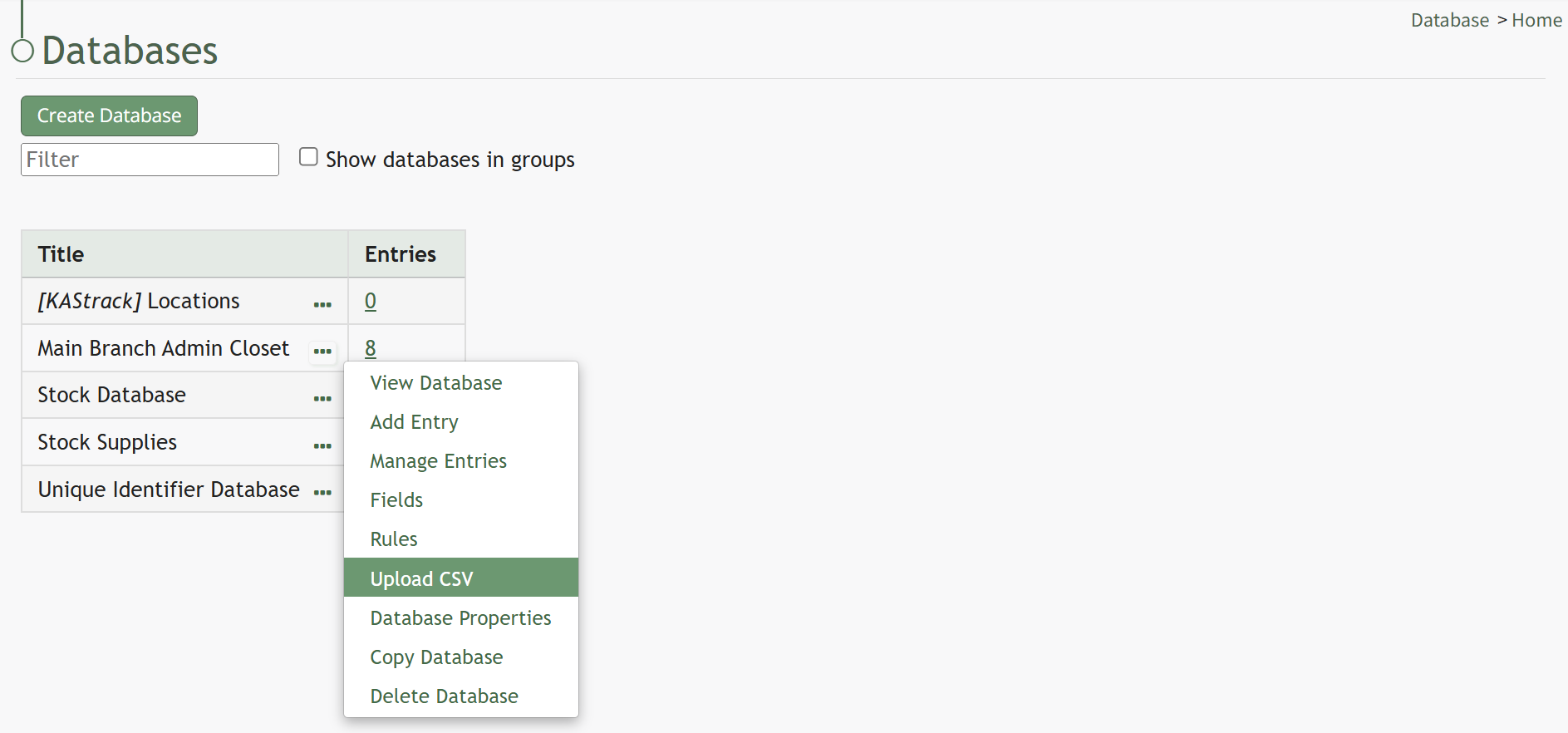
Select “Upload CSV” opening the Upload CSV for (DatabaseName) Modal.
You can also import entries by selecting “Manage Entries” from the context menu and selecting the “Import Entries” button underneath the Database Entries Page header, which opens the same Upload CSV Modal.
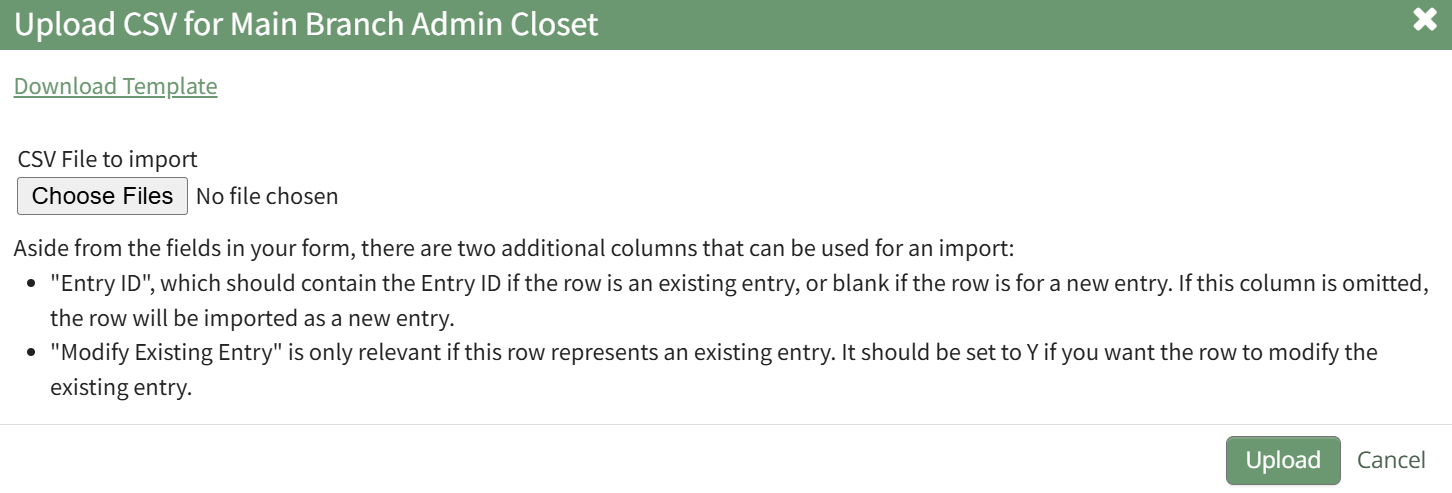
Click the “Download Template” link at the top of the modal and a CSV file will be downloaded to your personal device. See Notes on the Download Template before uploading your CSV file to ensure it is done correctly.
Notes Regarding the Downloadable Template for Uploading CSV Files
The first row of the CSV file is for each of the database fields. If you download a CSV Template from the Upload CSV Modal, two additional column headers will show that are not database fields: Entry ID and Modify Existing Entry.
If you are importing database entries and no entries have been added to the database yet, leave these columns blank in your upload.
If database entries already exist in the database, the Entry ID column will contain the unique system generated ID for each pre-existing database entry. Leave this column blank if the row is to be imported as a new entry. The second column, Modify Existing Entry, should have a “Y” input if the existing entry is being modified and an “N” input if it has not been modified. Leave it blank if the entry is new.

After creating your Database Fields CSV File, save it as a CSV UTF-8 for importing.
Click the “Choose File” button and open the relevant file from your personal device.

Confirm that the correct CSV file now shows in the Upload CSV Modal.
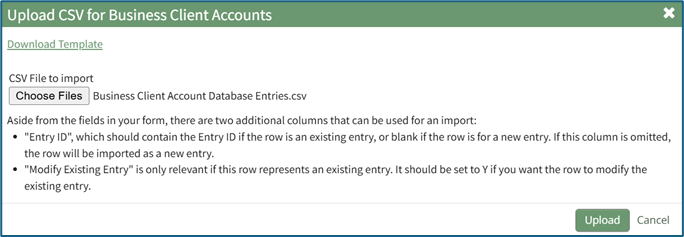
Select the “Upload” button.
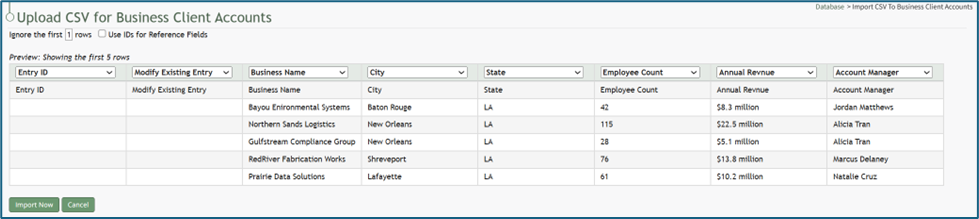
The entries imported from the CSV file will now show on the Upload CSV for (DatabaseName) Page.
The system automatically indicates to ignore the first row. Click “Import Now” if there are no errors.
A summary of the import will now show on the CSV Upload Page.
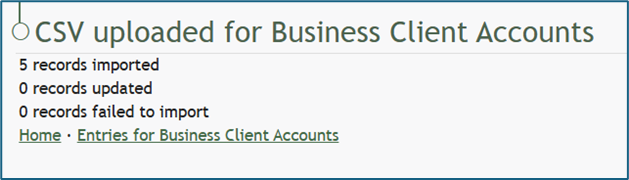
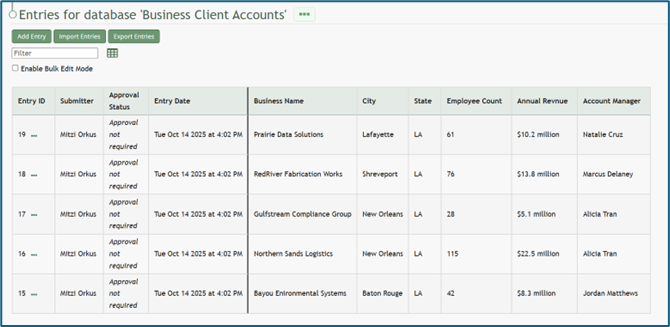
Click the “Entries for (DatabaseName)” link to see all imported entries in the Manage Entry Table.
How To: Import Fields from a PDF Field Import
This method of importing Fields from a PDF requires access to Adobe Acrobat Pro.
If a field has already been added to a database, you are no longer able to bulk import database field names from a PDF Field Import. You are now required to enter each field name individually.
How To: Add a Database Field
To create a database field, go to the Home Page of the Database Module.
Click the three dot (…) icon to open the context menu of the database you wish to enter fields for.
Select “Fields” opening the Fields for database (DatabaseName) Page.
There are two ways to add a field to the Field Table. Click the “New Field” button above the Field Table or click the three dot (…) icon to the right of the page header opening the context menu and select “Add Entry”.
This opens the New Database Field Modal.
The creation of a new field will always require you to enter a field name. Include an input for the displayed label and select the field type from a dropdown menu. The inputs on the New Database Field Modal will vary based on the Field Type.
Possible field types in the database module include Form Fields, Formatting Fields, Utility Fields, or a Reference to Another Database.
A database field can only have one field type. If you need to utilize another (e.g., for formatting purposes), you can set the displayed label to be same, but the field label must be unique.
For an explanation of field types and the formatting choices associated with each one, reference the Understanding Fields Section of the Database Module in the User Manual.
Once you are finished inputting the information for the new field, select “Save” and the new database field will show in the Field Table.
Fields can also be imported in bulk into a Database from a CSV.
How To: Import Fields from a PDF Field Import
{{@340}}
To import field names in bulk from a CSV file, go to the Home Page of the Database Module. Click the three dot (…) icon to open the context menu of the database you wish to enter fields for.
Select “Fields” opening the Fields for database (DatabaseName) Page.
Click the “PDF Field Import” button opening the PDF Field Import Modal.
To import fields using a PDF, use the “Prepare Form” tool in Adobe Acrobat Pro. Add the fields you wish to use for your form. Add a button on your document.
Use the URL link provided on the PDF Field Import Modal in KAStrack.
Confirm that the Export Format is “PDF The complete document”.
Open the PDF and submit the form to generate the fields here.
You do not need to fill in any of the fields, and you must not sign it.
Select “Allow” and the PDF will confirm that the fields were added to the database.
Go to the Fields Table in the database Monday, and a warning now states that a PDF is associated with the form and that adding/editing or deleting fields may result in the PDF no longer being compatible.
How To: Add a Database Field
To create a database field, go to the Home Page of the Database Module.
Click the three dot (…) icon to open the context menu of the database you wish to enter fields for.
Select “Fields” opening the Fields for database (DatabaseName) Page.
There are two ways to add a field to the Field Table. Click the “New Field” button above the Field Table or click the three dot (…) icon to the right of the page header opening the context menu and select “Add Entry”.
This opens the New Database Field Modal.
The creation of a new field will always require you to enter a field name. Include an input for the displayed label and select the field type from a dropdown menu. The inputs on the New Database Field Modal will vary based on the Field Type.
Possible field types in the database module include Form Fields, Formatting Fields, Utility Fields, or a Reference to Another Database.
A database field can only have one field type. If you need to utilize another (e.g., for formatting purposes), you can set the displayed label to be same, but the field label must be unique.
For an explanation of field types and the formatting choices associated with each one, reference the Understanding Fields Section of the Database Module in the User Manual.
Once you are finished inputting the information for the new field, select “Save” and the new database field will show in the Field Table.
Fields can also be imported in bulk into a Database from a CSV.
How To: Import Fields from a PDF Field Import
This method of importing Fields from a PDF requires access to Adobe Acrobat Pro.
If a field has already been added to a database, you are no longer able to bulk import database field names from a PDF Field Import. You are now required to enter each field name individually.
How To: Add a Database Field
{{@321}}
To import field names in bulk from a CSV file, go to the Home Page of the Database Module. Click the three dot (…) icon to open the context menu of the database you wish to enter fields for.
Select “Fields” opening the Fields for database (DatabaseName) Page.
Click the “PDF Field Import” button opening the PDF Field Import Modal.
To import fields using a PDF, use the “Prepare Form” tool in Adobe Acrobat Pro. Add the fields you wish to use for your form. Add a button on your document.
Use the URL link provided on the PDF Field Import Modal in KAStrack.
Confirm that the Export Format is “PDF The complete document”.
Open the PDF and submit the form to generate the fields here.
You do not need to fill in any of the fields, and you must not sign it.
Select “Allow” and the PDF will confirm that the fields were added to the database.
Go to the Fields Table in the database Monday, and a warning now states that a PDF is associated with the form and that adding/editing or deleting fields may result in the PDF no longer being compatible.
Once you have entered database fields, you can add database entries into it.
How To: Add an Individual Database Entry
To add a database entry, go to the Home Page of the Database Module. Click the three dot (…) icon to the right of the database you wish to add an entry to opening the context menu. Select “Add Entry”.
You can select “Add Entry” from any context menu in the Database Modal without returning to the Home Page.
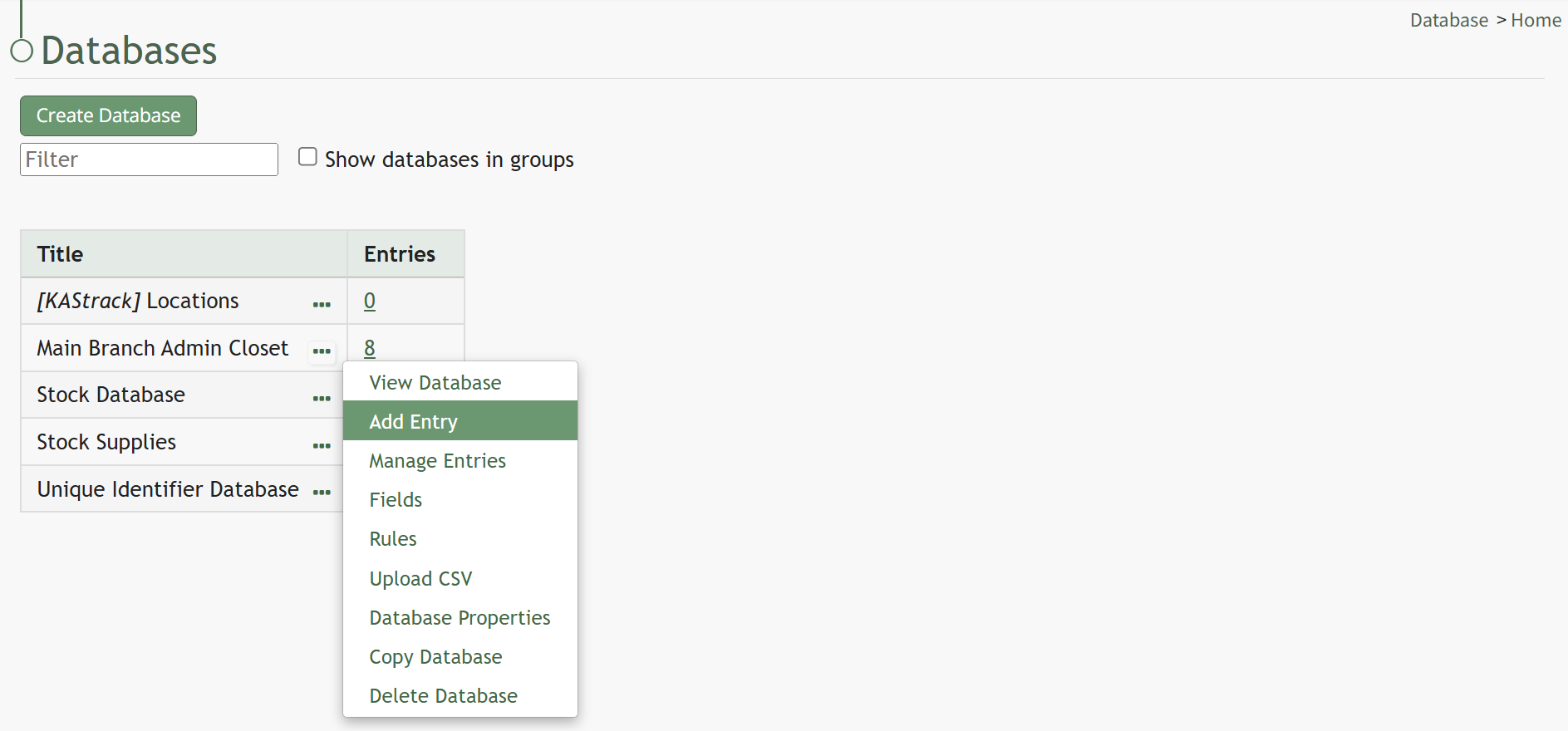
Selecting “Add Entry” opens the New Database Entry modal. Two visual examples of this modal have been included below.
The New Database Entry Modal will vary for every database, based on the fields that have been created for it.
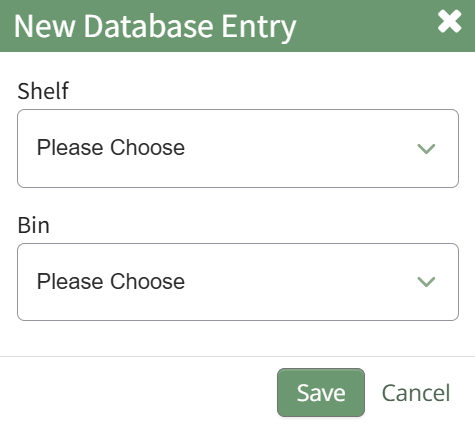
Input the entry data into the modal. Select “Save” for the new entry to be added to the database.
If no fields have been created for the database, the New Database Entry Modal will show without any fields as seen below.
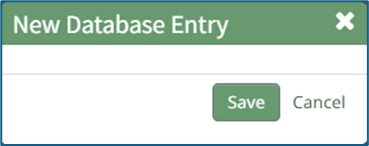
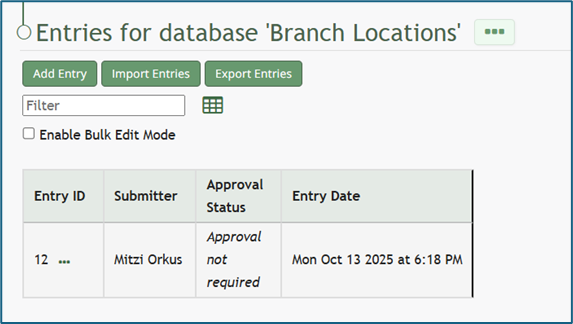
If you select to “Save” a database entry prior to the creation of database fields, an entry will be assigned an Entry ID by the system and will show in the Entries Table. The submitter, approval status, and entry date will be logged.
How To: Import Database Entries from a CSV
To import database entries from a CSV, database fields must already have been created.
How To: Add a Database Field
To create a database field, go to the Home Page of the Database Module.
Click the three dot (…) icon to open the context menu of the database you wish to enter fields for.
Select “Fields” opening the Fields for database (DatabaseName) Page.
There are two ways to add a field to the Field Table. Click the “New Field” button above the Field Table or click the three dot (…) icon to the right of the page header opening the context menu and select “Add Entry”.
This opens the New Database Field Modal.
The creation of a new field will always require you to enter a field name. Include an input for the displayed label and select the field type from a dropdown menu. The inputs on the New Database Field Modal will vary based on the Field Type.
Possible field types in the database module include Form Fields, Formatting Fields, Utility Fields, or a Reference to Another Database.
A database field can only have one field type. If you need to utilize another (e.g., for formatting purposes), you can set the displayed label to be same, but the field label must be unique.
For an explanation of field types and the formatting choices associated with each one, reference the Understanding Fields Section of the Database Module in the User Manual.
Once you are finished inputting the information for the new field, select “Save” and the new database field will show in the Field Table.
Fields can also be imported in bulk into a Database from a CSV.
How To: Import Fields from a PDF Field Import
{{@340}}
How To: Import Fields from a CSV File Into a Database
If a field has already been added to a database, you are no longer able to bulk import database field names from a CSV file. You are now required to enter each field name individually.
How To: Add a Database Field
{{@321}}
To import database field names from a CSV file, go to the Home Page of the Database Module. Click the three dot (…) icon to open the context menu of the database you wish to enter fields for.
Select “Upload CSV” opening the Upload CSV for (DatabaseName) Modal.
When creating your CSV file, the first row of the CSV file is used. Each individual cell in that row will be a database field used as columns for data entry. When importing bulk field names, the notes in the Upload CSV Modal on “Entry ID” and “Modify Entry ID” are not relevant.
After creating your Database Fields CSV File, save it as a CSV UTF-8 for importing.
Click the “Choose File” button and open the relevant file from your personal device.
Confirm that the correct CSV file now shows in the Upload CSV Modal.
Select the “Upload” button.
Configure each database field as desired. Field types shown on the dropdown menu include form fields: Text, Text Box, Checkbox, Dropdown, Radios, Data, and Data/Time.
Select “Import Now” and a summary of the import with show on the CSV Upload Page.
All imported field will now show on the Fields for database (DatabaseName) Page in the Fields Table.
How To: Import Fields from a PDF Field Import
This method of importing Fields from a PDF requires access to Adobe Acrobat Pro.
If a field has already been added to a database, you are no longer able to bulk import database field names from a PDF Field Import. You are now required to enter each field name individually.
How To: Add a Database Field
{{@321}}
To import field names in bulk from a CSV file, go to the Home Page of the Database Module. Click the three dot (…) icon to open the context menu of the database you wish to enter fields for.
Select “Fields” opening the Fields for database (DatabaseName) Page.
Click the “PDF Field Import” button opening the PDF Field Import Modal.
To import fields using a PDF, use the “Prepare Form” tool in Adobe Acrobat Pro. Add the fields you wish to use for your form. Add a button on your document.
Use the URL link provided on the PDF Field Import Modal in KAStrack.
Confirm that the Export Format is “PDF The complete document”.
Open the PDF and submit the form to generate the fields here.
You do not need to fill in any of the fields, and you must not sign it.
Select “Allow” and the PDF will confirm that the fields were added to the database.
Go to the Fields Table in the database Monday, and a warning now states that a PDF is associated with the form and that adding/editing or deleting fields may result in the PDF no longer being compatible.
To import database entries from a CSV, go to the Home Page of the Database Module and click the three dot menu to the right of the database you wish to import entries into.
Select “Upload CSV” opening the Upload CSV for (DatabaseName) Modal.
You can also import entries by selecting “Manage Entries” from the context menu and selecting the “Import Entries” button underneath the Database Entries Page header, which opens the same Upload CSV Modal.
Click the “Download Template” link at the top of the modal and a CSV file will be downloaded to your personal device. See Notes on the Download Template before uploading your CSV file to ensure it is done correctly.
Notes Regarding the Downloadable Template for Uploading CSV Files
The first row of the CSV file is for each of the database fields. If you download a CSV Template from the Upload CSV Modal, two additional column headers will show that are not database fields: Entry ID and Modify Existing Entry.
If you are importing database entries and no entries have been added to the database yet, leave these columns blank in your upload.
If database entries already exist in the database, the Entry ID column will contain the unique system generated ID for each pre-existing database entry. Leave this column blank if the row is to be imported as a new entry. The second column, Modify Existing Entry, should have a “Y” input if the existing entry is being modified and an “N” input if it has not been modified. Leave it blank if the entry is new.
After creating your Database Fields CSV File, save it as a CSV UTF-8 for importing.
Click the “Choose File” button and open the relevant file from your personal device.
Confirm that the correct CSV file now shows in the Upload CSV Modal.
Select the “Upload” button.
The entries imported from the CSV file will now show on the Upload CSV for (DatabaseName) Page.
The system automatically indicates to ignore the first row. Click “Import Now” if there are no errors.
A summary of the import will now show on the CSV Upload Page.
Click the “Entries for (DatabaseName)” link to see all imported entries in the Manage Entry Table.
How To: Add a Database Field
To create a new database, go to the Home Page of the Database Module.
Click the “Create Database” button, opening the New Database Modal.
Input a Title for the new database. Select any groups the database should be associated with. Provide a description of the database and its purpose in the textbox provide. Select any tags desired.
Select the “Allow Default Access” checkbox to indicate that the database should follow the defaults established by module and access levels. If this checkbox is not selected, you will be required to establish user specific access based on individual or certification roles.
The following database specific permissions are selected via drop down menu lists that include all individuals and certification roles that can be assigned permission.
The Admins field allows users or role to have admin module level permissions for this particular database. A list of all admin module level permissions are shown in the table below.
Database Admin Module Level Permissions |
Manage roles (add/view/edit/delete, assign hidden roles, role permissions) Database (view/edit/delete/list/add, upload csv) Database Fields (edit/delete/view/list) Database Entry (view/edit/delete/list/add) Can delete entries from other modules |
Manage Entry Permissions gives the indicated users permission to view, add, edit, and delete database entries.
View Entry Permissions gives the indicated users permission to view database entries.
Allow Integration With denotes which other modules can link with and integrate with this database or forms for reference.
The Database Module can be integrated with the following modules:
- Forms
- Database
- Inventory
- Grid
Click “Cancel” and return to the Database Module Home Page without any changes being made. Select “Save” to create the new database and you will be directed to the Fields Table for your newly copied database.
Once a database has been created, you can enter database fields into it.
How To: Import Fields from a CSV File Into a Database
To import database entries from a CSV, database fields must already have been created.
How To: Add a Database Field
To create a database field, go to the Home Page of the Database Module.
Click the three dot (…) icon to open the context menu of the database you wish to enter fields for.
Select “Fields” opening the Fields for database (DatabaseName) Page.
There are two ways to add a field to the Field Table. Click the “New Field” button above the Field Table or click the three dot (…) icon to the right of the page header opening the context menu and select “Add Entry”.
This opens the New Database Field Modal.
The creation of a new field will always require you to enter a field name. Include an input for the displayed label and select the field type from a dropdown menu. The inputs on the New Database Field Modal will vary based on the Field Type.
Possible field types in the database module include Form Fields, Formatting Fields, Utility Fields, or a Reference to Another Database.
A database field can only have one field type. If you need to utilize another (e.g., for formatting purposes), you can set the displayed label to be same, but the field label must be unique.
For an explanation of field types and the formatting choices associated with each one, reference the Understanding Fields Section of the Database Module in the User Manual.
Once you are finished inputting the information for the new field, select “Save” and the new database field will show in the Field Table.
Fields can also be imported in bulk into a Database from a CSV.
How To: Import Fields from a PDF Field Import
{{@340}}
How To: Import Fields from a CSV File Into a Database
If a field has already been added to a database, you are no longer able to bulk import database field names from a CSV file. You are now required to enter each field name individually.
How To: Add a Database Field
{{@321}}
To import database field names from a CSV file, go to the Home Page of the Database Module. Click the three dot (…) icon to open the context menu of the database you wish to enter fields for.
Select “Upload CSV” opening the Upload CSV for (DatabaseName) Modal.
When creating your CSV file, the first row of the CSV file is used. Each individual cell in that row will be a database field used as columns for data entry. When importing bulk field names, the notes in the Upload CSV Modal on “Entry ID” and “Modify Entry ID” are not relevant.
After creating your Database Fields CSV File, save it as a CSV UTF-8 for importing.
Click the “Choose File” button and open the relevant file from your personal device.
Confirm that the correct CSV file now shows in the Upload CSV Modal.
Select the “Upload” button.
Configure each database field as desired. Field types shown on the dropdown menu include form fields: Text, Text Box, Checkbox, Dropdown, Radios, Data, and Data/Time.
Select “Import Now” and a summary of the import with show on the CSV Upload Page.
All imported field will now show on the Fields for database (DatabaseName) Page in the Fields Table.
How To: Import Fields from a PDF Field Import
This method of importing Fields from a PDF requires access to Adobe Acrobat Pro.
If a field has already been added to a database, you are no longer able to bulk import database field names from a PDF Field Import. You are now required to enter each field name individually.
How To: Add a Database Field
{{@321}}
To import field names in bulk from a CSV file, go to the Home Page of the Database Module. Click the three dot (…) icon to open the context menu of the database you wish to enter fields for.
Select “Fields” opening the Fields for database (DatabaseName) Page.
Click the “PDF Field Import” button opening the PDF Field Import Modal.
To import fields using a PDF, use the “Prepare Form” tool in Adobe Acrobat Pro. Add the fields you wish to use for your form. Add a button on your document.
Use the URL link provided on the PDF Field Import Modal in KAStrack.
Confirm that the Export Format is “PDF The complete document”.
Open the PDF and submit the form to generate the fields here.
You do not need to fill in any of the fields, and you must not sign it.
Select “Allow” and the PDF will confirm that the fields were added to the database.
Go to the Fields Table in the database Monday, and a warning now states that a PDF is associated with the form and that adding/editing or deleting fields may result in the PDF no longer being compatible.
To import database entries from a CSV, go to the Home Page of the Database Module and click the three dot menu to the right of the database you wish to import entries into.
Select “Upload CSV” opening the Upload CSV for (DatabaseName) Modal.
You can also import entries by selecting “Manage Entries” from the context menu and selecting the “Import Entries” button underneath the Database Entries Page header, which opens the same Upload CSV Modal.
Click the “Download Template” link at the top of the modal and a CSV file will be downloaded to your personal device. See Notes on the Download Template before uploading your CSV file to ensure it is done correctly.
Notes Regarding the Downloadable Template for Uploading CSV Files
The first row of the CSV file is for each of the database fields. If you download a CSV Template from the Upload CSV Modal, two additional column headers will show that are not database fields: Entry ID and Modify Existing Entry.
If you are importing database entries and no entries have been added to the database yet, leave these columns blank in your upload.
If database entries already exist in the database, the Entry ID column will contain the unique system generated ID for each pre-existing database entry. Leave this column blank if the row is to be imported as a new entry. The second column, Modify Existing Entry, should have a “Y” input if the existing entry is being modified and an “N” input if it has not been modified. Leave it blank if the entry is new.
After creating your Database Fields CSV File, save it as a CSV UTF-8 for importing.
Click the “Choose File” button and open the relevant file from your personal device.
Confirm that the correct CSV file now shows in the Upload CSV Modal.
Select the “Upload” button.
The entries imported from the CSV file will now show on the Upload CSV for (DatabaseName) Page.
The system automatically indicates to ignore the first row. Click “Import Now” if there are no errors.
A summary of the import will now show on the CSV Upload Page.
Click the “Entries for (DatabaseName)” link to see all imported entries in the Manage Entry Table.
How To: Import Fields from a PDF Field Import
This method of importing Fields from a PDF requires access to Adobe Acrobat Pro.
If a field has already been added to a database, you are no longer able to bulk import database field names from a PDF Field Import. You are now required to enter each field name individually.
How To: Add a Database Field
To create a database field, go to the Home Page of the Database Module.
Click the three dot (…) icon to open the context menu of the database you wish to enter fields for.
Select “Fields” opening the Fields for database (DatabaseName) Page.
There are two ways to add a field to the Field Table. Click the “New Field” button above the Field Table or click the three dot (…) icon to the right of the page header opening the context menu and select “Add Entry”.
This opens the New Database Field Modal.
The creation of a new field will always require you to enter a field name. Include an input for the displayed label and select the field type from a dropdown menu. The inputs on the New Database Field Modal will vary based on the Field Type.
Possible field types in the database module include Form Fields, Formatting Fields, Utility Fields, or a Reference to Another Database.
A database field can only have one field type. If you need to utilize another (e.g., for formatting purposes), you can set the displayed label to be same, but the field label must be unique.
For an explanation of field types and the formatting choices associated with each one, reference the Understanding Fields Section of the Database Module in the User Manual.
Once you are finished inputting the information for the new field, select “Save” and the new database field will show in the Field Table.
Fields can also be imported in bulk into a Database from a CSV.
How To: Import Fields from a PDF Field Import
{{@340}}
To import field names in bulk from a CSV file, go to the Home Page of the Database Module. Click the three dot (…) icon to open the context menu of the database you wish to enter fields for.
Select “Fields” opening the Fields for database (DatabaseName) Page.
Click the “PDF Field Import” button opening the PDF Field Import Modal.
To import fields using a PDF, use the “Prepare Form” tool in Adobe Acrobat Pro. Add the fields you wish to use for your form. Add a button on your document.
Use the URL link provided on the PDF Field Import Modal in KAStrack.
Confirm that the Export Format is “PDF The complete document”.
Open the PDF and submit the form to generate the fields here.
You do not need to fill in any of the fields, and you must not sign it.
Select “Allow” and the PDF will confirm that the fields were added to the database.
Go to the Fields Table in the database Monday, and a warning now states that a PDF is associated with the form and that adding/editing or deleting fields may result in the PDF no longer being compatible.
How To: Add a Database Field
To create a database field, go to the Home Page of the Database Module.
Click the three dot (…) icon to open the context menu of the database you wish to enter fields for.
Select “Fields” opening the Fields for database (DatabaseName) Page.
There are two ways to add a field to the Field Table. Click the “New Field” button above the Field Table or click the three dot (…) icon to the right of the page header opening the context menu and select “Add Entry”.
This opens the New Database Field Modal.
The creation of a new field will always require you to enter a field name. Include an input for the displayed label and select the field type from a dropdown menu. The inputs on the New Database Field Modal will vary based on the Field Type.
Possible field types in the database module include Form Fields, Formatting Fields, Utility Fields, or a Reference to Another Database.
A database field can only have one field type. If you need to utilize another (e.g., for formatting purposes), you can set the displayed label to be same, but the field label must be unique.
For an explanation of field types and the formatting choices associated with each one, reference the Understanding Fields Section of the Database Module in the User Manual.
Once you are finished inputting the information for the new field, select “Save” and the new database field will show in the Field Table.
Fields can also be imported in bulk into a Database from a CSV.
How To: Import Fields from a PDF Field Import
This method of importing Fields from a PDF requires access to Adobe Acrobat Pro.
If a field has already been added to a database, you are no longer able to bulk import database field names from a PDF Field Import. You are now required to enter each field name individually.
How To: Add a Database Field
{{@321}}
To import field names in bulk from a CSV file, go to the Home Page of the Database Module. Click the three dot (…) icon to open the context menu of the database you wish to enter fields for.
Select “Fields” opening the Fields for database (DatabaseName) Page.
Click the “PDF Field Import” button opening the PDF Field Import Modal.
To import fields using a PDF, use the “Prepare Form” tool in Adobe Acrobat Pro. Add the fields you wish to use for your form. Add a button on your document.
Use the URL link provided on the PDF Field Import Modal in KAStrack.
Confirm that the Export Format is “PDF The complete document”.
Open the PDF and submit the form to generate the fields here.
You do not need to fill in any of the fields, and you must not sign it.
Select “Allow” and the PDF will confirm that the fields were added to the database.
Go to the Fields Table in the database Monday, and a warning now states that a PDF is associated with the form and that adding/editing or deleting fields may result in the PDF no longer being compatible.
Once you have entered database fields, you can add database entries into it.
How To: Add an Individual Database Entry
To add a database entry, go to the Home Page of the Database Module. Click the three dot (…) icon to the right of the database you wish to add an entry to opening the context menu. Select “Add Entry”.
You can select “Add Entry” from any context menu in the Database Modal without returning to the Home Page.
Selecting “Add Entry” opens the New Database Entry modal. Two visual examples of this modal have been included below.
The New Database Entry Modal will vary for every database, based on the fields that have been created for it.
Input the entry data into the modal. Select “Save” for the new entry to be added to the database.
If no fields have been created for the database, the New Database Entry Modal will show without any fields as seen below.
If you select to “Save” a database entry prior to the creation of database fields, an entry will be assigned an Entry ID by the system and will show in the Entries Table. The submitter, approval status, and entry date will be logged.
How To: Import Database Entries from a CSV
To import database entries from a CSV, database fields must already have been created.
How To: Add a Database Field
To create a database field, go to the Home Page of the Database Module.
Click the three dot (…) icon to open the context menu of the database you wish to enter fields for.
Select “Fields” opening the Fields for database (DatabaseName) Page.
There are two ways to add a field to the Field Table. Click the “New Field” button above the Field Table or click the three dot (…) icon to the right of the page header opening the context menu and select “Add Entry”.
This opens the New Database Field Modal.
The creation of a new field will always require you to enter a field name. Include an input for the displayed label and select the field type from a dropdown menu. The inputs on the New Database Field Modal will vary based on the Field Type.
Possible field types in the database module include Form Fields, Formatting Fields, Utility Fields, or a Reference to Another Database.
A database field can only have one field type. If you need to utilize another (e.g., for formatting purposes), you can set the displayed label to be same, but the field label must be unique.
For an explanation of field types and the formatting choices associated with each one, reference the Understanding Fields Section of the Database Module in the User Manual.
Once you are finished inputting the information for the new field, select “Save” and the new database field will show in the Field Table.
Fields can also be imported in bulk into a Database from a CSV.
How To: Import Fields from a PDF Field Import
{{@340}}
How To: Import Fields from a CSV File Into a Database
If a field has already been added to a database, you are no longer able to bulk import database field names from a CSV file. You are now required to enter each field name individually.
How To: Add a Database Field
{{@321}}
To import database field names from a CSV file, go to the Home Page of the Database Module. Click the three dot (…) icon to open the context menu of the database you wish to enter fields for.
Select “Upload CSV” opening the Upload CSV for (DatabaseName) Modal.
When creating your CSV file, the first row of the CSV file is used. Each individual cell in that row will be a database field used as columns for data entry. When importing bulk field names, the notes in the Upload CSV Modal on “Entry ID” and “Modify Entry ID” are not relevant.
After creating your Database Fields CSV File, save it as a CSV UTF-8 for importing.
Click the “Choose File” button and open the relevant file from your personal device.
Confirm that the correct CSV file now shows in the Upload CSV Modal.
Select the “Upload” button.
Configure each database field as desired. Field types shown on the dropdown menu include form fields: Text, Text Box, Checkbox, Dropdown, Radios, Data, and Data/Time.
Select “Import Now” and a summary of the import with show on the CSV Upload Page.
All imported field will now show on the Fields for database (DatabaseName) Page in the Fields Table.
How To: Import Fields from a PDF Field Import
This method of importing Fields from a PDF requires access to Adobe Acrobat Pro.
If a field has already been added to a database, you are no longer able to bulk import database field names from a PDF Field Import. You are now required to enter each field name individually.
How To: Add a Database Field
{{@321}}
To import field names in bulk from a CSV file, go to the Home Page of the Database Module. Click the three dot (…) icon to open the context menu of the database you wish to enter fields for.
Select “Fields” opening the Fields for database (DatabaseName) Page.
Click the “PDF Field Import” button opening the PDF Field Import Modal.
To import fields using a PDF, use the “Prepare Form” tool in Adobe Acrobat Pro. Add the fields you wish to use for your form. Add a button on your document.
Use the URL link provided on the PDF Field Import Modal in KAStrack.
Confirm that the Export Format is “PDF The complete document”.
Open the PDF and submit the form to generate the fields here.
You do not need to fill in any of the fields, and you must not sign it.
Select “Allow” and the PDF will confirm that the fields were added to the database.
Go to the Fields Table in the database Monday, and a warning now states that a PDF is associated with the form and that adding/editing or deleting fields may result in the PDF no longer being compatible.
To import database entries from a CSV, go to the Home Page of the Database Module and click the three dot menu to the right of the database you wish to import entries into.
Select “Upload CSV” opening the Upload CSV for (DatabaseName) Modal.
You can also import entries by selecting “Manage Entries” from the context menu and selecting the “Import Entries” button underneath the Database Entries Page header, which opens the same Upload CSV Modal.
Click the “Download Template” link at the top of the modal and a CSV file will be downloaded to your personal device. See Notes on the Download Template before uploading your CSV file to ensure it is done correctly.
Notes Regarding the Downloadable Template for Uploading CSV Files
The first row of the CSV file is for each of the database fields. If you download a CSV Template from the Upload CSV Modal, two additional column headers will show that are not database fields: Entry ID and Modify Existing Entry.
If you are importing database entries and no entries have been added to the database yet, leave these columns blank in your upload.
If database entries already exist in the database, the Entry ID column will contain the unique system generated ID for each pre-existing database entry. Leave this column blank if the row is to be imported as a new entry. The second column, Modify Existing Entry, should have a “Y” input if the existing entry is being modified and an “N” input if it has not been modified. Leave it blank if the entry is new.
After creating your Database Fields CSV File, save it as a CSV UTF-8 for importing.
Click the “Choose File” button and open the relevant file from your personal device.
Confirm that the correct CSV file now shows in the Upload CSV Modal.
Select the “Upload” button.
The entries imported from the CSV file will now show on the Upload CSV for (DatabaseName) Page.
The system automatically indicates to ignore the first row. Click “Import Now” if there are no errors.
A summary of the import will now show on the CSV Upload Page.
Click the “Entries for (DatabaseName)” link to see all imported entries in the Manage Entry Table.
How To: Import Fields from a CSV File Into a Database
If a field has already been added to a database, you are no longer able to bulk import database field names from a CSV file. You are now required to enter each field name individually.
How To: Add a Database Field
To create a database field, go to the Home Page of the Database Module.
Click the three dot (…) icon to open the context menu of the database you wish to enter fields for.
Select “Fields” opening the Fields for database (DatabaseName) Page.
There are two ways to add a field to the Field Table. Click the “New Field” button above the Field Table or click the three dot (…) icon to the right of the page header opening the context menu and select “Add Entry”.
This opens the New Database Field Modal.
The creation of a new field will always require you to enter a field name. Include an input for the displayed label and select the field type from a dropdown menu. The inputs on the New Database Field Modal will vary based on the Field Type.
Possible field types in the database module include Form Fields, Formatting Fields, Utility Fields, or a Reference to Another Database.
A database field can only have one field type. If you need to utilize another (e.g., for formatting purposes), you can set the displayed label to be same, but the field label must be unique.
For an explanation of field types and the formatting choices associated with each one, reference the Understanding Fields Section of the Database Module in the User Manual.
Once you are finished inputting the information for the new field, select “Save” and the new database field will show in the Field Table.
Fields can also be imported in bulk into a Database from a CSV.
How To: Import Fields from a PDF Field Import
This method of importing Fields from a PDF requires access to Adobe Acrobat Pro.
If a field has already been added to a database, you are no longer able to bulk import database field names from a PDF Field Import. You are now required to enter each field name individually.
How To: Add a Database Field
{{@321}}
To import field names in bulk from a CSV file, go to the Home Page of the Database Module. Click the three dot (…) icon to open the context menu of the database you wish to enter fields for.
Select “Fields” opening the Fields for database (DatabaseName) Page.
Click the “PDF Field Import” button opening the PDF Field Import Modal.
To import fields using a PDF, use the “Prepare Form” tool in Adobe Acrobat Pro. Add the fields you wish to use for your form. Add a button on your document.
Use the URL link provided on the PDF Field Import Modal in KAStrack.
Confirm that the Export Format is “PDF The complete document”.
Open the PDF and submit the form to generate the fields here.
You do not need to fill in any of the fields, and you must not sign it.
Select “Allow” and the PDF will confirm that the fields were added to the database.
Go to the Fields Table in the database Monday, and a warning now states that a PDF is associated with the form and that adding/editing or deleting fields may result in the PDF no longer being compatible.
To import database field names from a CSV file, go to the Home Page of the Database Module. Click the three dot (…) icon to open the context menu of the database you wish to enter fields for.
Select “Upload CSV” opening the Upload CSV for (DatabaseName) Modal.
When creating your CSV file, the first row of the CSV file is used. Each individual cell in that row will be a database field used as columns for data entry. When importing bulk field names, the notes in the Upload CSV Modal on “Entry ID” and “Modify Entry ID” are not relevant.
After creating your Database Fields CSV File, save it as a CSV UTF-8 for importing.
Click the “Choose File” button and open the relevant file from your personal device.
Confirm that the correct CSV file now shows in the Upload CSV Modal.
Select the “Upload” button.
Configure each database field as desired. Field types shown on the dropdown menu include form fields: Text, Text Box, Checkbox, Dropdown, Radios, Data, and Data/Time.
Select “Import Now” and a summary of the import with show on the CSV Upload Page.
All imported field will now show on the Fields for database (DatabaseName) Page in the Fields Table.
Stock Database
The Stock Database is created for general or stock inventory items that do not have a unique identifier. The fields included in the Stock Database will show on the modal for each stock item in the inventory. All inventories are required to integrate with a stock database.
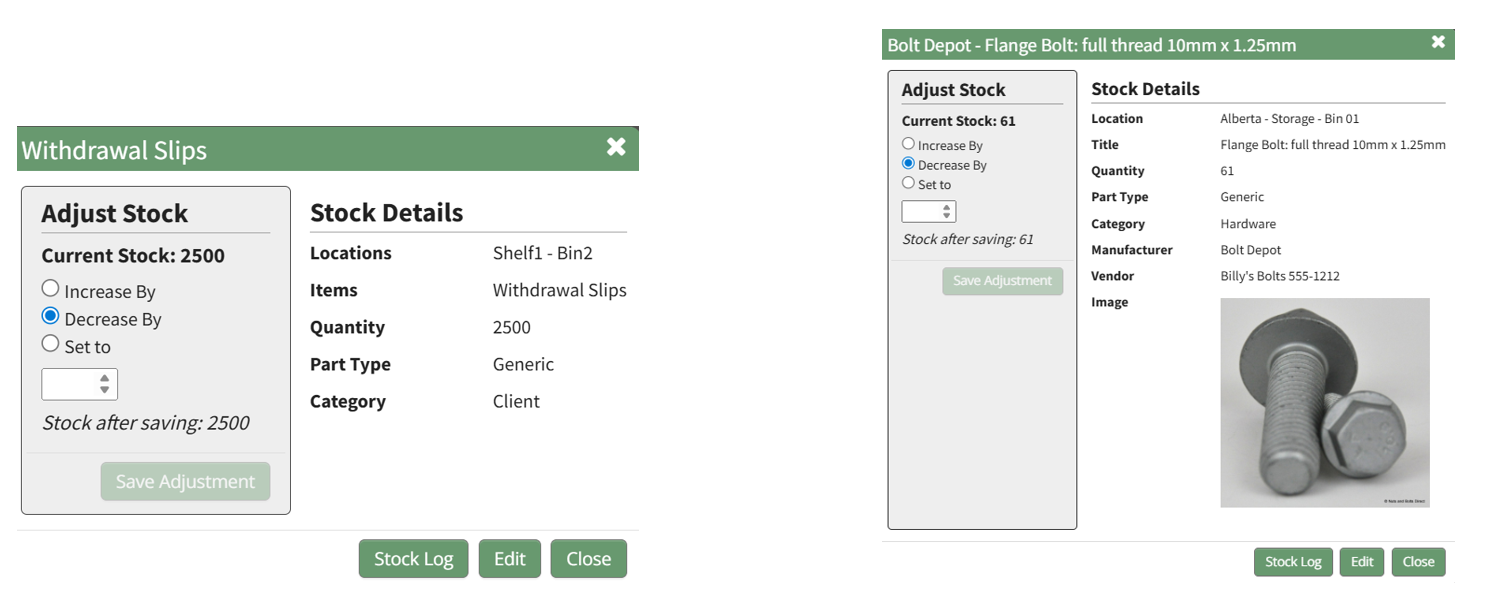
Your stock database can include a variety of fields, but for the Inventory Module to function properly there are required fields.
Stock Database Requirements | |
Required Fields* | Explanation |
Location | Inventory location can be defined through a single database, or multiple databases if desired. |
Inventory Item Title | This field will be used to identify the stock inventory item. Some examples of possible field names include title, item, part, etc. The Title will be comprised out of fields in the stock database. |
Quantity | This field will state the number of stock items currently in the inventory. |
Part Type | A inventory item must be specified as generic or unique if the inventory is integrated with a unique items database. Part Type is only a required field if you have both a stock and a unique database. |
* The actual field name for required fields can be customized to your preference. | |
How To: Create a Stock Database
To create a stock database, go to the Home Page of the Database Module and create a new database. Click the “Create Database” button and input a database title and description. Select the appropriate database group from the dropdown menu. You can use default access parameters, or customize database specific parameters.
How To: Create a Database
To create a new database, go to the Home Page of the Database Module.
Click the “Create Database” button, opening the New Database Modal.
Input a Title for the new database. Select any groups the database should be associated with. Provide a description of the database and its purpose in the textbox provide. Select any tags desired.
Select the “Allow Default Access” checkbox to indicate that the database should follow the defaults established by module and access levels. If this checkbox is not selected, you will be required to establish user specific access based on individual or certification roles.
The following database specific permissions are selected via drop down menu lists that include all individuals and certification roles that can be assigned permission.
The Admins field allows users or role to have admin module level permissions for this particular database. A list of all admin module level permissions are shown in the table below.
Database Admin Module Level Permissions |
Manage roles (add/view/edit/delete, assign hidden roles, role permissions) Database (view/edit/delete/list/add, upload csv) Database Fields (edit/delete/view/list) Database Entry (view/edit/delete/list/add) Can delete entries from other modules |
Manage Entry Permissions gives the indicated users permission to view, add, edit, and delete database entries.
View Entry Permissions gives the indicated users permission to view database entries.
Allow Integration With denotes which other modules can link with and integrate with this database or forms for reference.
The Database Module can be integrated with the following modules:
- Forms
- Database
- Inventory
- Grid
Click “Cancel” and return to the Database Module Home Page without any changes being made. Select “Save” to create the new database and you will be directed to the Fields Table for your newly copied database.
Once a database has been created, you can enter database fields into it.
How To: Import Fields from a CSV File Into a Database
To import database entries from a CSV, database fields must already have been created.
How To: Add a Database Field
{{@321}}
How To: Import Fields from a CSV File Into a Database
{{@339}}
How To: Import Fields from a PDF Field Import
{{@340}}
To import database entries from a CSV, go to the Home Page of the Database Module and click the three dot menu to the right of the database you wish to import entries into.
Select “Upload CSV” opening the Upload CSV for (DatabaseName) Modal.
You can also import entries by selecting “Manage Entries” from the context menu and selecting the “Import Entries” button underneath the Database Entries Page header, which opens the same Upload CSV Modal.
Click the “Download Template” link at the top of the modal and a CSV file will be downloaded to your personal device. See Notes on the Download Template before uploading your CSV file to ensure it is done correctly.
Notes Regarding the Downloadable Template for Uploading CSV Files
The first row of the CSV file is for each of the database fields. If you download a CSV Template from the Upload CSV Modal, two additional column headers will show that are not database fields: Entry ID and Modify Existing Entry.
If you are importing database entries and no entries have been added to the database yet, leave these columns blank in your upload.
If database entries already exist in the database, the Entry ID column will contain the unique system generated ID for each pre-existing database entry. Leave this column blank if the row is to be imported as a new entry. The second column, Modify Existing Entry, should have a “Y” input if the existing entry is being modified and an “N” input if it has not been modified. Leave it blank if the entry is new.
After creating your Database Fields CSV File, save it as a CSV UTF-8 for importing.
Click the “Choose File” button and open the relevant file from your personal device.
Confirm that the correct CSV file now shows in the Upload CSV Modal.
Select the “Upload” button.
The entries imported from the CSV file will now show on the Upload CSV for (DatabaseName) Page.
The system automatically indicates to ignore the first row. Click “Import Now” if there are no errors.
A summary of the import will now show on the CSV Upload Page.
Click the “Entries for (DatabaseName)” link to see all imported entries in the Manage Entry Table.
How To: Import Fields from a PDF Field Import
This method of importing Fields from a PDF requires access to Adobe Acrobat Pro.
If a field has already been added to a database, you are no longer able to bulk import database field names from a PDF Field Import. You are now required to enter each field name individually.
How To: Add a Database Field
{{@321}}
To import field names in bulk from a CSV file, go to the Home Page of the Database Module. Click the three dot (…) icon to open the context menu of the database you wish to enter fields for.
Select “Fields” opening the Fields for database (DatabaseName) Page.
Click the “PDF Field Import” button opening the PDF Field Import Modal.
To import fields using a PDF, use the “Prepare Form” tool in Adobe Acrobat Pro. Add the fields you wish to use for your form. Add a button on your document.
Use the URL link provided on the PDF Field Import Modal in KAStrack.
Confirm that the Export Format is “PDF The complete document”.
Open the PDF and submit the form to generate the fields here.
You do not need to fill in any of the fields, and you must not sign it.
Select “Allow” and the PDF will confirm that the fields were added to the database.
Go to the Fields Table in the database Monday, and a warning now states that a PDF is associated with the form and that adding/editing or deleting fields may result in the PDF no longer being compatible.
How To: Add a Database Field
To create a database field, go to the Home Page of the Database Module.
Click the three dot (…) icon to open the context menu of the database you wish to enter fields for.
Select “Fields” opening the Fields for database (DatabaseName) Page.
There are two ways to add a field to the Field Table. Click the “New Field” button above the Field Table or click the three dot (…) icon to the right of the page header opening the context menu and select “Add Entry”.
This opens the New Database Field Modal.
The creation of a new field will always require you to enter a field name. Include an input for the displayed label and select the field type from a dropdown menu. The inputs on the New Database Field Modal will vary based on the Field Type.
Possible field types in the database module include Form Fields, Formatting Fields, Utility Fields, or a Reference to Another Database.
A database field can only have one field type. If you need to utilize another (e.g., for formatting purposes), you can set the displayed label to be same, but the field label must be unique.
For an explanation of field types and the formatting choices associated with each one, reference the Understanding Fields Section of the Database Module in the User Manual.
Once you are finished inputting the information for the new field, select “Save” and the new database field will show in the Field Table.
Fields can also be imported in bulk into a Database from a CSV.
How To: Import Fields from a PDF Field Import
{{@340}}
Once you have entered database fields, you can add database entries into it.
How To: Add an Individual Database Entry
To add a database entry, go to the Home Page of the Database Module. Click the three dot (…) icon to the right of the database you wish to add an entry to opening the context menu. Select “Add Entry”.
You can select “Add Entry” from any context menu in the Database Modal without returning to the Home Page.
Selecting “Add Entry” opens the New Database Entry modal. Two visual examples of this modal have been included below.
The New Database Entry Modal will vary for every database, based on the fields that have been created for it.
Input the entry data into the modal. Select “Save” for the new entry to be added to the database.
If no fields have been created for the database, the New Database Entry Modal will show without any fields as seen below.
If you select to “Save” a database entry prior to the creation of database fields, an entry will be assigned an Entry ID by the system and will show in the Entries Table. The submitter, approval status, and entry date will be logged.
How To: Import Database Entries from a CSV
To import database entries from a CSV, database fields must already have been created.
How To: Add a Database Field
{{@321}}
How To: Import Fields from a CSV File Into a Database
{{@339}}
How To: Import Fields from a PDF Field Import
{{@340}}
To import database entries from a CSV, go to the Home Page of the Database Module and click the three dot menu to the right of the database you wish to import entries into.
Select “Upload CSV” opening the Upload CSV for (DatabaseName) Modal.
You can also import entries by selecting “Manage Entries” from the context menu and selecting the “Import Entries” button underneath the Database Entries Page header, which opens the same Upload CSV Modal.
Click the “Download Template” link at the top of the modal and a CSV file will be downloaded to your personal device. See Notes on the Download Template before uploading your CSV file to ensure it is done correctly.
Notes Regarding the Downloadable Template for Uploading CSV Files
The first row of the CSV file is for each of the database fields. If you download a CSV Template from the Upload CSV Modal, two additional column headers will show that are not database fields: Entry ID and Modify Existing Entry.
If you are importing database entries and no entries have been added to the database yet, leave these columns blank in your upload.
If database entries already exist in the database, the Entry ID column will contain the unique system generated ID for each pre-existing database entry. Leave this column blank if the row is to be imported as a new entry. The second column, Modify Existing Entry, should have a “Y” input if the existing entry is being modified and an “N” input if it has not been modified. Leave it blank if the entry is new.
After creating your Database Fields CSV File, save it as a CSV UTF-8 for importing.
Click the “Choose File” button and open the relevant file from your personal device.
Confirm that the correct CSV file now shows in the Upload CSV Modal.
Select the “Upload” button.
The entries imported from the CSV file will now show on the Upload CSV for (DatabaseName) Page.
The system automatically indicates to ignore the first row. Click “Import Now” if there are no errors.
A summary of the import will now show on the CSV Upload Page.
Click the “Entries for (DatabaseName)” link to see all imported entries in the Manage Entry Table.
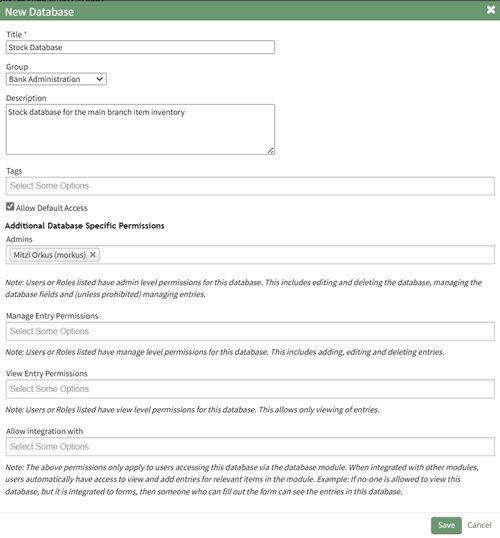
Select “Save” and the system will direct you to the Fields Page, where new fields can be added. Your stock database can include a variety of fields, but for the Inventory Module to function properly there are required fields.
If no fields have been entered into the database yet, you can import fields in bulk via a PDF Entry or a CSV file. If fields have already been created in the database, new field must be added individually.
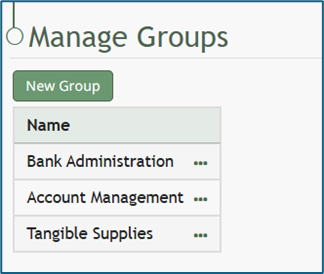
How To: Add a Database Group
To add a database group, go to the Groups Page of the Database Module.
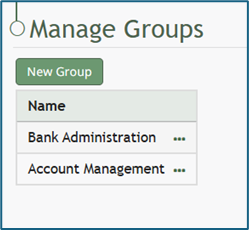
Select the “New Group” button opening the New Group Modal.
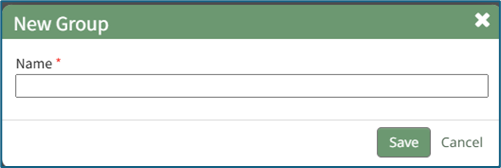
Input the desired name of the new group and select the “Save” button.
The new group will now show in the Group Table.
How To: Import Form Fields from a CSV File
To import form entries from a CSV, form fields must have already been created.
How To: Add a Field to a Form
To add a field to a form, go to the Home Page of the Forms Module. . Click the three-dot icon to the right of the form title that you want to add a field to opening the Form context menu. Select “Fields”.
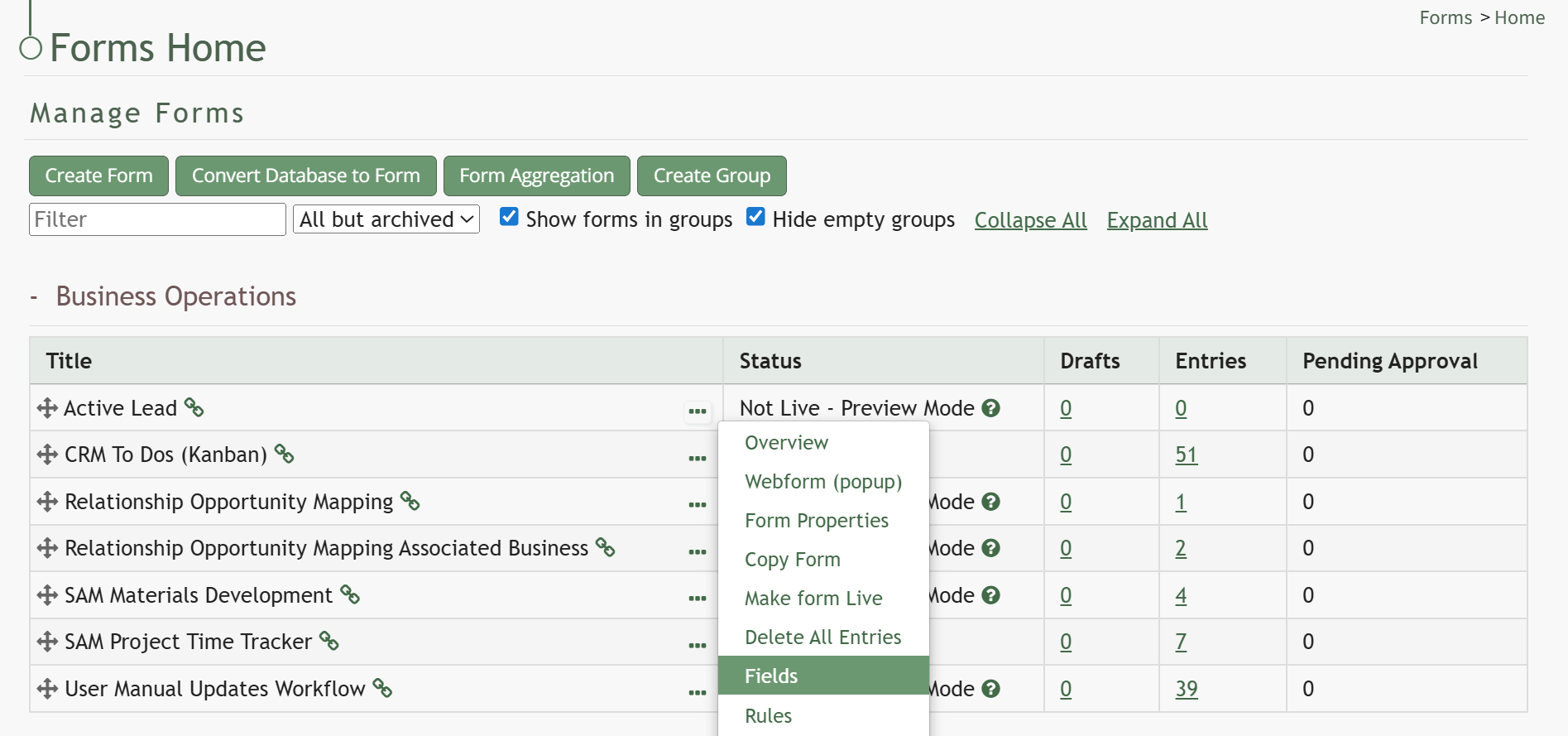
This opens the Fields Tab for the specific form of interest.
There are two ways to add an individual field to the Fields Table from here. Click the “New Field” button opening the New Form Field Modal.
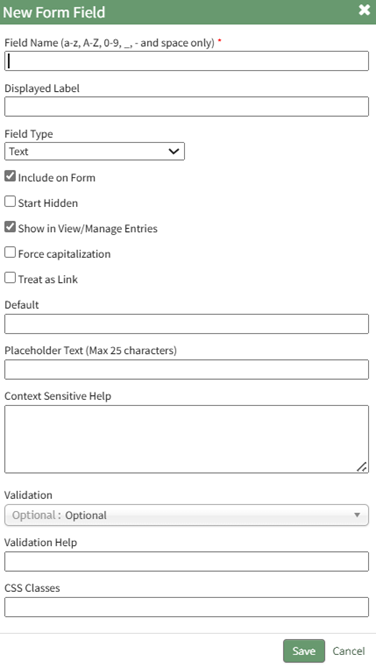
The creation of a new field will always require you to enter a field name. Include an input for the displayed label and select the field type from a dropdown menu. The inputs on the New Form Field Modal will vary based on the Field Type.
Possible field types in the Forms Module include Form Fields, Formatting Fields, Utility Fields, Account Fields, and Reference a Database Entry. For an explanation of field types and the formatting choices associated with each one, reference the Understanding Fields Section of the Forms Module in the User Manual.
A form field can only have on field type. If you need to utilize another (e.g., formatting purposes), you can set the displayed label to be the same but the field label must be unique.
Once you are finished inputting the information for the new field, select “Save” and the new database field will show in the Fields Table on the Fields Tab.
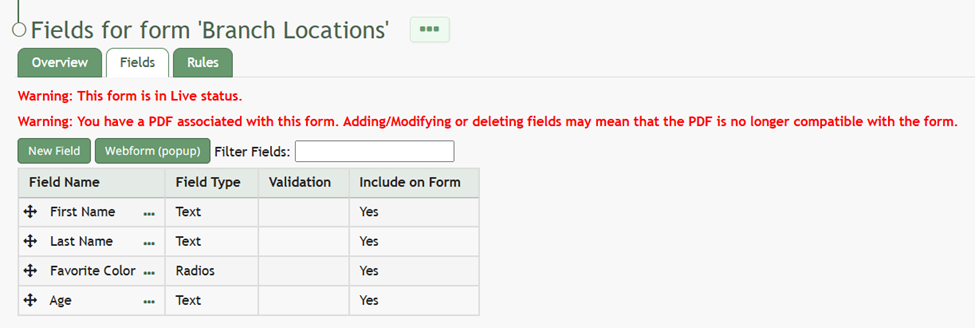
Fields can also be imported in bulk into a Form from a CSV file or PDF Field Import.
How To: Import Form Fields from a CSV File
{{@402}}
How To: Import Fields from a PDF Field Import
{{@400}}
How To: Import Form Fields from a CSV File
To import form entries from a CSV, form fields must have already been created.
How To: Add a Field to a Form
{{@373}}
How To: Import Form Fields from a CSV File
{{@402}}
How To: Import Fields from a PDF Field Import
{{@400}}
To import form entries from a CSV, go to the Home Page of the Forms Module and click the three-dot icon to the right of the form you wish to import entries into. Select “Manage Entries”.
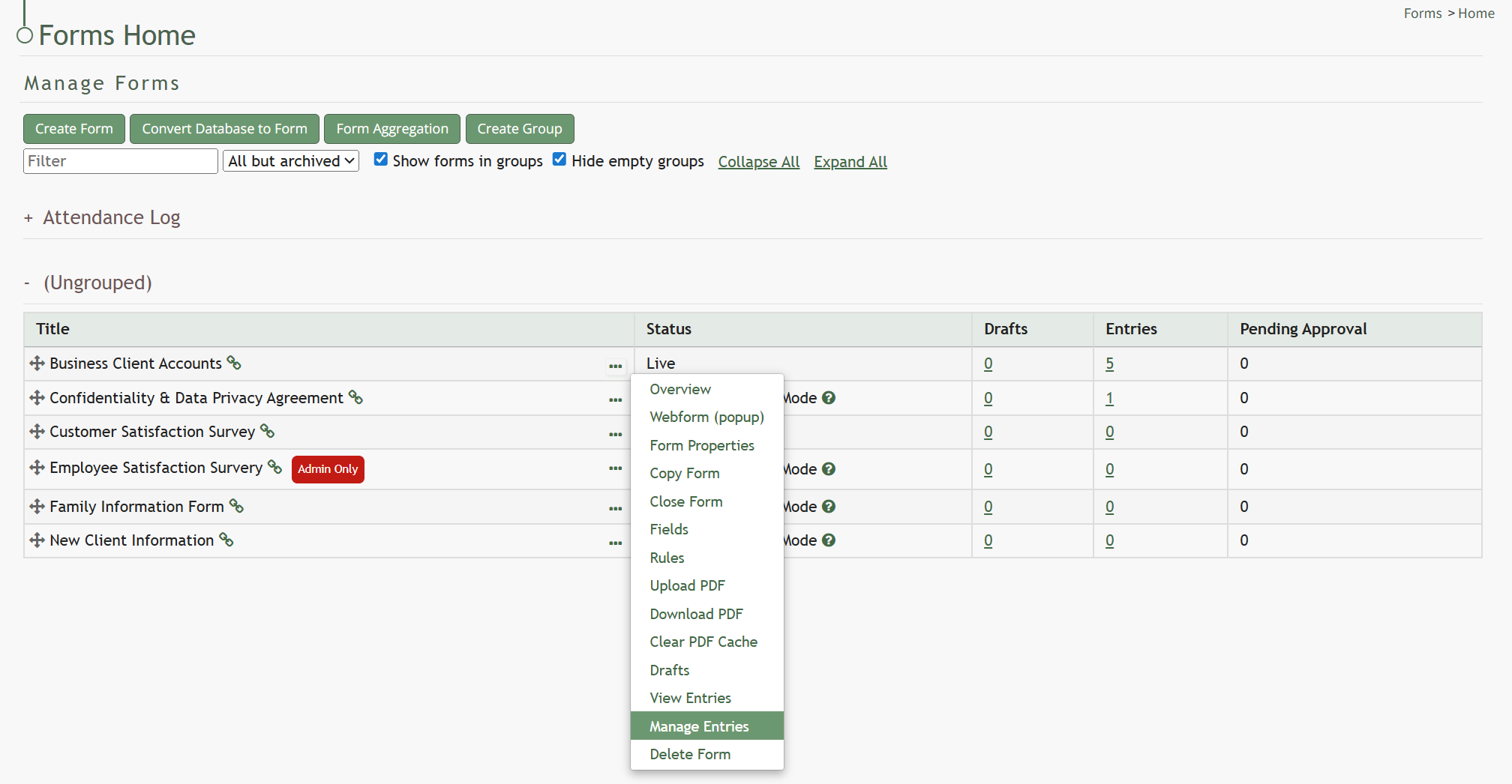
This opens the Manage Entries for (FORM NAME) Page.
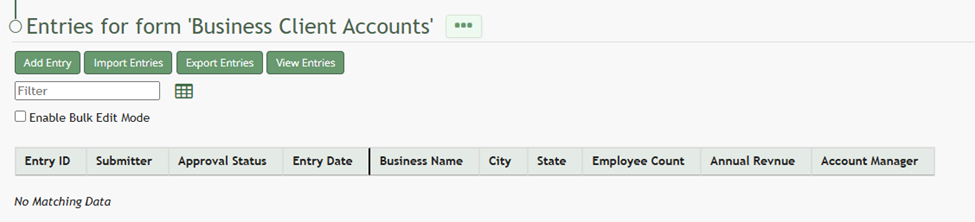
Click the “Import Entries” button beneath the page header. This opens the Upload CSV for (FORM NAME) Modal.
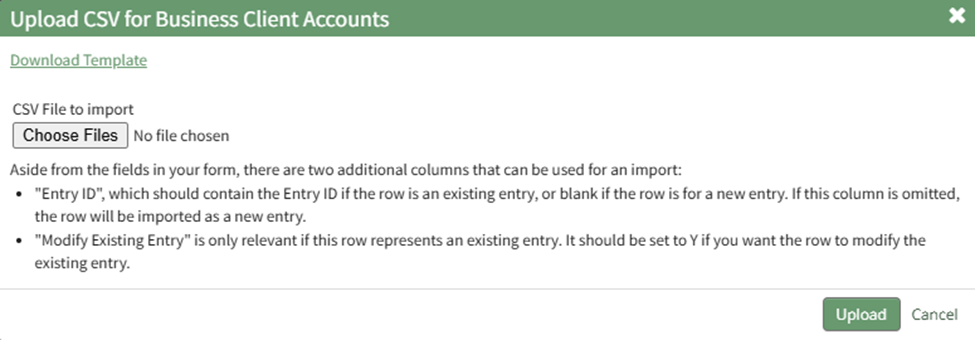
Click the “Download Template” link at the top of the modal and a CSV file will be downloaded to your personal device. Notes have been provided if you are using the downloadable template to Upload bulk CSV form entries.
Notes Regarding the Downloadable Template for Uploading CSV Files
The first row of the CSV file is for each of the form fields. If you download a CSV Template from the Upload CSV Modal, two additional column headers will show that are not form fields: Entry ID and Modify Existing Entry.
If you are importing form entries and no entries have been added to the form yet, leave these columns blank in your upload.
If form entries already exist in the database, the Entry ID column will contain the unique system generated ID for each pre-existing database entry. Leave this column blank if the row is to be imported as a new entry. The second column, Modify Existing Entry, should have a “Y” input if the existing entry is being modified and an “N” input if it has not been modified. Leave this column blank if the entry is new.

After creating your Forms Entries CSV file, save it as a CSV UTF-8 for importing. Click the “Choose File” button on the Upload CSV Modal and open the relevant file from your personal device.

Confirm that the correct CSV file now shows in the Upload CSV Modal.
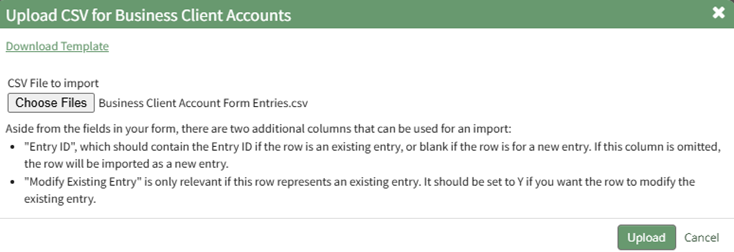
Select the “Upload” button.
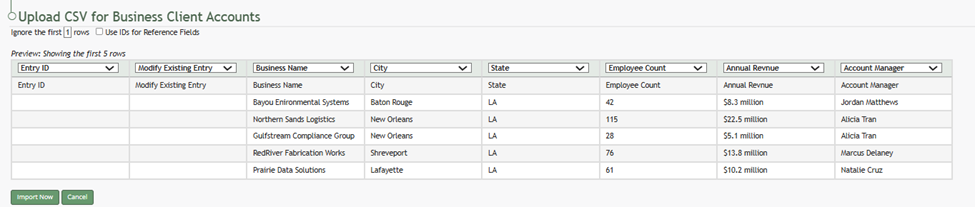
The entries imported from the CSV file will now show on the Upload CSV for (FORM NAME) Page.
The system automatically indicates to ignore the first row. Click “Import Now” if there are no errors.
A summary of the import will now show on the CSV Upload Page.
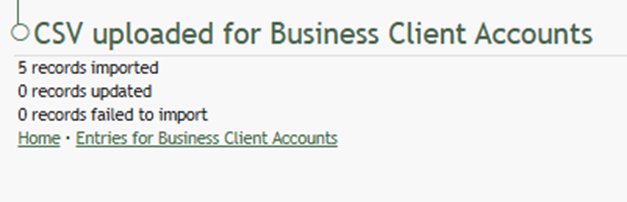
Click the “Entries for (FORM NAME)” link to see all imported entries on the Manage Entries Page.
How To: Import Fields from a PDF Field Import
Importing fields from a PDF Field Import has multiple purposes. Not only will the form fields be generated through this process, the PDF will also be saved by the system, so that future form entries can be downloaded into this PDF, allowing for customizable outputs.
A form must have already been created with no fields added for this method to work. If a field has already been added to the form, you are no longer able to bulk import form field names from a PDF Field Import. You are now required to enter each field name individually. Regardless, you can still upload a PDF Form that the system will use for future form entry downloads.
How To: Create a Form
{{@386}}
How To: Add a Field to a Form
{{@373}}
How To: Upload a PDF Form
{{@408}}
To import field names from a PDF file, go to the Home Page of the Forms Module.
Select the three-dot icon to the right of the Form Title opening the Form’s context menu. Select “Form”.
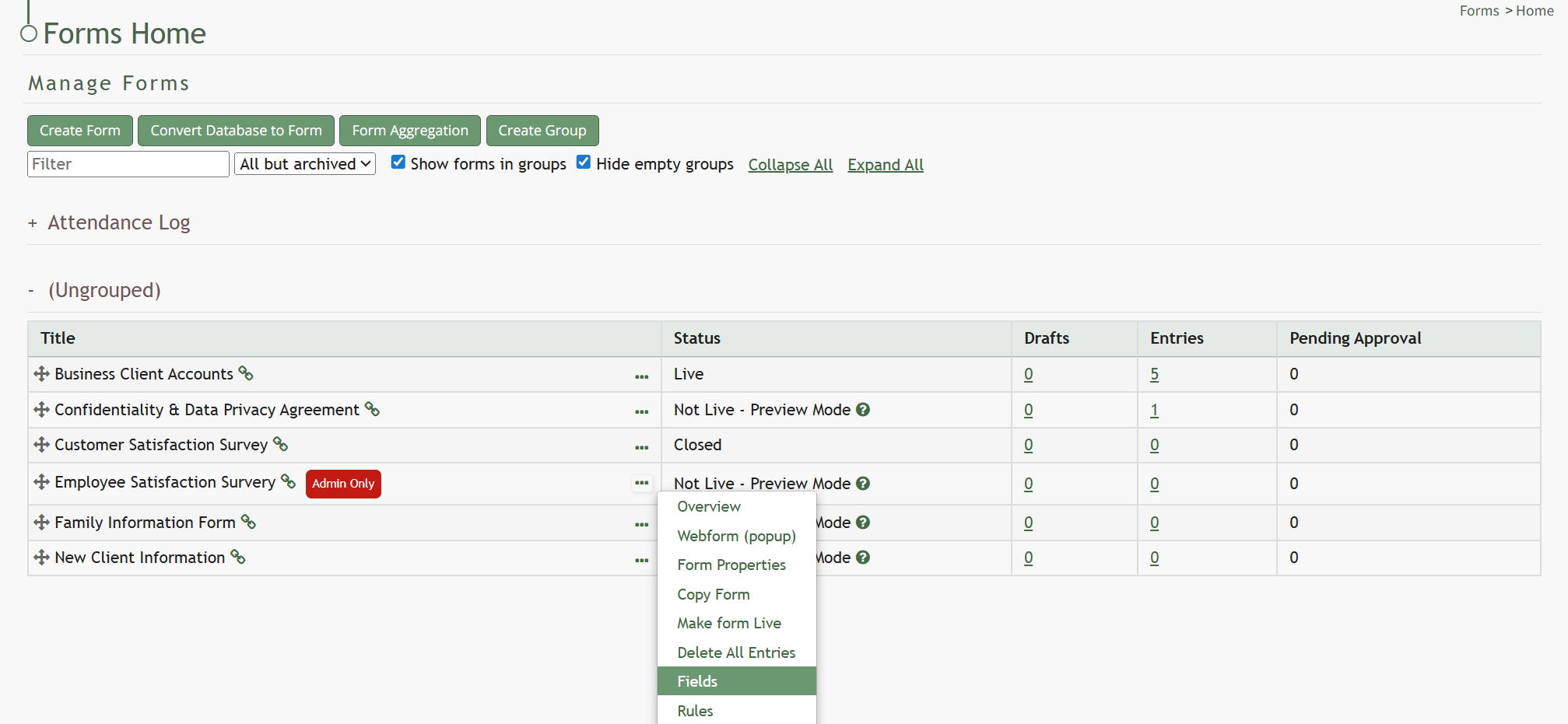
This opens the Fields Tab for a specific form. Select the “PDF Field Import” button.
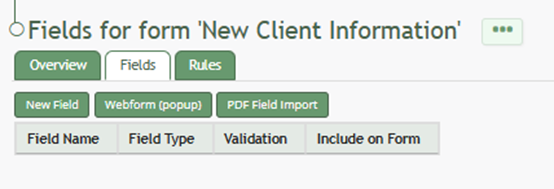
This opens the PDF Field Import Modal.
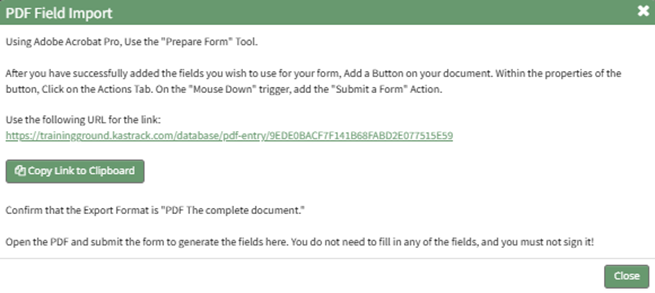
To import fields using a PDF, use the “Prepare Form” tool in Adobe Acrobat Pro. Add the fields you wish to use for your form. Add a button on your document.
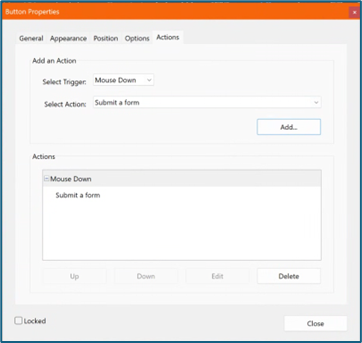
Use the URL link provided on the PDF Field Import Modal in KAStrack.
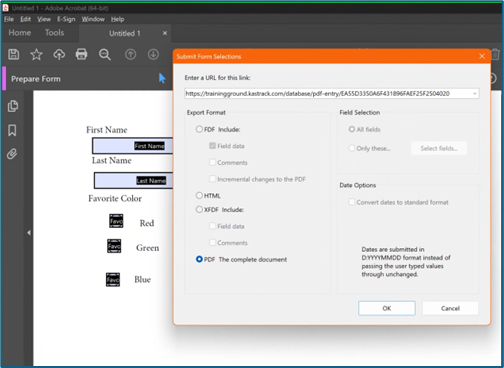
Confirm that the Export Format is “PDF The complete document”.
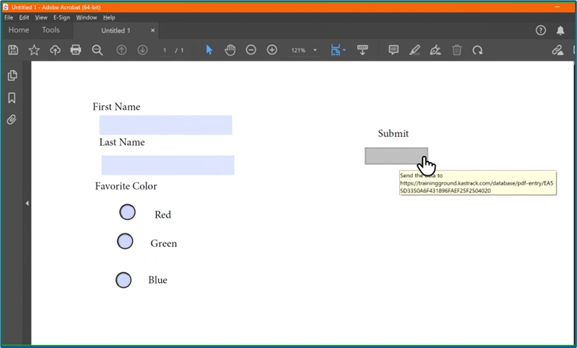
Open the PDF and submit the form to generate the fields here.
You do not need to fill in any of the fields, and you must not sign it.
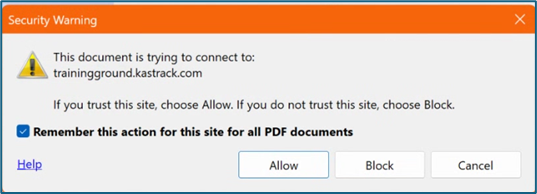
Select “Allow” and the PDF will confirm that the fields were added to the database.
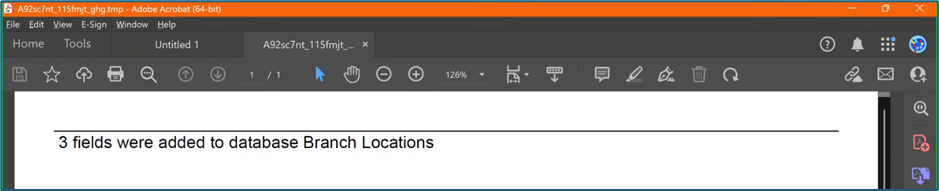
Go to the Fields Table in the database Monday, and a warning now states that a PDF is associated with the form and that adding/editing or deleting fields may result in the PDF no longer being compatible.
To import form entries from a CSV, go to the Home Page of the Forms Module and click the three-dot icon to the right of the form you wish to import entries into. Select “Manage Entries”.
This opens the Manage Entries for (FORM NAME) Page.
Click the “Import Entries” button beneath the page header. This opens the Upload CSV for (FORM NAME) Modal.
Click the “Download Template” link at the top of the modal and a CSV file will be downloaded to your personal device. Notes have been provided if you are using the downloadable template to Upload bulk CSV form entries.
Notes Regarding the Downloadable Template for Uploading CSV Files
The first row of the CSV file is for each of the form fields. If you download a CSV Template from the Upload CSV Modal, two additional column headers will show that are not form fields: Entry ID and Modify Existing Entry.
If you are importing form entries and no entries have been added to the form yet, leave these columns blank in your upload.
If form entries already exist in the database, the Entry ID column will contain the unique system generated ID for each pre-existing database entry. Leave this column blank if the row is to be imported as a new entry. The second column, Modify Existing Entry, should have a “Y” input if the existing entry is being modified and an “N” input if it has not been modified. Leave this column blank if the entry is new.
After creating your Forms Entries CSV file, save it as a CSV UTF-8 for importing. Click the “Choose File” button on the Upload CSV Modal and open the relevant file from your personal device.
Confirm that the correct CSV file now shows in the Upload CSV Modal.
Select the “Upload” button.
The entries imported from the CSV file will now show on the Upload CSV for (FORM NAME) Page.
The system automatically indicates to ignore the first row. Click “Import Now” if there are no errors.
A summary of the import will now show on the CSV Upload Page.
Click the “Entries for (FORM NAME)” link to see all imported entries on the Manage Entries Page.
How To: Import Fields from a PDF Field Import
Importing fields from a PDF Field Import has multiple purposes. Not only will the form fields be generated through this process, the PDF will also be saved by the system, so that future form entries can be downloaded into this PDF, allowing for customizable outputs.
A form must have already been created with no fields added for this method to work. If a field has already been added to the form, you are no longer able to bulk import form field names from a PDF Field Import. You are now required to enter each field name individually. Regardless, you can still upload a PDF Form that the system will use for future form entry downloads.
How To: Create a Form
To create a new form, open the Home Page in the Forms Module from the Main Menu and select the Create Form button beneath the page header.
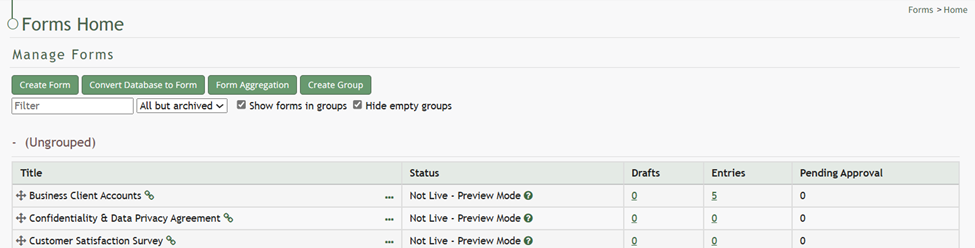
This will open the New Form Modal.
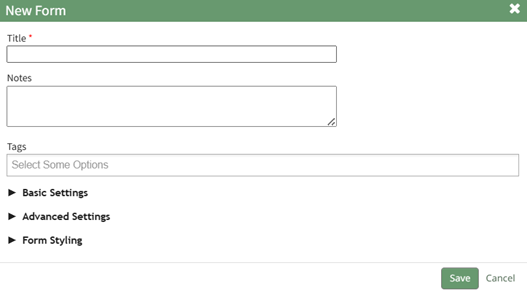
Input the Form Title (a required field), form notes, and any open/permissive/restrictive tags to be associated with the form.
There are three additional sections to the New Form Modal that expand when clicked with additional options for customization. Modal images and explanations of each input are included below.
Basic Settings Section
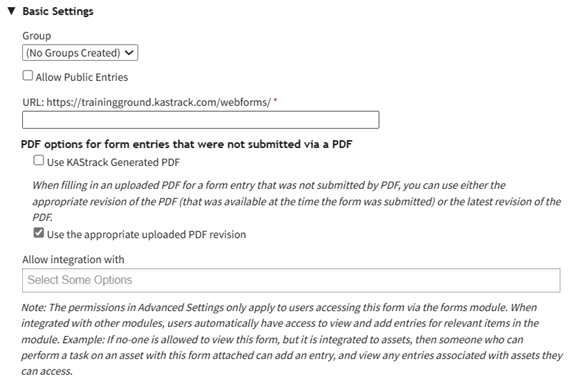
New Form Modal: Basic Settings Section Explanation | ||
Modal Input | Explanation | |
Group | A dropdown menu will list all existing form groups. The form will automatically be placed in the group selected. | |
Allow Public Entries Checkbox | If the checkbox is selected, public entries (individuals not registered with KAStrack) will be allowed to submit form entries. | |
URL Link | A URL Link is used to share the form publically. KAStrack will autofill the URL Link with the form title, but this can be customized if desired. You cannot use spaces or symbols in the URL link. They will replaced with a hypen if used. | |
The next two checkboxes are specific to the PDF options for form entries that are not submitted via a PDF. To understand which option is better for this specific form, be sure to read about the relationship between PDFs and Forms. | ||
Use KAStrack Generated PDF | If you have a PDF entry on file but do not want the downloaded form entry to utilize the customized PDF form, select this checkbox and KAStrack will use the generic PDF format. | |
Use the Appropriate Uploaded PDF Revision | If you have a PDF entry on file and want the downloaded form entry to utilize the customized PDF form, select this checkbox and KAStrack will use the most recent version of the PDF submitted. | |
Allow Integration With | Allow integrations with is a dropdown menu that lists all modules you can use a form for. Selecting a module here will enable this form to be visible in the modules selected. Possible uses are listed below. | |
Module | Purpose | |
Assets | Attach to Task | |
Attendance | Integrate with the Attendance Log Module | |
Datbase | Reference from Database | |
Dispatch | Include in a Dispatch | |
Documents | Add to Photo | |
Forms | Reference from a Form | |
Grid | Integrate with the Grid Module | |
Kanban | Integrate with the Kanban Module | |
People | Use as activity for certification | |
Advanced Settings Section
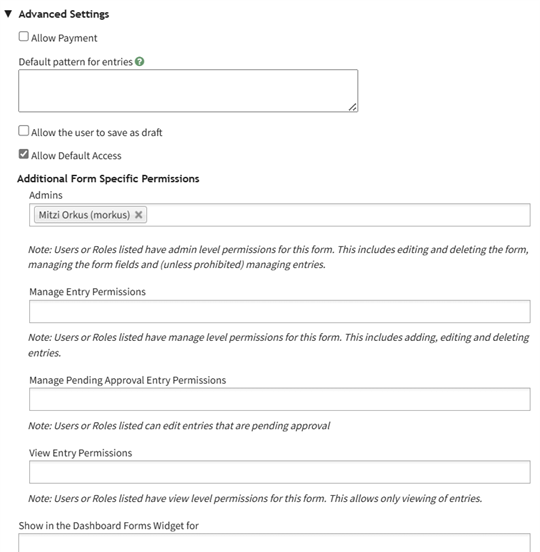
New Form Modal: Advanced Settings Section Explanation | ||
Modal Inputs | Explanation | |
Allow Payment Checbox (Expands when selected) | Payment Profile | Select “All Enabled Configurations” from the dropdown menu for payments to be allowed. |
Payment Description | This description is what will show on a payment receipt. | |
Default Pattern for Entries | This textbox uses mail merge fields. | |
Allow the User to Save AS Draft Checkbox (Expands when selected) | Allow Logged Out User to Save as a Draft | Selecting this checkbox will allow logged out users and public entries to save their response as a draft and come back to the form (on the same device). |
Validate Fields when Saving as Draft | Fields with validation don’t validate on a draft, so inputting fields here tells the system to validate fields when the draft is saved. | |
Save Draft Button Text | The form creator can customize the text on the Save button. | |
Auto Save | When auto-save is enabled, any edits made to a field will automatically be saved. When auto-save is disabled, the information will only be saved when the save draft button is clicked. | |
Allow Default Access Checkbox | When Selected | The form will follow module level permissions in regards to what access an individual will have. |
If allow default access is not selected, the additional form specific permissions are now required. The system will ignore module level distinctions for this form and will be guided by the form specific permissions listed below. | ||
Admins | A checkbox allows for admins to be prohibited from viewing entries. Users or roles listed here will have admin level permissions for this form. This includes editing and deleting the form, managing the form fields and (unless prohibited) managing entries. | |
Manage Entry Permissions | Users or roles listed here have manage level permissions for this form. This includes adding, editing and deleting entries. | |
Manage Pending Approval Entry Permissions | Users or roles listed here can edit entries that are pending approval. | |
Show in the Dashboard Forms Widget | Users and certification roles selected here will show this form in the Dashboard Forms Module Summary Widget. | |
Form Styling Section
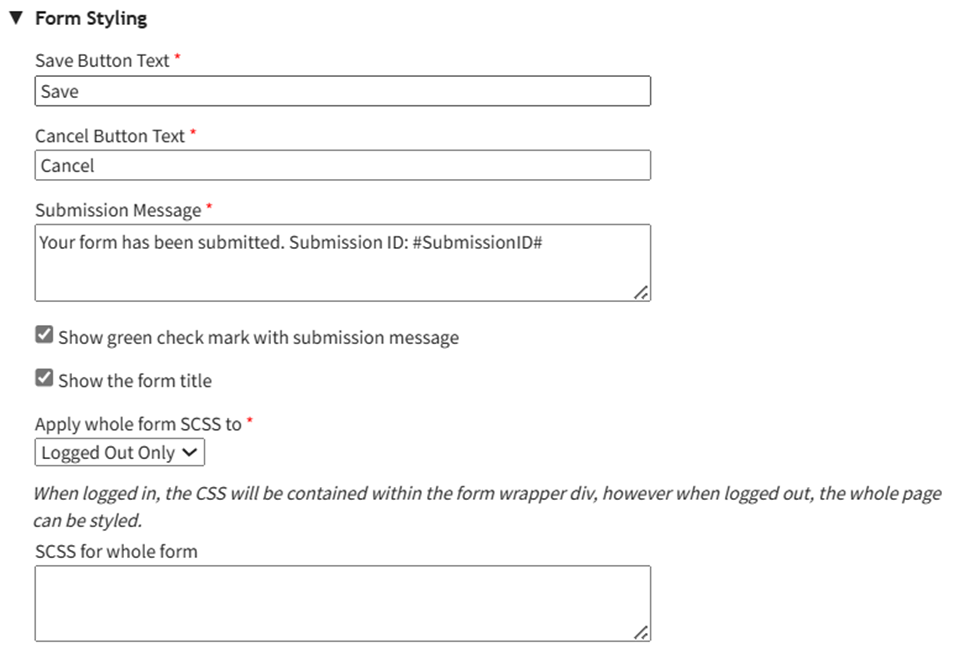
New Form Modal: Form Styling Section | ||
Modal Inputs | Explanation | |
Save Button Text | Change the verbiage on the save button by inputting other text here. | |
Cancel Button Text | Change the verbiage on the cancel button by inputting other text here. | |
Submission Message | Change the verbiage on the form submission message by inputting other text here. | |
Show Green Checkmark Checkbox | Selecting the show green checkmark with submission message checkbox will show a green checkmark to the left of the submission message when a form is submitted. | |
Show the Form Title Checkbox | Select the Show the Form Title Checkbox will show the form title for a logged-out entry. This does not impact a system, modal based entry. | |
Apply Whole Form SCSS to | Logged Out Only | Select “Logged Out Only” if the styling doesn’t correspond with a popup modal or the regular form page. This would result is SCSS styling only applies to public entries. |
Logged In Only | Select “Logged In Only” if you only want to apply the SCSS formatting to the logged in, internal users. | |
Always | Selecting “Always” applies the SCSS formatting that has been established in both internal and external forms. | |
SCSS for Whole Form | This is the textbox where scripting language should be input, that allows for greater customization than what is generally available. | |
Select the Save button on the New Form Modal after customizing your form and the system will direct you to the form's Fields Tab where you can begin to input Form fields.
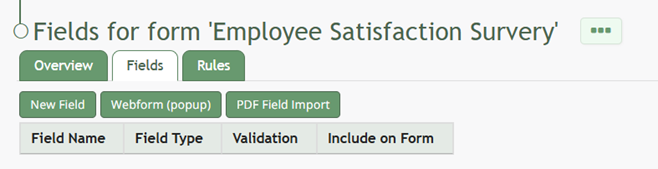
How To: Import Fields from a PDF Field Import
{{@400}}
How To: Import Form Fields from a CSV File
{{@402}}
How To: Upload a PDF Form
{{@408}}
How To: Add a Field to a Form
To add a field to a form, go to the Home Page of the Forms Module. . Click the three-dot icon to the right of the form title that you want to add a field to opening the Form context menu. Select “Fields”.
This opens the Fields Tab for the specific form of interest.
There are two ways to add an individual field to the Fields Table from here. Click the “New Field” button opening the New Form Field Modal.
The creation of a new field will always require you to enter a field name. Include an input for the displayed label and select the field type from a dropdown menu. The inputs on the New Form Field Modal will vary based on the Field Type.
Possible field types in the Forms Module include Form Fields, Formatting Fields, Utility Fields, Account Fields, and Reference a Database Entry. For an explanation of field types and the formatting choices associated with each one, reference the Understanding Fields Section of the Forms Module in the User Manual.
A form field can only have on field type. If you need to utilize another (e.g., formatting purposes), you can set the displayed label to be the same but the field label must be unique.
Once you are finished inputting the information for the new field, select “Save” and the new database field will show in the Fields Table on the Fields Tab.
Fields can also be imported in bulk into a Form from a CSV file or PDF Field Import.
How To: Import Form Fields from a CSV File
{{@402}}
How To: Import Fields from a PDF Field Import
{{@400}}
How To: Upload a PDF Form
Uploading a PDF allows an individual to create a customized output for form entries. In order to do so, the PDF must be created on Adobe Acrobat Pro (or comparable software) and have made use of form fields.
A PDF can be created and uploaded after a form is in use, however no additional fields can be created at this time.
To upload a PDF form to be used for form entry outputs, go to the Home Page of the Forms Module. Click the three-dot icon to the right of the form title opening the context menu and select “Upload PDF”.
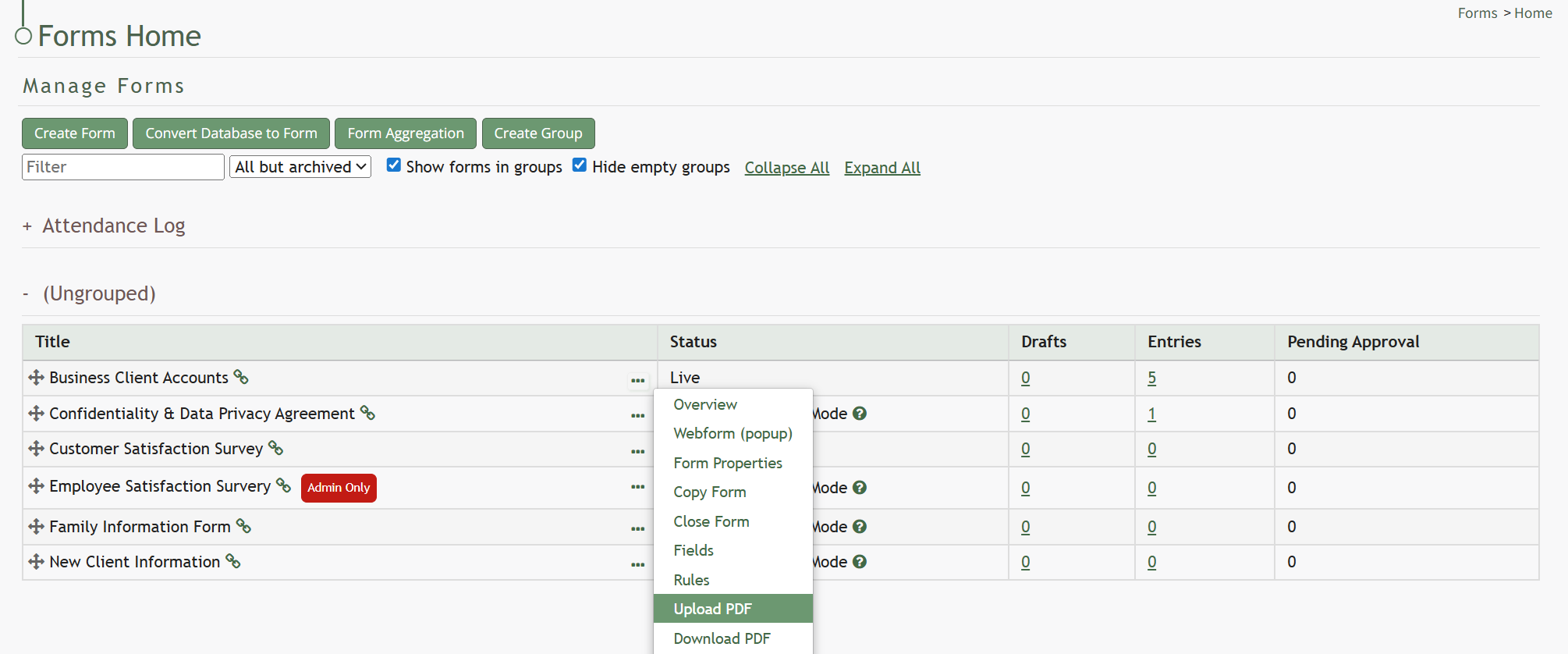
This will open the Upload PDF Form Modal.
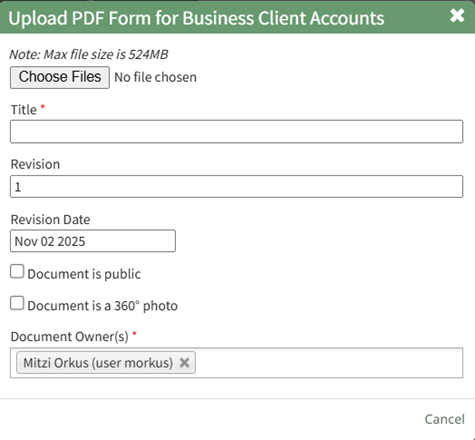
Select “Choose File” to retrieve the PDF from your personal device.
Input a title for the PDF or select the clickable “Use Filename” link to have the system use the filename as the title. The revision date will automatically show the current day, but can be altered. Select the appropriate checkbox if the document is to be public, or if it is a 360 degree photo.
You can select individuals or certification roles as the document owner(s).
Select “Save” and a confirmation modal will appear stating, “File was uploaded.”

To import field names from a PDF file, go to the Home Page of the Forms Module.
Select the three-dot icon to the right of the Form Title opening the Form’s context menu. Select “Form”.
This opens the Fields Tab for a specific form. Select the “PDF Field Import” button.
This opens the PDF Field Import Modal.
To import fields using a PDF, use the “Prepare Form” tool in Adobe Acrobat Pro. Add the fields you wish to use for your form. Add a button on your document.
Use the URL link provided on the PDF Field Import Modal in KAStrack.
Confirm that the Export Format is “PDF The complete document”.
Open the PDF and submit the form to generate the fields here.
You do not need to fill in any of the fields, and you must not sign it.
Select “Allow” and the PDF will confirm that the fields were added to the database.
Go to the Fields Table in the database Monday, and a warning now states that a PDF is associated with the form and that adding/editing or deleting fields may result in the PDF no longer being compatible.
Stock Database Requirements | |
Required Fields* | Explanation |
Location | Inventory location can be defined through a single database, or multiple databases if desired. |
Inventory Item Title | This field will be used to identify the stock inventory item. Some examples of possible field names include title, item, part, etc. The Title will be comprised out of fields in the stock database. |
Quantity | This field will state the number of stock items currently in the inventory. |
Part Type | A inventory item must be specified as generic or unique if the inventory is integrated with a unique items database. Part Type is only a required field if you have both a stock and a unique database. |
* The actual field name for required fields can be customized to your preference. | |
All fields created in the database will show in the Fields Table.
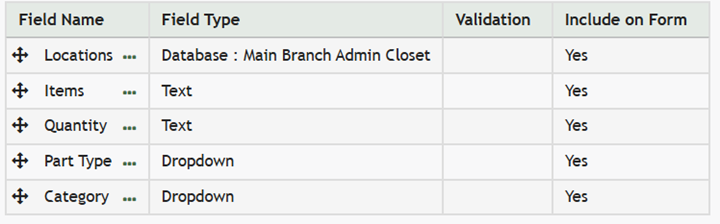
After your fields have been generated, stock inventory items can now be entered into the database in bulk via a CSV file import or entries can be added individually.
How To: Import Database Entries from a CSV
To import database entries from a CSV, database fields must already have been created.
How To: Add a Database Field
To create a database field, go to the Home Page of the Database Module.
Click the three dot (…) icon to open the context menu of the database you wish to enter fields for.
Select “Fields” opening the Fields for database (DatabaseName) Page.
There are two ways to add a field to the Field Table. Click the “New Field” button above the Field Table or click the three dot (…) icon to the right of the page header opening the context menu and select “Add Entry”.
This opens the New Database Field Modal.
The creation of a new field will always require you to enter a field name. Include an input for the displayed label and select the field type from a dropdown menu. The inputs on the New Database Field Modal will vary based on the Field Type.
Possible field types in the database module include Form Fields, Formatting Fields, Utility Fields, or a Reference to Another Database.
A database field can only have one field type. If you need to utilize another (e.g., for formatting purposes), you can set the displayed label to be same, but the field label must be unique.
For an explanation of field types and the formatting choices associated with each one, reference the Understanding Fields Section of the Database Module in the User Manual.
Once you are finished inputting the information for the new field, select “Save” and the new database field will show in the Field Table.
Fields can also be imported in bulk into a Database from a CSV.
How To: Import Fields from a PDF Field Import
{{@340}}
How To: Import Fields from a CSV File Into a Database
If a field has already been added to a database, you are no longer able to bulk import database field names from a CSV file. You are now required to enter each field name individually.
How To: Add a Database Field
{{@321}}
To import database field names from a CSV file, go to the Home Page of the Database Module. Click the three dot (…) icon to open the context menu of the database you wish to enter fields for.
Select “Upload CSV” opening the Upload CSV for (DatabaseName) Modal.
When creating your CSV file, the first row of the CSV file is used. Each individual cell in that row will be a database field used as columns for data entry. When importing bulk field names, the notes in the Upload CSV Modal on “Entry ID” and “Modify Entry ID” are not relevant.
After creating your Database Fields CSV File, save it as a CSV UTF-8 for importing.
Click the “Choose File” button and open the relevant file from your personal device.
Confirm that the correct CSV file now shows in the Upload CSV Modal.
Select the “Upload” button.
Configure each database field as desired. Field types shown on the dropdown menu include form fields: Text, Text Box, Checkbox, Dropdown, Radios, Data, and Data/Time.
Select “Import Now” and a summary of the import with show on the CSV Upload Page.
All imported field will now show on the Fields for database (DatabaseName) Page in the Fields Table.
How To: Import Fields from a PDF Field Import
This method of importing Fields from a PDF requires access to Adobe Acrobat Pro.
If a field has already been added to a database, you are no longer able to bulk import database field names from a PDF Field Import. You are now required to enter each field name individually.
How To: Add a Database Field
{{@321}}
To import field names in bulk from a CSV file, go to the Home Page of the Database Module. Click the three dot (…) icon to open the context menu of the database you wish to enter fields for.
Select “Fields” opening the Fields for database (DatabaseName) Page.
Click the “PDF Field Import” button opening the PDF Field Import Modal.
To import fields using a PDF, use the “Prepare Form” tool in Adobe Acrobat Pro. Add the fields you wish to use for your form. Add a button on your document.
Use the URL link provided on the PDF Field Import Modal in KAStrack.
Confirm that the Export Format is “PDF The complete document”.
Open the PDF and submit the form to generate the fields here.
You do not need to fill in any of the fields, and you must not sign it.
Select “Allow” and the PDF will confirm that the fields were added to the database.
Go to the Fields Table in the database Monday, and a warning now states that a PDF is associated with the form and that adding/editing or deleting fields may result in the PDF no longer being compatible.
To import database entries from a CSV, go to the Home Page of the Database Module and click the three dot menu to the right of the database you wish to import entries into.
Select “Upload CSV” opening the Upload CSV for (DatabaseName) Modal.
You can also import entries by selecting “Manage Entries” from the context menu and selecting the “Import Entries” button underneath the Database Entries Page header, which opens the same Upload CSV Modal.
Click the “Download Template” link at the top of the modal and a CSV file will be downloaded to your personal device. See Notes on the Download Template before uploading your CSV file to ensure it is done correctly.
Notes Regarding the Downloadable Template for Uploading CSV Files
The first row of the CSV file is for each of the database fields. If you download a CSV Template from the Upload CSV Modal, two additional column headers will show that are not database fields: Entry ID and Modify Existing Entry.
If you are importing database entries and no entries have been added to the database yet, leave these columns blank in your upload.
If database entries already exist in the database, the Entry ID column will contain the unique system generated ID for each pre-existing database entry. Leave this column blank if the row is to be imported as a new entry. The second column, Modify Existing Entry, should have a “Y” input if the existing entry is being modified and an “N” input if it has not been modified. Leave it blank if the entry is new.
After creating your Database Fields CSV File, save it as a CSV UTF-8 for importing.
Click the “Choose File” button and open the relevant file from your personal device.
Confirm that the correct CSV file now shows in the Upload CSV Modal.
Select the “Upload” button.
The entries imported from the CSV file will now show on the Upload CSV for (DatabaseName) Page.
The system automatically indicates to ignore the first row. Click “Import Now” if there are no errors.
A summary of the import will now show on the CSV Upload Page.
Click the “Entries for (DatabaseName)” link to see all imported entries in the Manage Entry Table.
How To: Add an Individual Database Entry
To add a database entry, go to the Home Page of the Database Module. Click the three dot (…) icon to the right of the database you wish to add an entry to opening the context menu. Select “Add Entry”.
You can select “Add Entry” from any context menu in the Database Modal without returning to the Home Page.
Selecting “Add Entry” opens the New Database Entry modal. Two visual examples of this modal have been included below.
The New Database Entry Modal will vary for every database, based on the fields that have been created for it.
Input the entry data into the modal. Select “Save” for the new entry to be added to the database.
If no fields have been created for the database, the New Database Entry Modal will show without any fields as seen below.
If you select to “Save” a database entry prior to the creation of database fields, an entry will be assigned an Entry ID by the system and will show in the Entries Table. The submitter, approval status, and entry date will be logged.
Now that your stock database has been created and filled with inventory item entries, it is ready to be integrated into an inventory.
Unique Items Database
The unique items database is generated if you have inventory items that have a unique identifier, such a serial number. The fields included in the Unique Items Database will show on the modal for each unique item in the inventory. Inventories are not required to have a unique items database to function properly.
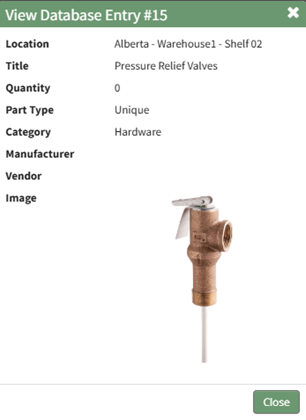
Your unique items database can include a variety of fields, but for the Inventory Module to function properly, it must have field(s) that identify the inventory item (title) and field(s) that are used to identify the unique item.
How To: Create a Unique Items Database
To create a unique items database, go to the Home Page of the Database Module and create a new database. Click the “Create Database” button and input a database title and description. Select the appropriate database group from the dropdown menu. You can use default access parameters or customize database specific parameters.
How To: Create a Database
To create a new database, go to the Home Page of the Database Module.
Click the “Create Database” button, opening the New Database Modal.
Input a Title for the new database. Select any groups the database should be associated with. Provide a description of the database and its purpose in the textbox provide. Select any tags desired.
Select the “Allow Default Access” checkbox to indicate that the database should follow the defaults established by module and access levels. If this checkbox is not selected, you will be required to establish user specific access based on individual or certification roles.
The following database specific permissions are selected via drop down menu lists that include all individuals and certification roles that can be assigned permission.
The Admins field allows users or role to have admin module level permissions for this particular database. A list of all admin module level permissions are shown in the table below.
Database Admin Module Level Permissions |
Manage roles (add/view/edit/delete, assign hidden roles, role permissions) Database (view/edit/delete/list/add, upload csv) Database Fields (edit/delete/view/list) Database Entry (view/edit/delete/list/add) Can delete entries from other modules |
Manage Entry Permissions gives the indicated users permission to view, add, edit, and delete database entries.
View Entry Permissions gives the indicated users permission to view database entries.
Allow Integration With denotes which other modules can link with and integrate with this database or forms for reference.
The Database Module can be integrated with the following modules:
- Forms
- Database
- Inventory
- Grid
Click “Cancel” and return to the Database Module Home Page without any changes being made. Select “Save” to create the new database and you will be directed to the Fields Table for your newly copied database.
Once a database has been created, you can enter database fields into it.
How To: Import Fields from a CSV File Into a Database
To import database entries from a CSV, database fields must already have been created.
How To: Add a Database Field
{{@321}}
How To: Import Fields from a CSV File Into a Database
{{@339}}
How To: Import Fields from a PDF Field Import
{{@340}}
To import database entries from a CSV, go to the Home Page of the Database Module and click the three dot menu to the right of the database you wish to import entries into.
Select “Upload CSV” opening the Upload CSV for (DatabaseName) Modal.
You can also import entries by selecting “Manage Entries” from the context menu and selecting the “Import Entries” button underneath the Database Entries Page header, which opens the same Upload CSV Modal.
Click the “Download Template” link at the top of the modal and a CSV file will be downloaded to your personal device. See Notes on the Download Template before uploading your CSV file to ensure it is done correctly.
Notes Regarding the Downloadable Template for Uploading CSV Files
The first row of the CSV file is for each of the database fields. If you download a CSV Template from the Upload CSV Modal, two additional column headers will show that are not database fields: Entry ID and Modify Existing Entry.
If you are importing database entries and no entries have been added to the database yet, leave these columns blank in your upload.
If database entries already exist in the database, the Entry ID column will contain the unique system generated ID for each pre-existing database entry. Leave this column blank if the row is to be imported as a new entry. The second column, Modify Existing Entry, should have a “Y” input if the existing entry is being modified and an “N” input if it has not been modified. Leave it blank if the entry is new.
After creating your Database Fields CSV File, save it as a CSV UTF-8 for importing.
Click the “Choose File” button and open the relevant file from your personal device.
Confirm that the correct CSV file now shows in the Upload CSV Modal.
Select the “Upload” button.
The entries imported from the CSV file will now show on the Upload CSV for (DatabaseName) Page.
The system automatically indicates to ignore the first row. Click “Import Now” if there are no errors.
A summary of the import will now show on the CSV Upload Page.
Click the “Entries for (DatabaseName)” link to see all imported entries in the Manage Entry Table.
How To: Import Fields from a PDF Field Import
This method of importing Fields from a PDF requires access to Adobe Acrobat Pro.
If a field has already been added to a database, you are no longer able to bulk import database field names from a PDF Field Import. You are now required to enter each field name individually.
How To: Add a Database Field
{{@321}}
To import field names in bulk from a CSV file, go to the Home Page of the Database Module. Click the three dot (…) icon to open the context menu of the database you wish to enter fields for.
Select “Fields” opening the Fields for database (DatabaseName) Page.
Click the “PDF Field Import” button opening the PDF Field Import Modal.
To import fields using a PDF, use the “Prepare Form” tool in Adobe Acrobat Pro. Add the fields you wish to use for your form. Add a button on your document.
Use the URL link provided on the PDF Field Import Modal in KAStrack.
Confirm that the Export Format is “PDF The complete document”.
Open the PDF and submit the form to generate the fields here.
You do not need to fill in any of the fields, and you must not sign it.
Select “Allow” and the PDF will confirm that the fields were added to the database.
Go to the Fields Table in the database Monday, and a warning now states that a PDF is associated with the form and that adding/editing or deleting fields may result in the PDF no longer being compatible.
How To: Add a Database Field
To create a database field, go to the Home Page of the Database Module.
Click the three dot (…) icon to open the context menu of the database you wish to enter fields for.
Select “Fields” opening the Fields for database (DatabaseName) Page.
There are two ways to add a field to the Field Table. Click the “New Field” button above the Field Table or click the three dot (…) icon to the right of the page header opening the context menu and select “Add Entry”.
This opens the New Database Field Modal.
The creation of a new field will always require you to enter a field name. Include an input for the displayed label and select the field type from a dropdown menu. The inputs on the New Database Field Modal will vary based on the Field Type.
Possible field types in the database module include Form Fields, Formatting Fields, Utility Fields, or a Reference to Another Database.
A database field can only have one field type. If you need to utilize another (e.g., for formatting purposes), you can set the displayed label to be same, but the field label must be unique.
For an explanation of field types and the formatting choices associated with each one, reference the Understanding Fields Section of the Database Module in the User Manual.
Once you are finished inputting the information for the new field, select “Save” and the new database field will show in the Field Table.
Fields can also be imported in bulk into a Database from a CSV.
How To: Import Fields from a PDF Field Import
{{@340}}
Once you have entered database fields, you can add database entries into it.
How To: Add an Individual Database Entry
To add a database entry, go to the Home Page of the Database Module. Click the three dot (…) icon to the right of the database you wish to add an entry to opening the context menu. Select “Add Entry”.
You can select “Add Entry” from any context menu in the Database Modal without returning to the Home Page.
Selecting “Add Entry” opens the New Database Entry modal. Two visual examples of this modal have been included below.
The New Database Entry Modal will vary for every database, based on the fields that have been created for it.
Input the entry data into the modal. Select “Save” for the new entry to be added to the database.
If no fields have been created for the database, the New Database Entry Modal will show without any fields as seen below.
If you select to “Save” a database entry prior to the creation of database fields, an entry will be assigned an Entry ID by the system and will show in the Entries Table. The submitter, approval status, and entry date will be logged.
How To: Import Database Entries from a CSV
To import database entries from a CSV, database fields must already have been created.
How To: Add a Database Field
{{@321}}
How To: Import Fields from a CSV File Into a Database
{{@339}}
How To: Import Fields from a PDF Field Import
{{@340}}
To import database entries from a CSV, go to the Home Page of the Database Module and click the three dot menu to the right of the database you wish to import entries into.
Select “Upload CSV” opening the Upload CSV for (DatabaseName) Modal.
You can also import entries by selecting “Manage Entries” from the context menu and selecting the “Import Entries” button underneath the Database Entries Page header, which opens the same Upload CSV Modal.
Click the “Download Template” link at the top of the modal and a CSV file will be downloaded to your personal device. See Notes on the Download Template before uploading your CSV file to ensure it is done correctly.
Notes Regarding the Downloadable Template for Uploading CSV Files
The first row of the CSV file is for each of the database fields. If you download a CSV Template from the Upload CSV Modal, two additional column headers will show that are not database fields: Entry ID and Modify Existing Entry.
If you are importing database entries and no entries have been added to the database yet, leave these columns blank in your upload.
If database entries already exist in the database, the Entry ID column will contain the unique system generated ID for each pre-existing database entry. Leave this column blank if the row is to be imported as a new entry. The second column, Modify Existing Entry, should have a “Y” input if the existing entry is being modified and an “N” input if it has not been modified. Leave it blank if the entry is new.
After creating your Database Fields CSV File, save it as a CSV UTF-8 for importing.
Click the “Choose File” button and open the relevant file from your personal device.
Confirm that the correct CSV file now shows in the Upload CSV Modal.
Select the “Upload” button.
The entries imported from the CSV file will now show on the Upload CSV for (DatabaseName) Page.
The system automatically indicates to ignore the first row. Click “Import Now” if there are no errors.
A summary of the import will now show on the CSV Upload Page.
Click the “Entries for (DatabaseName)” link to see all imported entries in the Manage Entry Table.
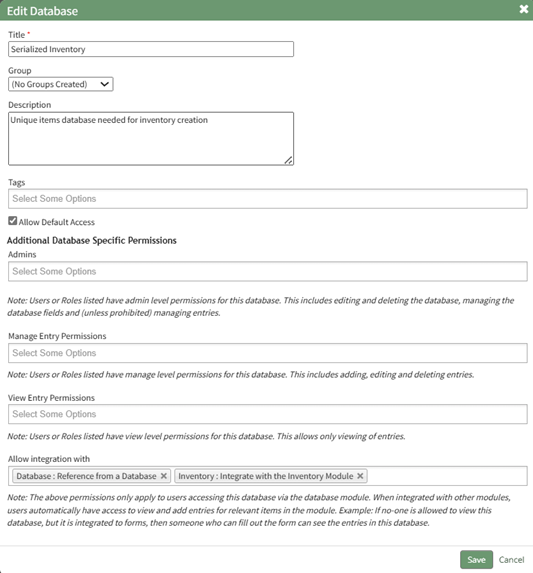
Select “Save” and the system will direct you to the Fields Page, where new fields can be added. Your unique items database can include a variety of fields, but for the Inventory Module to function properly, it must have field(s) that identify the inventory item (title) and field(s) that are used to identify the unique item.
How To: Add a Database Field
To create a database field, go to the Home Page of the Database Module.
Click the three dot (…) icon to open the context menu of the database you wish to enter fields for.
Select “Fields” opening the Fields for database (DatabaseName) Page.
There are two ways to add a field to the Field Table. Click the “New Field” button above the Field Table or click the three dot (…) icon to the right of the page header opening the context menu and select “Add Entry”.
This opens the New Database Field Modal.
The creation of a new field will always require you to enter a field name. Include an input for the displayed label and select the field type from a dropdown menu. The inputs on the New Database Field Modal will vary based on the Field Type.
Possible field types in the database module include Form Fields, Formatting Fields, Utility Fields, or a Reference to Another Database.
A database field can only have one field type. If you need to utilize another (e.g., for formatting purposes), you can set the displayed label to be same, but the field label must be unique.
For an explanation of field types and the formatting choices associated with each one, reference the Understanding Fields Section of the Database Module in the User Manual.
Once you are finished inputting the information for the new field, select “Save” and the new database field will show in the Field Table.
Fields can also be imported in bulk into a Database from a CSV.
How To: Import Fields from a PDF Field Import
This method of importing Fields from a PDF requires access to Adobe Acrobat Pro.
If a field has already been added to a database, you are no longer able to bulk import database field names from a PDF Field Import. You are now required to enter each field name individually.
How To: Add a Database Field
{{@321}}
To import field names in bulk from a CSV file, go to the Home Page of the Database Module. Click the three dot (…) icon to open the context menu of the database you wish to enter fields for.
Select “Fields” opening the Fields for database (DatabaseName) Page.
Click the “PDF Field Import” button opening the PDF Field Import Modal.
To import fields using a PDF, use the “Prepare Form” tool in Adobe Acrobat Pro. Add the fields you wish to use for your form. Add a button on your document.
Use the URL link provided on the PDF Field Import Modal in KAStrack.
Confirm that the Export Format is “PDF The complete document”.
Open the PDF and submit the form to generate the fields here.
You do not need to fill in any of the fields, and you must not sign it.
Select “Allow” and the PDF will confirm that the fields were added to the database.
Go to the Fields Table in the database Monday, and a warning now states that a PDF is associated with the form and that adding/editing or deleting fields may result in the PDF no longer being compatible.
How To: Import Fields from a CSV File Into a Database
If a field has already been added to a database, you are no longer able to bulk import database field names from a CSV file. You are now required to enter each field name individually.
How To: Add a Database Field
To create a database field, go to the Home Page of the Database Module.
Click the three dot (…) icon to open the context menu of the database you wish to enter fields for.
Select “Fields” opening the Fields for database (DatabaseName) Page.
There are two ways to add a field to the Field Table. Click the “New Field” button above the Field Table or click the three dot (…) icon to the right of the page header opening the context menu and select “Add Entry”.
This opens the New Database Field Modal.
The creation of a new field will always require you to enter a field name. Include an input for the displayed label and select the field type from a dropdown menu. The inputs on the New Database Field Modal will vary based on the Field Type.
Possible field types in the database module include Form Fields, Formatting Fields, Utility Fields, or a Reference to Another Database.
A database field can only have one field type. If you need to utilize another (e.g., for formatting purposes), you can set the displayed label to be same, but the field label must be unique.
For an explanation of field types and the formatting choices associated with each one, reference the Understanding Fields Section of the Database Module in the User Manual.
Once you are finished inputting the information for the new field, select “Save” and the new database field will show in the Field Table.
Fields can also be imported in bulk into a Database from a CSV.
How To: Import Fields from a PDF Field Import
{{@340}}
To import database field names from a CSV file, go to the Home Page of the Database Module. Click the three dot (…) icon to open the context menu of the database you wish to enter fields for.
Select “Upload CSV” opening the Upload CSV for (DatabaseName) Modal.
When creating your CSV file, the first row of the CSV file is used. Each individual cell in that row will be a database field used as columns for data entry. When importing bulk field names, the notes in the Upload CSV Modal on “Entry ID” and “Modify Entry ID” are not relevant.
After creating your Database Fields CSV File, save it as a CSV UTF-8 for importing.
Click the “Choose File” button and open the relevant file from your personal device.
Confirm that the correct CSV file now shows in the Upload CSV Modal.
Select the “Upload” button.
Configure each database field as desired. Field types shown on the dropdown menu include form fields: Text, Text Box, Checkbox, Dropdown, Radios, Data, and Data/Time.
Select “Import Now” and a summary of the import with show on the CSV Upload Page.
All imported field will now show on the Fields for database (DatabaseName) Page in the Fields Table.
How To: Import Fields from a PDF Field Import
This method of importing Fields from a PDF requires access to Adobe Acrobat Pro.
If a field has already been added to a database, you are no longer able to bulk import database field names from a PDF Field Import. You are now required to enter each field name individually.
How To: Add a Database Field
To create a database field, go to the Home Page of the Database Module.
Click the three dot (…) icon to open the context menu of the database you wish to enter fields for.
Select “Fields” opening the Fields for database (DatabaseName) Page.
There are two ways to add a field to the Field Table. Click the “New Field” button above the Field Table or click the three dot (…) icon to the right of the page header opening the context menu and select “Add Entry”.
This opens the New Database Field Modal.
The creation of a new field will always require you to enter a field name. Include an input for the displayed label and select the field type from a dropdown menu. The inputs on the New Database Field Modal will vary based on the Field Type.
Possible field types in the database module include Form Fields, Formatting Fields, Utility Fields, or a Reference to Another Database.
A database field can only have one field type. If you need to utilize another (e.g., for formatting purposes), you can set the displayed label to be same, but the field label must be unique.
For an explanation of field types and the formatting choices associated with each one, reference the Understanding Fields Section of the Database Module in the User Manual.
Once you are finished inputting the information for the new field, select “Save” and the new database field will show in the Field Table.
Fields can also be imported in bulk into a Database from a CSV.
How To: Import Fields from a PDF Field Import
{{@340}}
To import field names in bulk from a CSV file, go to the Home Page of the Database Module. Click the three dot (…) icon to open the context menu of the database you wish to enter fields for.
Select “Fields” opening the Fields for database (DatabaseName) Page.
Click the “PDF Field Import” button opening the PDF Field Import Modal.
To import fields using a PDF, use the “Prepare Form” tool in Adobe Acrobat Pro. Add the fields you wish to use for your form. Add a button on your document.
Use the URL link provided on the PDF Field Import Modal in KAStrack.
Confirm that the Export Format is “PDF The complete document”.
Open the PDF and submit the form to generate the fields here.
You do not need to fill in any of the fields, and you must not sign it.
Select “Allow” and the PDF will confirm that the fields were added to the database.
Go to the Fields Table in the database Monday, and a warning now states that a PDF is associated with the form and that adding/editing or deleting fields may result in the PDF no longer being compatible.
If no fields have been entered into the database yet, you can import fields in bulk via a PDF Entry or a CSV file. If fields have already been created in the database, new field must be added individually.
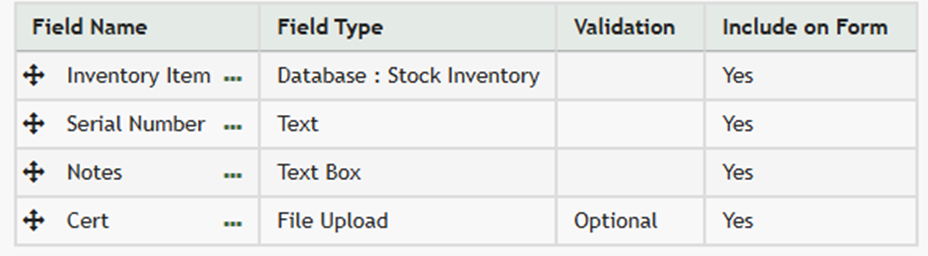
After your fields have been generated, unique inventory items can now be entered into the database in bulk via a CSV file import or entries can be added individually.
How To: Import Database Entries from a CSV
To import database entries from a CSV, database fields must already have been created.
How To: Add a Database Field
To create a database field, go to the Home Page of the Database Module.
Click the three dot (…) icon to open the context menu of the database you wish to enter fields for.
Select “Fields” opening the Fields for database (DatabaseName) Page.
There are two ways to add a field to the Field Table. Click the “New Field” button above the Field Table or click the three dot (…) icon to the right of the page header opening the context menu and select “Add Entry”.
This opens the New Database Field Modal.
The creation of a new field will always require you to enter a field name. Include an input for the displayed label and select the field type from a dropdown menu. The inputs on the New Database Field Modal will vary based on the Field Type.
Possible field types in the database module include Form Fields, Formatting Fields, Utility Fields, or a Reference to Another Database.
A database field can only have one field type. If you need to utilize another (e.g., for formatting purposes), you can set the displayed label to be same, but the field label must be unique.
For an explanation of field types and the formatting choices associated with each one, reference the Understanding Fields Section of the Database Module in the User Manual.
Once you are finished inputting the information for the new field, select “Save” and the new database field will show in the Field Table.
Fields can also be imported in bulk into a Database from a CSV.
How To: Import Fields from a PDF Field Import
{{@340}}
How To: Import Fields from a CSV File Into a Database
If a field has already been added to a database, you are no longer able to bulk import database field names from a CSV file. You are now required to enter each field name individually.
How To: Add a Database Field
{{@321}}
To import database field names from a CSV file, go to the Home Page of the Database Module. Click the three dot (…) icon to open the context menu of the database you wish to enter fields for.
Select “Upload CSV” opening the Upload CSV for (DatabaseName) Modal.
When creating your CSV file, the first row of the CSV file is used. Each individual cell in that row will be a database field used as columns for data entry. When importing bulk field names, the notes in the Upload CSV Modal on “Entry ID” and “Modify Entry ID” are not relevant.
After creating your Database Fields CSV File, save it as a CSV UTF-8 for importing.
Click the “Choose File” button and open the relevant file from your personal device.
Confirm that the correct CSV file now shows in the Upload CSV Modal.
Select the “Upload” button.
Configure each database field as desired. Field types shown on the dropdown menu include form fields: Text, Text Box, Checkbox, Dropdown, Radios, Data, and Data/Time.
Select “Import Now” and a summary of the import with show on the CSV Upload Page.
All imported field will now show on the Fields for database (DatabaseName) Page in the Fields Table.
How To: Import Fields from a PDF Field Import
This method of importing Fields from a PDF requires access to Adobe Acrobat Pro.
If a field has already been added to a database, you are no longer able to bulk import database field names from a PDF Field Import. You are now required to enter each field name individually.
How To: Add a Database Field
{{@321}}
To import field names in bulk from a CSV file, go to the Home Page of the Database Module. Click the three dot (…) icon to open the context menu of the database you wish to enter fields for.
Select “Fields” opening the Fields for database (DatabaseName) Page.
Click the “PDF Field Import” button opening the PDF Field Import Modal.
To import fields using a PDF, use the “Prepare Form” tool in Adobe Acrobat Pro. Add the fields you wish to use for your form. Add a button on your document.
Use the URL link provided on the PDF Field Import Modal in KAStrack.
Confirm that the Export Format is “PDF The complete document”.
Open the PDF and submit the form to generate the fields here.
You do not need to fill in any of the fields, and you must not sign it.
Select “Allow” and the PDF will confirm that the fields were added to the database.
Go to the Fields Table in the database Monday, and a warning now states that a PDF is associated with the form and that adding/editing or deleting fields may result in the PDF no longer being compatible.
To import database entries from a CSV, go to the Home Page of the Database Module and click the three dot menu to the right of the database you wish to import entries into.
Select “Upload CSV” opening the Upload CSV for (DatabaseName) Modal.
You can also import entries by selecting “Manage Entries” from the context menu and selecting the “Import Entries” button underneath the Database Entries Page header, which opens the same Upload CSV Modal.
Click the “Download Template” link at the top of the modal and a CSV file will be downloaded to your personal device. See Notes on the Download Template before uploading your CSV file to ensure it is done correctly.
Notes Regarding the Downloadable Template for Uploading CSV Files
The first row of the CSV file is for each of the database fields. If you download a CSV Template from the Upload CSV Modal, two additional column headers will show that are not database fields: Entry ID and Modify Existing Entry.
If you are importing database entries and no entries have been added to the database yet, leave these columns blank in your upload.
If database entries already exist in the database, the Entry ID column will contain the unique system generated ID for each pre-existing database entry. Leave this column blank if the row is to be imported as a new entry. The second column, Modify Existing Entry, should have a “Y” input if the existing entry is being modified and an “N” input if it has not been modified. Leave it blank if the entry is new.
After creating your Database Fields CSV File, save it as a CSV UTF-8 for importing.
Click the “Choose File” button and open the relevant file from your personal device.
Confirm that the correct CSV file now shows in the Upload CSV Modal.
Select the “Upload” button.
The entries imported from the CSV file will now show on the Upload CSV for (DatabaseName) Page.
The system automatically indicates to ignore the first row. Click “Import Now” if there are no errors.
A summary of the import will now show on the CSV Upload Page.
Click the “Entries for (DatabaseName)” link to see all imported entries in the Manage Entry Table.
How To: Add an Individual Database Entry
To add a database entry, go to the Home Page of the Database Module. Click the three dot (…) icon to the right of the database you wish to add an entry to opening the context menu. Select “Add Entry”.
You can select “Add Entry” from any context menu in the Database Modal without returning to the Home Page.
Selecting “Add Entry” opens the New Database Entry modal. Two visual examples of this modal have been included below.
The New Database Entry Modal will vary for every database, based on the fields that have been created for it.
Input the entry data into the modal. Select “Save” for the new entry to be added to the database.
If no fields have been created for the database, the New Database Entry Modal will show without any fields as seen below.
If you select to “Save” a database entry prior to the creation of database fields, an entry will be assigned an Entry ID by the system and will show in the Entries Table. The submitter, approval status, and entry date will be logged.
Now that your unique items database has been created and filled with inventory item entries, it is ready to be integrated into an inventory.
No comments to display
No comments to display