
An Inventory
When an inventory has been opened, the three dot (…) icon located to the right of the inventory name header opens the inventory context menu explained in the table below.
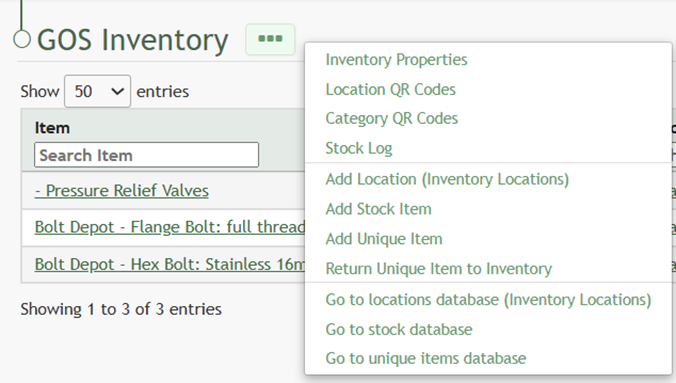
An Inventory's Context Menu Explanation | ||
Option | Associated Action | Image / Explanation |
Inventory Properties | Selecting “Inventory Properties” from the context menu opens the Inventory Properties Module. | |
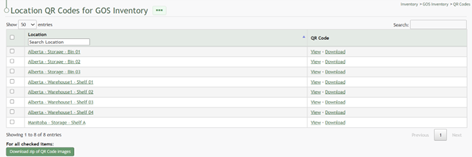
Location QR Codes | Selecting “Location QR Codes” from the context menu opens the Location QR Codes for (INVENTORY NAME) Page. |
|
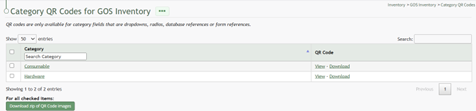
Category QR Codes | Selecting “Category QR Codes” from the context menu opens the Category QR Codes for (INVENTORY NAME) Page. |
|
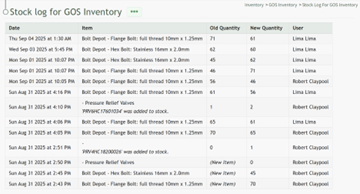
Stock Log | Selecting “Stock Log” from the context menu opens the Stock Log for (INVENTORY NAME) Page. The stock log tracks all quantity changes in an inventory. |
|
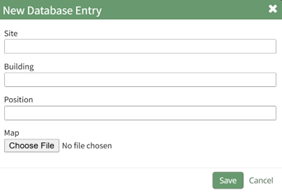
Add Location Inventory (Inventory Locations) | Selecting “Add Location (Inventory Locations)” from the context menu opens the New Database Entry Modal. |
|
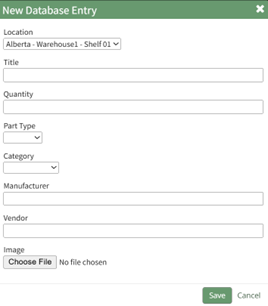
Add Stock Item | Selecting “Add Stock Item” from the context menu opens the New Database Entry Modal. |
|
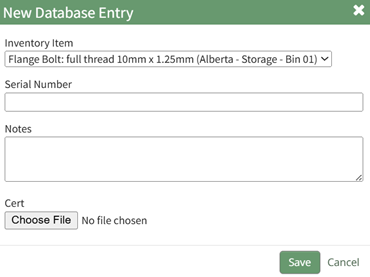
Add Unique Item | Selecting “Add Unique Item” from the context menu opens the New Database Entry Modal. |
|
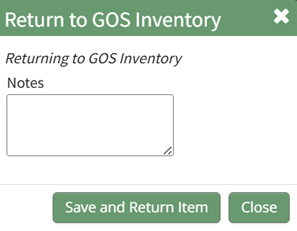
Return Unique Item to Inventory | Selecting “Return Unique Item to Inventory” from the context menu opens the Return to (INVENTORY NAME) Modal. |
|
Go to Locations Database (Underlying Location Database Name) | Selecting “Go to locations database (UnderlyingLocations DatabseName)” from the context menu opens the Entries for Database ‘Inventory Locations’ Page, found on the Home Page of the Database Module. | Every inventory requires integration with a locations database. |
Go to Stock Database | Selecting “Go to stock database” from the context menu opens the Entries for Database ‘Stock Inventory’ Page, found on the Home Page of the Database Module. | A stock database is not required. If all items in an inventory are unique and there are no stock inventory items, this option will not show on the context menu. The option appears on the context menu when a stock database has been integrated with the inventory. |
Go to Unique Items Database | Selecting “Go to unique items database” from the context menu opens the Entries for Database ‘Serialized Inventory’, found on the Home Page of the Database Module. | A unique items database is not required. If all items in an inventory are stock items and there are no unique inventory items, this option will not show on the context menu. The option appears on the context menu when a stock database has been integrated with the inventory. |
No comments to display
No comments to display