
Assets Settings Page: Asset Types Tab
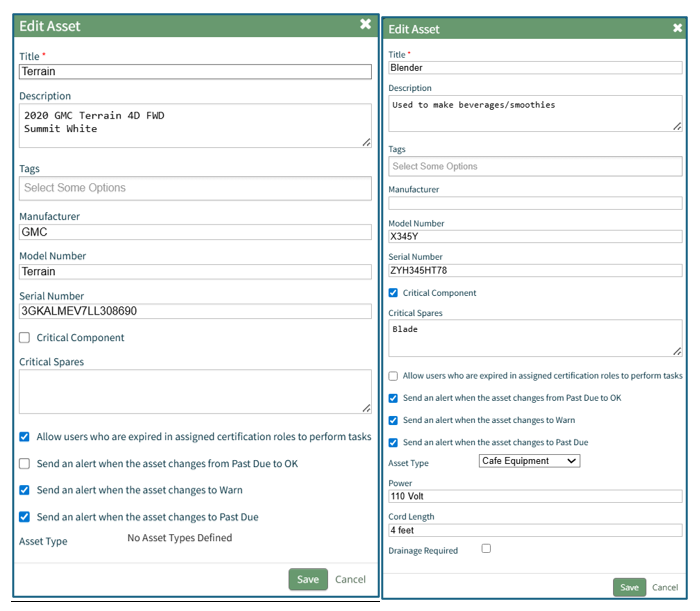
Creating Asset Types allows a user to organize and group assets. Asset Types allows a user to include additional information through the use of fields that can be used as a filter value if needed.
Asset Types are listed in table format on the Asset Types Tab of the Assets Module Settings Page.
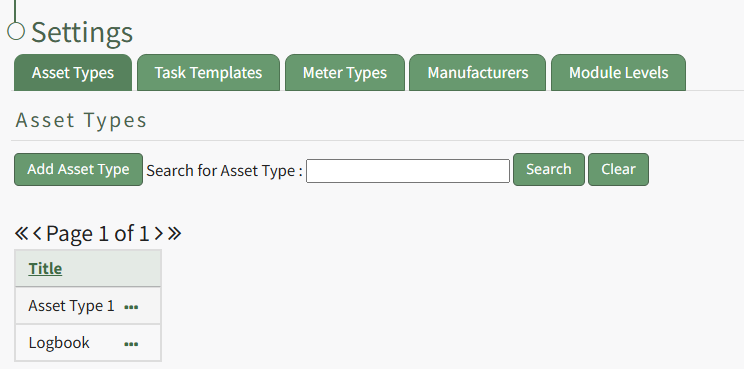
Selecting the “Add Asset Type” button opens the New Asset Type modal.
How To: Create a New Asset Type
To create a new asset type, open the Asset Types Tab on the Settings Page of the Assets Module.
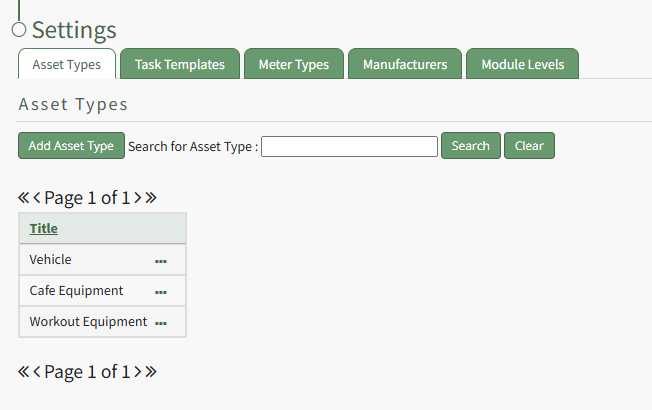
Selecting the “Add Asset Type” button opens the New Asset Type modal.
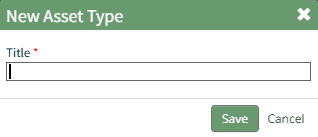
Input the title of the New Asset Type and click “Save”.
The newly created Asset Type will now show in the table on the Asset Type tab on the Settings page and is ready for you to add fields to.
How To: Add Fields to an Asset Type
In order to include unique, customized additional information regarding an Asset, you must first create an asset type and then add fields to it. This allows your organization to specify whatever information they choose to regarding their assets.
How To: Create a New Asset Type
To create a new asset type, open the Asset Types Tab on the Settings Page of the Assets Module.
Selecting the “Add Asset Type” button opens the New Asset Type modal.
Input the title of the New Asset Type and click “Save”.
The newly created Asset Type will now show in the table on the Asset Type tab on the Settings page and is ready for you to add fields to.
How To: Add Fields to an Asset Type
{{@496}}
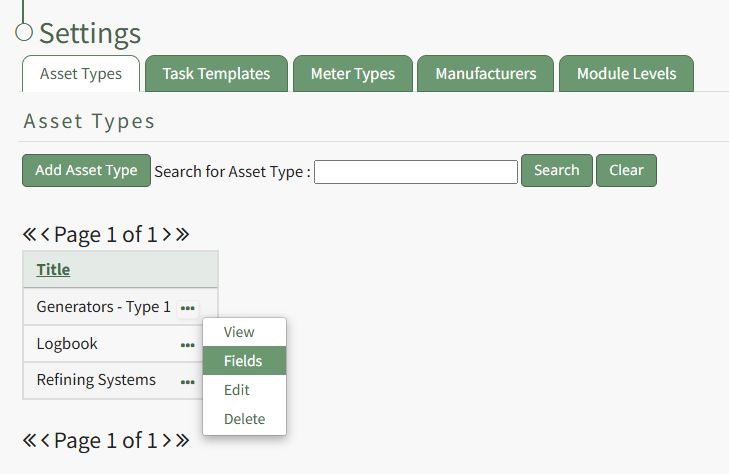
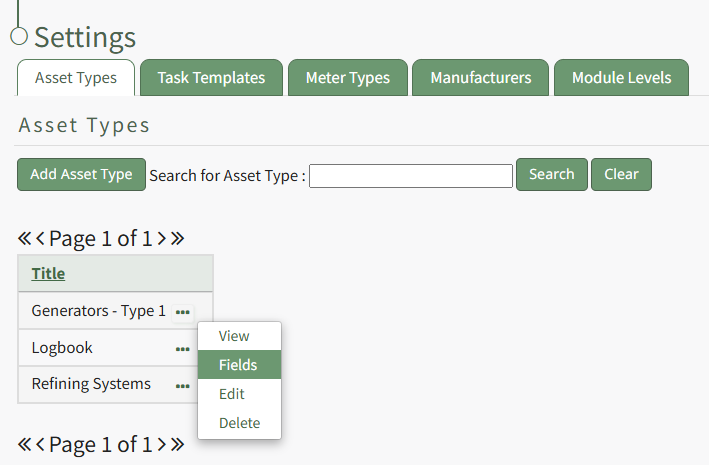
To add additional fields to an asset type, go to the Asset Types Tab on the Settings Page of the Assets Module. Click the three-dot icon to the right of the Asset Type title to open the Asset Type Context Menu.
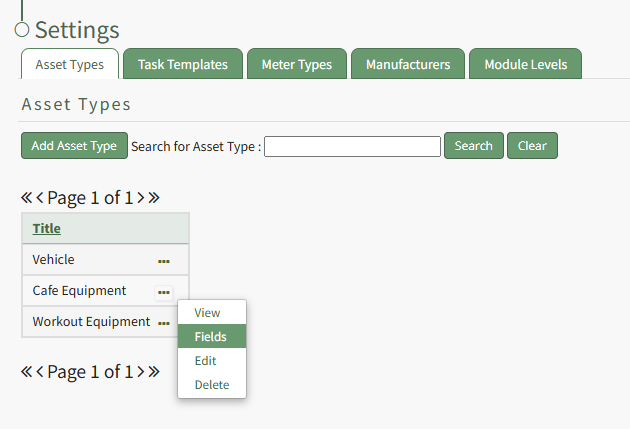
Select "Fields" from the context menu opening the Asset Type Fields Page.
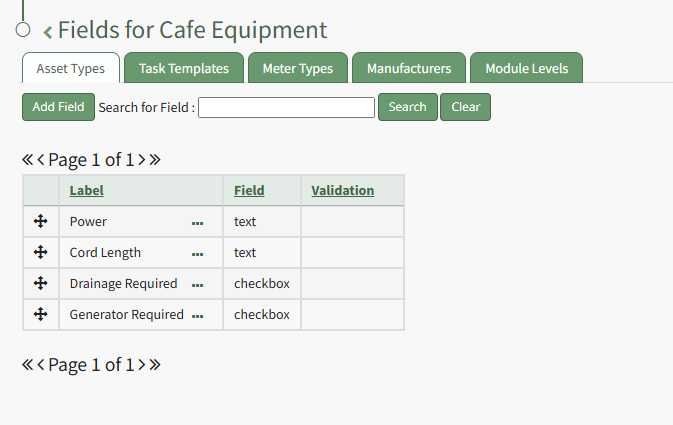
Click the "Add Field" button opening the New Field Modal.
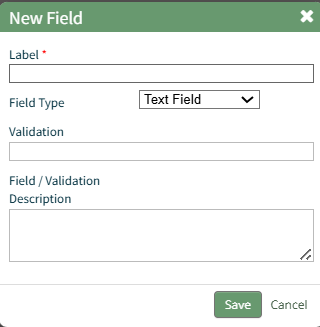
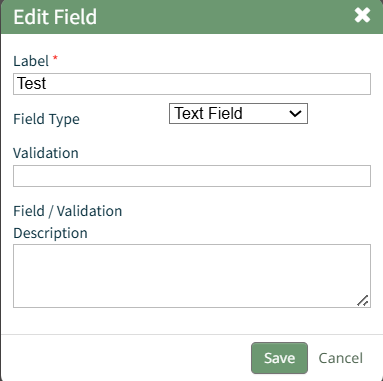
Input a label for the field and select the field type from a dropdown menu. Options include: text field, number, password field, text box, date field, and checkbox.
Validation uses standard JavaScript RegExp constructor for validating Field input values entered by end-users. Entering a RegExp validation string will check against the input value.
Include a description of the field of validation (optional).
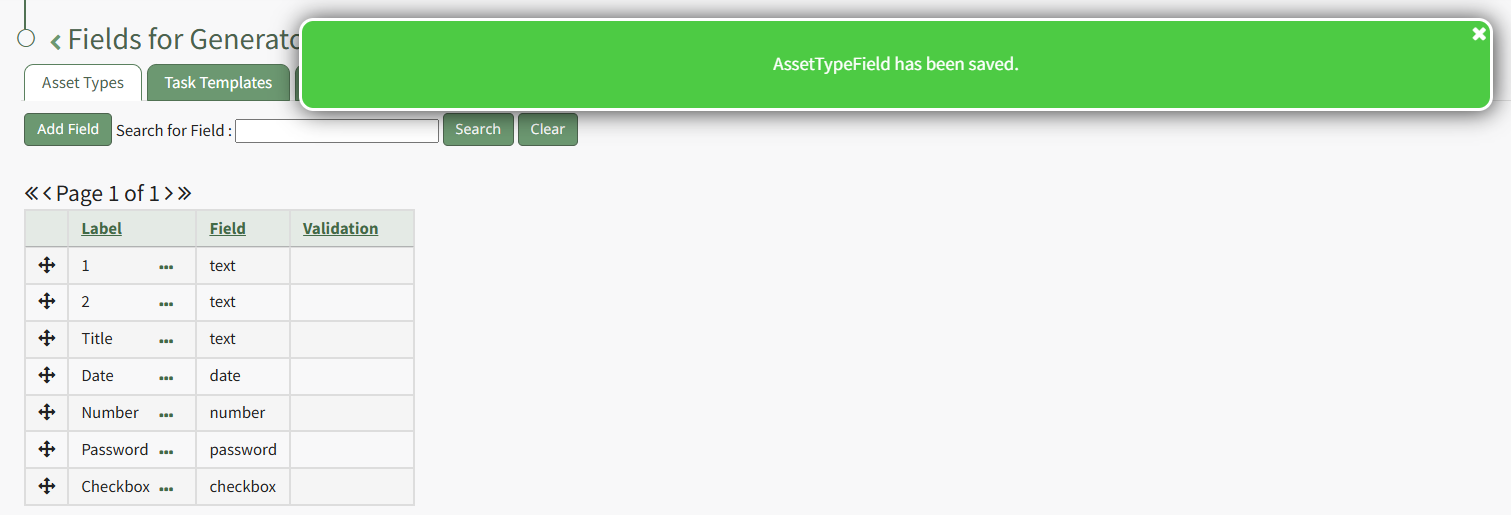
Select “Save” and a popup confirms that the asset has been saved. The new field now shows on the Asset Type Field Page.
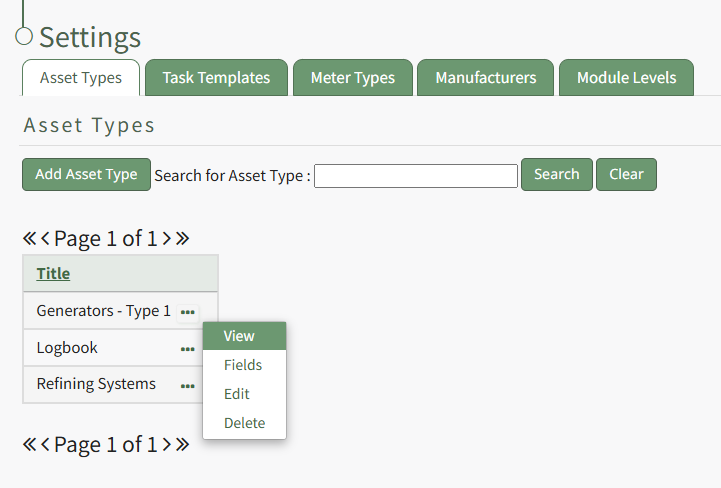
Newly created Asset Type will show in the table on the Asset Type tab on the Settings page. Selecting the three dot (…) icon to the right of the Asset Title opens the asset type context menu with options for Asset Type Management that are explained in the table below. View, Fields, Edit, or Delete.
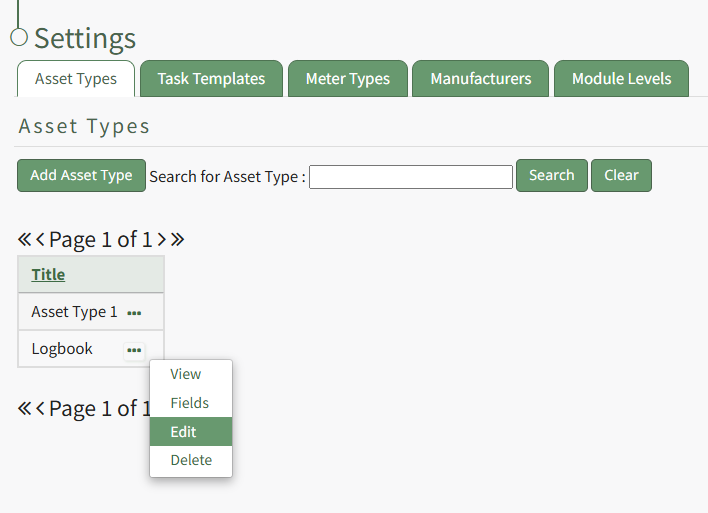
Asset Type Context Menu Option Explanation Table | |
Option | Explanation |
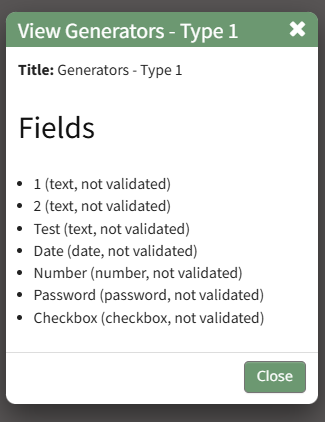
View | Selecting "View" from the asset type context menu opens the View Asset Type Modal which displays the title of the asset type and lists any fields associated with it. |
Fields | Selecting "Fields" from the asset type context menu opens the asset type fields page where asset type fields can be added and managed. How To: Add Fields to an Asset TypeIn order to include unique, customized additional information regarding an Asset, you must first create an asset type and then add fields to it. This allows your organization to specify whatever information they choose to regarding their assets. How To: Create a New Asset TypeTo create a new asset type, open the Asset Types Tab on the Settings Page of the Assets Module.
Selecting the “Add Asset Type” button opens the New Asset Type modal.
Input the title of the New Asset Type and click “Save”. The newly created Asset Type will now show in the table on the Asset Type tab on the Settings page and is ready for you to add fields to. How To: Add Fields to an Asset TypeIn order to include unique, customized additional information regarding an Asset, you must first create an asset type and then add fields to it. This allows your organization to specify whatever information they choose to regarding their assets. How To: Create a New Asset Type{{@470}} To add additional fields to an asset type, go to the Asset Types Tab on the Settings Page of the Assets Module. Click the three-dot icon to the right of the Asset Type title to open the Asset Type Context Menu.
Select "Fields" from the context menu opening the Asset Type Fields Page.
Click the "Add Field" button opening the New Field Modal.
Input a label for the field and select the field type from a dropdown menu. Options include: text field, number, password field, text box, date field, and checkbox. Validation uses standard JavaScript RegExp constructor for validating Field input values entered by end-users. Entering a RegExp validation string will check against the input value. Include a description of the field of validation (optional). Select “Save” and a popup confirms that the asset has been saved. The new field now shows on the Asset Type Field Page. To add additional fields to an asset type, go to the Asset Types Tab on the Settings Page of the Assets Module. Click the three-dot icon to the right of the Asset Type title to open the Asset Type Context Menu.
Select "Fields" from the context menu opening the Asset Type Fields Page.
Click the "Add Field" button opening the New Field Modal.
Input a label for the field and select the field type from a dropdown menu. Options include: text field, number, password field, text box, date field, and checkbox. Validation uses standard JavaScript RegExp constructor for validating Field input values entered by end-users. Entering a RegExp validation string will check against the input value. Include a description of the field of validation (optional). Select “Save” and a popup confirms that the asset has been saved. The new field now shows on the Asset Type Field Page. How To: Edit Asset Type FieldsTo edit a field associated with an asset type, go to the Asset Types Tab on the Settings Page of the Assets Module. Select the three-dot icon to the right of the asset type whose field you wish to edit opening the Asset Types Context Menu.
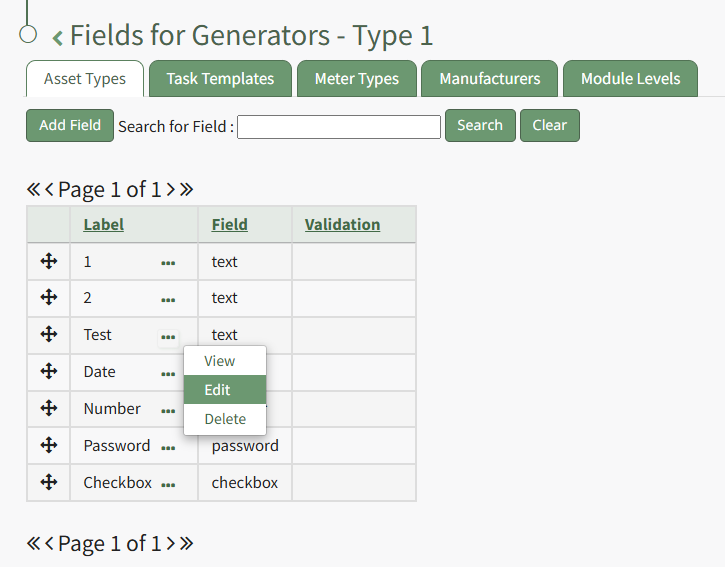
Select "Fields" from the context menu opening the Asset Type Field Table. Click on the three-dot icon to the right of the field you wish to edit opening the Asset Type Fields Context Menu.
Select "Edit" opening the Edit Field Modal.
This modal will vary based on the field type associated with the field. Make the desired changes to the field and select the "Save" button.
A pop up confirms that the Asset Type Field has been changed, and the edits are reflected on the Asset Type Fields Table. |
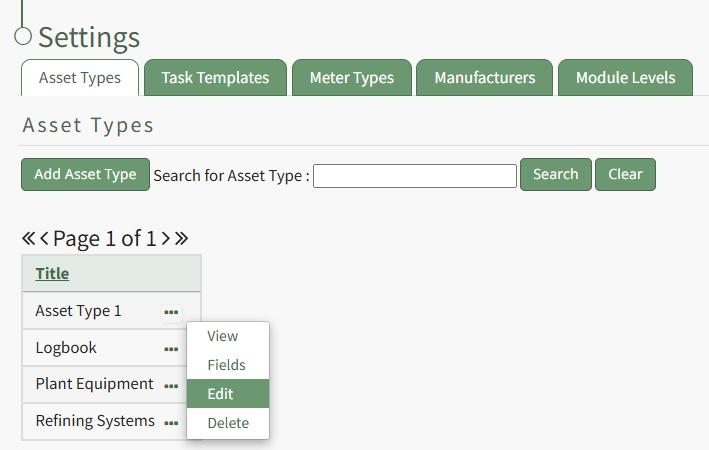
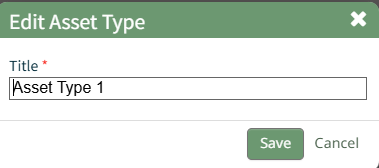
Edit | Selecting "Edit" from the asset type context menu opens the Edit Asset Type Modal where the title of the asset type can be altered. How To: Change an Asset Type NameTo change an Asset Type name, go to the Asset Type Tab on the Settings Page of the Assets Module. Click the three-dot icon to the right of the Asset Type whose name you wish to change, opening the Asset Type Context Menu.
Select "Edit" opening the Edit Asset Type Modal.
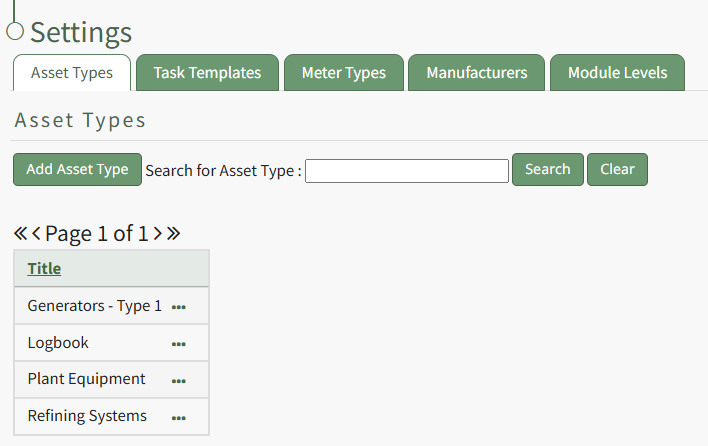
Edit the Asset Type name as desired and select the "Save" button. A pop up confirms that they asset type has been edited, and the changes in the title are now reflected on the Asset Type Table.
|
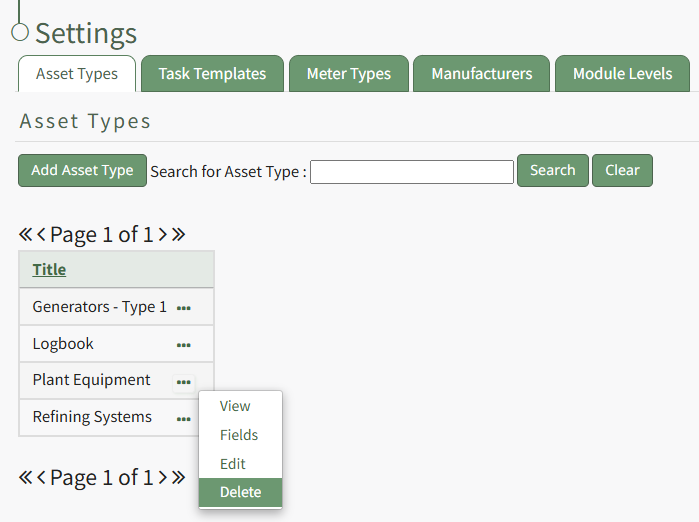
Delete | Selecting "Delete" from the asset type context menu opens the Delete Asset Type Confirmation Modal which states the number of assets impacted by the deletion. How To: Delete an Asset TypeTo delete an asset type, go to the Asset Type Tab on the Settings Page of the Assets Module. Click the three-dot icon to the right of the asset type you wish to delete, opening the Asset Type Context Menu.
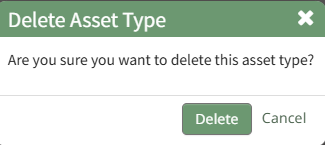
Select "Delete" opening the Delete Asset Type Confirmation Modal which states, "Are you sure you want to delete this asset type?"
Click the "Delete" button and a pop up will confirm that the asset type has been deleted.
The deleted asset type no longer shows in the Asset Type Table.
|

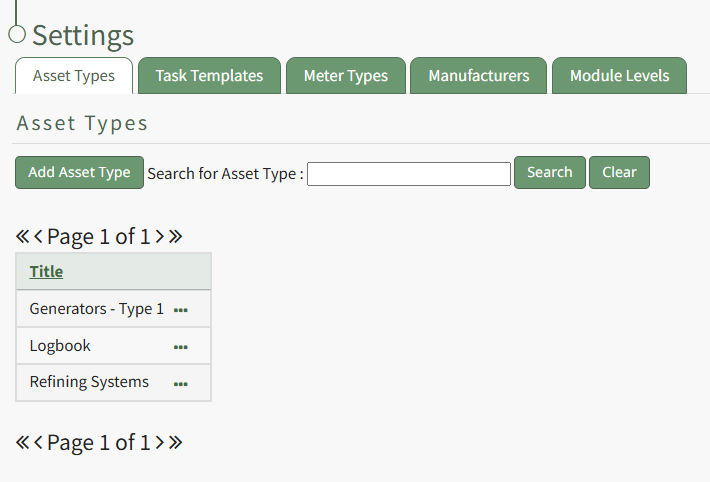
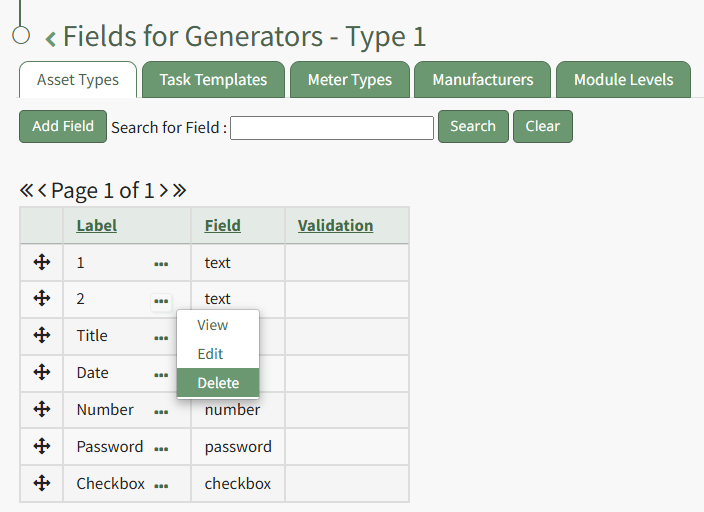
Once an Asset Type has been created, fields can be added to it. Selecting Fields from the Asset Type Context Menu opens the Asset Type Fields Page where new fields can be added and existing fields are managed.
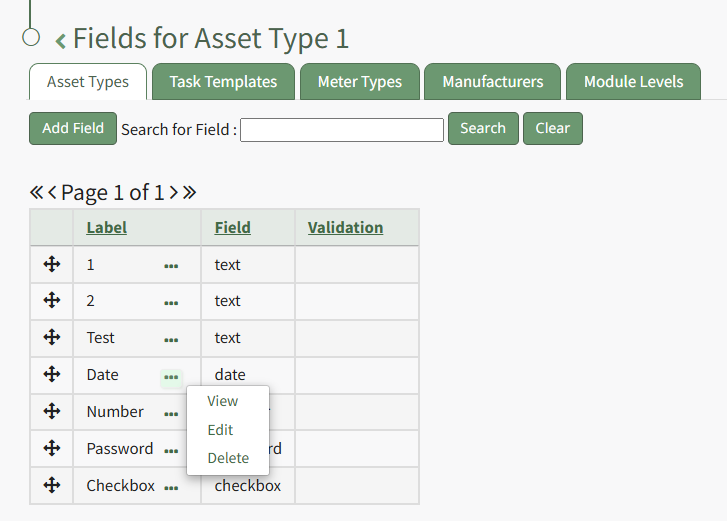
Asset Type Fields Table Context Menu Option Explanation Table | |
Option | Explanation |
View | Selecting "View" from the asset type fields context menu opens the View Asset Type Fields Modal which displays the existing Asset Type Fields and information associated with it. How To: View the Fields Associated with an Asset TypeTo view the information associated with an asset type, go to the Asset Types Tab on the Settings Page of the Assets Module. Click the three-dot icon to the right of the asset type whose details you wish to view opening the Asset Type Context Menu.
Select "View" opening the View Asset Type Modal, stating the title of the Asset Type and the fields that are associated with it.
The View Asset Type Modal is read-only. Select the "Close" button and return to the Asset Types Tab. |
Edit | Selecting "Edit" from the asset type fields context menu opens the Edit Asset Type Field Modal where the field details can be altered. How To: Edit an Asset Type FieldTo edit a field associated with an asset type, go to the Asset Types Tab on the Settings Page of the Assets Module. Select the three-dot icon to the right of the asset type whose field you wish to edit opening the Asset Types Context Menu.
Select "Fields" from the context menu opening the Asset Type Field Table. Click on the three-dot icon to the right of the field you wish to edit opening the Asset Type Fields Context Menu.
Select "Edit" opening the Edit Field Modal.
This modal will vary based on the field type associated with the field. Make the desired changes to the field and select the "Save" button.
A pop up confirms that the Asset Type Field has been changed, and the edits are reflected on the Asset Type Fields Table. |
Delete | Selecting "Delete" from the asset type fields context menu opens the Delete Asset Type Field Confirmation Modal which states the number of assets impacted by the deletion. The modal will state the number of forms references that must first be removed if necessary for deletion. How To: Delete an Asset Type FieldTo delete an asset type field, go to the Asset Types Tab on the Settings Page of the Assets Module. Click the three-dot icon to the right of the asset type that contains the asset type field you wish to delete opening the Asset Type Context Menu.
Select "Fields" from the context menu opening the Asset Type Fields Table. Click the three-dot icon to the right of the Field Label opening the Asset Type Fields Context Menu.
Select "Delete" from the context menu opening the Delete Asset Type Field Confirmation modal. Select "Delete" and the field is removed from the Asset Type Fields Table. |
No comments to display
No comments to display