
Dispatch Settings: Module Levels Tab
The Module Levels Tab of Settings Page can be accessed from the Main Menu. The system default module levels for the module are visible in the Module Levels Table. New module levels with customizable permissions can be created and managed on this tab.
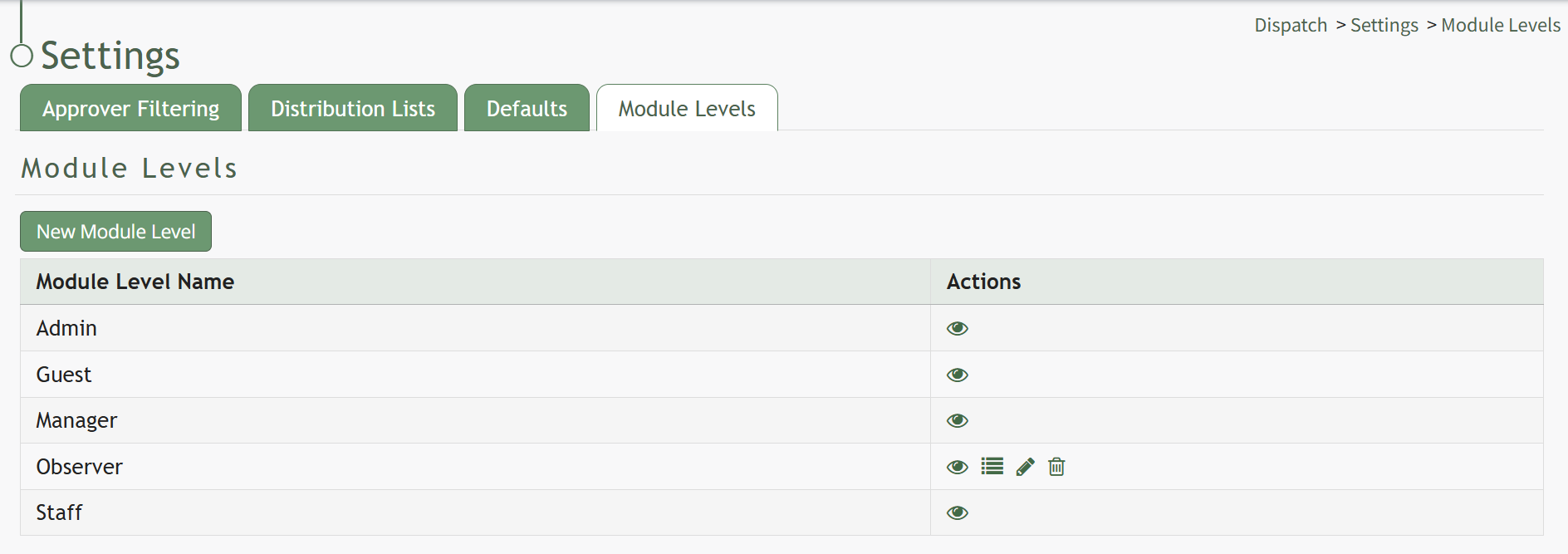
There are four system default module levels associated with the Dispatch Module. An explanation of the permissions associated with each default module level are shown in the Dispatch Module Level Permissions Table below.
System default module levels cannot be customized.
Dispatch Module Level Permissions | |
Module Level | Permissions |
Admin | Manage roles (role permissions, assign hidden roles, delete / edit / view / add roles), Distribution Lists (delete / edit / list distribution lists), Approve Filtering, Defaults, Distribute, Dispatches (upload / download document, edit / add attachement, delete / edit / add waypoint, edit waypoint status, view log / qr code / pdf, edit / view / new / delete dispatch, set any dispatch status, attach to pdf, create action group, add form entry, list manage permissions, send to dist list, edit / delete activity, edit activity status |
Guest | View Log, View PDF, View Dispatch |
Manager | Dispatches (upload / download document, edit / add attachement, delete / edit / add waypoint, edit waypoint status, view log / qr code / pdf, edit / view / new / delete dispatch, set any dispatch status, attach to pdf, create action group, add form entry, list manage permissions, send to dist list, edit / delete activity, edit activity status |
Staff | View Log, View QR code, View PDF, View Dispatch |
New Module Levels can be created in order to customize module level permissions to suit your organization's needs. An explanation of the icons associated with customized module levels have been provided in the table below.
Module Level Customization Icons | |
Icon | Explanation |
| The eyeball icon allows you to view users assigned to the module level as well as the permissions assigned to them. |
| The bulleted list icon allows you to assign permissions to customized module levels. |
| The pencil icon opens the Edit Module Level Modal. |
| The trashcan icon opens the Delete Module Level Confirmation Modal. |



How To: Create a New Module Level (Dispatch Module)
To create customized module levels in the Dispatch Module, go to the Module Levels Tab on the Settings Page of the Dispatch Module.
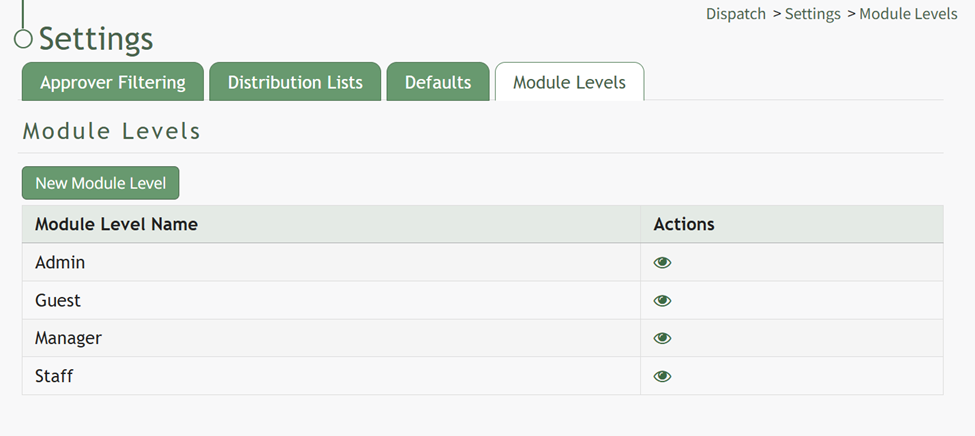
Select the “New Module Level” button opening the New Module Level Modal.
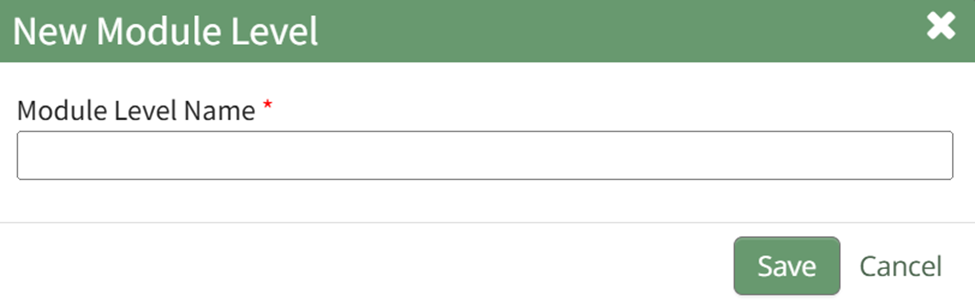
Input the New Module Level Name and select “Save”. The new module level now appears on the Module Level Table with action icons explained in the table below.
Module Level Customization Icons | |
Icon | Explanation |
| The eyeball icon allows you to view users assigned to the module level as well as the permissions assigned to them. |
| The bulleted list icon allows you to assign permissions to customized module levels. |
| The pencil icon opens the Edit Module Level Modal. |
| The trashcan icon opens the Delete Module Level Confirmation Modal. |



Select the Bulleted List Icon to open the Permissions Modal.
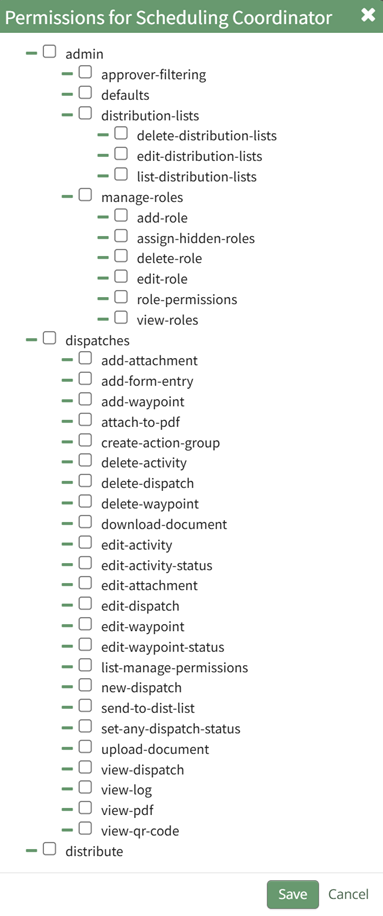
Select all permissions appropriate for the new module level and select “Save”.
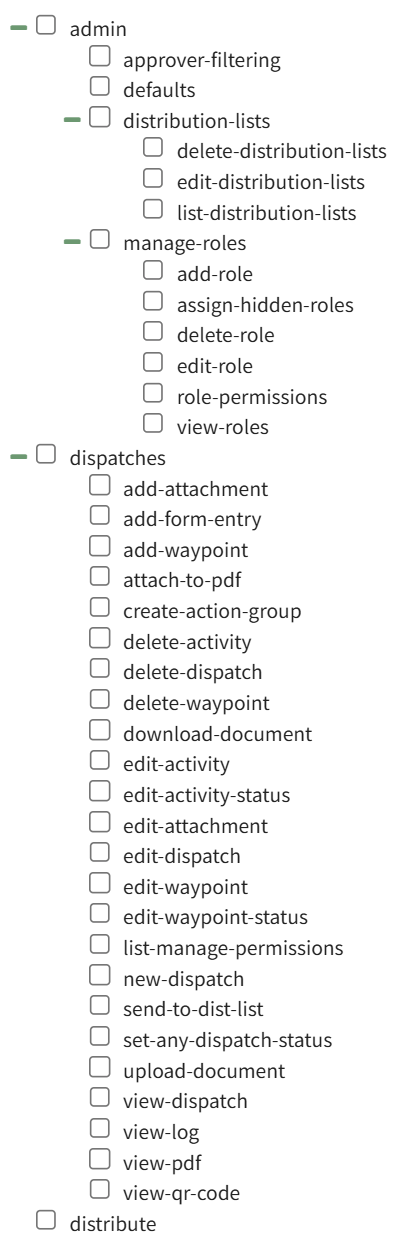
A complete list of all permissions associated with the Dispatch Module have been provided below.
No comments to display
No comments to display