
Payment Settings Tab
The Payment Settings Tab on the Site Settings Page shows existing payment configurations and allows for creation of additional ones. Payment configurations are utilized to provide the basic information needed for a third-party processing platform to manage online payments securely.
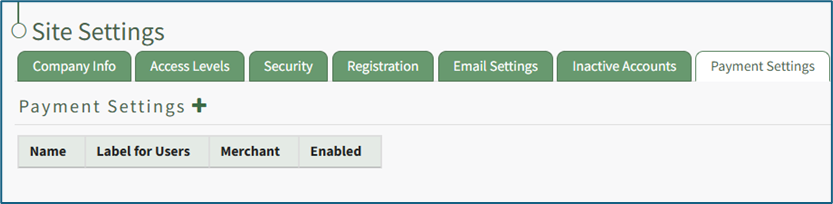
Stripe is currently the only third-party platform that integrates with KAStrack through the Forms Module. Using Stripe ensures KAStrack is autonomous from the payment process. For integration with another merchant, please contact the KAStrack helpdesk.
Some payment configuration required fields, such as configuration name and credit card statement entry, are set by your organization. Other required fields, such as display name, publishable key, and secret key, are Stripe specific and must be found on your Stripe dashboard.
How To: Create Payment Configuration Using Stripe
To make a payment configuration, go to the Payment Settings Tab in the Site Settings Module.

Click the plus sign icon to the right of the Payment Settings header, opening the Create Payment Configuration Modal.
Some payment configuration required fields, such as configuration name and credit card statement entry, are set by your organization. Other required fields, such as display name, publishable key, and secret key, are specific to your Merchant and must be found on your Merchant’s dashboard.

Input a configuration name.
Configuration Name is a KAStrack term, not associated with Stripe, that is used as a label for a specific payment process configuration.
Input the display name.
Display Name is the name your organization has configured in your Stripe account settings under public business information. It shows when Stripe displays who is charging the customer.
Input the publishable key.
The Publishable Key is the public facing API key used in client-side code that identifies your Stripe account. It can be found in the left-hand menu of the Stripe Dashboard under Developers → API Keys.
Input the secret key.
Secret Key is the private API key used by the server to make requests to Stripe’s API. It can be found in the left-hand menu of the Stripe Dashboard under Developers → API Keys.
Input the credit card statement entry.
The credit card statement entry is the comment that will show on a payment statement.
Click the “Enabled” checkbox to enable the Payment Configuration.
Click “Cancel” to return to the Payment Settings Tab without making any changes.
Select the “Save” button. The payment configuration now shows on the Payment Settings tab.
No comments to display
No comments to display