
Complete List of Reports Module How Tos
How To: Add a New Module Level (Reports Module)
To add a new module level in the Reports Module, go to the Settings Page and select the “New Module Level” button.

This opens the New Module Level Modal.
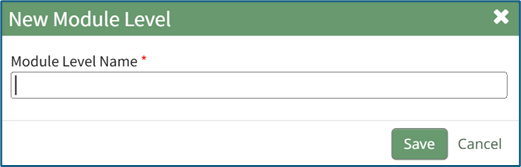
Input a name for the new module level and select the “Save” button.
The new module level will now be shown in the module level table on the Settings Page. Module levels created by your organization can be customized. Select the bulleted list icon to add permissions to the new module level.

Click the checkboxes for the permissions you would like to be granted to the new module level.
Select “Save” when done adding permissions.
How To: Assign Permissions to a Custom Report
To assign permissions to a custom report, go to the Custom Reports Tab on the Manage Reports Page of the Reports Module. Select the three-dot icon to the right of the Report Title opening the context menu.
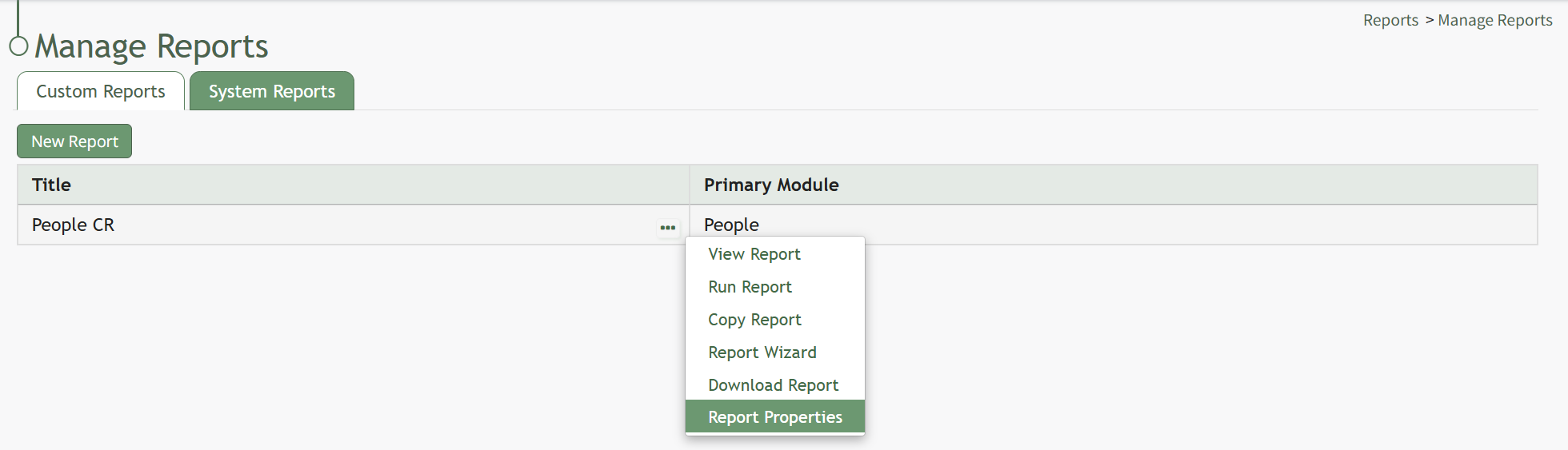
Select “Report Properties” opening the Edit Report Modal.
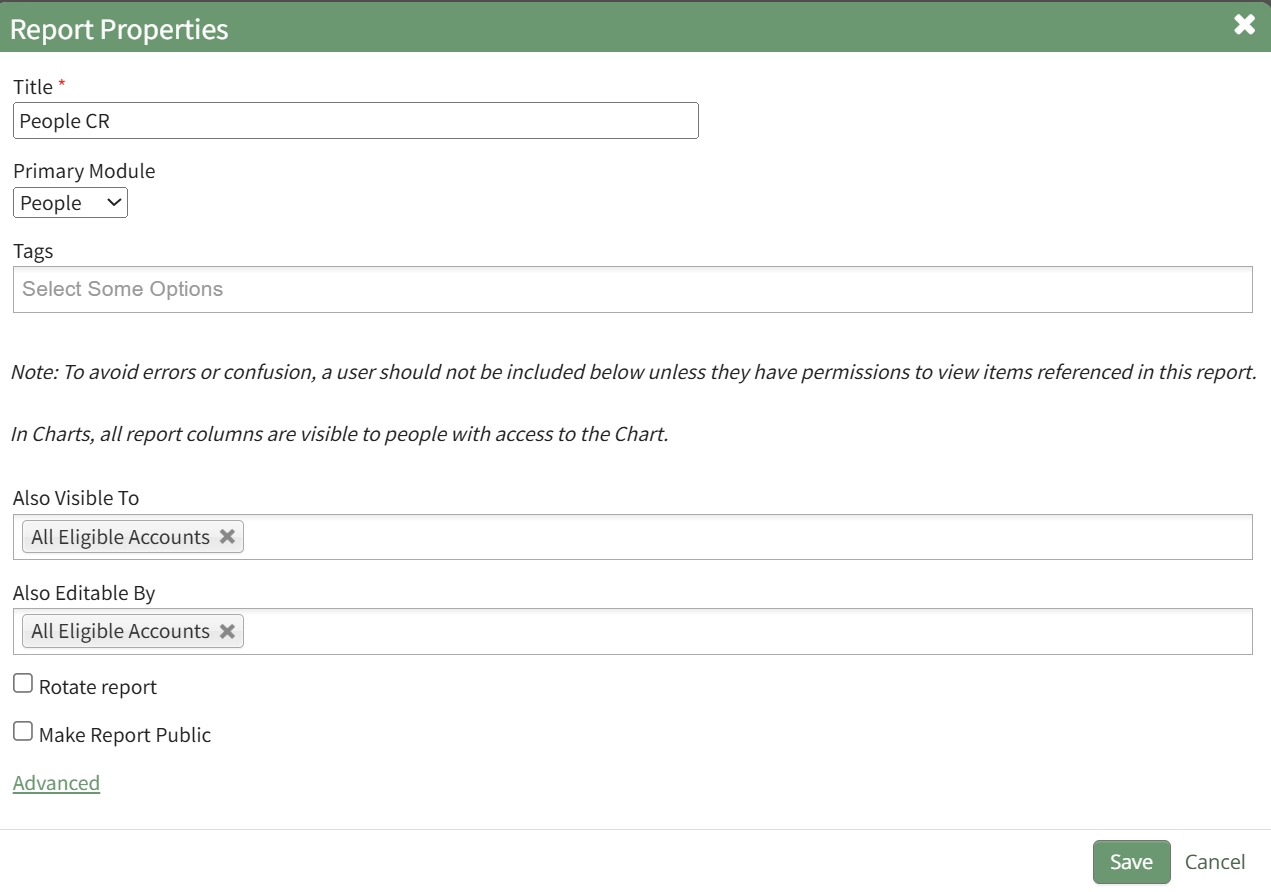
Permissions can be given for visibility through the “Also visible to” dropdown menu. Permissions for editing can be granted through the “Also editable by” dropdown menu. You can select individual names, certification roles, People I Supervise, or All Eligible Accounts for either option. Select “Save” and the visibility and editing permissions will now be effective.
Visibility restrictions applied to the report via Tags will be considered last when determining who the report is visible to.
How To: Assign Permissions to a System Report
To assign Permissions for a System Report, go to the System Reports Tab on the Manage Reports Page of the Reports Module.

Select the three-dot icon to the right of the system report you wish to alter permissions for opening the system report table context menu. Select “Permissions” opening the Access to (SystemReport Name) Report Modal.

Add individual people, certification roles, or access levels from the dropdown menu.
Users still require the ‘run-report’ and/or ‘download-report’ permissions to be able to run or download system reports that they have permission to access.
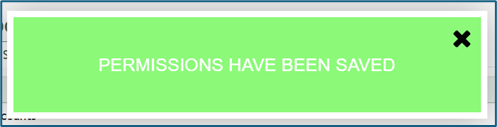
Select “Save” to change who has access to the report. A confirmation modal will appear stating, “Permissions have been saved,” and you will return to the System Reports Tab of the Manage Reports Page.
How To: Copy a Report
System Reports cannot be copied.
To copy a report, go to the Custom Reports Tab of the Manage Reports Page in the Reports Module. Select the three-dot icon to the right of the Report Title opening the context menu.
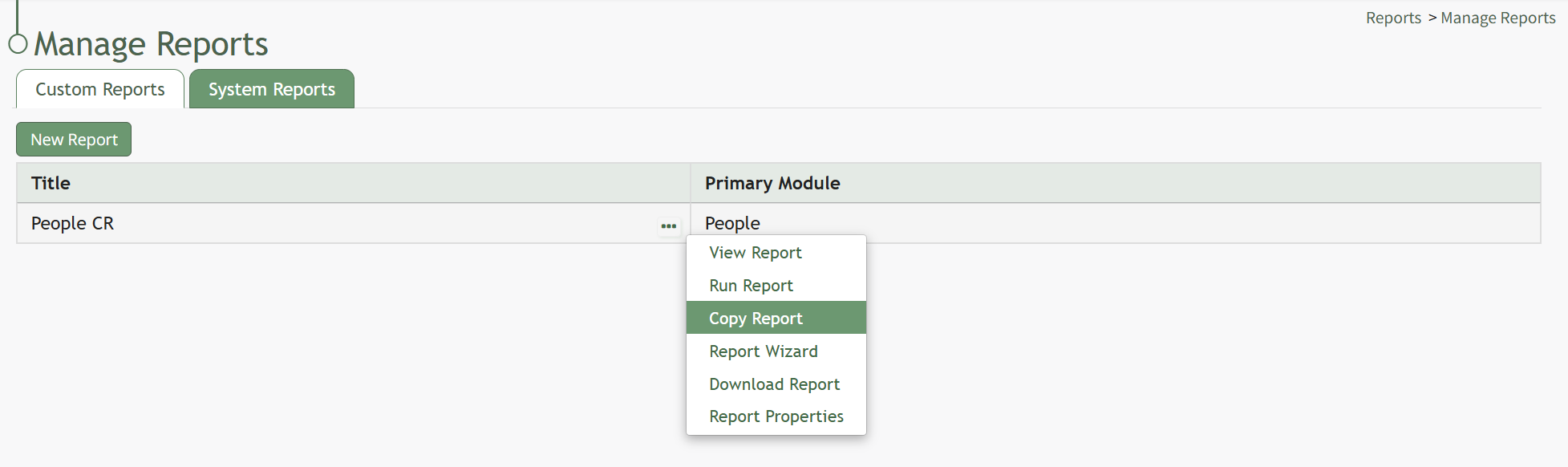
Select “Copy Report” opening the Copy Report Modal.

Input the new title to be associated with the copied report and select the “Copy” button.

The copied report will now be shown in the Custom Reports Table.
How To: Create a Chart
To create a chart, go to the Home Page of the Reports Module and open the report you wish to use for the necessary chart data.
How To: Run a Report
To run a report, go to the Home Page of the Reports Module.
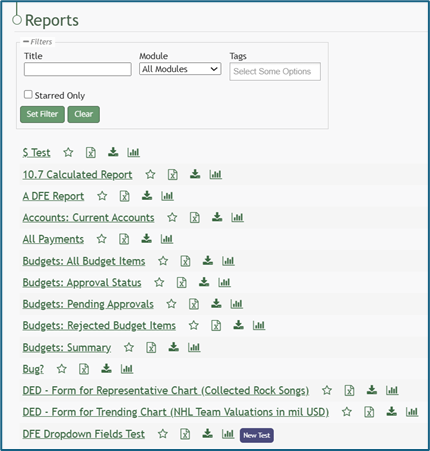
Click the name of the report you wish to run.
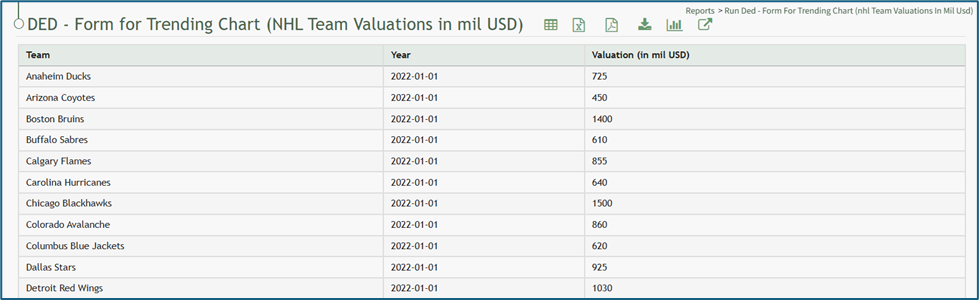

Select the chart icon to the right of the report title header. This opens the Report Module Chart Wizard Modal.
The chart icon for a specific report is also accessible on the Home Page of the Reports Module.

Chart Wizard Modal Explanation | ||
Input | Comments | |
Data Type (required) | Representative | Trending* |
Chart Type (required)
Options are based on the data type. | Bar Chart (Vertical) | Line Chart |
Bar Chart (Horizontal) | ||
Pie Chart | ||
Line Chart | ||
Doughnut Chart | ||
Column for Labels (required) | For representative data, any field can be selected as your independent axis. | *For trending data, the label (independent axis) should be a value representing the date. |
Column for Values (required) | The dependent axis must be linked with a column that contains numeric values for a chart to be made. | |
Merge Columns with the same label Checkbox | When the merge columns with the same label checkbox is selected, the numeric values input will be added together and the total shown on the chart as opposed to individual values. | |
Chart Size (required) | Options: Small, Medium, Large, X-Large, Max | |
Tags | Select open, restrictive, or permissive tags as desired. | |
Share this chart Checkbox | If you share this chart, anyone who can view the report will have access to the chart, but they will only see data they have access to. | |
View Chart | Selecting the View Chart button will expand the Chart Wizard Modal and show a preview of the chart being generated. | |
After specifying the appropriate inputs for the chart, select “View Chart” to see a preview of the representation of the data. If no additional changes are needed, select “Save Chart”. A confirmation modal states, “The chart has been saved.”

The new chart is now visible on the Charts Page of the Reports Module.
How To: Create a Custom Report
To create a custom report, go to the Custom Reports Tab on the Manage Reports Page of the Reports Module.

Select the “New Report” button opening the New Report Modal.

Notes for filling out the modal are included in the table below.
New Report Modal Comments | ||
Input | Comments | |
Title | Input a title for the new report (a required field). | |
Primary Module | Select the primary module from a dropdown menu with the following options: Assets, Dispatch, Forms, Meetings, and People. | |
Tags | Select open, restrictive, or permissive tags as desired. | |
Also Visible To | A dropdown menu includes the options: People I Supervise, All Eligible Accounts, Certification Roles and Individual People. | To avoid errors or confusion, a user should not be included below unless they have permissions to view items referenced in this report. |
Also Editable By | ||
Rotate Report Checkbox | When the Rotate Report Checkbox is selected, the information in the rows of the first column become the column headers. (The x and y axis are switched.) | |
Make Report Public Checkbox | When the Make Report Public Checkbox is selected, the modal expands to include a textbox for the Link Path. The URL for the report will be https://[subdomainname].kastrack.com/reports/view-report[LinkPath} | |
Advanced Options | ||
Report SQL | Clicking the “Advanced” link opens a Report SQL textbox, an input area for writing SQL queries that can define the data the report will show. | |
Once you have input the necessary information, select “Save”. The new report will now show on the Custom Reports Tab of the Manage Reports Page.
Click the three-dot icon opening the custom report table context menu and Select “Report Wizard”.
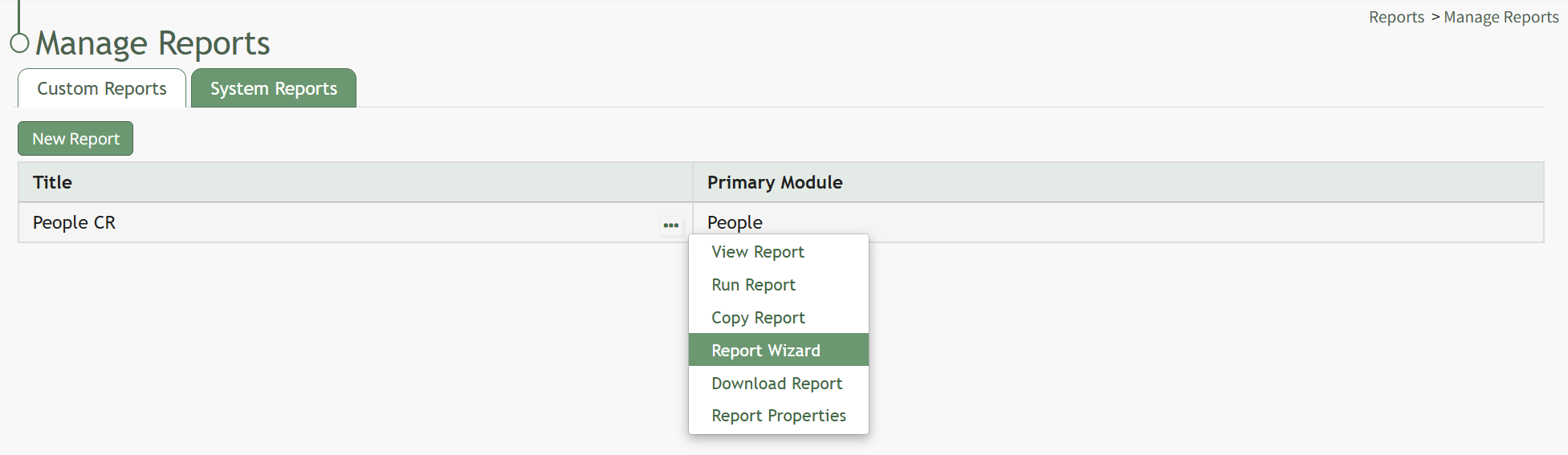
This opens the Report Wizard Page, where you can specifically decide which data should be represented in the report.

How To: Delete a Chart
To delete a chart, go to the Charts Page of the Reports Module.
To be able to delete a chart, you must be the individual who created the chart.
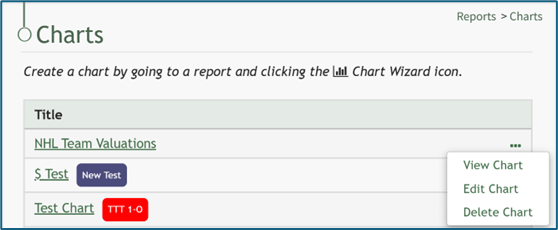
Click the three-dot icon to the right of the chart you wish to delete, and select the “Delete Chart” option. This opens the Delete Chart Confirmation Modal which states, “Are you sure wish to delete this chart?” The modal also states the title of the chart being deleted.
If the chart had Share this Chart enabled, deleting the chart will remove its visibility from all individuals it was previously shared with.

Click the “Delete” button and a Confirmation Modal states, “This chart has been deleted.”

How To: Delete a Report
System Reports cannot be deleted.
To delete a report, go to the Custom Reports Tab of the Manage Reports Page in the Reports Module. Select the three-dot icon to the right of the Report Title opening the context menu.
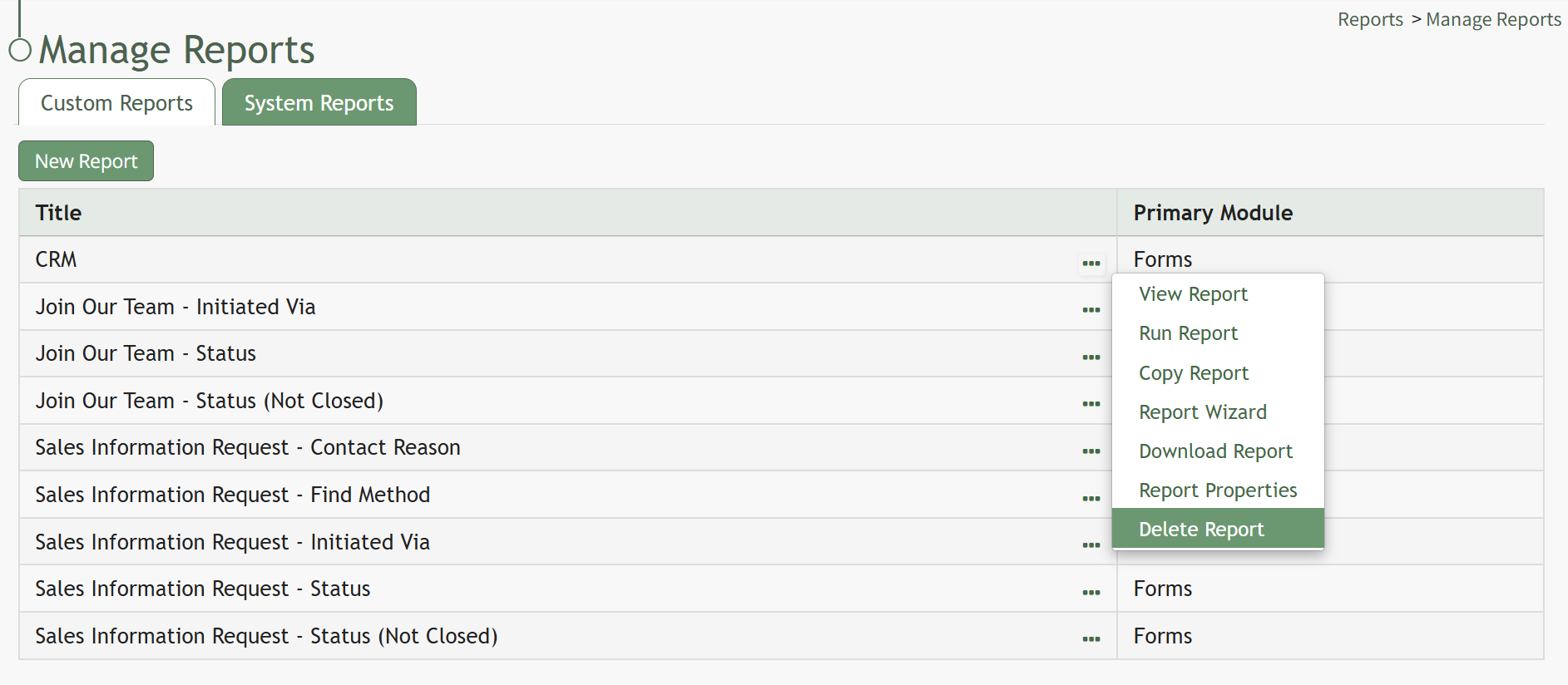
Select “Delete Report” opening the Delete Report Confirmation Modal.

The modal will state the name of the report and the question, “Are you sure you want to delete this report?” Select the “Delete” button. A confirmation modal will state, “This report has been deleted,” before returning to the Custom Reports Table.

How To: Download a Report
To download a report, go to the Home Page of the Reports Module.
There are two icons to the right of the Report Title that allow an individual to download a report.
Download Report Icons | ||
Icon | Explanation | |
| The excel icon will download the report in an excel (.xlsx) file to your personal device. | |
| The download icon opens the Download Modal which allows an individual to select from seven different formats to download the report from a dropdown menu. Possible download formats are listed to the right. | Comma Separated Values (.csv) |
Tab Separated Values (.tsv) | ||
Other Separated Values (.txt) | ||
Open Document Format (.ods) | ||
Excel 97 (.xls) | ||
Excel 2007 and later (.xlsx) | ||


Selecting the excel icon will automatically download the report to your personal device. Selecting the download icon will open the Download Modal. There are seven different download options to choose from on the dropdown menu.

Select the “Generate” button and KAStrack will download your report based on the method of your choosing.
The icons to download a report can be found within a specific report and the Manage Reports Page (for individuals with an Admin access level).
How To: Edit a Chart
To edit a chart, go to the Charts Page of the Reports Module.
To be able to edit a chart, you must be the individual who created the chart.

Click the three-dot icon to the right of the chart you wish to edit and select “Edit Chart”. This opens the Chart Wizard, where the data type, values for the independent and dependent axis, chart type, chart size, chart title, and tags can be edited. If you select the “Share this Chart” checkbox, anyone who can view the report the chart is based will have access to the chart.
Individuals will only see the data they have access to.

Make the desired edits to the chart. Select the “View Chart” button to preview your edits.

When you are satisfied with your edits, select the “Save Changes” button. A confirmation modal states, “The chart has been saved,” and you will be redirected to the Charts Page.

How To: Edit a Report
System Reports cannot be edited.
To edit a report, go to the Custom Reports Tab of the Manage Reports Page in the Reports Module. Select the three-dot icon to the right of the Report Title opening the context menu.
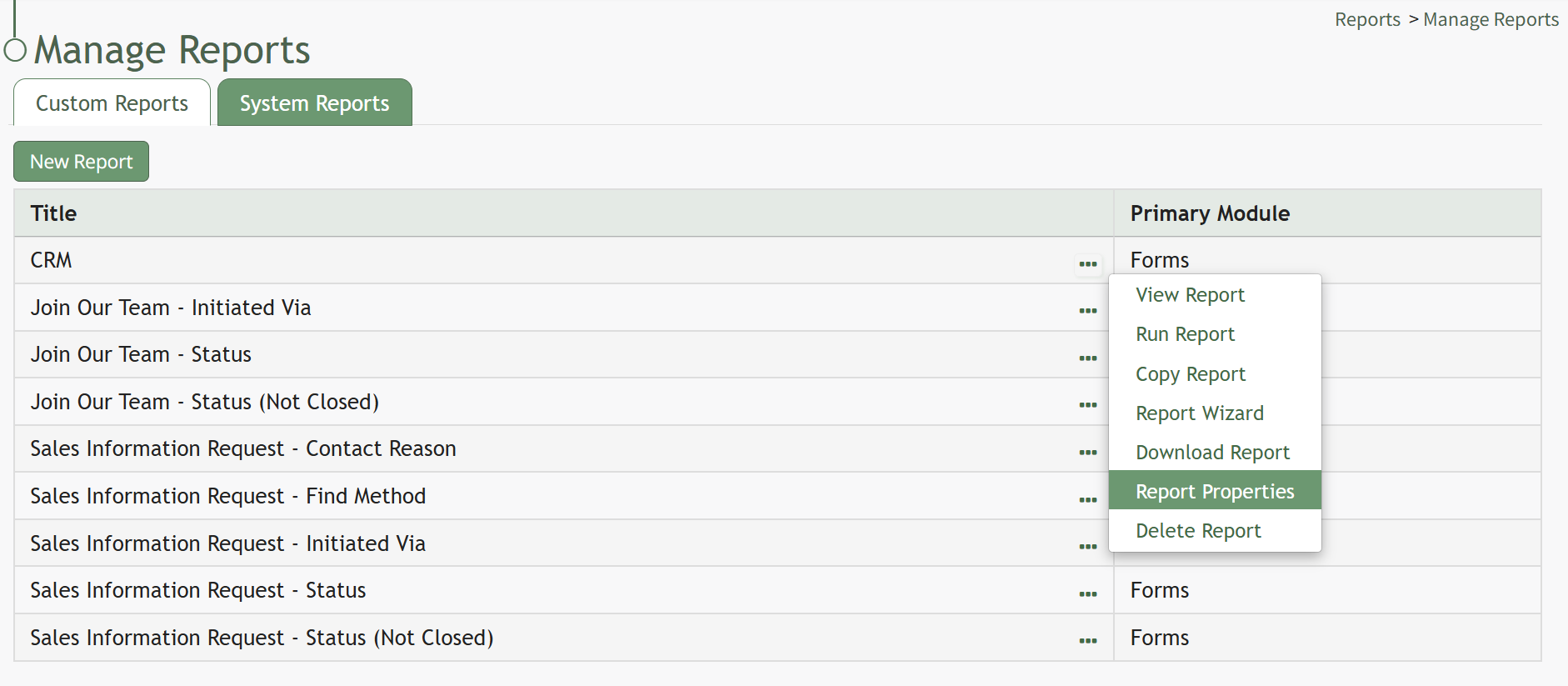
Select “Report Properties” opening the Report Properties Modal.
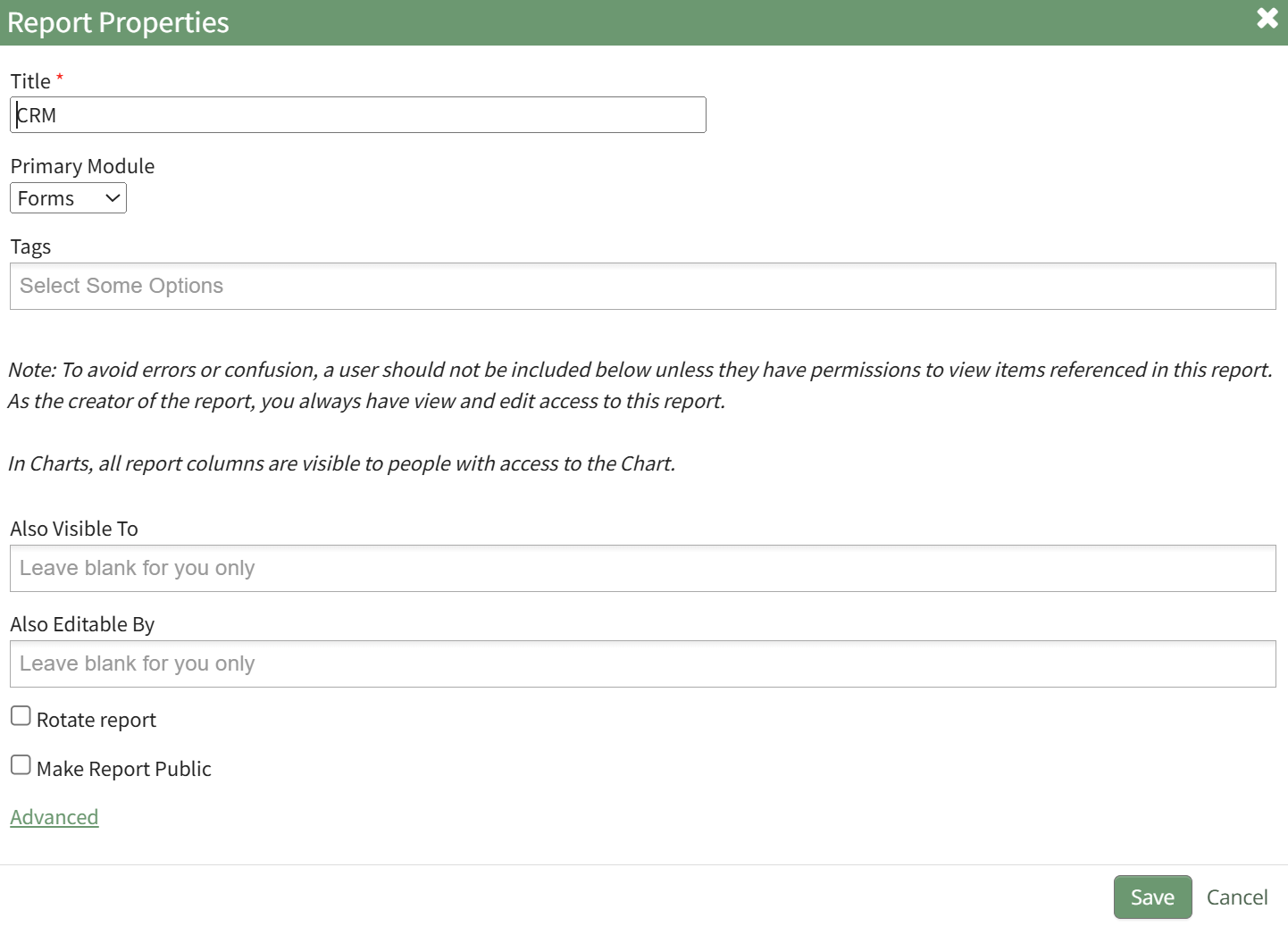
Refer to the New Report Modal Comments Table for an explanation of Edit Report Modal inputs.
New Report Modal Comments | ||
Input | Comments | |
Title | Input a title for the new report (a required field). | |
Primary Module | Select the primary module from a dropdown menu with the following options: Assets, Dispatch, Forms, Meetings, and People. | |
Tags | Select open, restrictive, or permissive tags as desired. | |
Also Visible To | A dropdown menu includes the options: People I Supervise, All Eligible Accounts, Certification Roles and Individual People. | To avoid errors or confusion, a user should not be included below unless they have permissions to view items referenced in this report. |
Also Editable By | ||
Rotate Report Checkbox | When the Rotate Report Checkbox is selected, the information in the rows of the first column become the column headers. (The x and y axis are switched.) | |
Make Report Public Checkbox | When the Make Report Public Checkbox is selected, the modal expands to include a textbox for the Link Path. The URL for the report will be https://[subdomainname].kastrack.com/reports/view-report[LinkPath} | |
Advanced Options | ||
Report SQL | Clicking the “Advanced” link opens a Report SQL textbox, an input area for writing SQL queries that can define the data the report will show. | |
Select the “Save” button after making your desired changes and you’ll return to the Custom Reports Table.
How To: Import KAStrack Report Data into Microsoft's Power BI
To import KAStrack report data into Microsoft’s Power BI, go to the specific report page you wish to pull relevant information from.

Select the external link icon opening the External Connection Modal that gives detailed instructions for the process.

How To: Include Dynamic Restrictions on a Custom Report
To include dynamic restrictions on a date field in a custom report, go to the Custom Report Tab on the Manage Reports Page and select the three-dot icon next to the report title opening the context menu.
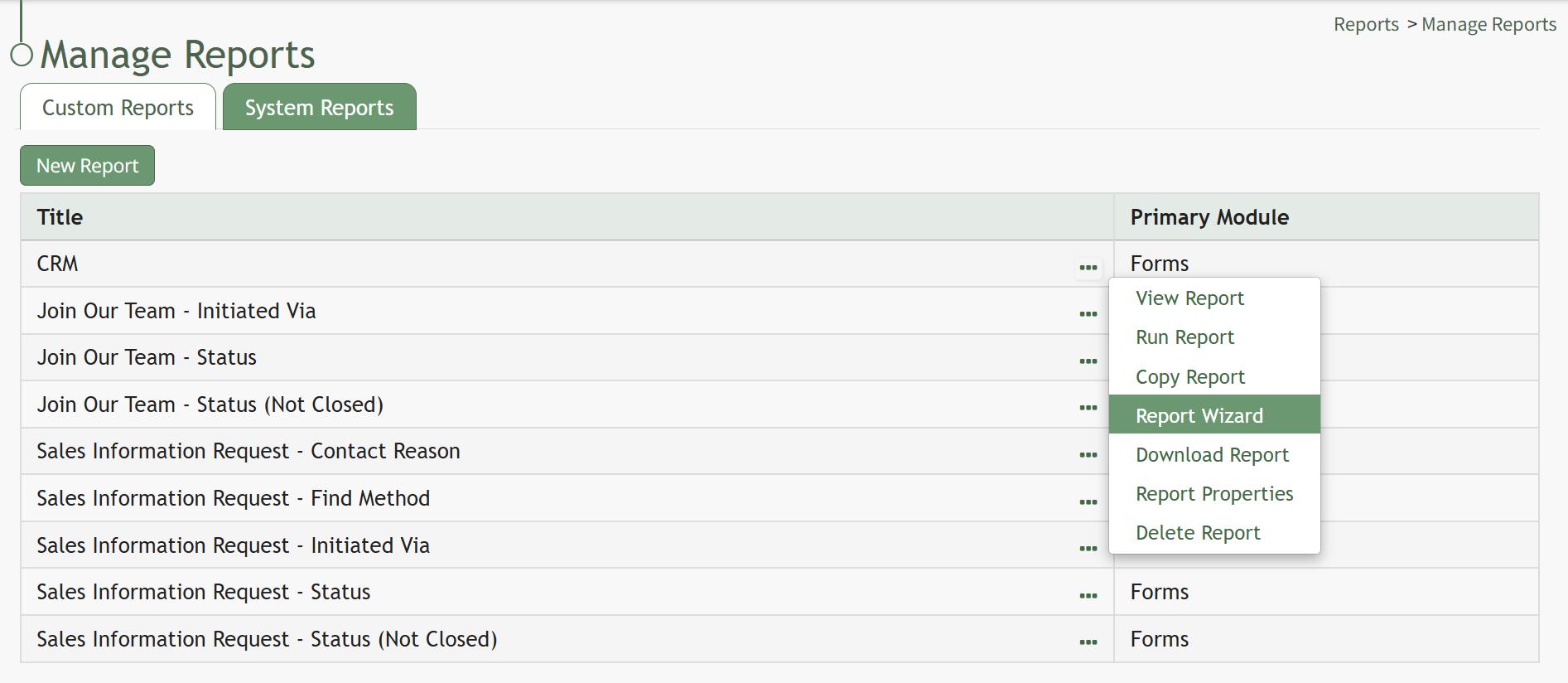
Select “Report Wizard” and open the Restrictions Tab on the Report Wizard Page. Select the plus “+” icon to open the New Restriction Modal.

Select the column for the date-related field you would like to add dynamic restrictions to from the dropdown menu options provided. Select “Save” on the modal.

The dynamic restriction field now shows on the Restrictions Tab. Select the “Save Tab” to save the dynamic restriction. When you run the report, the dynamic restrictions will now show and allow for additional filtering of the chosen date-related column.

How To: Run a Report
To run a report, go to the Home Page of the Reports Module.
Click the name of the report you wish to run.
No comments to display
No comments to display