Users Page
The Users pagePage is not visible on the Main Menu to employees or observer accounts.
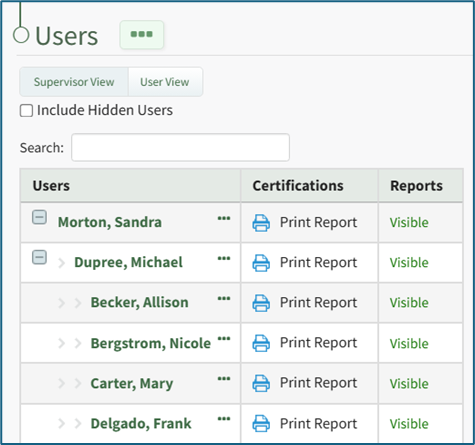
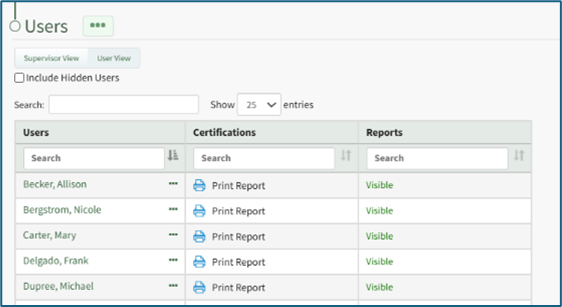
The Users Page in the People Module functions as the module homepage, allowing the review of certifications for any user. The table has two views for display, a Supervisor View and a User View, which can be selected by the buttons beneath the Users page header. The Supervisor View shows the organization’s hierarchal structure, indenting the users’ names beneath each level of management. The User View will list users alphabetically by their last name.
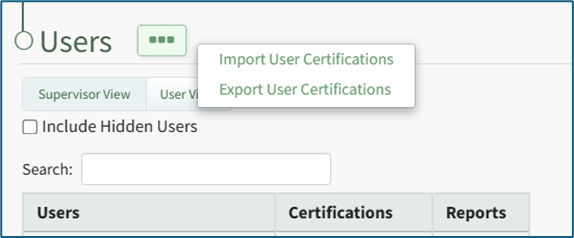
Selecting the three-dot icon to the right of the Users header opens the User Page Context Menu. An explanation of each of the context menu options have been included in the table below.
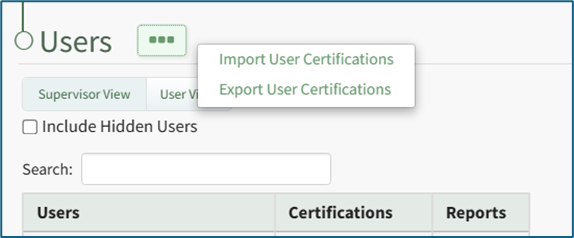
Users Page Context Menu Option Explanations | |
Option | Explanation |
Import User Certifications | Selecting Import User Certifications from the User Page Context Menu opens the Import User Certifications Page, which provides a downloadable template with current user certifications for convenience. WIKI LINK HOW TO IMPORT USER CERTIFICATIONS |
Export User Certifications | Selecting Export User Certifications from the User Page Context Menu opens the Export User Certifications Confirmation Modal where you can select to download all user certification completion and expiration data. WIKI LINK HOW TO EXPORT USER CERTIFICATIONS |
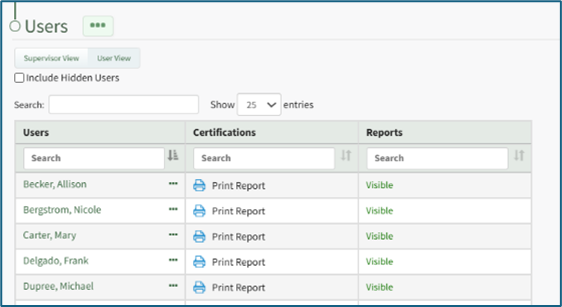
You can use the search box above the table to search across all columns, or in the search box above each column for column-specific filtering. Clicking the icon to the right of the column-specific search box changes the table to sort by that column. Clicking it multiple times can change the sort order between ascending and descending. You can also change the number of users shown in the table by clicking the dropdown next to the table search box, in between “Show [value] Entries”. If not all entries are shown in the table, you can control which page of the table you see using the pagination controls beneath the table.

Selecting the Include Hidden Users checkbox will show any individuals designated as a hidden user in the Users Table; however, their user certification report is not visible in the Reports Column of the user table (their status is shown as hidden).

Selecting the three-dot icon to the right of a user's name in the Users Table opens the Users Table Context Menu. The options available on the User Table Context Menu are explained in the table below.
Users Table Context Menu Option Explanations | |
Option | Explanation |
| Selecting |
Edit Account Info | Selecting Edit Account Info from the Users Table Context Menu opens the Edit Account Info Page in the Accounts Module where the individual's account information can be edited. WIKI LINK HOW TO |
(User | Selecting |
User Report | Selecting User Report from the Users Table Context Menu opens an individual user's Role and Certifications Report. WIKI LINK HOW TO VIEW A USER'S ROLES AND CERTIFICATIONS REPORT |
Hide from Report | Selecting Hide from Report on the Users Table Context Menu changes an individual's certification report status to hidden. The individual will only be visible when the "Include Hidden Users" checkbox has been selected. WIKI LINK HOW TO MAKE AN INDIVIDUAL A HIDDEN USER ON THE USERS TABLE |
Show in Reports | This option is only visible on the context menu of a hidden user. Selecting Show in Reports on the Users Table Context Menu reverts a hidden user back to a visible user. WIKI LINK HOW TO MAKE A HIDDEN USER A VISIBLE USER ON THE USERS TABLE |
Reset QR Code | Selecting Reset QR Code on the Users Table Context Menu opens the Reset QR Code Confirmation Modal |
The icons used in the Users Table have been explained in the Users Page Icon Explanations Table below.
Users Page Icon Explanations | |
Icon | Explanation |
|
|
|
|
|
|
| Clicking the icon to the right of the column-specific search box changes the table to sort by that column. Clicking it multiple times can change the sort order between ascending and descending. |