
Submissions Page
Selecting Submissions in the People Module on the Main Menu opens the Submissions Page. The Submissions Page in the People Module allows a supervisor to review an employee or user’s submitted certification, to upload attachments associated with certifications, and submit certifications in bulk.
The Submissions Page is comprised of three tabs, Pending Approvals, Attachment Inbox and Batch Submit Certifications. An explanation of each tab is included below.
The Pending Approvals Tab
The Pending Approvals Tab displays all user certifications and competency certificates that have been submitted and are awaiting approval. The Date/Time Submitted, Certification, Completion and Expiration Date, and Attachments are included in the Submitted Certifications Table. The Action column has an Approve and Decline button.
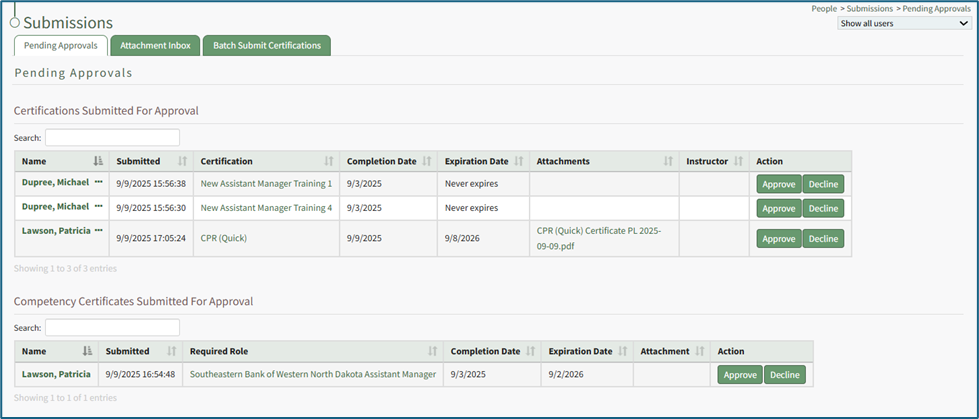
Selecting the three-dot icon to the right of the user’s name in the Certifications Submitted for Approval Table opens the Pending Approvals Context Menu. The options on that context menu are explained in the table below.
Pending Approvals Context Menu Option Explanation | |
Tab | Explanation |
View Certifications | Selecting View Certifications from the Pending Approvals Context Menu opens the User Certifications Tab on that user's Certifications Details Page. |
Approve | Selecting Approve from the Pending Approvals Context Menu automatically approves the pending certification. A blue text box confirms which Certification was just approved. The Approve option on the context menu initiates the same action as the Approve button in the Action column of the table. How To: Approve a Submitted Certification Pending Approval
|
Decline | Selecting Decline from the Pending Approvals Context Menu opens the Decline Submitted Certification Modal, where a unique message can be input and included in the email notification that will be sent to the certified user. The Decline option on the context menu initiates the same action as the Decline button in the Action Column of the table. How To: Decline a Submitted Certification Pending Approval
|
Edit | Selecting Edit from the Pending Approvals Context Menu opens the Edit Certification Page for the specified user. The date the certification was completed, the date the certification expires, and attachments and URL links can be included. The changes to the certifications can be saved and the certification approved directly on this page. Comments can also be included on the submitted certification. How To: Edit a User's Certifications Completion/Expiration Dates
How To: Attach a File or Link to a User's Certification
How To: Add / Edit / Delete Comments to a User's Submitted Certification
|
Delete | Selecting Delete from the Pending Approvals Context Menu opens the Certification Deletion Confirmation Modal, requiring confirmation before deleting the submitted certification.
When a submitted certification is deleted, the submission is removed from the system and cannot be undone. No notifications will be sent to the associated user. How To: Delete a Certification that is Pending Approval{{@870}} |
There is a separate table for Competency Certificates that have been submitted for approval. There is no context menu for submitted competency certificates. The date/time the competency certificate was submitted, the required certification role the competency is associated with, completion and expiration dates, as well as attachments are displayed on the table. The Action column has buttons to Approve or Decline the Competency.
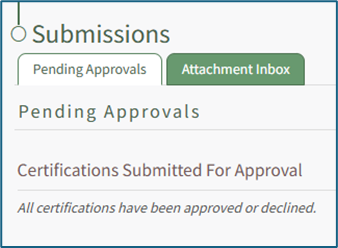
If there are no submitted certifications/competency certificates waiting for approval, you will see “All certifications have been approved or declined” in place of the Certifications/Competency Certificates Submitted for Approval Table.
The Attachment Inbox Tab
The Attachment Inbox Tab allows a supervisor to upload documents in bulk that are to be utilized for user certifications.
The Attachment Inbox includes a Preview Window that allows a user to view supported files on the left side of the page. The “Expand Preview” button opens the View Document Modal. Files uploaded to the Attachment Inbox tool can be seen below the Preview Window in the File Viewer table.
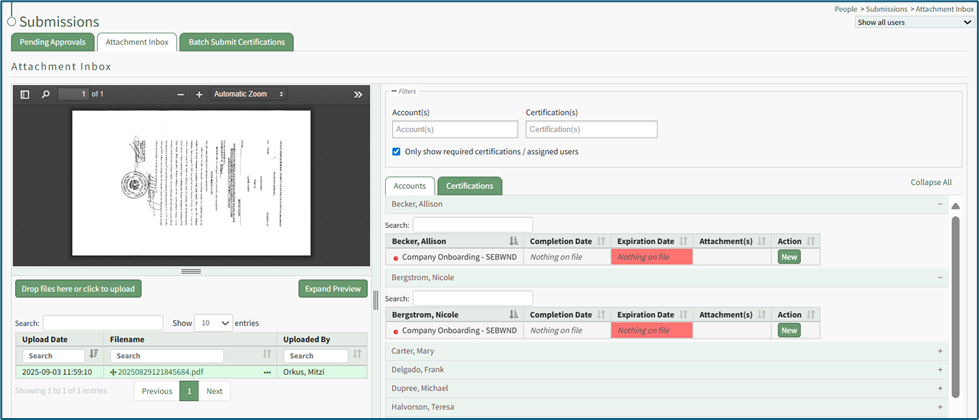
A filter box to the right of the Preview Window allows a user to search by account or certifications. By default, the Accounts/Certifications table is filtered to “Only show required certifications / assigned users”. If instead you’d like to see all available accounts / certifications, regardless of whether a user is assigned the Certification, deselect this checkbox.
Below the filter is a table that contains a listing of all Accounts and Certifications. Clicking on either the Accounts or Certifications Tabs can be used to show available options. Both views allow listings to be expanded to show completion dates, expiration dates, and unique file associated with each user / certification.
Below the Preview Window is a Resize Bar that can be dragged up / down to adjust the vertical size of the Preview Window. In between the two sides of the Attachment Inbox page is a Resize Bar that can be dragged left / right to give more horizontal space to either the Preview Window and File Viewer table, or the Filters and Accounts/Certifications table.WIKI
How HOWTo: TOUse UPLOADAttachment FILESInbox ANDto ADDUpload THEMa TOFile CERTIFICATIONSand INAttach THEit ATTACHMENTto INBOXa Certification
{{@442}}
Any file type can be imported, but previews are only supported for specific filetypes. If a preview cannot be shown for a filetype, a button to download the file will be shown in the Preview Window.
The Batch Submit Certifications Tab
The Batch Submit Certifications tab allows a supervisor to select a certification from a dropdown menu and bulk submit it to certify a group of users simultaneously.
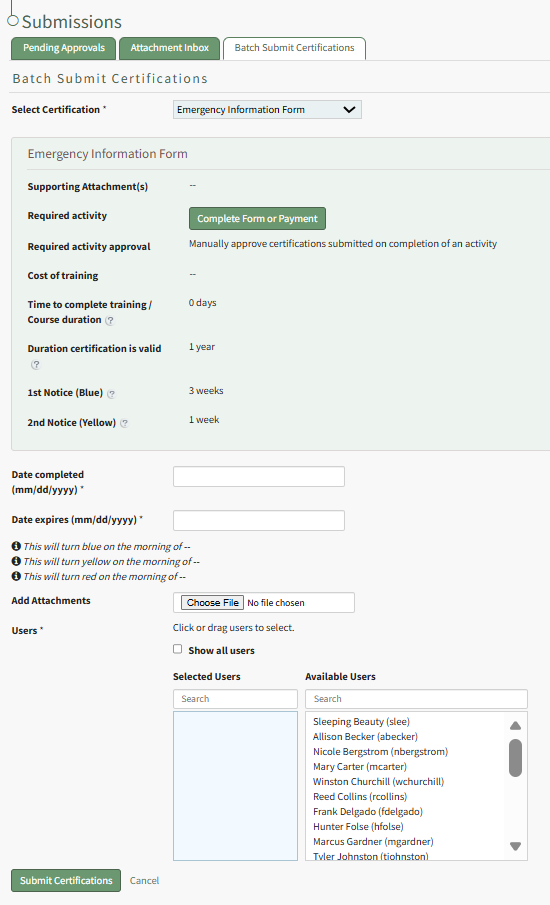
This function is useful when a large number of employees completed a training class and have the same certification validation. WIKI
How HOWTo: TOBatch BATCHSubmit SUBMITCertifications CERTIFICATIONSin IN BULKBulk
{{@417}}