
Settings Page: Module Settings and Module Levels Tabs
Module Settings Tab
The Module Settings Tab on the Settings Page of the People Module allows the user to customize KAStrack settings for certifications and attachments. It is subdivided into two sections: “Notification Settings” and “Attachment Naming.”
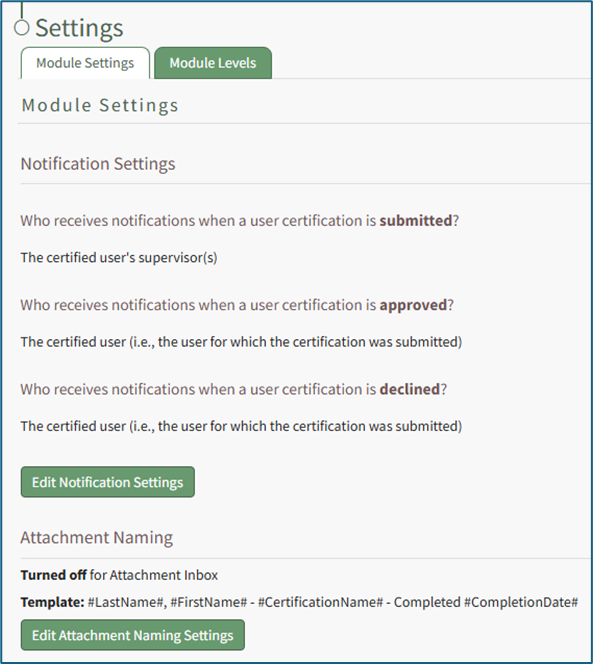
The “Notification Settings” section displays default selections for who will receive notifications under different scenarios/conditions. KAStrack has three default system notifications settings. The system will notify the certified user’s direct supervisor when a user certification is submitted, it will notify the certified user when a user certification is approved and it will notify the certified user when a user certification is declined.
These settings can be edited by selecting the green “Edit Notification Settings” button at the bottom of the section. WIKI
How HOWTo: TOEdit EDITNotification NOTIFICATION SETTINGSSettings
{{@431}}
The “Attachment Naming” section allows the user to customize how attachments are named. This can be useful when batch uploading files with file names that don’t adequately indicate what the document is / relates to.
When this feature is turned on, KAStrack will require that every uploaded attachment be named according to the designated template within this module for organizational purposes.
The default template for Attachment Naming Settings is Last Name, First Name, Certification Name – Completed, Completion Date, however this can be customized to your organization's preferences.WIKI
How HOWTo: TOEdit EDITAttachment ATTACHMENTNaming NAMINGSettings SETTINGSfor the People Module
{{@428}}
Module Levels Tab
The Module Levels Tab on the Settings Page of the People Module displays the different Module Levels for the People Module. Selecting “View” opens a new page that shows the default permissions granted to each module level.
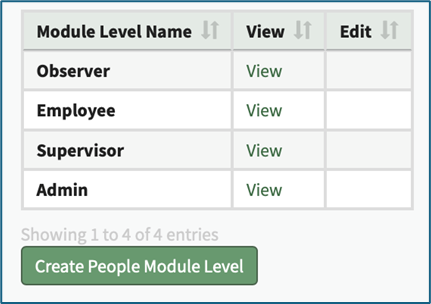
There are four base Module Levels with default permissions in the Assets Module that cannot be altered by the user. The permissions assigned to each default module level have been included in the People Module - Module Level Permissions Table below.
People Module - Module Level Permissions Table | |
Module Level | Permissions |
Observer | Can create, delete and share reports; can view associated roles and users for certifications, can view all certification roles; can view all assessments |
Employee | Can submit certifications, can submit competency certificates, include users with this level on reports, can view all assessments |
Supervisor | Can submit certifications; Can edit/delete my comments on a user certification that has been approved; Can submit competency certificates; can submit and delete assessments; can approve and delete certifications; can approve and delete competency certificates; include users with this level on reports; can create, delete, and share reports; can submit certifications; can submit competency certificates; can approve and delete competency certificates; can edit user tags; can assign user to certification roles; can manage report visibility; can view associated roles and users for certifications; can edit certification info; can create or delete certifications; can view all certification roles; can edit certification roles; can create and delete certification roles; can view all assessments |
Admin | Can submit certifications; Can edit/delete my comments on a user certification that has been approved; Can submit competency certificates; can submit and delete assessments; can approve and delete certifications; can approve and delete competency certificates; can create, delete, and share reports; can submit certifications; can submit competency certificates; can approve and delete competency certificates; can edit user tags; can assign user to certification roles; can manage report visibility; can edit training courses; can edit notification settings; can view associated roles and users for certifications; can edit certification info; can create or delete certifications; can batch submit for any accessible certification; can view all certification roles; can edit certification roles; can create and delete certification roles; can view all assessments; can edit assessments; can create and delete assessments |
If a module level permission is included with the associated module level, it displays in black font with a check mark to the left of the permission. If the permission is not included, it displays in gray font with a line strikethrough and no check mark.

If the Reports permission “Include users with this level on reports” is given, then users assigned this permission will appear in the matrix, on e-mail reports, and in shared reports. If the Reports permission “Can create, delete, and share reports” is given, the permission includes supervisor and shared reports.
New Module Levels with customized permissions can be created to suit your organization's need. WIKI
How HOWTo: TOCreate CREATEa ANew NEWModule MODULE LEVELLevel (PEOPLEPeople MODULE)Module)
{{@421}}