
Sign Out Other Individuals (In Bulk)
To sign out multiple other individuals at one time, open the attendance log you wish to sign individuals out of by going to the Home Page of the Attendance Module and clicking the three-dot icon to the right of the attendance log’s name, opening the context menu.
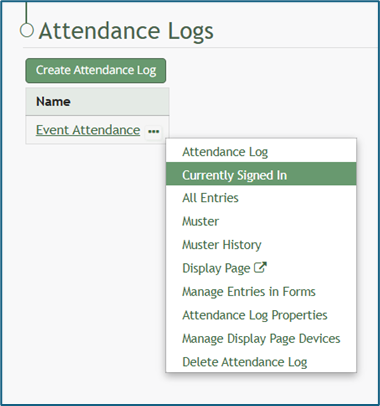
Select “Currently Signed In” opening the Currently Signed In Page.
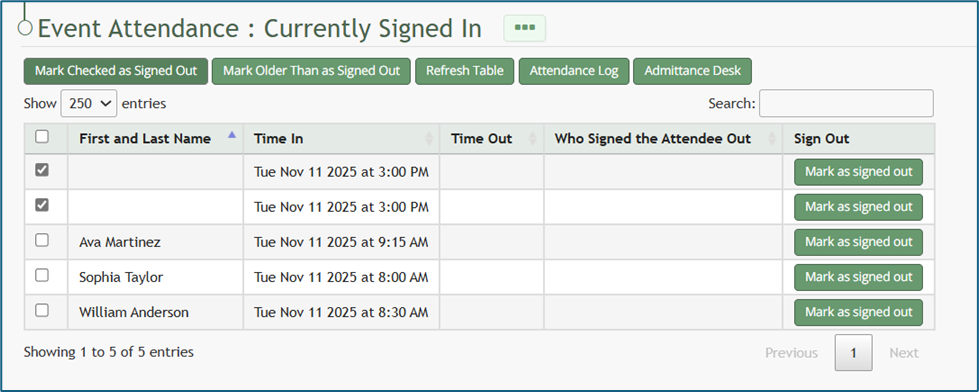
First, select checkboxes on the left-hand column to select the individuals that you wish to sign out.
Selecting the checkbox in the top row will select all entries.
After selecting individuals to be signed out, click the “Marked Checked as Signed Out” button.
The individuals selected will no longer show on the Currently Signed In Page.