
Reset the Hit Count on a QR Code
To reset the hit count for a specific QR Code, open the QR Code page of the Communications Module from the Main Menu.
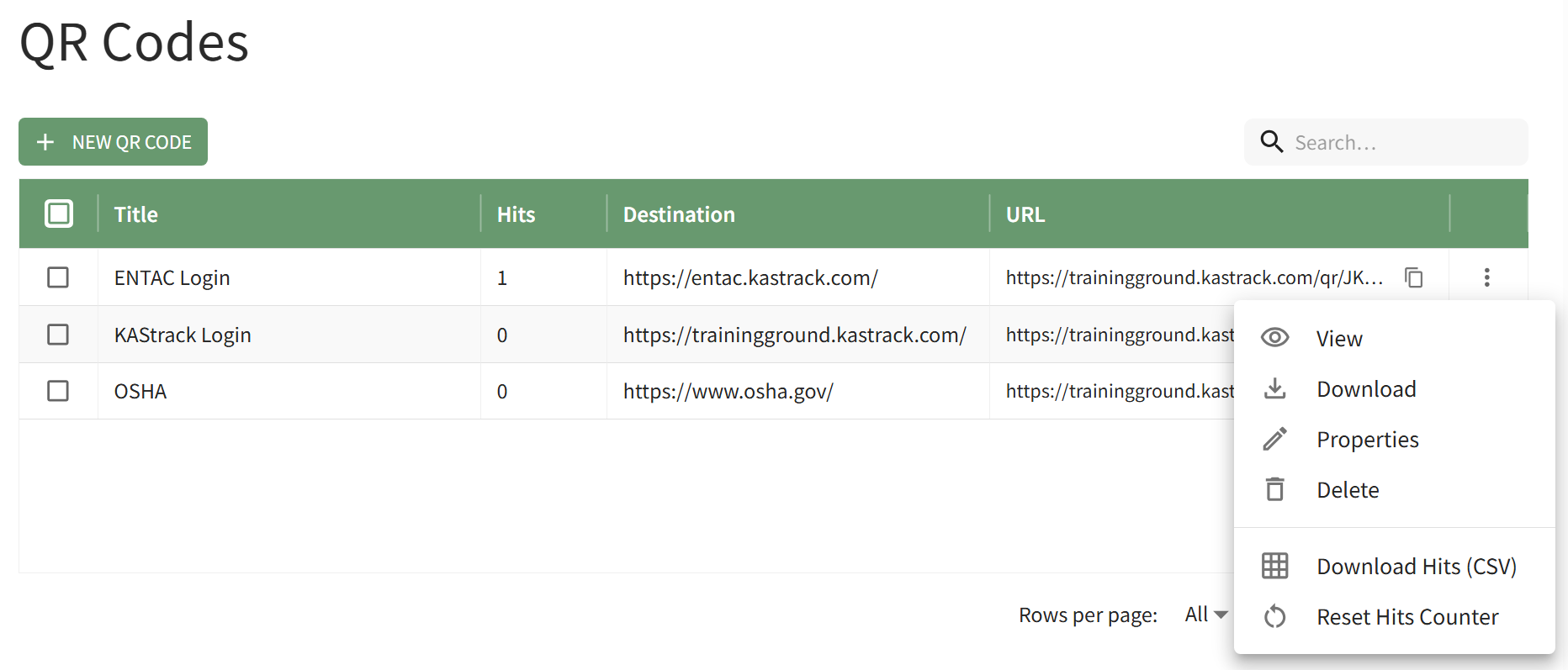
Click onthe vertical three-dot icon to the integerfar inright of the Hitsspecific ColumnQR ofCode you wish to view, opening the QR Code whoseTable countContext youMenu. wish to reset.
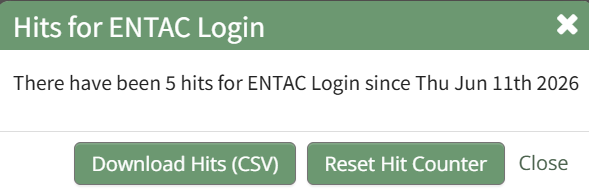
This opensSelect the HItsReset ForHits QRCounter Codeoption, Modal, which statesopening the number of hits and the data that the QR Code was last used. Click the "Reset HitHits Counter" button on the modal, opening a ResetCounter Confirmation Modal.
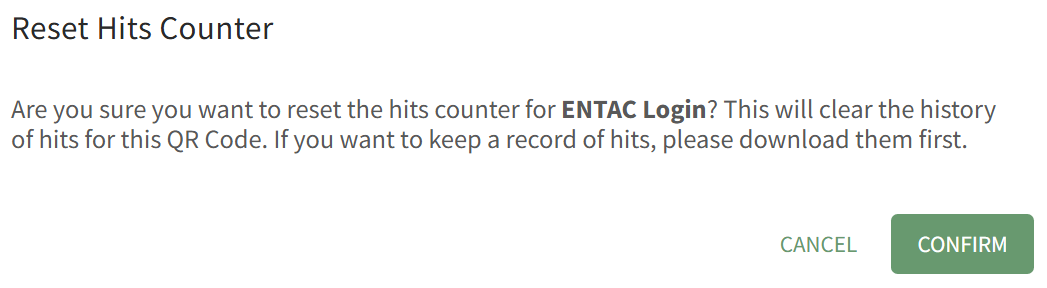
The modal states, "Are you sure you want to reset the hits counter for [QR CODE TITLE]? This will clear the history of hits for this QR Code. If you want to keep a record of hits, please download them first."
How To: Download QR Code Hits Data in a CSV File
{{@929}}
The modal states, "Are you sure you want to reset the hit counter? This will clear the history of hits for this QR Code. If you want to keep a record of hits, please download them first." Click the "Confirm" button.

A pop-up modal at the bottom of the page confirms that the counter has been reset.

The Hits forcolumn QRwill Codealso Modalshow shows that the count is 0 and states the reset date.0.