
Enable the Admittance Desk Page
To edit the Display Page for an Attendance Log, open the attendance log you’ve enabled the Display Page feature in by going to the Home Page of the Attendance Module and clicking the three-dot icon to the right of the attendance log title, opening the context menu.
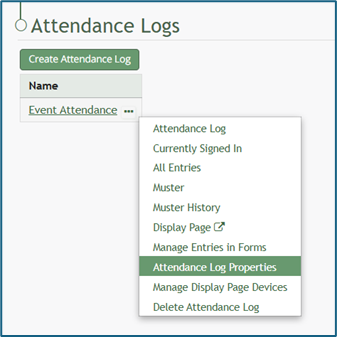
Select “Attendance Log Properties” from the context menu, opening the Edit Attendance Log Modal.
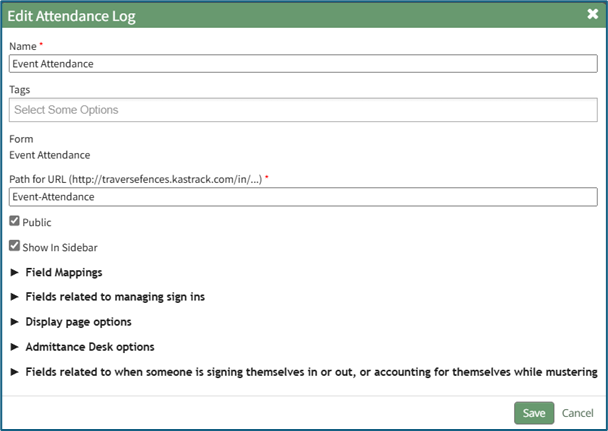
Click the arrow to the left of “Display Page Options” to expand the section. The Display Page Option Section impacts the design and layout of the Display Page shown below. The Display Page Option Section Explanations Table shown beneath the example of the Display Page gives details for each of the editable fields.
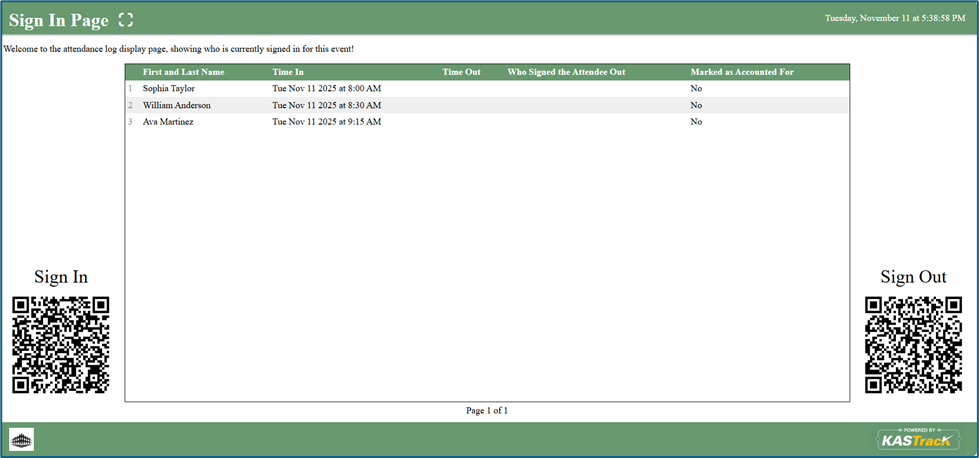
Display Page Option Section Explanations | |||
Field | Comments | ||
Title for the Display Page | You can give the display page a title different that is different from the name of the attendance log. The Display Page Title will show in the top left-hand corner of the Display Page. | ||
Text for the Display Page | The text for the Display Page is seen immediately beneath the page header. You can customize this text or leave it blank. | ||
Field(s) to Include on the Display Page | Select the fields you want to be visible on the Display Page. All fields included on the Attendance Log Form will show as Display Page field options. | ||
Font Size (em) | Font size is automatically set a 1em. Input the desired font size. An em is a unit in the field of typography, equal to the currently specified point size that corresponds to the body height of the typeface. | ||
Field Widths (pixels) | Leave this blank for auto widths, or specify one width per column, separated by spaces. Use ‘auto’ to use auto width for a column. (For example, if there are three columns then ‘auto 100 100’ will set the column width for the last two columns to 100px, and auto-size the first column). | ||
On the Display Page, Show... | There are two selections provided via drop-down menu for who shows on the display page: “People who are currently signed in” OR “People Who Have Signed In Today” | ||
Scroll Rate (seconds) | The scroll rate is automatically set to 30 seconds. If your screen only shows 25 entries at a time, scroll rate dictates how long the screen will show those 25 entries before scrolling to the next 25 entries. | ||
Include the Sign In QR Code Checkbox | Selecting this checkbox will result in the Sign In QR Code being displayed on the Display Page. | ||
Include the Sign Out QR Code Checkbox | Selecting this checkbox will result in the Sign Out QR Code being displayed on the Display Page. | ||
Use Muster Display When Mustering | Selecting this checkbox will result in the Mustering Display Page being shown as opposed to the regular Display Page when in Muster mode. When selected, it expands to show additional fields. | ||
Fields | Comments | ||
Muster Mode | There are two options for this drop-down menu. The first option is “Show not accounted for people and stats”, which will show information about individuals who have not accounted for themselves or have not been marked as accounted for. The second option is “Only show QR Code”, which will display the muster mode QR Code instead. | ||
Fields to Include on the display page when mustering | Select the fields you would like to be visible on the Mustering Display Page. All fields included on the attendance log form will show as options. | ||
Include the muster QR code | Selecting this checkbox will show the Muster QR Code on the Muster Display Page. | ||
Show Accounted For List | Selecting this checkbox results in the Accounted For List showing on the Muster Display Page. It expands when selected with additional options. | ||
Fields | Comments | ||
Pattern for the Accounted for List | You can use the pattern field to reference your form fields in the Accounted For List. Input the fields you would like displayed in order. Example: #FieldName1# #FieldName2# | ||
Accounted for List Font Size (em) | The font size for the accounted for list is set at 1em but can be altered. | ||
Accounted for List Pagination Speed (seconds) | The pagination speed of the accounted for list is set at 30 seconds but can be altered. | ||
Sort By Field | Select which field you would like the Muster Display Page to use for sorting. | ||
QR Code Size (pixels) | The QR Code size is set for 200 pixels but can be altered. | ||