
Edit the Columns on the Muster History Page
To edit the columns that show on the Muster History Table, open the attendance log you want to make changes in. You can access an attendance log on the Main Menu (if selected to be shown there) or from the Home Page of the Attendance Module. WIKI LINK HOW TO: SHOW THE ATTENDANCE LOG ON THE MAIN MENU
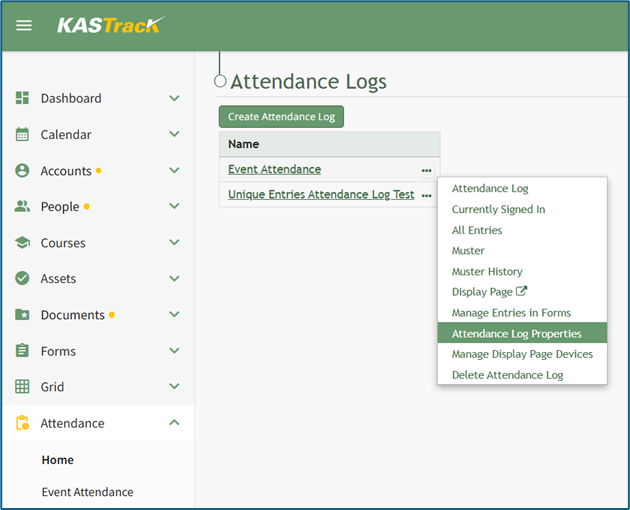
From the Home Page: By going to the Attendance Module Home Page, all available attendance logs will be visible in the table, with a three-dot icon to the right of the attendance log’s name.
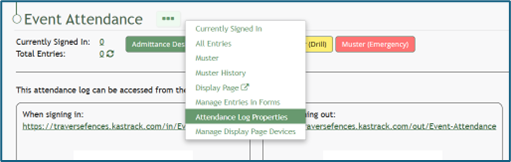
Click on the three-dot icon to the right of the attendance log’s name, which opens the context menu. Then, select “Attendance Log Properties.”
This opens the Edit Attendance Log Modal. The columns visible on the Muster History Table can be edited in the section titled Fields Related to Managing Sign Ins.
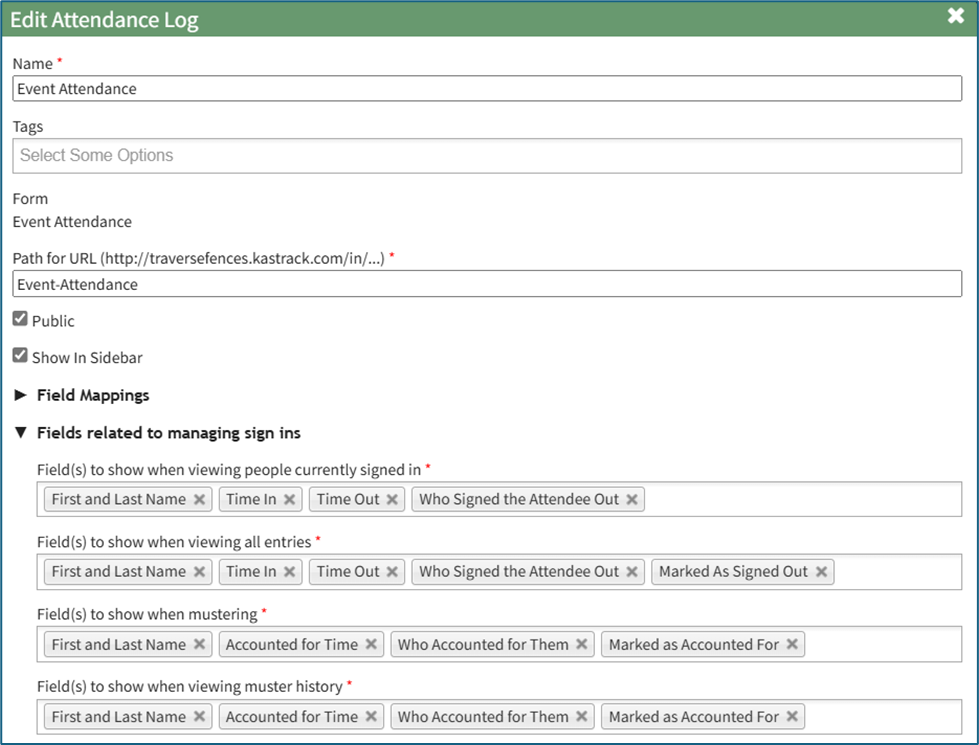
Add and remove fields as desired in the field named “Field(s) to show when viewing muster history”. The order of the fields here corresponds to the order of the columns in the Muster History Table.

Select “Save” at the bottom of the Edit Attendance Log Modal and your edits will now show on all of your attendance log’s Muster History Pages.