
Create a New Course
SelectTo “Home”create undera new course, open the Courses headingModule onHome Page from the Main Menu,Menu.
The takesCourses Module is for the creation and management of courses only. For a user to theaccess Managea Coursescourse, Page.create Coursesa will be listed alphabetically by titleCertification in the table.People Module with a required activity set to "Course - KAStrack".
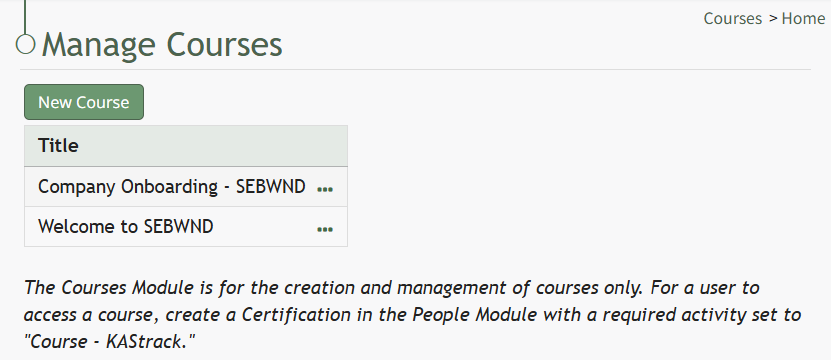
SelectClick the green “New Course” button underneathbeneath the Manage Courses header to create a new course, opening the New Course modal.
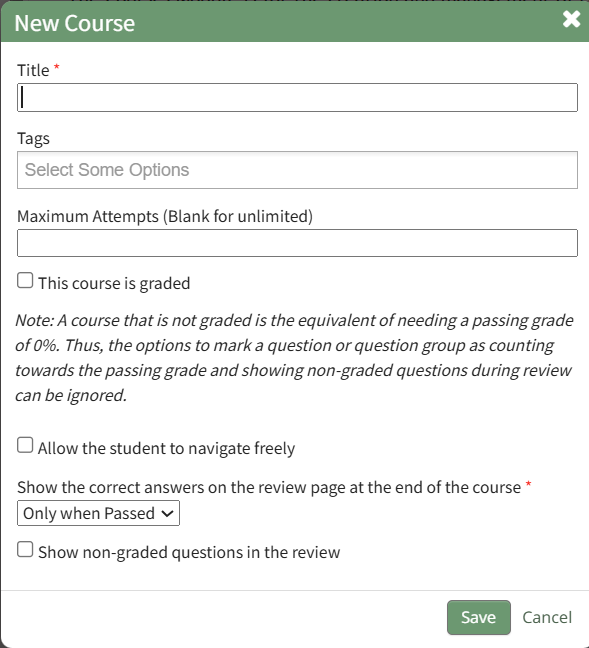
Input the desired course title.
Input the maximum number of timesattempts aan userindividual can take the course. Leave this field blank to allow for unlimited attempts.
A course that is not graded is the equivalent of needing a passing grade of 0%. Thus, options to mark a question or question group as counting towards the passing grade and showing non-graded questions during review can be ignored.
If thisthe new course is beingto be graded, indicateselect the value"This course is graded" checkbox. The modal will expand requiring you to input a grade that will bequalify consideredas passing here.the course.
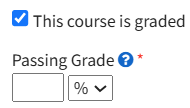
A passing grade can be calculated as athe percentage (%) or an absolute number (#) of correctly answered questions.eligible questions or question groups. Each question/question group has its own passing gradegrade, and can be set to be part of the total passing grade. (Ex: 70% or 7/10)
If the course is not being graded, input 0 for the passing grade.
Select the “Allow the student to navigate freely” checkbox to give permission to navigate the entire course freelyfreely. (allowing
If you do not select this checkbox, you will have the ability to skipcustomize aheadnavigation options on each individual page in the course).course.
The course creator can customize review options for the users.review page after course completion. Select “Only When Passed,” “Always,” or “Never” from the drop-down list to indicate your preference.
Selecting the “Show non-graded questions in the review” checkbox will include any non-graded questions in the post testposttest review.
Click “Save” at the bottom of the modal to create the new course. The new course is now added to the table on the Course homepage.