
Create a New Action
To create a new action, go to the Actions Module Actions Home Page hover your cursor over the page icon opening the home page context menu.
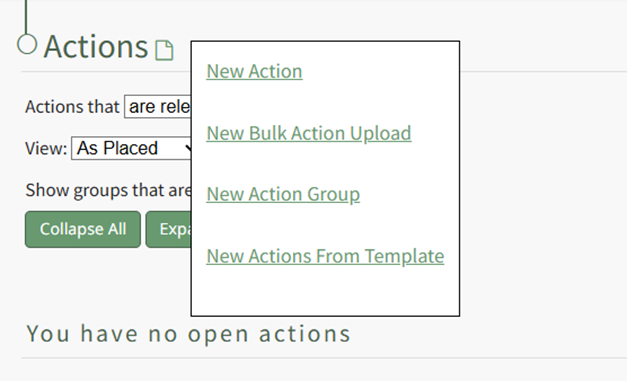
Select “New Action” opening the New Action Modal.
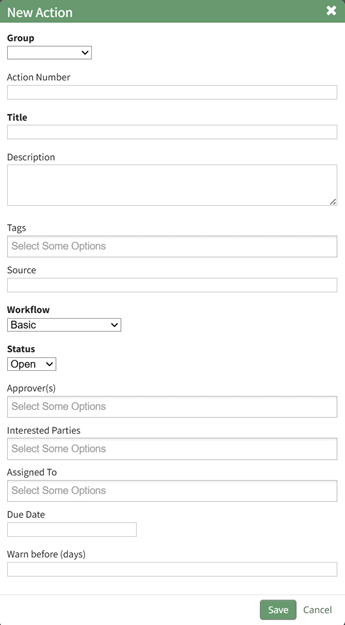
The fields in the New Action Modal are explained in the table below.
New Action Modal Field Explanations | |
Field | Explanation |
Group | Input the Title of the Action Group this action should be associated with. If the Action Group the action is to be associated with has already been created, it will be available on the Group dropdown menu. If the action group has not been created, see notes on how to add one below. |
Action Number | Action Numbers are used to differentiate each task in a chronological order. Actions within the same Action Group cannot have the same Action Number. You can leave the field blank. You can also input text if you wish to use the alphabet as way to categorize actions. |
Title | Input the title of the action. |
Description | Input the description for the action. |
Tags | Open, Permissive, and Restrictive Tags can be applied to individual actions. |
Source | The Source field is intended to serve as an input for the source of the action. Source is a free text field, allowing you to input any desired response. Customer, Internal Request, a user’s name, role or department are all examples of potential Source field categories. |
Due Date | Input the date the action must be completed by. Relevant due dates cannot be imported. That feature is specific to Action Group Templates. |
Workflow | Select a default workflow (basic, basic with approval, complex) or a customized workflow specific to your organization. How |
Status | The status of the action is based on the workflow selected. Basic with Approval: Open, Pending Approval, Closed Actions can be imported into an active status and not just the first phase of the workflow. |
Action Approvers | Input the users (by username or First Last Name) that can approve an action. Action Approvers cannot be assigned to roles or access levels. Multiple users can be designated as an action approver. Use a semicolon to separate individuals assigned to an action. |
Interested Parties | Input the users (by username or First Last Name) or Certification Roles that are identified as Interested Parties. Multiple users or roles can be designated as an Identified Party. Use a semicolon to separate users/roles. |
Assigned To | Input the users (by username or First Last Name) that an action is assigned to. Actions cannot be assigned to roles or access levels. An Action can be assigned to multiple people. Use a semicolon to separate individuals assigned to an action. |
Due Date | Input the date the action must be completed by. |
Warn Before (Days) | Input a numerical value for the number of days ahead of the due date you want users to get a system email alert reminder of the outstanding action (converting from blue to yellow status). |
Action Response | The information input into the Action Response field will add a comment to the action task when imported, prefaced with “The following response was imported.” |
If the action group the action is to be associated with has not been created, select “New Group…” from the Group dropdown menu
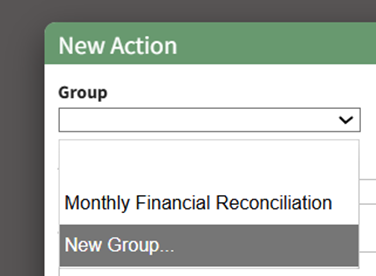
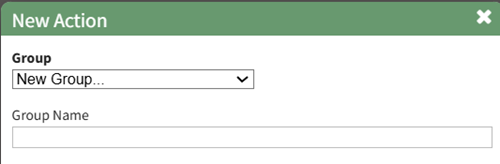
The expands the New Action Modal, allowing you to input the New Group Name.
After inputting all relevant information for the new action, select save. A green confirmation modal will appear, confirming the new action.
The action will only appear on the Actions Page if it applies to the currently applied filter.
The newly created action group can be edited to customize the action group preferences, or additional actions can be added.
How To: Edit An Action Group
WIKI{{@609}}
How HOWTo: TOImport EDITBulk AN ACTION GROUPActions
{{@601}}
WIKI LINK HOW TO IMPORT BULK ACTIONS