
Add a Section to a Course
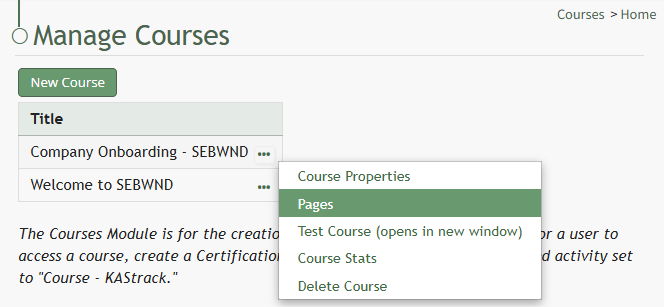
To add a new section to a course, open the Courses Module Home Page from the Main Menu. Click the three-dot icon to the right of the right of the course whose Details Page wish to access, opening the Manage Courses Context Menu. Select "Pages".
This opens the course's Details Page. Click the three-dot icon to the right of the course title.
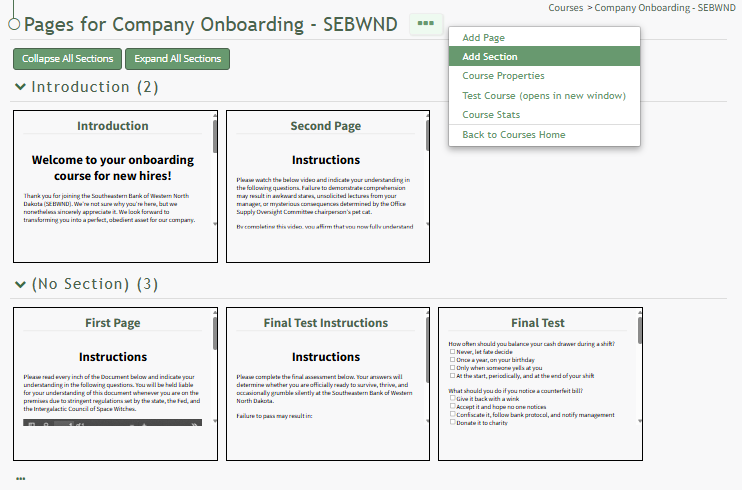
This opens the Course Context Menu. Select the option to "Add Section" opening the Add Section Modal.
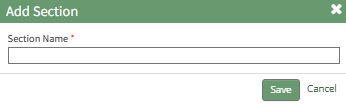
Input the new section name into the modal and click the "Save" button.
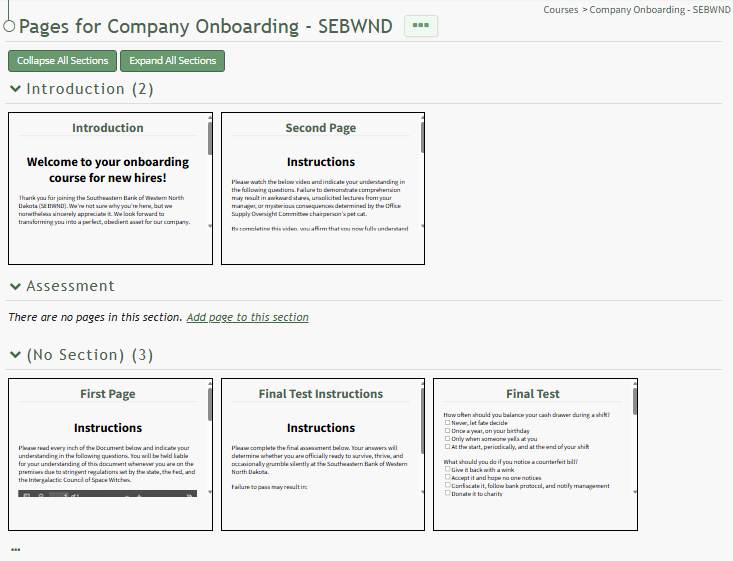
The newly created section is now visible on the Course's Details Page.