Home Page
The Inventory Module Home Page is where all inventories in KAStrack are created, housed and managed. The Home Page of the Inventory Module displays the Inventory Table.
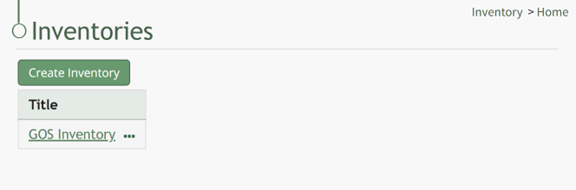
Inventory Table Context Menu Explanation
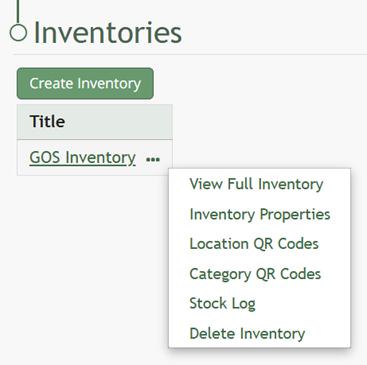
Selecting the triple dot (…) icon to the right of an inventory title in the Inventory Table will opens a context menu. The options and an explanation of each action are included in the table below.
Inventory Table Context Menu Explanation | ||
Option | Action | Image |
View Full Inventory | Selecting “View Full Inventory” from the context menu opens the inventory. |
|
Inventory Properties | Selecting “Inventory Properties” from the context menu opens the Edit Inventory Module. How To: Edit an Inventory{{@464}} | |
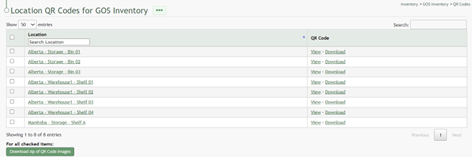
Location QR Codes | Selecting “Location QR Codes” from the context menu opens the Location QR Codes for (INVENTORY NAME) Page. |
|
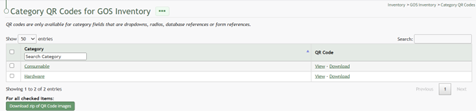
Category QR Codes | Selecting “Category QR Codes” from the context menu opens the Category QR Codes for (INVENTORY NAME) Page. |
|
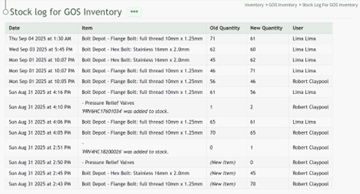
Stock Log | Selecting “Stock Log” from the context menu opens the Stock Log for (INVENTORY NAME) Page. The stock log tracks all quantity changes in an inventory. |
|
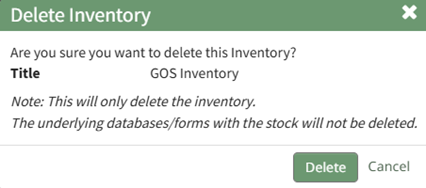
Delete Inventory | Selecting “Delete Inventory” from the context menu opens the Delete Inventory Confirmation Modal. How To: Delete an Inventory{{@463}} |
|