Folder and File Context Menu Explanations
Each folder and file within the Documents Module will have a context menu associated with it that links to actions.
Folder Context Menu Explanations | |
Option | Explanation |
Edit | Selecting “Edit” opens the Edit Folder modal, allowing the user to update the folder title, tags, and establish if the folder should be set as pubic. |
Defaults | “Defaults” is a dropdown menu option for Folders only. Clicking “Defaults” will open the Defaults for New Documents Modal, which allows the user to make customized settings for bulk uploads. The user enters a title pre-fix instead of a title for bulk uploads. |
Move To | Selecting “Move To” opens a modal that allows the user to move a folder from its current location to another. |
Delete | Selecting “Delete” from the dropdown menu for a folder opens a Delete Folder modal that will ask the user to confirm that they want to delete the folder, including all the files, folders, and subfolders stored in the parent folder. |
QR Code / Link | Selecting “QR Code / Link” on the dropdown menu opens the Direct Access Modal for individual folders.
The user can use either the URL or QR Code to share access to the folders selected. Access will be given to internal users who have permission to view the folder. Access will be given to external users if the folder is public. |
Download | Selecting “Download” on the context menu for a folder opens the Download Modal, allowing the user to download all of the files located in the folder selected and the subfolders held within.
Selecting The download is not accessible to those without permission to access it. Restrictive tags can also be used to limit access and cannot be bypassed by a user. |


File Context Menu Explanations | |||||||||||||||||
Option | Explanation | ||||||||||||||||
View | Selecting “View” from the context menu opens a modal that allows the user to preview / download the file, see file details, add comments, and see the file revision history. How To: View and Manage Files | ||||||||||||||||
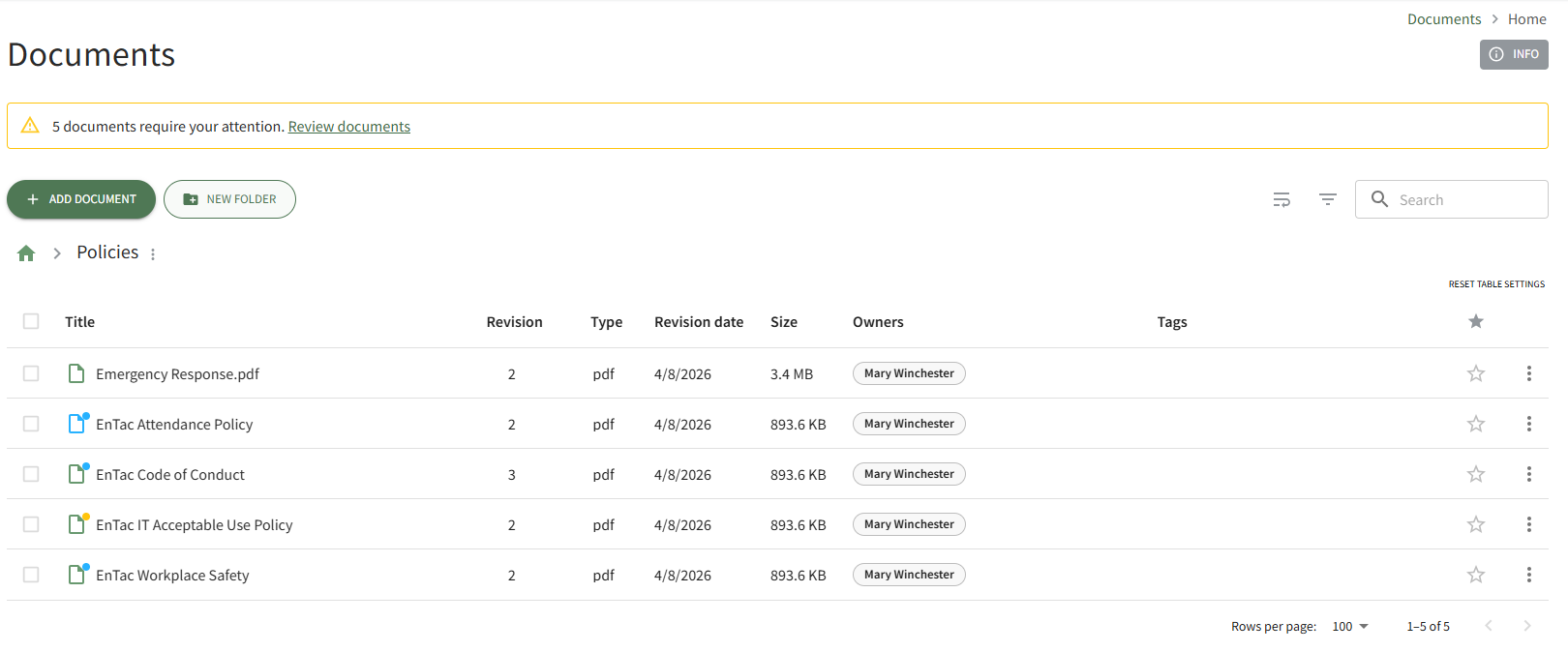
Edit | Selecting “Edit” opens the Edit Document Modal, allowing the user to update the document parameters that were established when the new document was added. How To: Add a New DocumentTo upload a new or revised version of a file in the Documents Module, open the Documents Home Page from the Main Menu and navigate the repository to the location where you want to add an additional folder. To create a nested file within a folder, first open the parent folder. This will prevent you from having to move the file after the upload is complete.
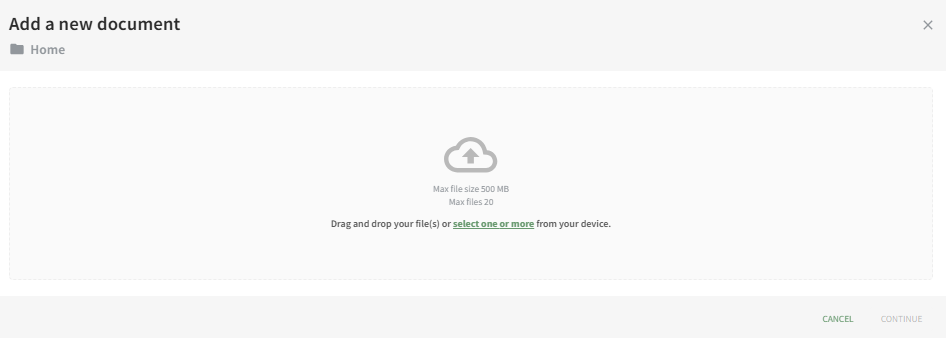
Select the Add Document button beneath the Home Page header. This opens the Add a New Document Modal.
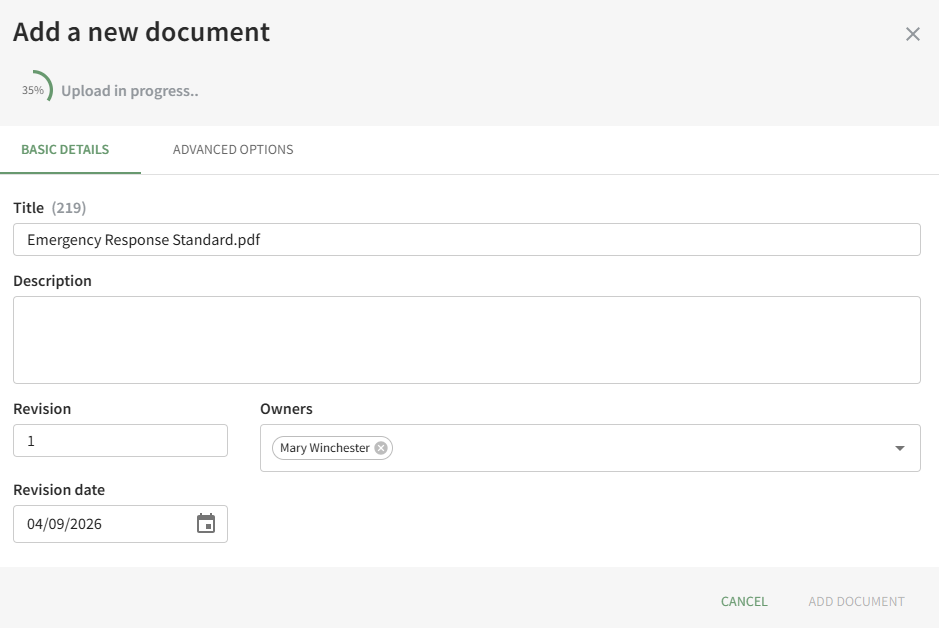
Drag and drop file(s) or select them from your device. Once the desired documents are chosen, select “Continue,” opening the second screen of the Add a New Document Modal.
Use both the Basic Details Tab and the Advanced Options Tab to designate the appropriate properties for the document and click the Add Document button. (A detailed explanation of the customizable document properties on both tabs has been included below.) A pop-up confirms that the new document was successfully added. Basic DetailsUnder the Basic Details Tab, the user can input a title, description of the file, revision number and revision date. They can also designate any document owners (the uploader is initially included as an Owner by default) and tags.
If the incorrect file was selected, the user can click “Select a different file” from the top right corner of the modal to exchange it with the correct file. Document owner(s) can be selected from a dropdown list of users. Document owners have the ability to approve documents, which is relevant for companies who are required to attest an annual/periodic review for regulatory agencies or other governing bodies. Document owners are also notified any time a new comment is made on a file and are responsible for affirming continued suitability of the file if enabled under Advanced Options. Advanced OptionsSelecting the Advanced Options Tab allows the user to apply enhanced settings to the file. An explanation of each Advanced Options checkbox is included in the table below.
| ||||||||||||||||
Upload New Revision | Selecting “Upload New Revision” is used to upload a new revision of an existing file. You can also drag and drop a file from your computer onto the name of an existing file to upload a new revision. | ||||||||||||||||
Move To | Selecting “Move To” opens a modal that allows the user to move a file from its current folder to another. | ||||||||||||||||
Delete | Selecting “Delete” from the context menu for a file will open a Delete Document Modal that will ask the user to confirm that they want to delete the file before it is permanently deleted. Once a user selects “Delete” from the Delete Document Modal, the files have been removed. When a file that originates in the Documents Module is later linked to another module, it needs to be disassociated before the file can be deleted. If this is the case, the deletion warning will identify where the file needs to be unlinked before deletion can occur. | ||||||||||||||||
Download | Selecting “Download” on the context menu for a file automatically downloads an individual file to your device. The download is not accessible to those without permission to access it. Restrictive tags can also be used to limit access and cannot be bypassed by a user. If the user wants to share the download of a file with an external individual, the file must be designated as public. | ||||||||||||||||
QR Code / Link | Selecting “QR Code / Link” on the dropdown menu opens the Direct Access Modal for individual files.
The user can use either the URL or QR Code to share access to the files selected. Access will be given to internal users who have permission to view the folder. Access will be given to external users if the folder is public. | ||||||||||||||||