
Module Summary
The Dashboard is a visual representation of the data stored in KAStrack modules that is pertinent to a user’s account. Dashboard is the default login screen unless modified in the user profile.
How To: Customize Your Default KAStrack Login Screen
By default, a user logging in to KAStrack will be taken to the Dashboard Module. The Home Page field allows a user to designate the URL within KAStrack of their preference.
To customize your KAStrack Home Page and open your user account to a page other than Dashboard, go to the Account Info Tab on the My Account Page of the Accounts Module.
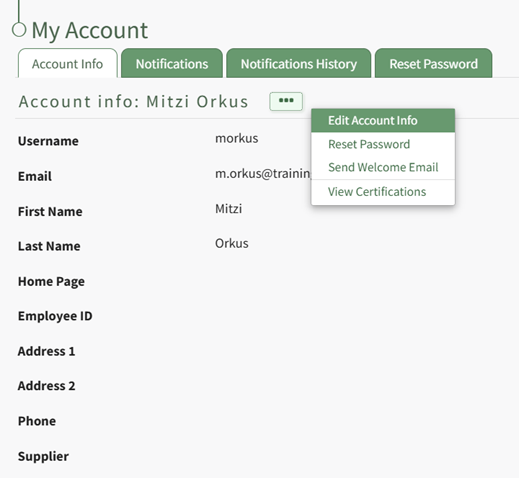
Select the three-dot icon opening the context menu and select “Edit Account Info”. This enables you to edit your own account information. Enter the page URL in this field if you wish to start on a different page than the Dashboard. For example, if you’d like to start in the Documents Module after login, set Home Page to: https://sitename.kastrack.com/r/documents.

As a shortcut, you can also simply use the part after the .com, entering /r/documents in the field.
After making changes to the account information, select “Save” and the changes made will be reflected on the Account Info: (User Name) Page.
The Dashboard is fully customizable for user preference, allowing at-a-glance visualization of any outstanding or upcoming action items and any alerts the user has set. Multiple dashboards can be created if desired.
The dashboard does not show company wide information beyond what is relevant to an individual account.
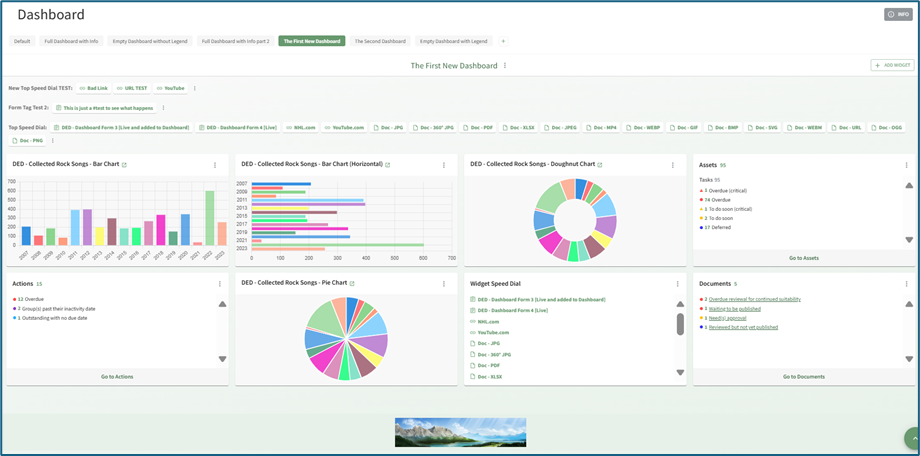
Dashboard Title Tabs can be dragged and dropped for placement, and the order will be reflected on the Main Menu. Widget placement can also be altered by clicking the header and dragging and dropping.
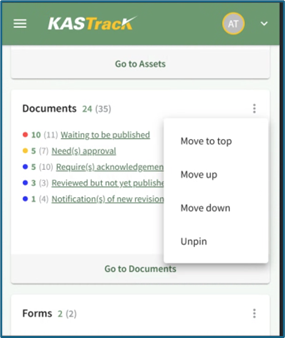
When accessing the web-based KAStrack site on a mobile device (not the app), tablet, or Surface laptop, you will not be able to change the placement of widgets through the drag and drop feature.
The User Manual for the Dashboard Module is updated through Version 11.12.
No comments to display
No comments to display