The dashboard does not show company wide information beyond what is relevant to an individual account.
[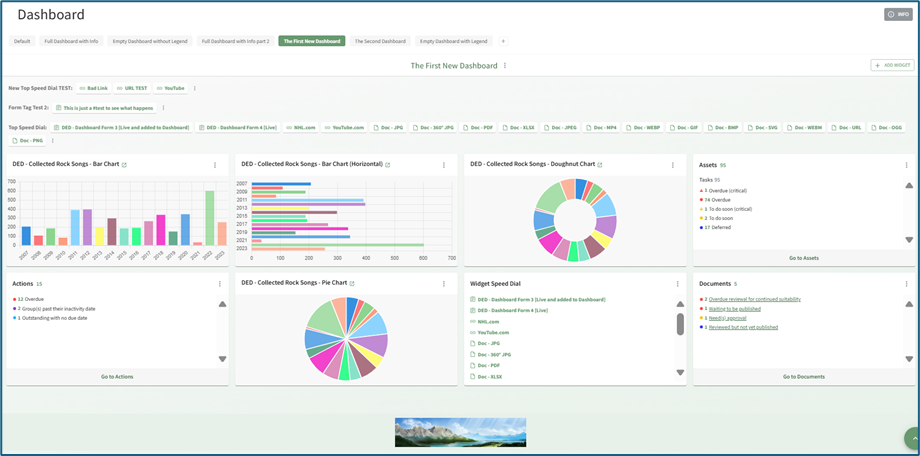](https://kaswiki.kastrack.com/uploads/images/gallery/2026-01/Psbimage.png) Dashboard Title Tabs can be dragged and dropped for placement, and the order will be reflected on the Main Menu. Widget placement can also be altered by clicking the header and dragging and dropping. When accessing the web-based KAStrack site on a mobile device (not the app), tablet, or Surface laptop, you will not be able to change the placement of widgets through the drag and drop feature. [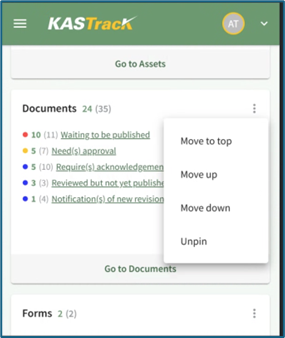](https://kaswiki.kastrack.com/uploads/images/gallery/2026-01/x1simage.png) The context menu accessible from the vertical three dot icon in the top right corner of each widget will offer options that allow you to relocate the selected widget.The User Manual for the {{@951#bkmrk-dashboard-module-is-}}