
Course Stats Page
The three dot (…) icon next to a course on the Manage Courses page allows a user to select “Course Stats,” which takes the user to the Course Stats page.
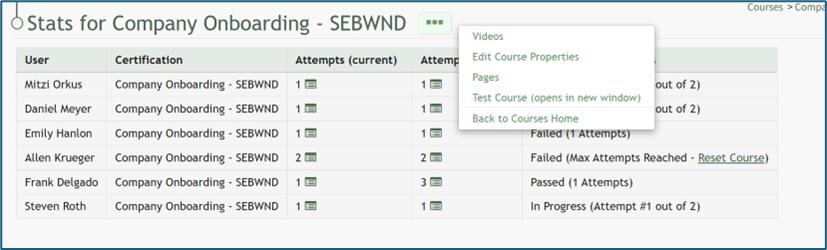
The Course Stats page three dot (…) icon has four context menu options: Edit Course Properties, Pages, Test Course, Back to Course Home.
Course Context Menu Option Explanations | |
Options | Explanation |
Edit Course Properties | Selecting the Edit Course Properties option from the context menu opens the Edit Course modal, allowing the user to edit the original parameters that were selected when the course was created, re-opening the modal to change the course name, tags, settings for grading, and post course review. {{@239}} |
Pages | Selecting the Pages option from the context menu opens the individual pages that have been created for the course. {{@234}} {{@244}} |
Test Course | Selecting the Test Course option from the context menu opens a trial run of the course with quiz questions. Testing the course will not impact course stats. {{@241}} |
Course Stats | Selecting the Course Stats option on the context menu opens the Course Stat Page which displays records of test taking attempts and access to an individual’s answers to course questions. {{@242}} |
Delete Course | Selecting the Delete Course option on the context menu will open a deletion confirmation modal. The modal displays a warning that will notify the user that deleting the course will “remove all pages and history of people taking the course.” Confirmation of deletion is required. If the course is a required activity for a certification, it will not be deleted unless certification course requirement is removed from the certificate. {{@243}} |
Selecting the attempts icon  provides detailed information about an individual’s attempts on a specific course, showing the start and completion time and the grade.
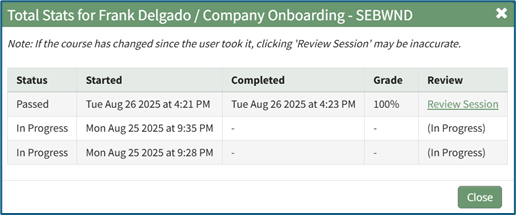
Selecting “Review Session” will allow an individual (with appropriate permissions) to see the individual’s responses to all questions, both graded and ungraded.

If a user fails a course after the maximum number of attempts, the course can be reset on the Course Stat page by selecting “Reset Course.”