
Settings Page: Module Summary Tab
The Module Settings Tab on the Settings Page of Communications Module allows a user to designate preferences for communications manually sent through the Send Communications Page of the module as well as for communications automatically sent from the system.

Email Settings
There are three checkboxes that allow for the customization of communications automatically sent from the system: Enable CC, Enable BCC, and Enable Catch Missing CC. The fourth checkbox, Enable Send Communication CC, pertains to the customization of manually sent communications.
In order to utilize some of these module settings features, you must set up additional account fields first.
How To: Set Up Additional Account Fields for Email Settings
To utilize the CC and BCC Email Settings on the Module Settings Tab of the Settings Page in the Communications Module, you must first set up additional user account information fields.
To set up additional user account information fields with email settings, go to the Account Fields Tab of the Site Settings Module.

Select “Add a Field” beneath the Custom / Additional User Account Information Fields opening the Add Field Modal.

Enter a Label for the new field, and select “email” as the type of field.
The checkboxes below allow for customization. Select “Allow multiple values” if there could be multiple emails associated with this field for an account. Select “Required” if you would like to require that this field be filled out for each account. Selecting the “Sensitive field” checkbox will tell KAStrack not to show this information when the field is being included in a report or form entry.
Select the permissions to be granted for each Accounts Module Level for this field, communicating if each Module Level can view their own/others and edit their own/others.
Under Accounts Module Level in the permissions grid, “Logged out user” refers to how fields will be displayed to users creating their account via a Registration Profile Link. To allow users to fill in information for the chosen field, ensure that the Edit Own permission is enabled for that field for “Logged out user”.
Select “Save” to create the new account information field.

The newly created email account fields will now show on the Account Info: (UserName) Page.
Traditionally, CC (carbon copy) and BCC (blind carbon copy) are ways of including additional recipients in an email besides the main person (or people) the email is addressed to.
Selecting “Enable CC” will CC included users for all communications automatically sent through the system and allows everyone on the email to see who was copied. An additional account email information field on the Account Info: (User Name) Page can be used to organize email addresses for individuals other than the primary email address on the account. Select the additional account information email field you would like CC’d from the dropdown menu shown when the Enable CC checkbox is selected.
Only one email account field can be selected via drop down menu.
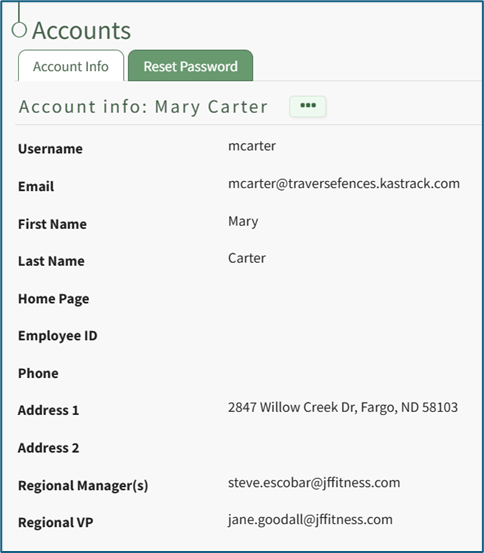
Selecting “Enable BCC” will BCC included users for all communications automatically sent through the system but does not allow the main recipients or CC’d recipients of the email to see who was copied. An additional account email information field on the Account Info: (User Name) Page can be used to organize email addresses for individual’s other than the primary email address on the account. Select the additional account information email field you would like BCC’d from the dropdown menu shown when the Enable BCC checkbox was selected.
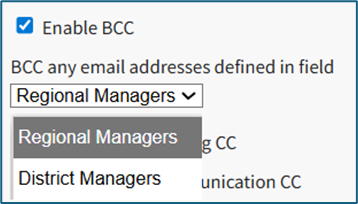
Only one email field can be selected via drop down menu.
Select “Enable Catch Missing CC” and input an email address if you would like an email sent to an individual on behalf of a user whose primary email address field, as well as any CC and BCC email addresses (if present on their account), are all system-generated email addresses or blank. KAStrack has the capability to determine if an account user has input an email address of if a system-generated @[subdomain].katrack.com email address is being utilized.
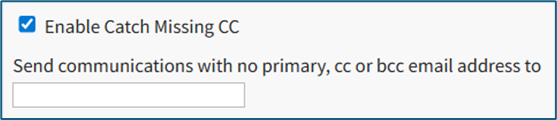
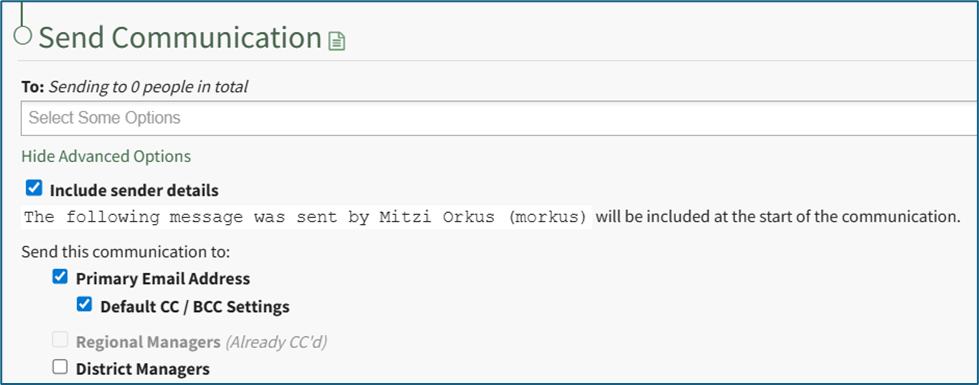
Selecting “Enable Send Communication CC” applies to the customization of manually sent communications originating on the Send Communications Page in the Communications Module.
Only one email account field can be selected via drop down menu, but additional email account fields can be selected from the Send Communications Page.
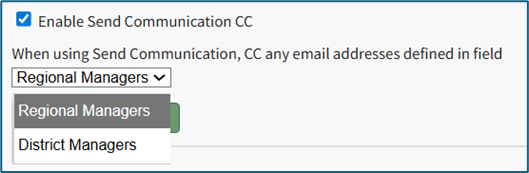
Users will still have the ability to customize their CC selection from the Send Communications Page. WIKI LINK ADVANCED OPTIONS (SEND COMMUNICATIONS PAGE)
System Settings

If the “Suspend all communications” checkbox is selected, only necessary messages will still be sent to users. (e.g. Direct Communications, Password resets, etc.).
No comments to display
No comments to display