
Send Communications Page
The Send Communications Page of the Communications Module allows individuals with the appropriate module access level (administrators and supervisors by default) to send communications within KAStrack.
All communications sent via KAStrack are logged.
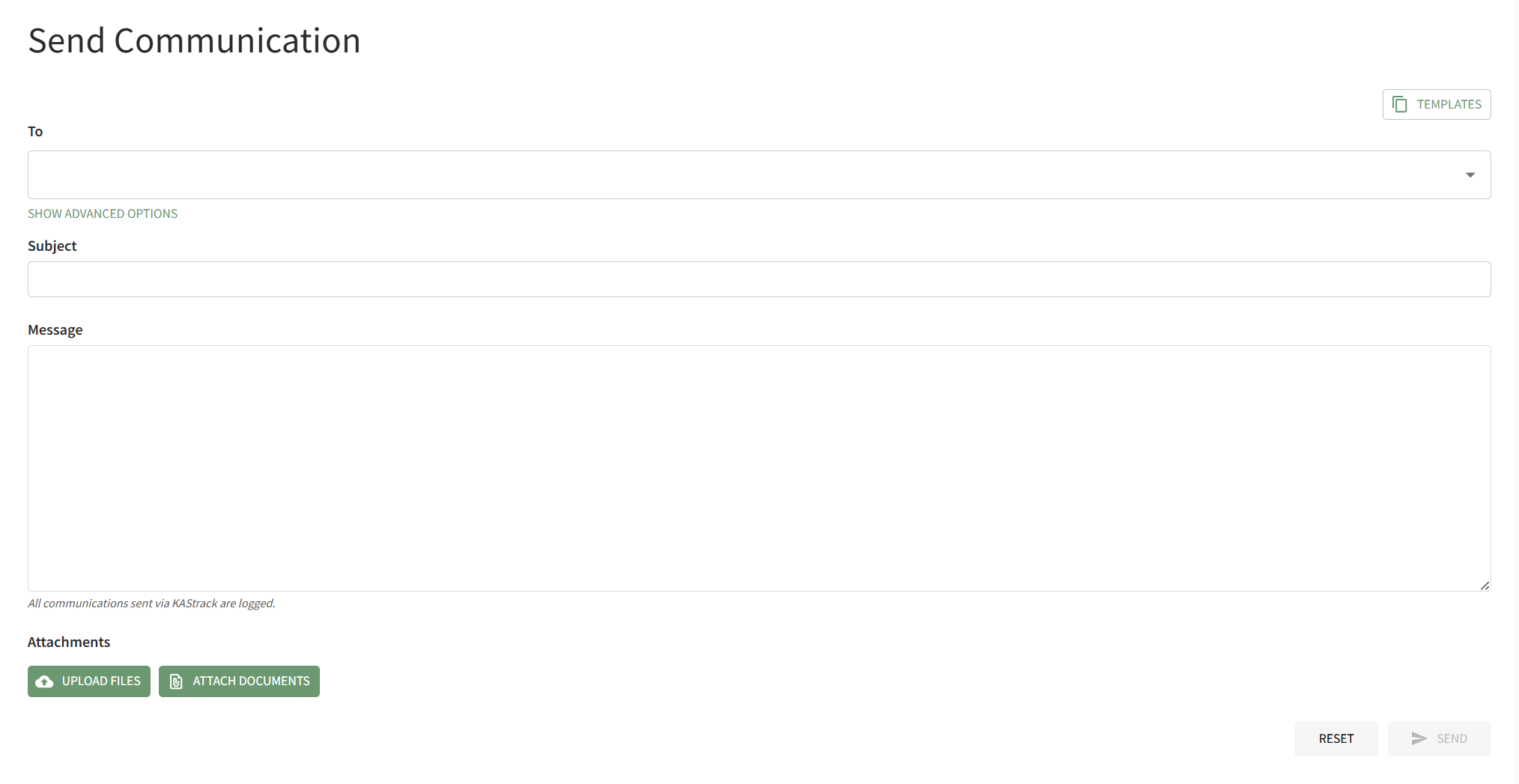
To send a message in KAStrack from the Communications Page, select the individuals, Certification Roles, or Access Levels who are to receive the message being sent, inputting a subject line and message. Communications can have attachments from your personal device uploaded to them or have files from the Documents Module attached.
How To: Send an Email in KAStrack
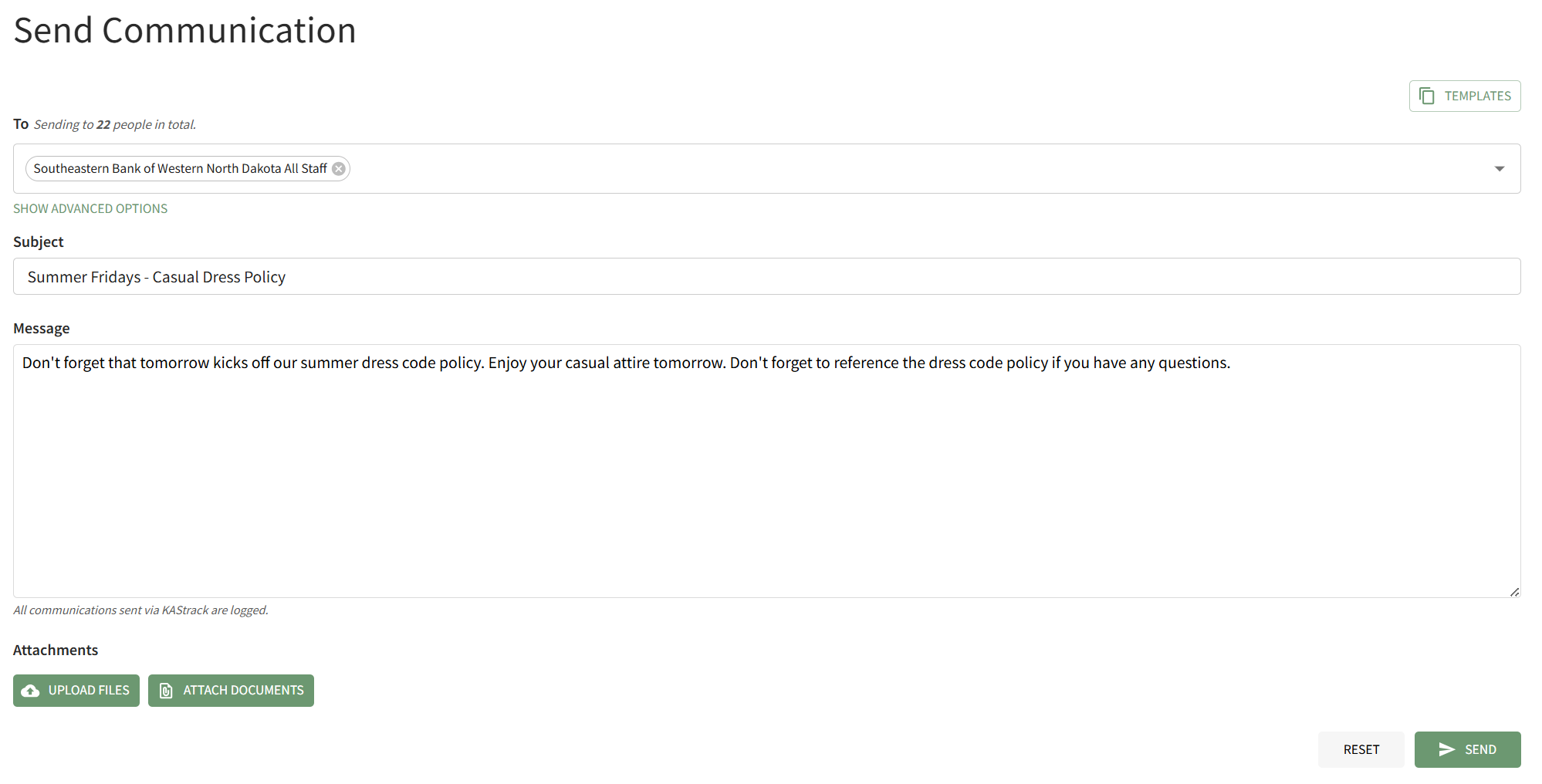
To send a system email in KAStrack, open the Send Communications Page in the Communications Module from the Main Menu.
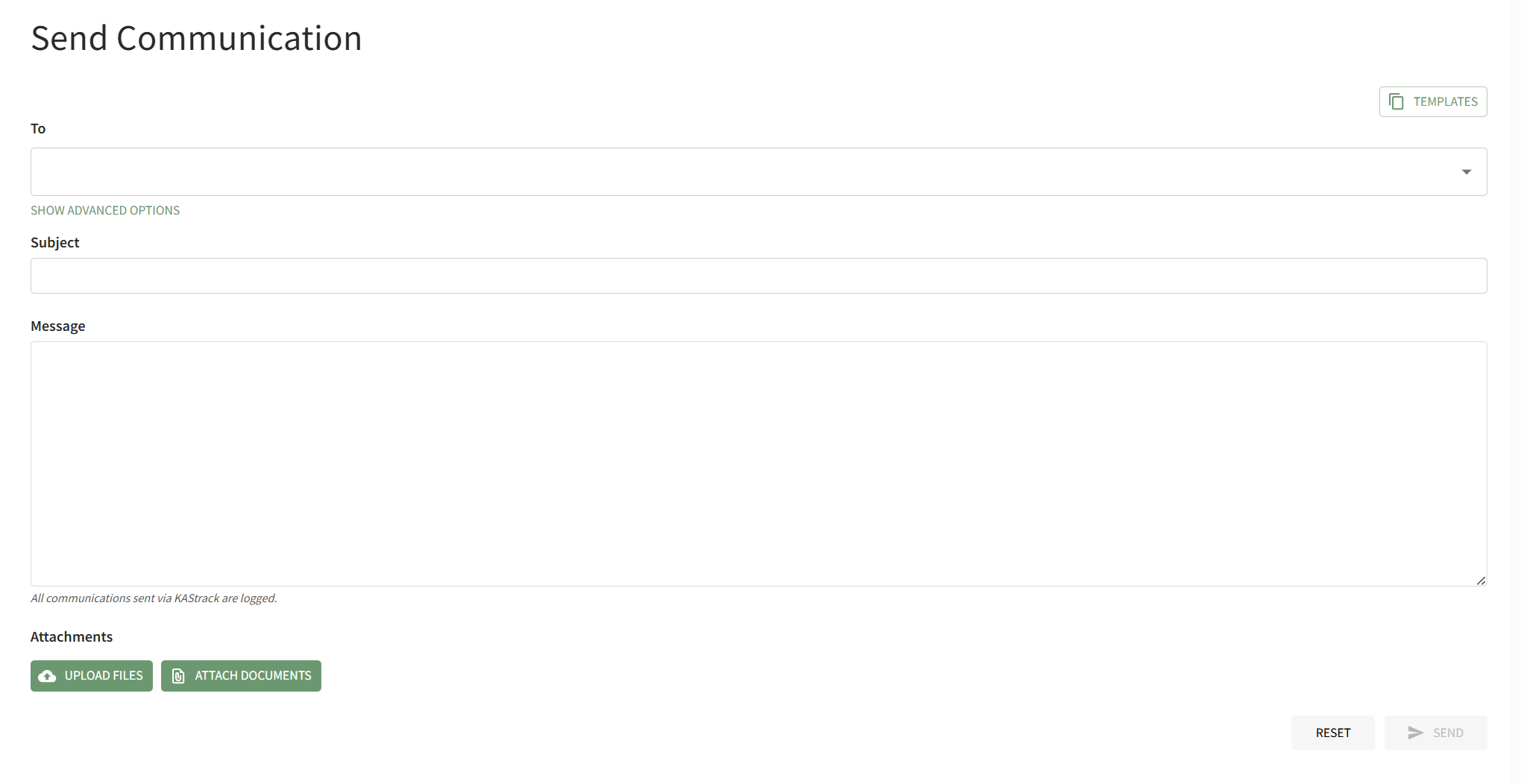
Select the individual users, certification roles or access levels you wish to send the message to from the dropdown menu in the "To" field. Input the Subject and Message.
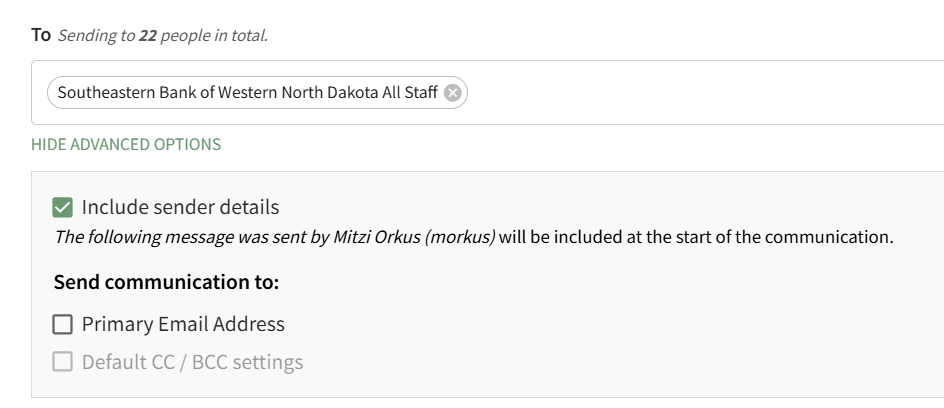
Individuals with an Admin Access Level have access to advanced options.
How To: Attach a File to an Email
To attach a file to a system message in KAStrack, open the Send Communications Page in the Communications Module on the Main Menu. After inputting all information, click the "Upload Files" button on the bottom left-hand side of the page.
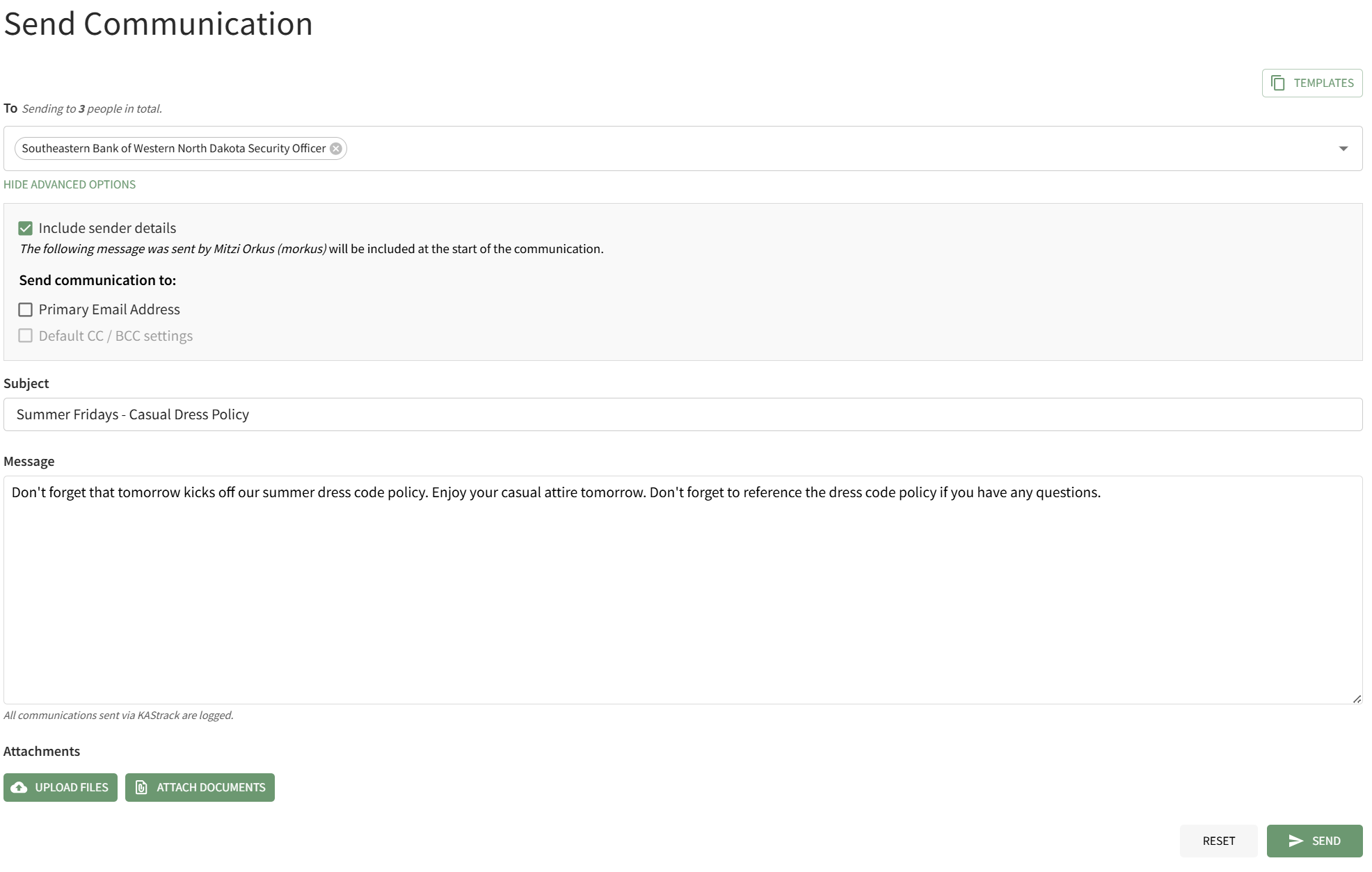
This will open your personal device so that you can access the file you wish to attach to the system message.
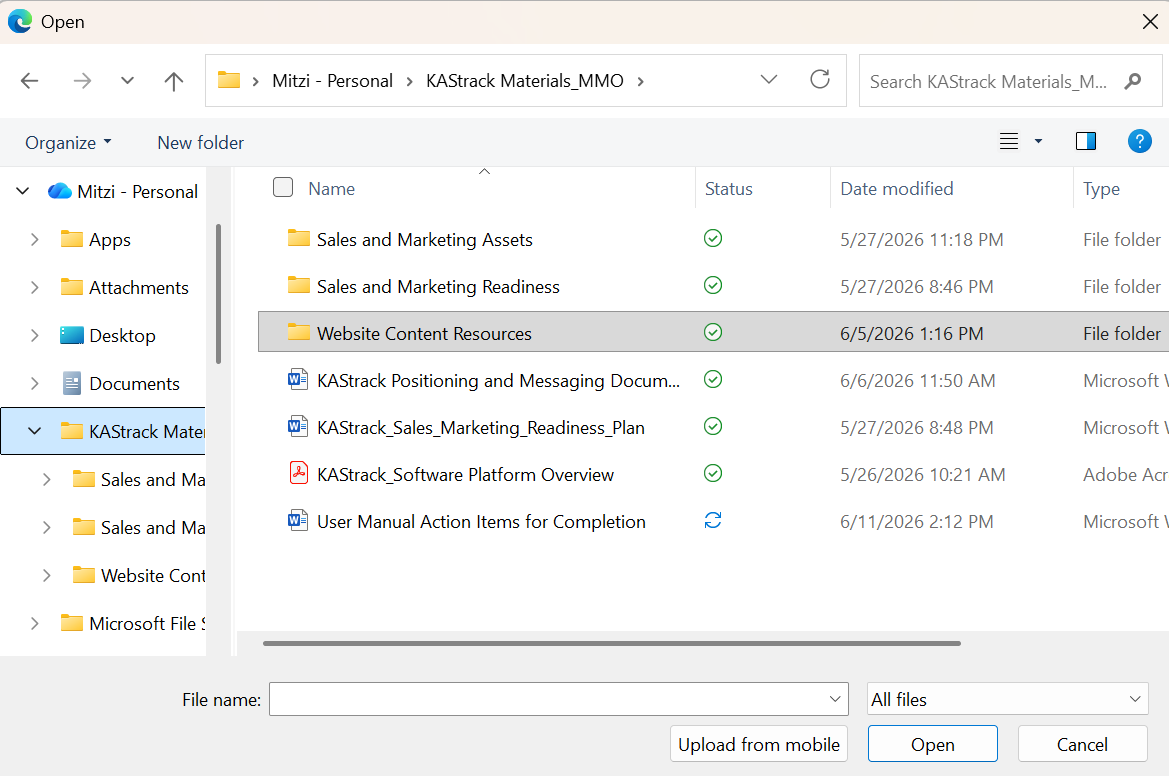
After selecting the appropriate file, it will be visible at the bottom of the Send Communications Page.
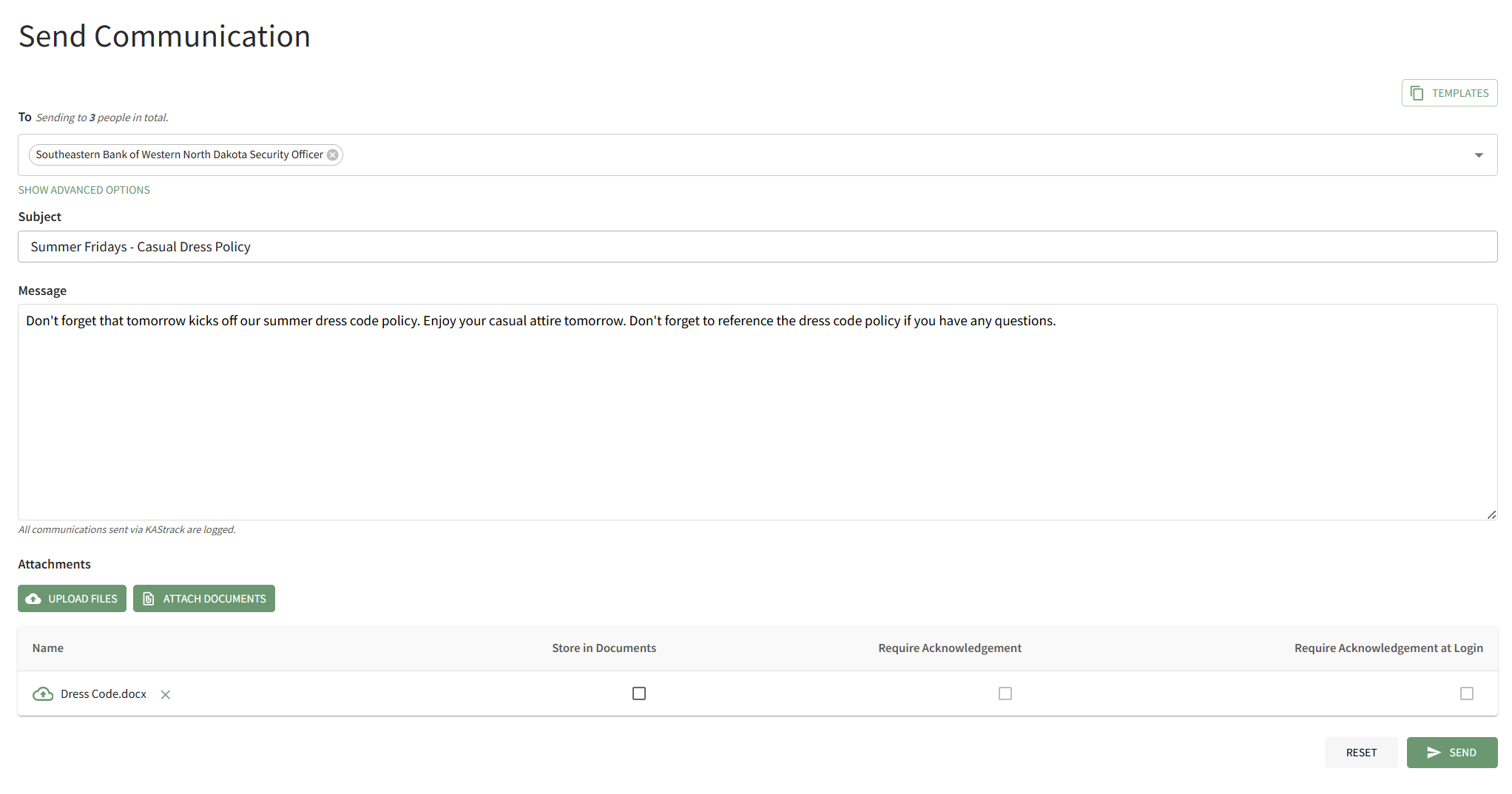
Checkboxes allow you to upload the file from your personal device to the Documents Module, to requirement acknowledgement of the document from the users who receive it, or to require acknowledgment of the document immediately when the user logs in to the system. After making the appropriate selections, press "Send" on the bottom right-hand corner of the page.
How To: Attach A Documents Module File to an Email
To attach a documents module file to a system message, open the Send Communications Page in the Communications Module from the Main Menu.
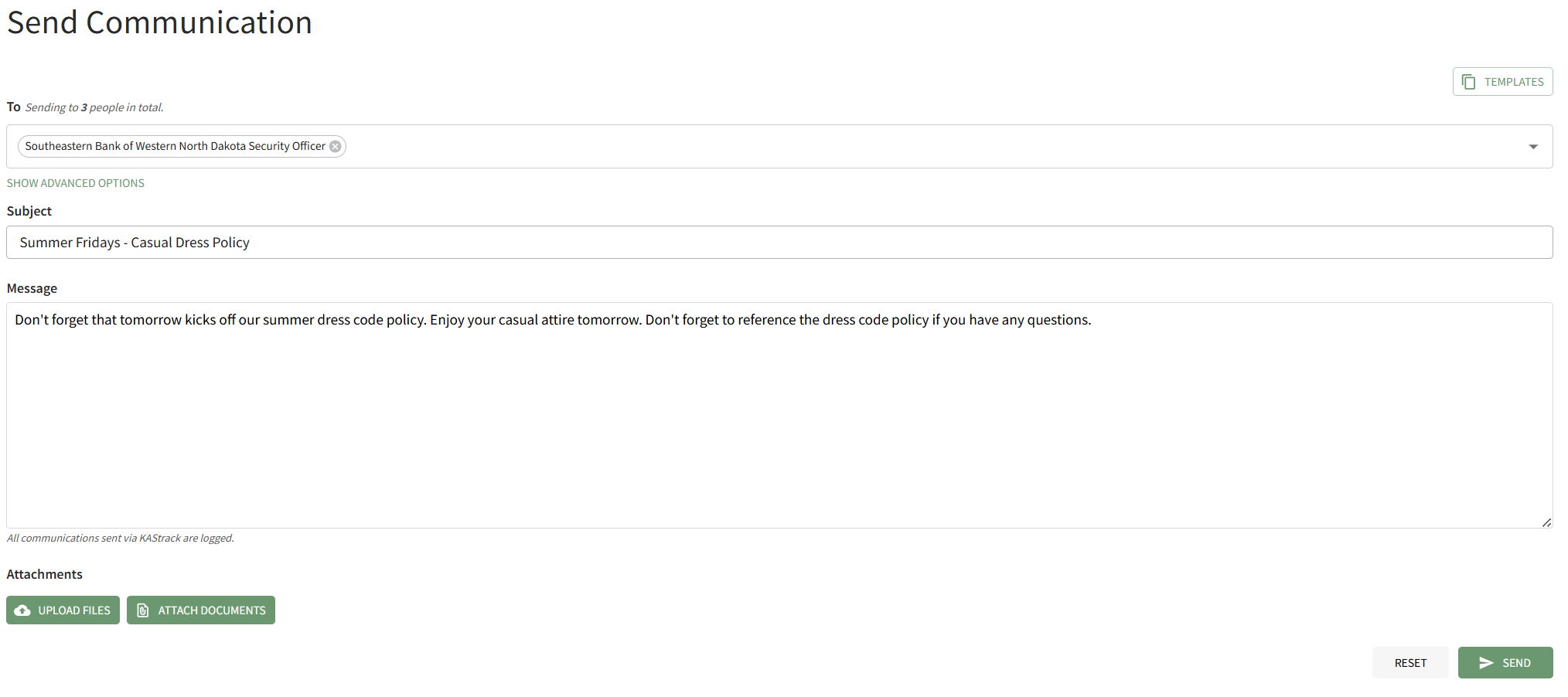
Click the "Attach Documents" button on the bottom left-hand side of the page opening the Attach Documents Modal.
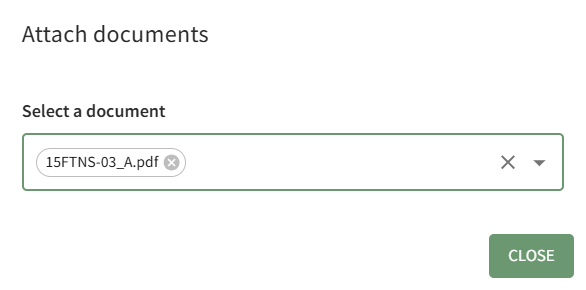
Choose the file you wish to attach to the system message from the dropdown menu. It will automatically attach it to the bottom of the Send Communication page. Click the"Close" button on the modal to return to the Send Communications Page.
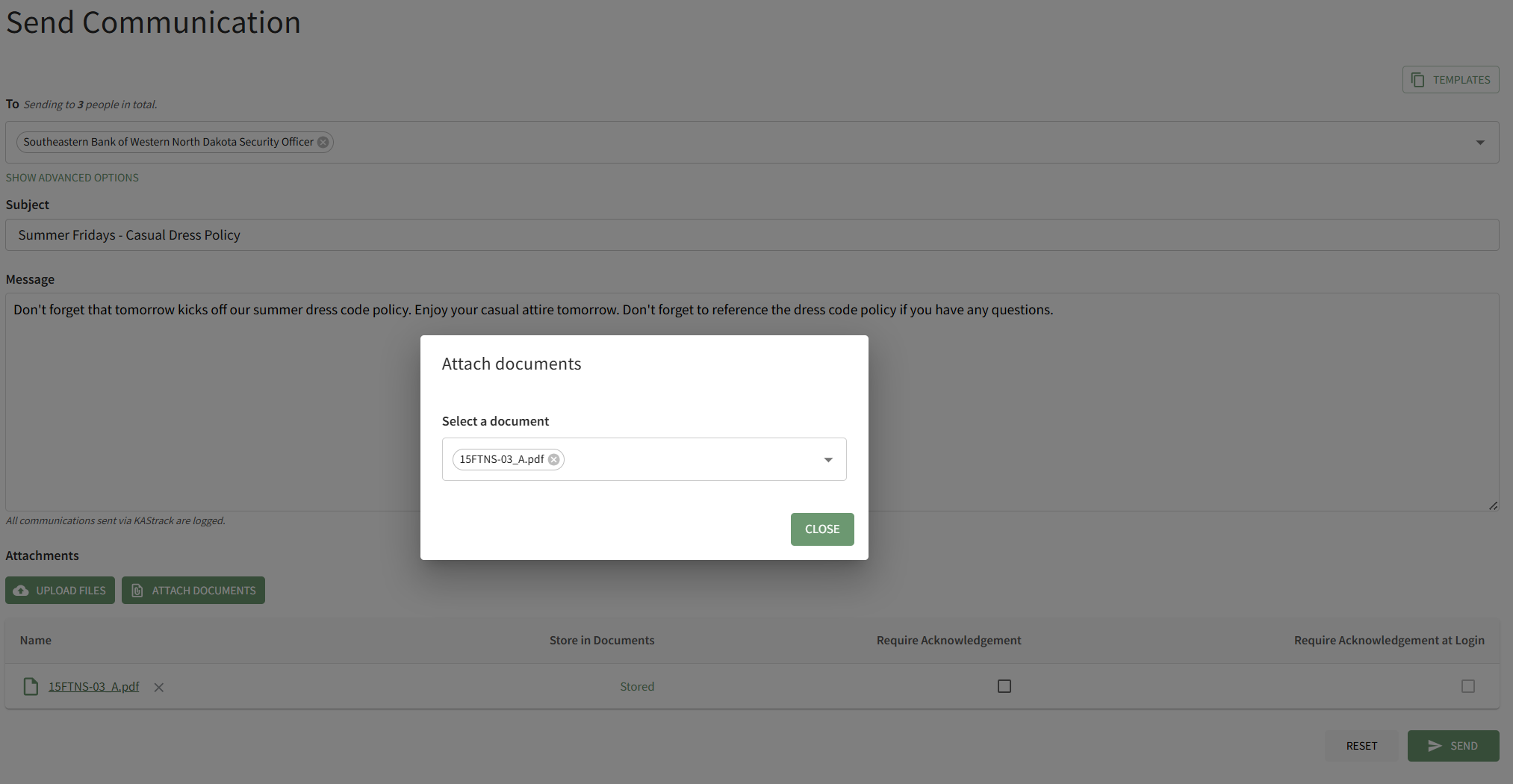
Checkboxes to the right of the attachment allow you to require acknowledgement of the attached file from the Documents Module, or to require acknowledgement of the attached file immediately when the message recipients login to the system next.

After make the appropriate selections, click "Send" on the bottom right-hand side of the page to send the system message.
When you are ready to send the system message, click the "Send" button in the bottom right-hand corner of the page.
If there is an error sending the message, the system will communicate that through a modal at the bottom of the page.

You will automatically return to the Send Communications Page so that the issue can be addressed.
How To: Attach a File to a System Message
To attach a file to a system message in KAStrack, open the Send Communications Page in the Communications Module on the Main Menu. After inputting all information, click the "Upload Files" button on the bottom left-hand side of the page.
This will open your personal device so that you can access the file you wish to attach to the system message.
After selecting the appropriate file, it will be visible at the bottom of the Send Communications Page.
Checkboxes allow you to upload the file from your personal device to the Documents Module, to requirement acknowledgement of the document from the users who receive it, or to require acknowledgment of the document immediately when the user logs in to the system. After making the appropriate selections, press "Send" on the bottom right-hand corner of the page.
How To: Attach a Documents Module File To an Email
To attach a documents module file to a system message, open the Send Communications Page in the Communications Module from the Main Menu.
Click the "Attach Documents" button on the bottom left-hand side of the page opening the Attach Documents Modal.
Choose the file you wish to attach to the system message from the dropdown menu. It will automatically attach it to the bottom of the Send Communication page. Click the"Close" button on the modal to return to the Send Communications Page.
Checkboxes to the right of the attachment allow you to require acknowledgement of the attached file from the Documents Module, or to require acknowledgement of the attached file immediately when the message recipients login to the system next.
After make the appropriate selections, click "Send" on the bottom right-hand side of the page to send the system message.
How To: Use a Communications Template when Sending an Email
To use a communications template, the template must first be created.
How To: Create New Communication Templates
To create a new communication template, go to the Communication Templates Tab on the Settings Page of the Communications Module.

Select the “New Communication Template” button opening the New Template Modal.

Input the Title for the Template.
Select Active / Inactive from the dropdown menu to indicate if the template is available for use.
Both individual people and certification roles can be selected as desired recipients via dropdown menu in the “Send To” line.
Include the subject line for communications, as well as a message.
An attachment can be uploaded from your personal device to be included in the template, or you have the option to select one or more files from KAStrack’s Document Module.
KAStrack documents that are tagged may limit visibility of this template. Specifically, if a template contains a tagged document you cannot see, you will be unable to see the template when sending a communication. Individuals with access to a Document that has visibility restrictions for others via Tags cannot use Send Communication to send that tagged Document to users that lack the authorization to see it.
Select “Save” and the New Communications Template will show in the Communications Template Table on the Settings Page.
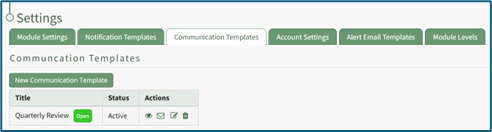
The template can now be applied as desired when sending communications in the system on the Send Communications Page. You can also click the closed envelope symbol in the Communication Templates table to go to the Send Communications page and pre-fill the chosen template.
To use a pre-existing communications template, go to the Send Communications Page in the Communications Module from the Main Menu.
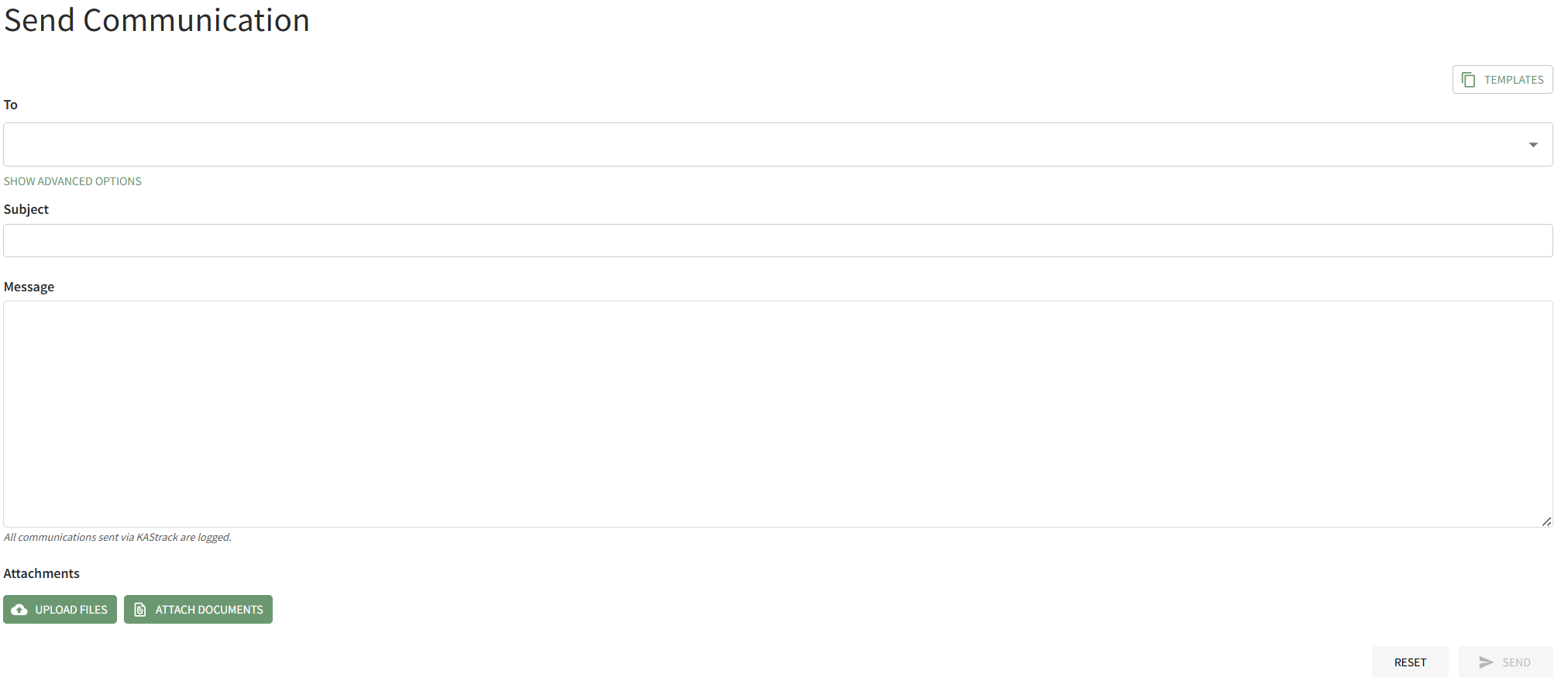
Select the Templates button on the right-hand side of the page above the To field. This opens the Templates Modal.
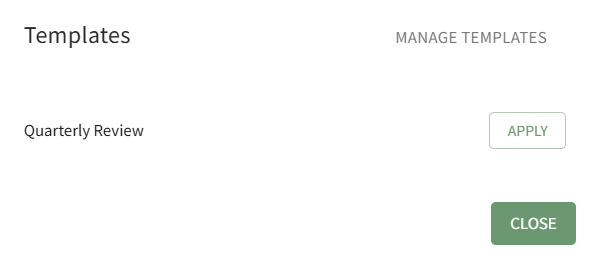
Click the Apply button to the right of the template you wish to use for the System Message.
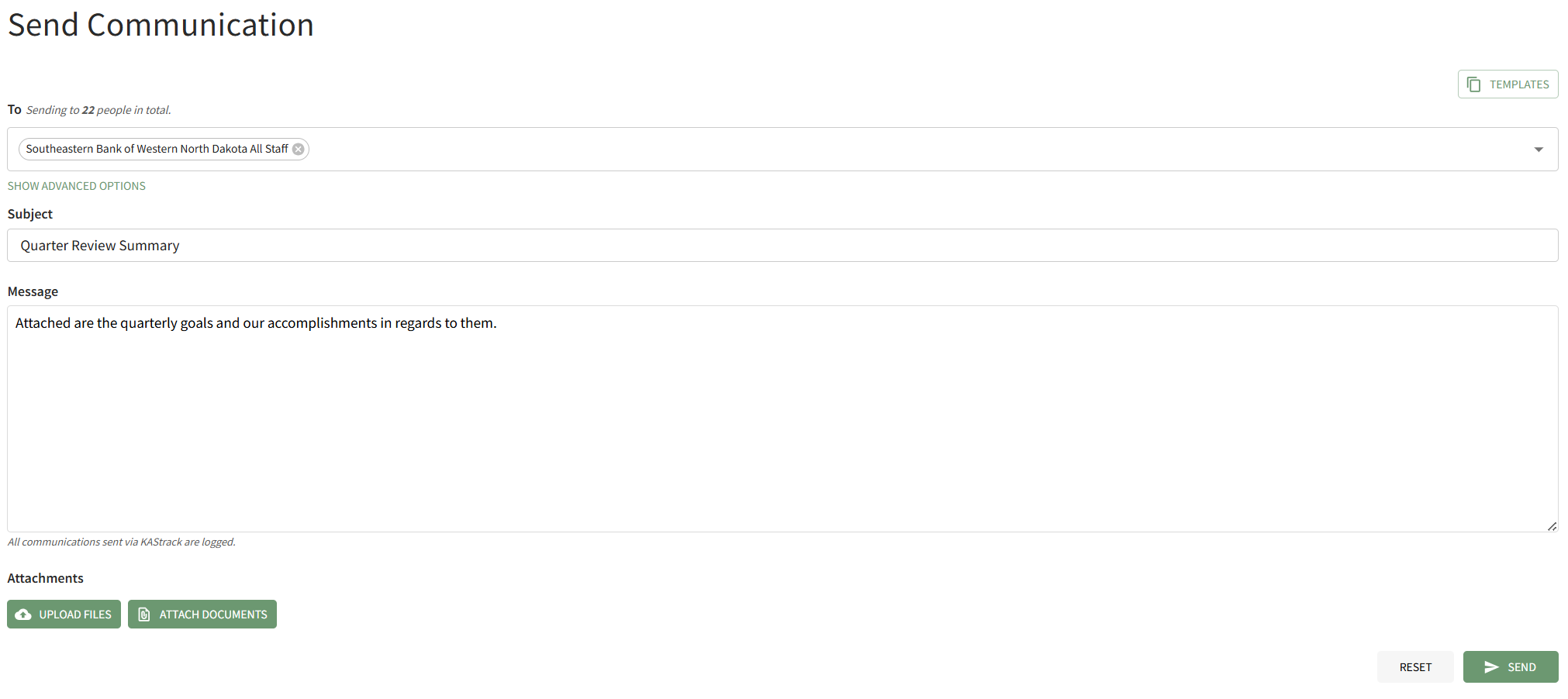
The Templates Modal automatically closes, and the selected template is applied to the Send Communications Page.
If a Communication Template is applied to a message on the Send Communications Page, the template will override any information that was manually entered in the subject line and message field.
How To: Create New Communication Templates
To create a new communication template, go to the Communication Templates Tab on the Settings Page of the Communications Module.
Select the “New Communication Template” button opening the New Template Modal.
Input the Title for the Template.
Select Active / Inactive from the dropdown menu to indicate if the template is available for use.
Both individual people and certification roles can be selected as desired recipients via dropdown menu in the “Send To” line.
Include the subject line for communications, as well as a message.
An attachment can be uploaded from your personal device to be included in the template, or you have the option to select one or more files from KAStrack’s Document Module.
KAStrack documents that are tagged may limit visibility of this template. Specifically, if a template contains a tagged document you cannot see, you will be unable to see the template when sending a communication. Individuals with access to a Document that has visibility restrictions for others via Tags cannot use Send Communication to send that tagged Document to users that lack the authorization to see it.
Select “Save” and the New Communications Template will show in the Communications Template Table on the Settings Page.
The template can now be applied as desired when sending communications in the system on the Send Communications Page. You can also click the closed envelope symbol in the Communication Templates table to go to the Send Communications page and pre-fill the chosen template.
Advanced Options
Clicking “Show Advanced Options” beneath the To field expands the Send Communication Page showing advanced options for sending messages.
By default, Advanced Options are only available for Admin Access Levels.
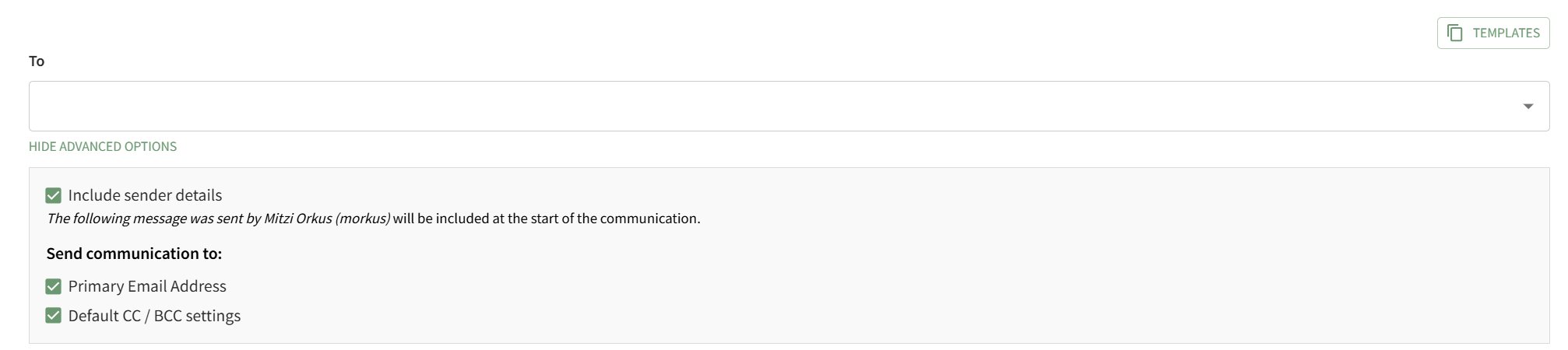
Selecting the “Include sender details” checkbox will include the following message at the start of the communication, “The following message was sent by FIRST NAME LAST NAME (Username).”
Selecting the “Primary Email Address” checkbox will send the communication to the primary email address of the individuals or certification roles listed in the “To” line. The Primary Email Address refers to the system account field “Email” on users’ accounts.
Selecting the “Default CC / BCC Settings” checkbox will send the communication per the customized specifications made on the Module Settings Tab of the Settings Page in the Communications Module.
Any other additional account fields set as type “Email” will show below the “Default CC/BCC Settings” checkbox. If the additional account information field is already selected through the CC/BCC Settings, it will show in gray and state “(Already CC’d)”.

Any additional account information fields not already included through your customized settings will show with a checkbox and can be added if desired.
In order to customize CC/BCC Settings, review the section on the Module Settings Tab.
How To: Set Up Additional Account Fields for Email Settings
To utilize the CC and BCC Email Settings on the Module Settings Tab of the Settings Page in the Communications Module, you must first set up additional user account information fields.
To set up additional user account information fields with email settings, go to the Account Fields Tab of the Site Settings Module.

Select “Add a Field” beneath the Custom / Additional User Account Information Fields opening the Add Field Modal.

Enter a Label for the new field, and select “email” as the type of field.
The checkboxes below allow for customization. Select “Allow multiple values” if there could be multiple emails associated with this field for an account. Select “Required” if you would like to require that this field be filled out for each account. Selecting the “Sensitive field” checkbox will tell KAStrack not to show this information when the field is being included in a report or form entry.
Select the permissions to be granted for each Accounts Module Level for this field, communicating if each Module Level can view their own/others and edit their own/others.
Under Accounts Module Level in the permissions grid, “Logged out user” refers to how fields will be displayed to users creating their account via a Registration Profile Link. To allow users to fill in information for the chosen field, ensure that the Edit Own permission is enabled for that field for “Logged out user”.
Select “Save” to create the new account information field.

The newly created email account fields will now show on the Account Info: (UserName) Page.
No comments to display
No comments to display